


Why is a website taking too long to respond? This error usually appears when your browser sends a request to a website but doesn’t receive a response from the server within the expected amount of time.
In Google Chrome, the message is commonly accompanied by the ERR_CONNECTION_TIMED_OUT error code. Other browsers, including Firefox, display slightly different versions of the same error.
The following screenshots show how the error may appear in Chrome and Firefox:
Chrome:
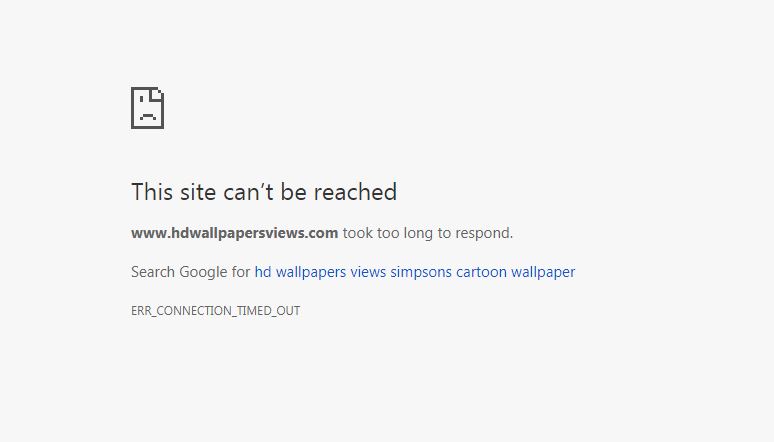
Firefox:
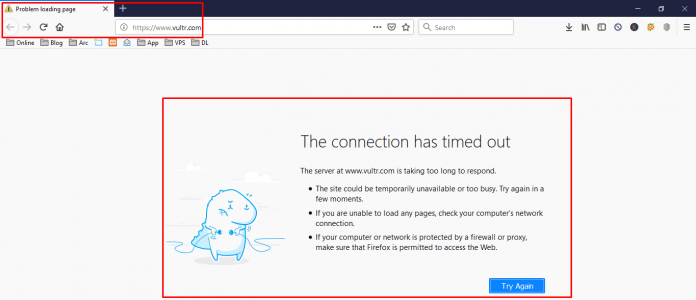
Sometimes, the problem is limited to your device, browser, or internet connection. In other cases, the website’s server may be unavailable, overloaded, or incorrectly configured.
If your own website is taking too long to respond, you’ll want to investigate it quickly. The problem may prevent visitors and search engine crawlers from accessing your pages.
Below, we’ll look at the most common causes and explain how to fix a website that is taking too long to respond, whether you’re a visitor or the website owner.
Why is a Website Taking Too Long to Respond?
A website takes too long to respond when your browser sends a request but doesn’t receive a response within the expected time. The browser eventually stops waiting, terminates the connection attempt, and displays an error such as ERR_CONNECTION_TIMED_OUT.
This usually indicates a communication problem somewhere between your browser and the website’s server.
The cause could be related to your device or internet connection, but it could also mean that the website’s server is down, overloaded, blocked by a firewall, or experiencing a technical problem.
The amount of time a browser waits before ending the connection can vary. Therefore, the error doesn’t necessarily mean the website is slow. It means the connection could not be completed successfully within the permitted time.
What Causes a Website to Take Too Long to Respond?
A website can take too long to respond because of a problem with your device or network, but the issue may also originate from the website itself. Here are the most common causes:
Internet Connection Problems
A slow or unstable internet connection can prevent your browser from communicating with the website’s server. Problems with your Wi-Fi network, router, internet service provider, or network settings may all cause the connection to time out.
If several websites are failing to load, the problem is more likely to be with your device or internet connection than with one particular website.
DNS Problems
The Domain Name System, or DNS, translates a domain name such as example.com into the IP address used to locate its server.
An outdated DNS cache, unavailable DNS resolver, or incorrectly configured DNS record can prevent your browser from finding or connecting to the correct server.
Recent changes to a website’s domain or hosting can also cause temporary problems while the new DNS records propagate.
VPN, Proxy, Firewall, or Antivirus Interference
VPNs and proxy servers change how your internet traffic reaches a website. If one of these services is unavailable or incorrectly configured, the request may never reach its destination.
Firewalls, antivirus programs, and other security tools can also mistakenly block a website or connection. This may happen on your device, local network, hosting server, or through a website application firewall.
Browser or Device Problems
Corrupted cache files, cookies, browser extensions, or profile settings can interfere with a website connection. An outdated browser or network driver may also contribute to the problem.
If the website loads in another browser, an incognito window, or on another device, the issue is probably local to your original browser or device.
An Overloaded or Unavailable Server
A website’s server may not have enough resources to process incoming requests. This can happen because of a sudden traffic spike, limited hosting resources, excessive bot traffic, or a resource-intensive application.
Websites on shared hosting may be particularly vulnerable because multiple sites use resources from the same server. However, timeouts can occur on any hosting plan if the server runs out of memory, processing capacity, or available workers.
Incorrect Server, CDN, or DNS Configuration
Incorrect DNS records, firewall rules, CDN settings, or server configurations can prevent requests from reaching the website’s origin server.
For example, a CDN may be unable to connect to the origin server, or a firewall may block legitimate visitor IP addresses. These problems can make the website appear offline even when the website files are still available on the server.
WordPress Plugin or Theme Conflicts
A faulty or poorly optimized WordPress plugin can consume too many server resources, run a slow process, or conflict with another part of the website. An incompatible theme can cause similar problems.
These issues are especially common after installing an update, adding a new plugin, or changing the website’s theme.
Slow Database Queries or Website Code
A website may take too long to respond when its server must process inefficient code, retrieve large amounts of database information, or wait for a third-party service.
Slow database queries, long-running PHP scripts, external API requests, and excessive background processes can all delay the server’s response. If the delay continues beyond the permitted time, the browser may terminate the connection.
How to Fix a Website that is Taking Too Long to Respond
Before changing your browser, network, or website settings, you need to determine where the timeout is happening. The problem may be limited to your device, affect your entire network, or originate from the website’s server.
Start with the simplest checks and then work through the more technical fixes.
Is the Website Down for Everyone or Just You?
First, check whether other websites load normally. If several websites are taking too long to respond, the problem is likely related to your internet connection, device, or network.
If only one website is affected, try opening it:
- In an incognito or private browsing window
- In a different browser
- On another device connected to the same network
- Using a different network, such as your phone’s mobile data
- From an external website availability checker
The results can help you narrow down the source of the problem:
- The website works in another browser: Your cache, cookies, settings, or browser extensions may be causing the issue.
- The website works on another device: The problem is likely limited to your original device.
- The website works on mobile data but not Wi-Fi: Your router, internet service provider, DNS settings, or network firewall may be responsible.
- The website fails across different devices and networks: The website’s server, hosting, DNS, firewall, or CDN is probably causing the timeout.
- The website only fails intermittently: The server may be overloaded, experiencing traffic spikes, or having problems with a third-party service.
Check Your Website’s Performance with SEOptimer
If you own the affected website, run it through SEOptimer’s free Website Speed Test.
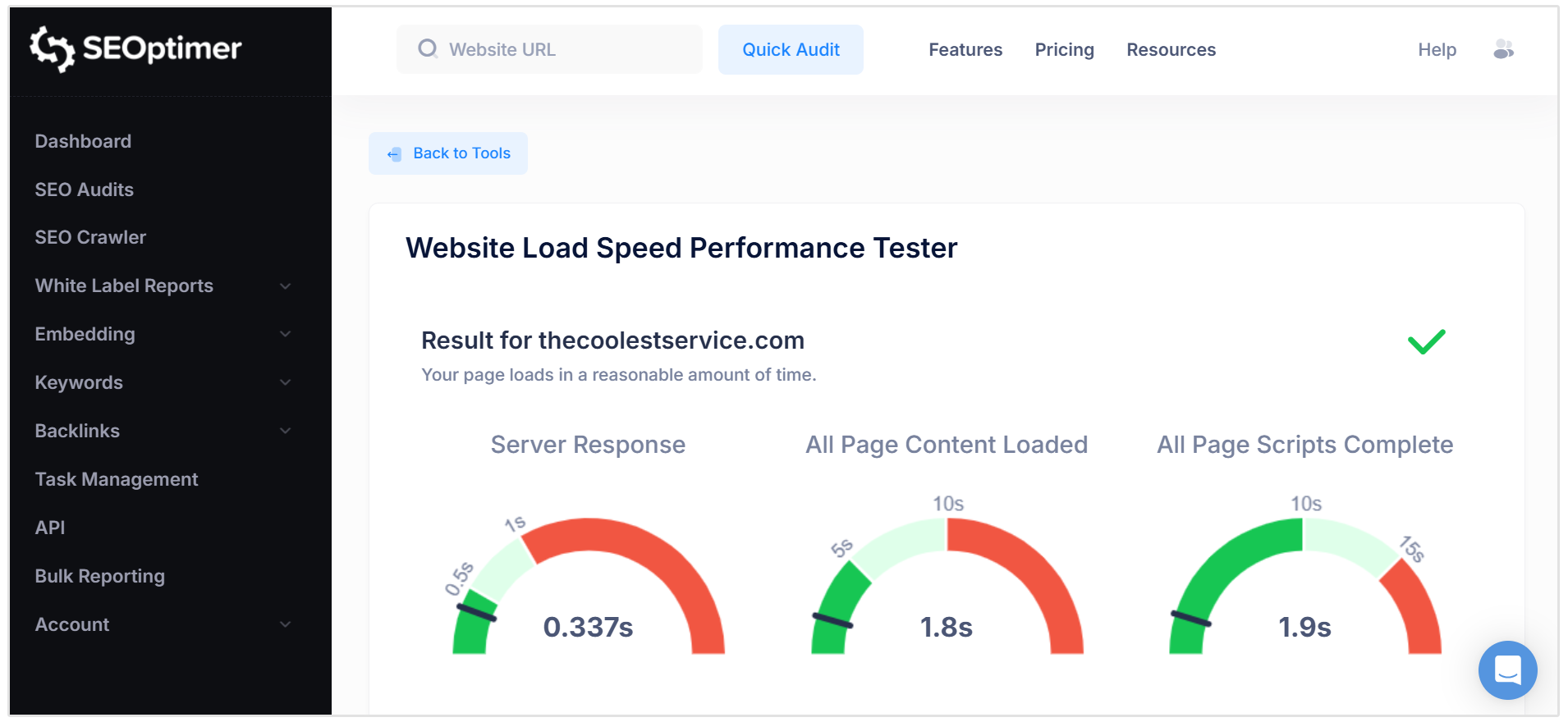
If SEOptimer can reach and analyze the page from an external server, the issue may be limited to your device or network.
You’ll also receive information about the website’s server response time, page load speed, script completion time, and total page size, which can help you identify wider performance problems.
How to Fix the Error as a Website Visitor
If other people can access the website, the timeout is probably being caused by your device, browser, or internet connection.
Check Your Internet Connection
Confirm that your device is connected to Wi-Fi or Ethernet and test whether other websites load correctly.
If several websites are affected, try restarting your router. Disconnect it from the power supply, wait approximately 30 seconds, reconnect it, and allow it a few minutes to establish a connection.
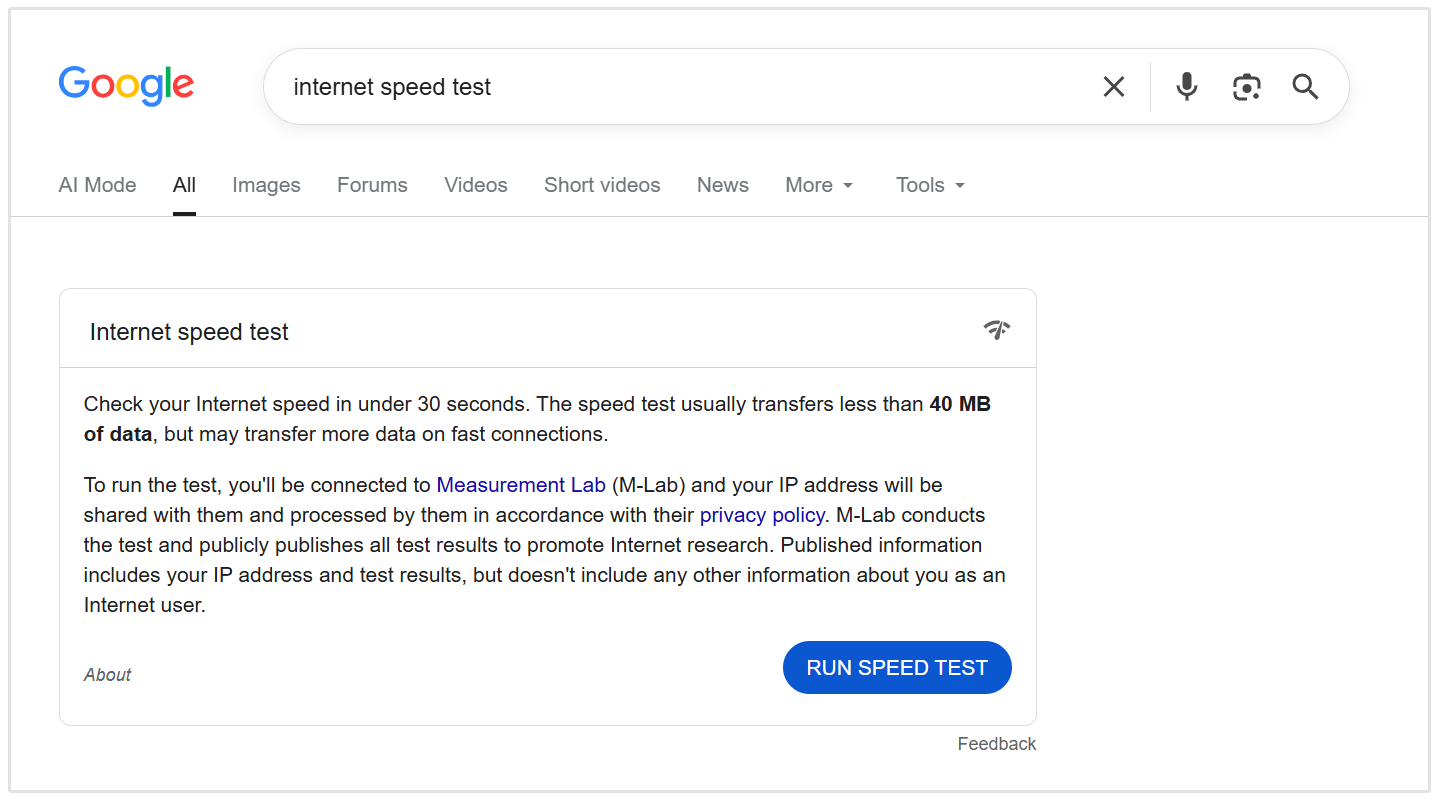
You can also run an internet speed test. A very slow or unstable connection may prevent the website from responding before the browser’s timeout limit is reached.
If possible, switch to another network. For example, try loading the website using your phone’s mobile data. If it works, the issue is likely related to your original network or internet service provider.
Restart Your Browser and Device
Temporary system or browser problems can interrupt a website connection. Close your browser completely, reopen it, and try loading the page again.
If the error remains, restart your device. It sounds painfully obvious, but the humble restart has rescued more technology than most of us would care to admit.
Try Another Browser or Incognito Mode
Open the website in another browser to determine whether the problem is browser-specific.
You can also try using an incognito or private browsing window. These windows usually start without using your existing cookies and may prevent certain extensions from running.
If the website loads in incognito mode, your browser’s cache, cookies, or extensions are the most likely cause.
Clear Your Browser Cache and Cookies
Browsers store copies of website files to help pages load faster during future visits. If this stored data becomes outdated or corrupted, it may interfere with the connection.
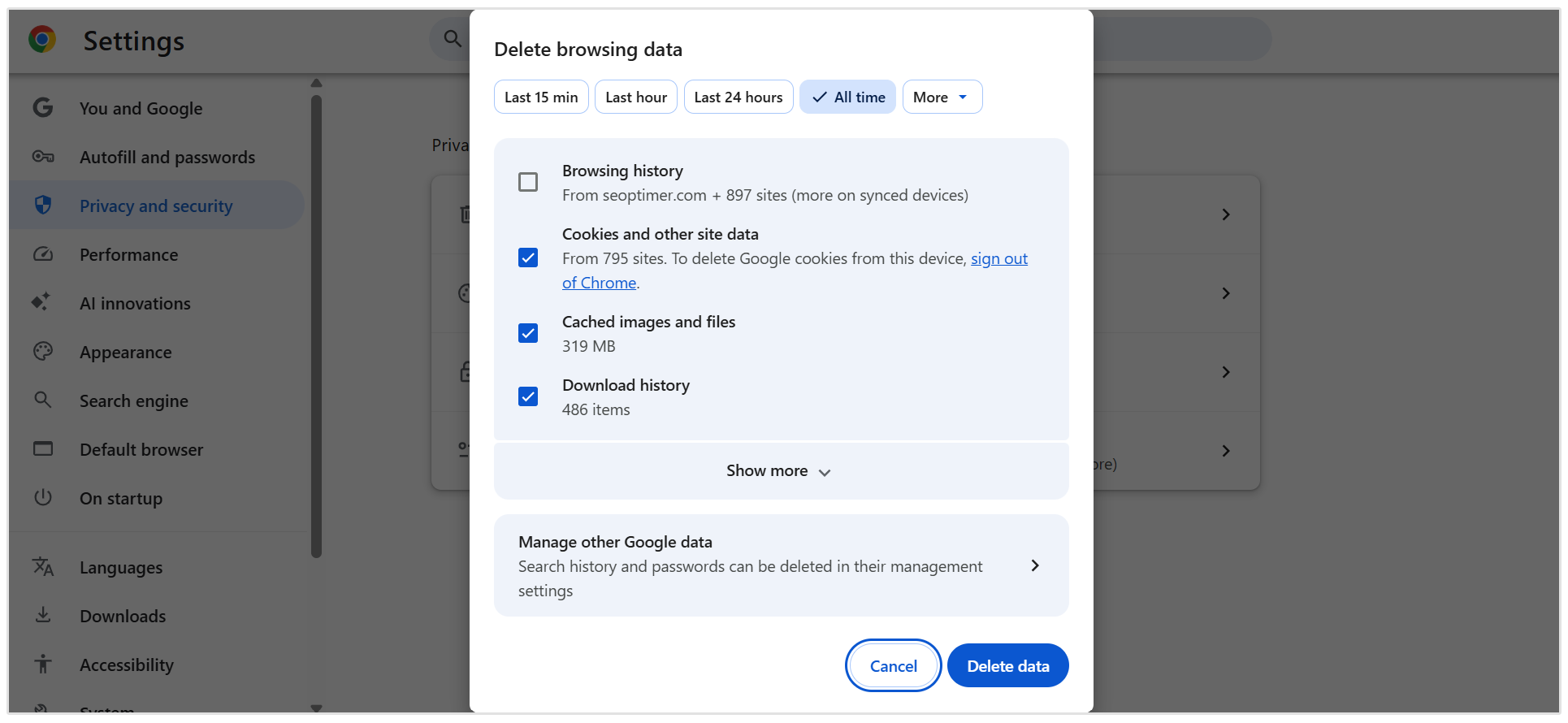
To clear your browsing data in Chrome:
- Click the three-dot menu in the upper-right corner.
- Select Delete browsing data.
- Choose a suitable time range.
- Select Cookies and other site data and Cached images and files.
- Click Delete data.
- Restart Chrome and try opening the website again.
Clearing cookies may sign you out of websites, so make sure you have access to any passwords you need before deleting them.
Disable Browser Extensions
An extension may block a request, interfere with a website’s scripts, or route traffic through another service.
Disable your extensions temporarily and reload the website. If it starts working, enable the extensions again one at a time until you identify the one causing the problem.
You can then update, reconfigure, or remove the affected extension.
Temporarily Disable Your VPN or Proxy
A VPN or proxy changes the route your internet traffic takes before it reaches a website. If that service is experiencing an outage or routing problem, your connection may time out.
Disconnect from the VPN or proxy temporarily and try loading the page again. If this fixes the error, switch to another server or contact the service provider.
If you use a VPN for security or privacy, remember to reconnect it once you have finished testing.
Check Your Firewall or Antivirus Settings
Firewalls and antivirus programs can occasionally block legitimate websites or network connections.
Check whether the affected domain appears on your security software’s blocklist. If it does, only allow the website if you are confident that it is safe.
You can temporarily pause the security software to test the connection, but switch it back on immediately afterward. Avoid uninstalling your antivirus or leaving your firewall disabled.
Flush Your DNS Cache
Your device stores recent DNS information so that it can find websites more quickly. If this information becomes outdated, your browser may try to connect to the wrong IP address.
On Windows, open Command Prompt as an administrator and run:
ipconfig /flushdns
You can then renew your IP address by running:
ipconfig /release
Followed by:
ipconfig /renew
On macOS, open Terminal and run:
sudo dscacheutil -flushcache
Then run:
sudo killall -HUP mDNSResponder
The command used on Linux depends on your distribution and DNS service. Systems using systemd-resolved can generally use:
sudo resolvectl flush-caches
Restart your browser after flushing the DNS cache and try loading the website again.
Change Your DNS Server
If your internet provider’s DNS resolver is unavailable or returning incorrect information, changing to a public DNS service may solve the problem.
Common options include:
- Google Public DNS: 8.8.8.8 and 8.8.4.4
- Cloudflare DNS: 1.1.1.1 and 1.0.0.1
The exact steps depend on your device and operating system. Record your current settings before making changes so that you can restore them if switching DNS servers does not fix the error.
How to Fix the Error as a Website Owner
If your website is taking too long to respond across multiple devices and networks, the problem probably originates from your hosting, DNS, CDN, firewall, application, or server.
Check Your Hosting and Server Status
Start by checking your hosting provider’s status page for any reported outages or maintenance.
If no outage has been reported, sign in to your hosting dashboard and confirm that the server and relevant services are running. You should also check whether other websites hosted on the same server are experiencing similar problems.
If you cannot access either the website or its hosting control panel, contact your hosting provider.
Review Your Server Resources
A server may stop responding when it runs out of memory, processing capacity, available PHP workers, or other resources.
Look for unusual spikes in:
- CPU usage
- Memory consumption
- Disk usage
- Database activity
- Bandwidth
- Concurrent requests
- PHP worker usage
A traffic surge, bot attack, faulty plugin, background process, or inefficient script could be consuming the available resources.
Avoid immediately restarting a production server without identifying the cause. A restart may temporarily restore the website, but it won’t fix the underlying problem.
Test Your Server Response Time
Once the website is accessible, check whether it is responding more slowly than it should.
SEOptimer’s website audits measure server response time, page load speed, script completion time, total page size, Core Web Vitals, and other technical performance factors.
Keep in mind that a speed test can only analyze a page it can reach. If the website is completely unavailable, you will need to restore the connection before testing its performance.
Check Your Domain and DNS Configuration
Confirm that your domain registration is active and that its DNS records point to the correct server.
Pay particular attention to:
- A and AAAA records
- Nameserver settings
- Recent DNS changes
- Incorrect or outdated IP addresses
- DNSSEC configuration
- DNS propagation after moving hosts
You can use nslookup to see which IP address a domain currently resolves to:
nslookup example.com
A “non-authoritative answer” is normal and usually means the result came from a recursive DNS resolver or its cache. It does not indicate that the response is untrustworthy.
If the domain resolves to an old or incorrect IP address, update the relevant DNS record through your domain registrar or DNS provider.
Review Your CDN and Firewall Settings
A CDN sits between visitors and your origin server. If it cannot connect to the origin, visitors may receive a timeout even though the website’s files are still present.
Check that:
- The CDN points to the correct origin server
- The origin server accepts requests from the CDN
- Required ports are open
- SSL settings match between the CDN and origin
- Firewall rules are not blocking legitimate traffic
- Your IP address has not been blocked
- Rate-limiting rules are not too aggressive
- You can temporarily pause the CDN or proxy to test the connection directly with the origin server. Only do this if you understand how it will affect the website’s security and traffic.
Check Your Server and Application Logs
Server logs can reveal what happened immediately before the website stopped responding.
Look for:
- Repeated 500-level errors
- Database connection failures
- Memory-limit errors
- PHP fatal errors
- Long-running requests
- Firewall blocks
- Failed third-party API requests
- Sudden increases in traffic
Also review recent changes. If the timeout started after a deployment, plugin update, theme update, DNS change, or firewall adjustment, rolling back that change may restore the website.
Disable WordPress Plugins
A faulty WordPress plugin may consume excessive server resources, create a conflict, or wait too long for an external service.
If you can access the WordPress dashboard, deactivate the plugins one at a time and test the website after each change.
If you cannot access the dashboard, you may be able to disable the plugins through your hosting file manager or an FTP client by temporarily renaming the plugins folder.
Once the website works again, reactivate the plugins individually until you identify the one causing the timeout. You can then update it, replace it, or contact the plugin developer.
Switch to a Default WordPress Theme
An outdated or incompatible theme can also cause server errors and timeouts.
Temporarily switch to a default WordPress theme and test the website again. If the error disappears, update or reinstall the original theme, review its custom code, or restore a recent working backup.
Always create a backup before changing themes or editing website files.
Check PHP Memory and Execution Limits
WordPress and other PHP applications may time out when a process exceeds the available memory or maximum execution time.
Check your hosting dashboard or PHP configuration for limits such as:
- memory_limit
- max_execution_time
- max_input_time
Increasing these limits may help if the existing values are unusually low. However, repeatedly hitting the limit often indicates an inefficient plugin, script, query, or background process that should be fixed instead.
Ask your hosting provider or developer for assistance if you are unsure which values are appropriate for your website.
Optimize Your Database and Website Code
Slow database queries, oversized tables, long-running scripts, and repeated external requests can delay the server’s response.
Review your website for:
- Inefficient database queries
- Excessive autoloaded WordPress data
- Unnecessary background tasks
- Large or poorly maintained database tables
- Broken external API requests
- Resource-intensive plugins
- Unoptimized application code
Cleaning unused data may improve performance, but a large website does not automatically need old content deleted. Focus on unused revisions, expired temporary data, spam, abandoned plugin tables, and other information the website no longer requires.
Create a full database backup before running any cleanup or optimization process.
Contact Your Hosting Provider
If you cannot identify the cause, contact your hosting provider and explain:
- When the error started
- Whether it affects every page
- Whether it occurs across different devices and networks
- Any recent website or DNS changes
- Which troubleshooting steps you have already tried
- Any relevant errors found in your logs
Your host can check server-level logs, resource limits, firewall rules, network routing, and services that may not be visible from your website dashboard.
Can a Website Taking Too Long to Respond Affect SEO?
Yes, a website that repeatedly takes too long to respond can negatively affect its SEO.
A brief timeout is unlikely to cause lasting damage. However, frequent or prolonged timeouts can prevent visitors and search engine crawlers from accessing your pages.
This can affect SEO in several ways:
- Search engines may be unable to crawl new or updated content.
- Persistently unavailable pages may eventually be removed from Google’s index.
- Visitors may leave before the website loads, costing you traffic and conversions.
- Slow server responses can contribute to poor loading performance and weaker Core Web Vitals.
- AI crawlers may be unable to access, understand, or cite your content.
- Fixing the timeout should be your immediate priority, but getting the website back online is only part of the job.
Check More Than Website Speed with SEOptimer
A website can load successfully and still have technical, content, or usability problems limiting its visibility.
SEOptimer’s SEO Audit Tool checks server response time, page speed, Core Web Vitals, mobile usability, on-page SEO, technical SEO, backlinks, and GEO signals related to AI readiness.
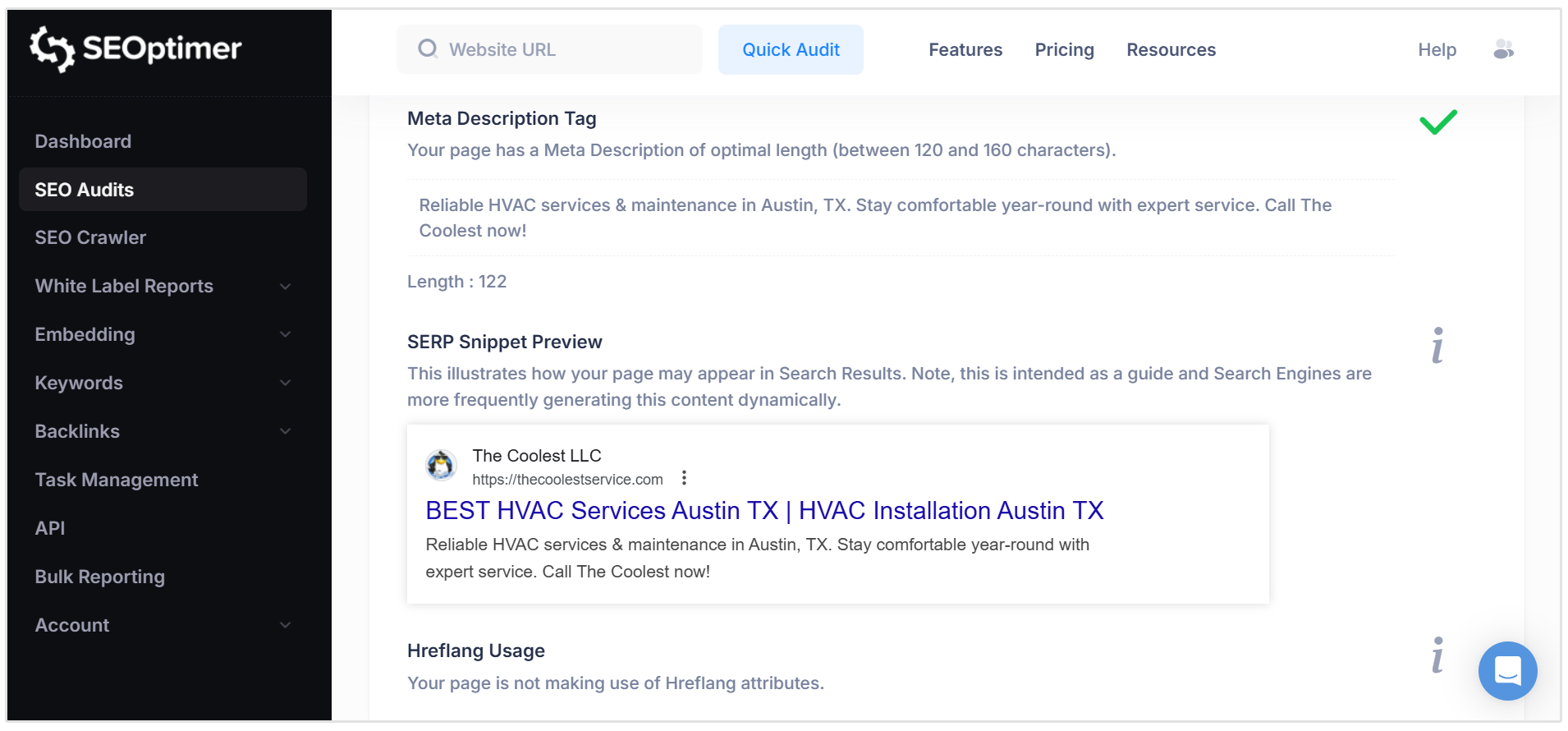
This helps you determine whether a slow response is an isolated hosting problem or part of a wider SEO issue.
Your website is responding again. But is it fully optimized?
Run a free SEOptimer audit to check your website’s speed, technical SEO, on-page optimization, usability, backlinks, and AI readiness.
Wrapping Up
You now know the options to explore when it comes to fixing ‘website takes too long to respond’ errors. You have an idea of what could be causing the errors, and the areas to check first.