

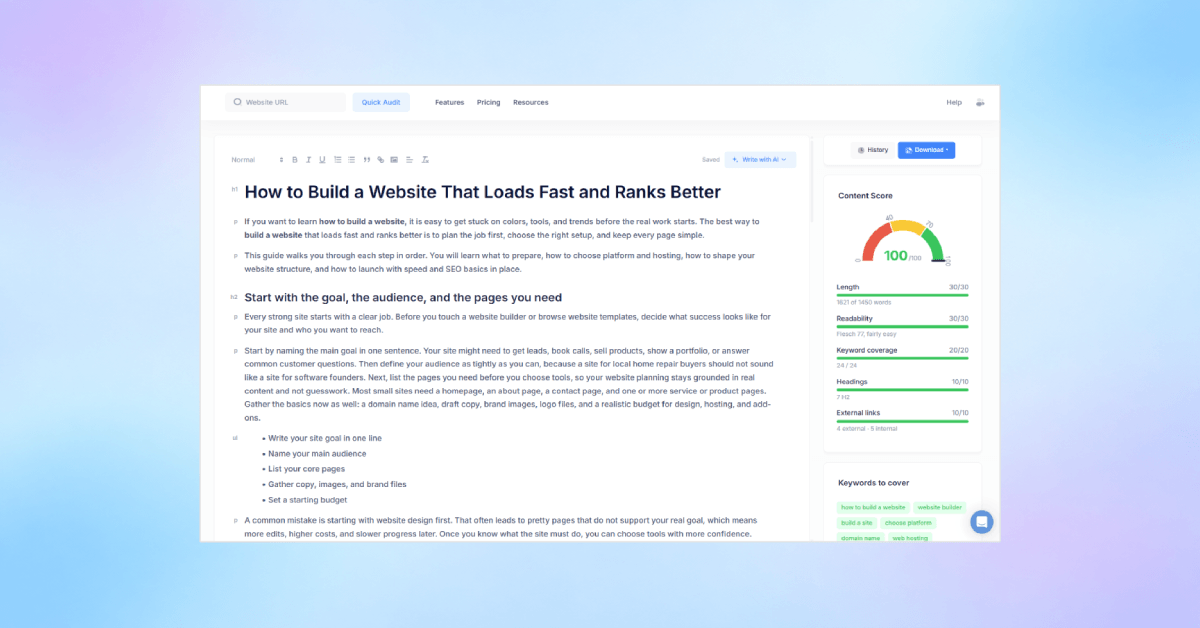
Creating a new blog post or figuring out how to improve an existing one can take a lot of time. SEOptimer’s AI Writing Tool makes the process easier by helping you plan, write, and optimize your content in one place.
Simply enter your target keyword, choose your region, language, and article type, and the tool will generate an entire blog post in seconds.
In this guide, we’ll show you how to use the AI Writer to create new content or update old blog posts. We’ll also discuss features like the Content Score metric, how to insert links, and export the content in your chosen format.
Getting Started with the AI Writing Tool
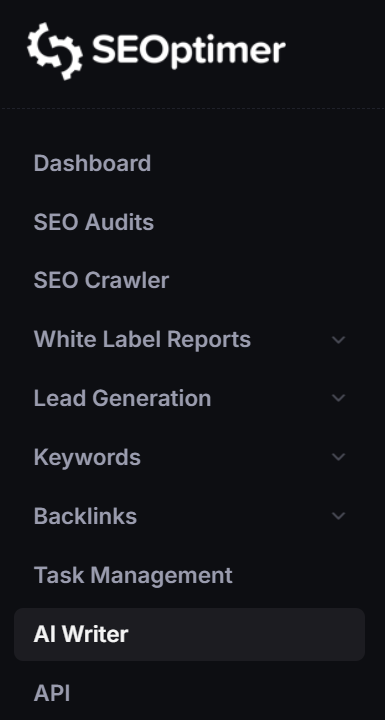
You can access the AI Writing Tool from anywhere in your SEOptimer dashboard. Simply select AI Writer from the menu on the left-hand side of the app.
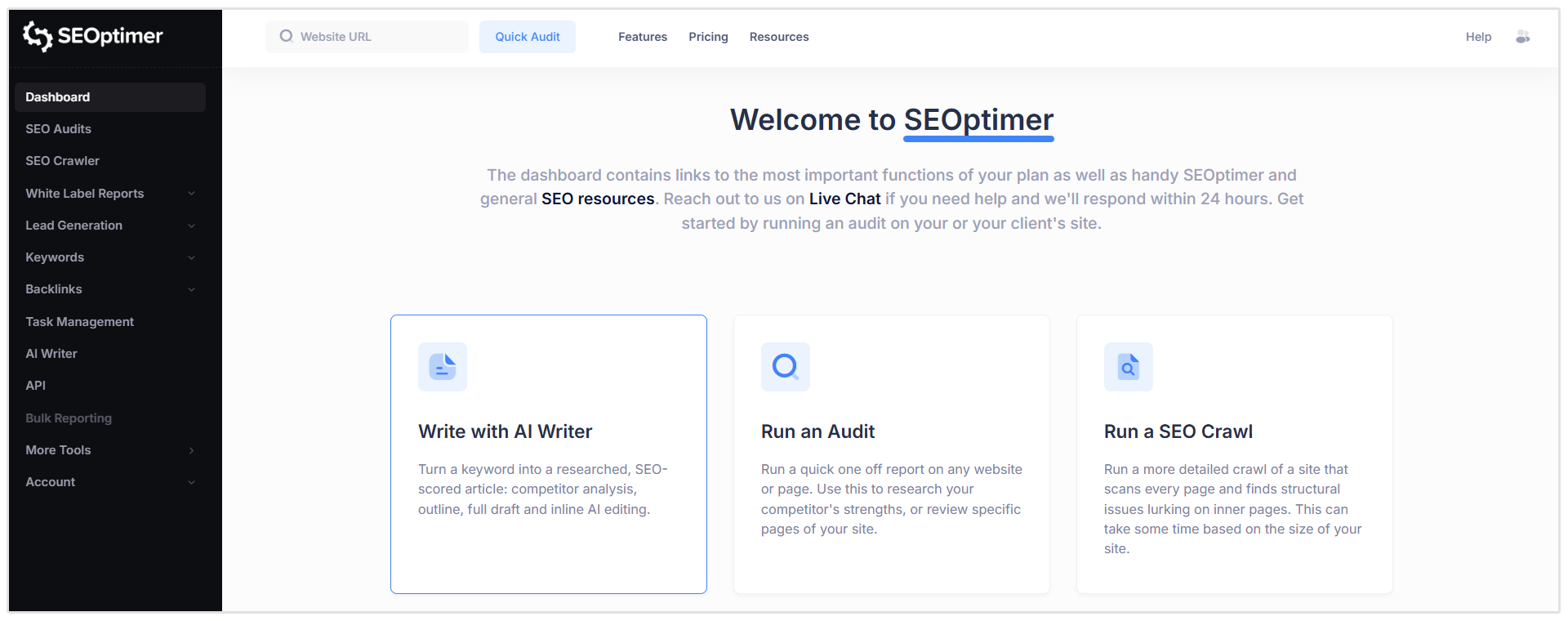
Alternatively, select Write with AI Writer directly from the main Dashboard.
The AI Writing Tool is available to all users with an active paid SEOptimer subscription.
The number of blogs or articles you can generate depends on your plan:
- DIY SEO: 20 articles
- White Label: 40 articles
- White Label & Embedding: 80 articles
You can view your remaining article quota inside the AI Writer.
If you reach your plan’s limit, you will need to wait until your quota renews or upgrade your subscription to receive a higher allowance.
Creating a New Article or Blog Post
To begin, open the AI Writer and click on the blue New Article button.
Then, ensure that you are on the New Article tab on top. This is the workflow for creating a new article from scratch. (we’ll explore how to update older blogs later)
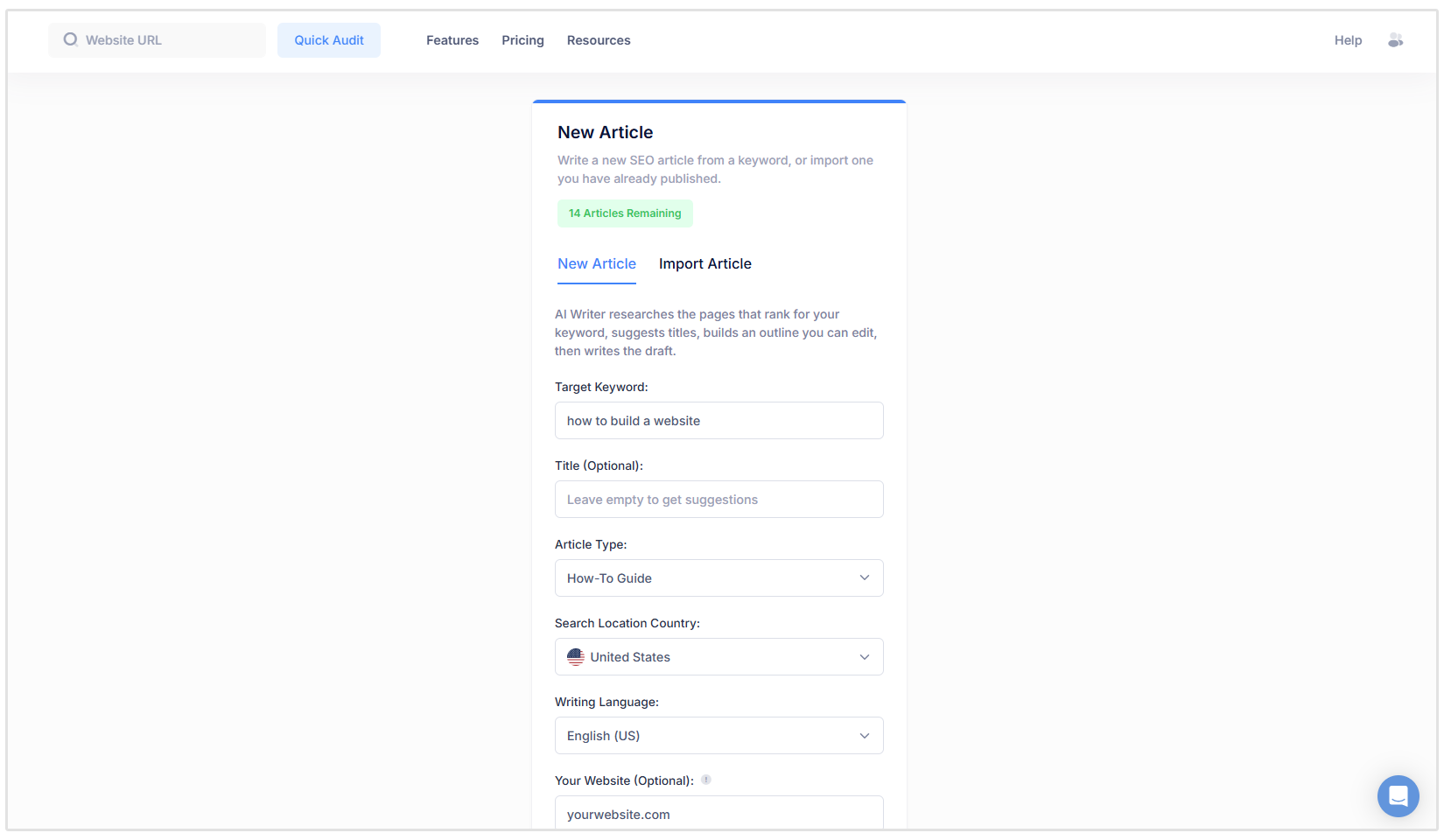
Next, you need to complete the following fields for our AI Content Generator to understand what you want to write about:
- Target Keyword: Enter the primary keyword you want the article to target. The AI Writer will research the pages currently ranking for this keyword and use those insights when preparing your article.
- Title (Optional): Enter a title if you already have one in mind. Otherwise, leave this field empty and the AI Writer will suggest relevant titles for you.
- Article Type: Choose the format that best suits your topic and its search intent. You can create a standard article, how-to guide, listicle, or comparison article.
- Search Location Country: Select the country whose search results you want the AI Writer to research. This helps tailor the article to your target market.
- Writing Language: Choose the language in which you want the article to be written.
- Your Website (Optional): Enter your website address to help the AI Writer identify relevant pages that could be added as internal links.
Once you have completed the relevant fields, click Next to continue. Creating the article will use one article from your monthly quota.
Now the AI Writer researches the pages ranking for your target keyword, reads the top-performing content, and analyses the results.
If you entered your website, it will also identify relevant pages that may be used for internal links. This process usually takes less than a minute.
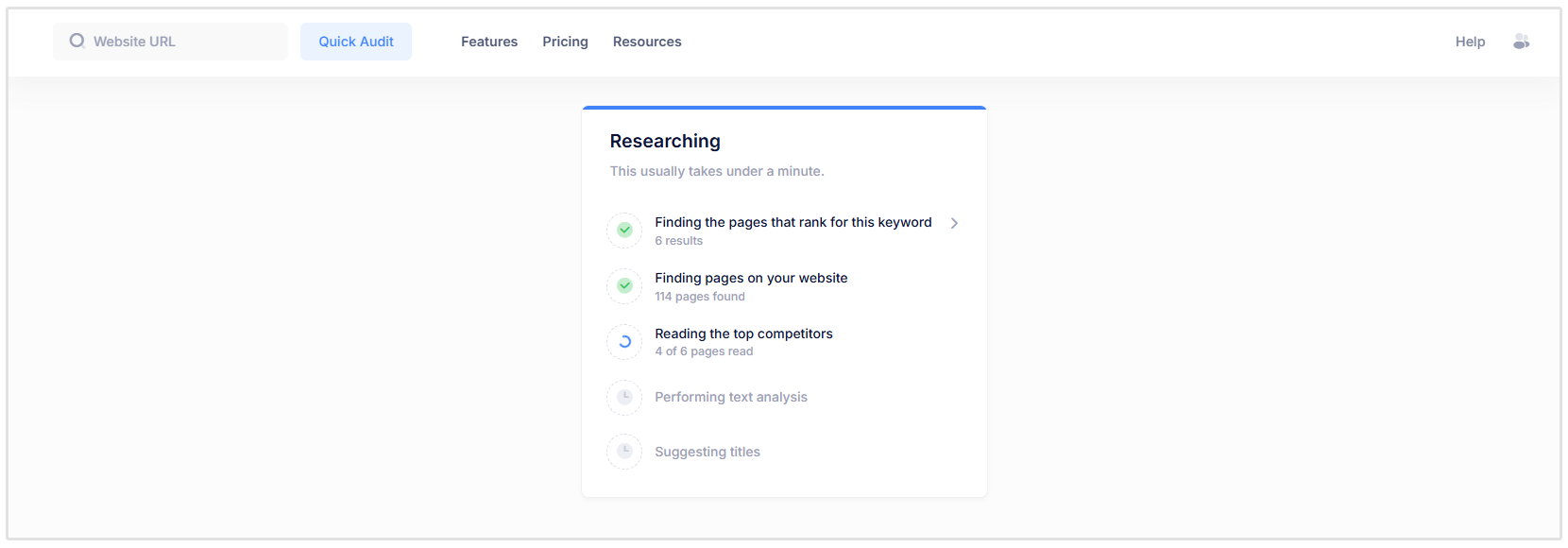
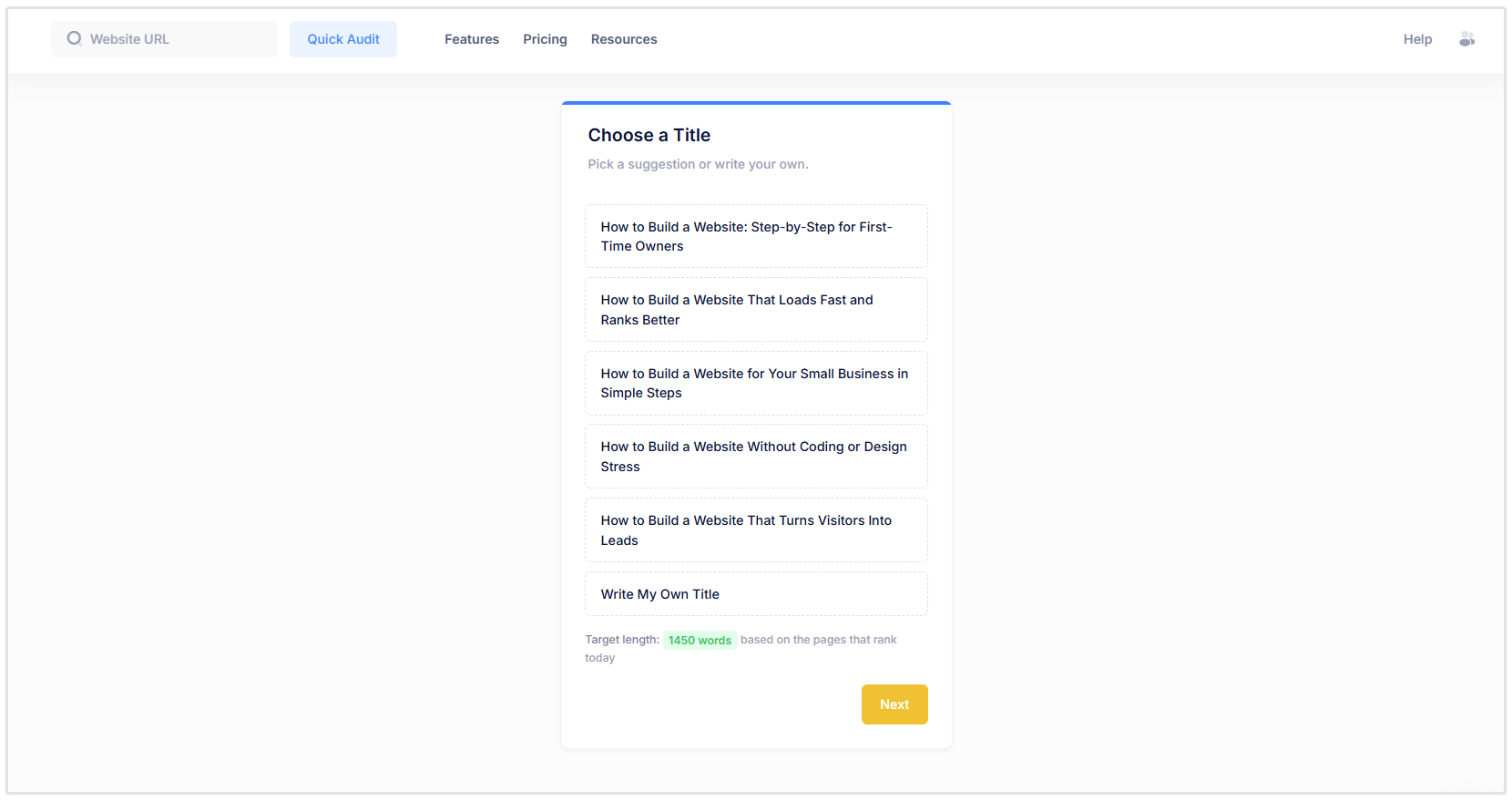
Once the research is complete, the AI Writer will suggest five titles based on your target keyword and the pages currently ranking in search results.
Select one of the suggested titles or choose Write My Own Title to enter a custom option.
You’ll also see a recommended article length based on the ranking pages. Once you’ve selected your title, click Next to continue.
Next, choose how much of the first draft you want the AI Writer to create:
- Write the Full Article: The AI Writer creates the outline and drafts every section, giving you a complete article to review and edit.
- Write Just the Outline: The AI Writer creates a researched structure with suggested headings and talking points. You can then write the sections yourself or generate them individually with AI.
- Write It Yourself: Start with a blank page and write the article yourself with access to the Content Score, keyword suggestions, and AI editing tools.
You can also use the optional Content Must Include field to specify important information that should appear in the article, such as product details, statistics, examples, or key talking points.
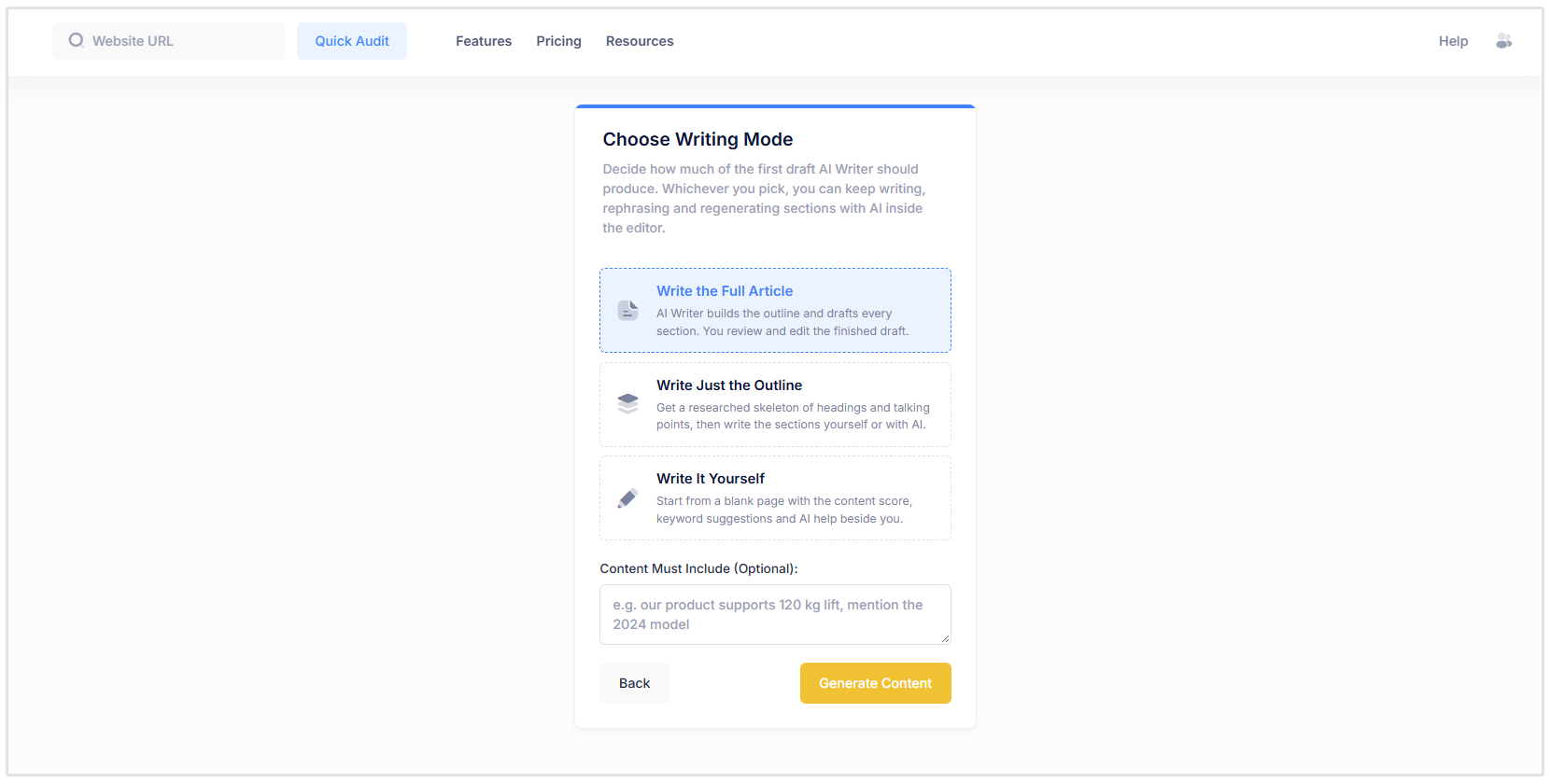
Once you have made your selections, click Generate Content.
The AI Writer will now prepare your article based on the writing mode you selected.
If you choose Write the Full Article, it will create both the outline and the complete first draft. If you select Write Just the Outline, it will generate the headings and talking points for you to develop further.
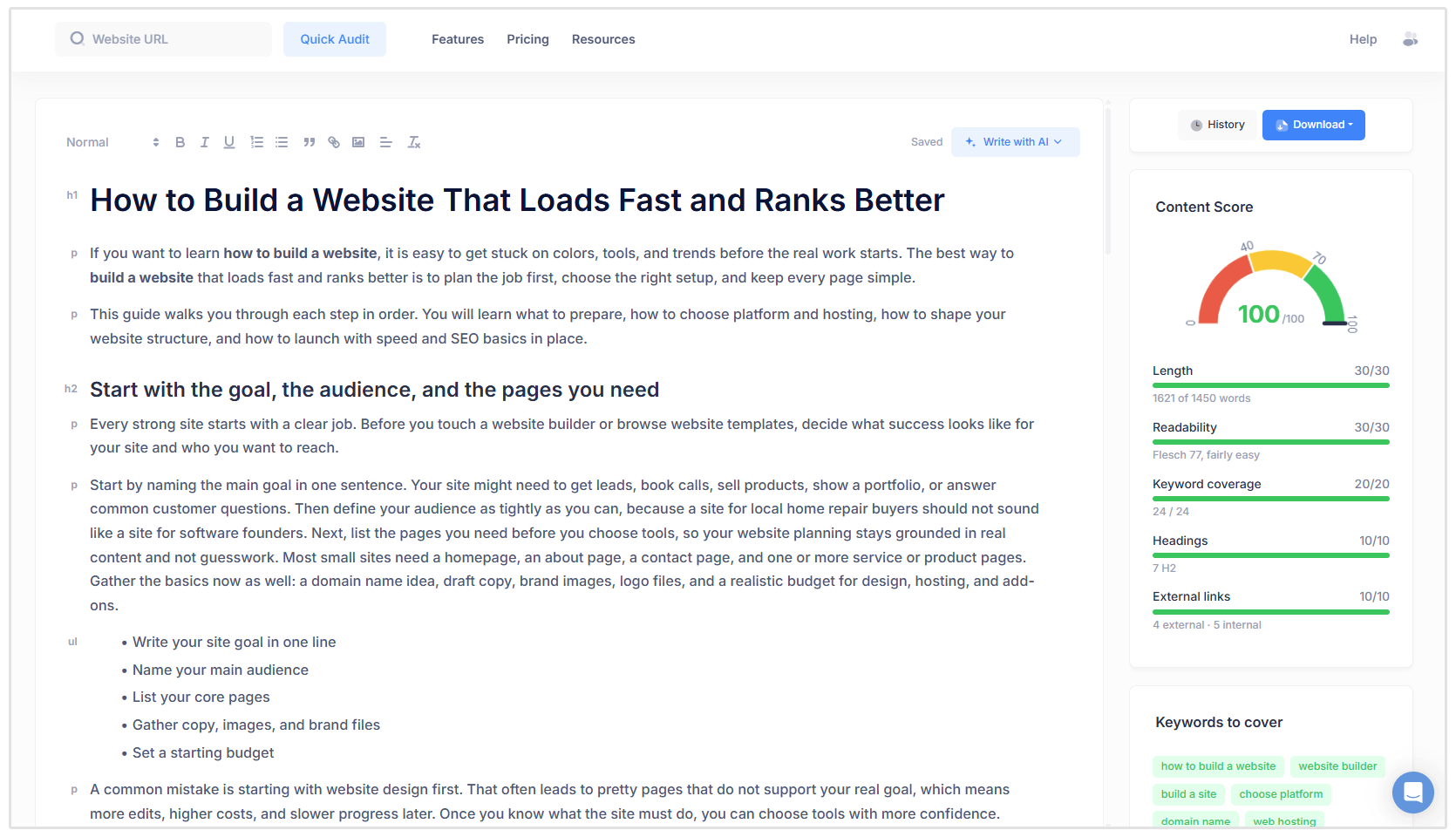
Your content will then open in the editor, ready for you to review and refine.
Improving an Existing Article or Blog Post
You can also use the AI Writer to update and optimize content that has already been published.
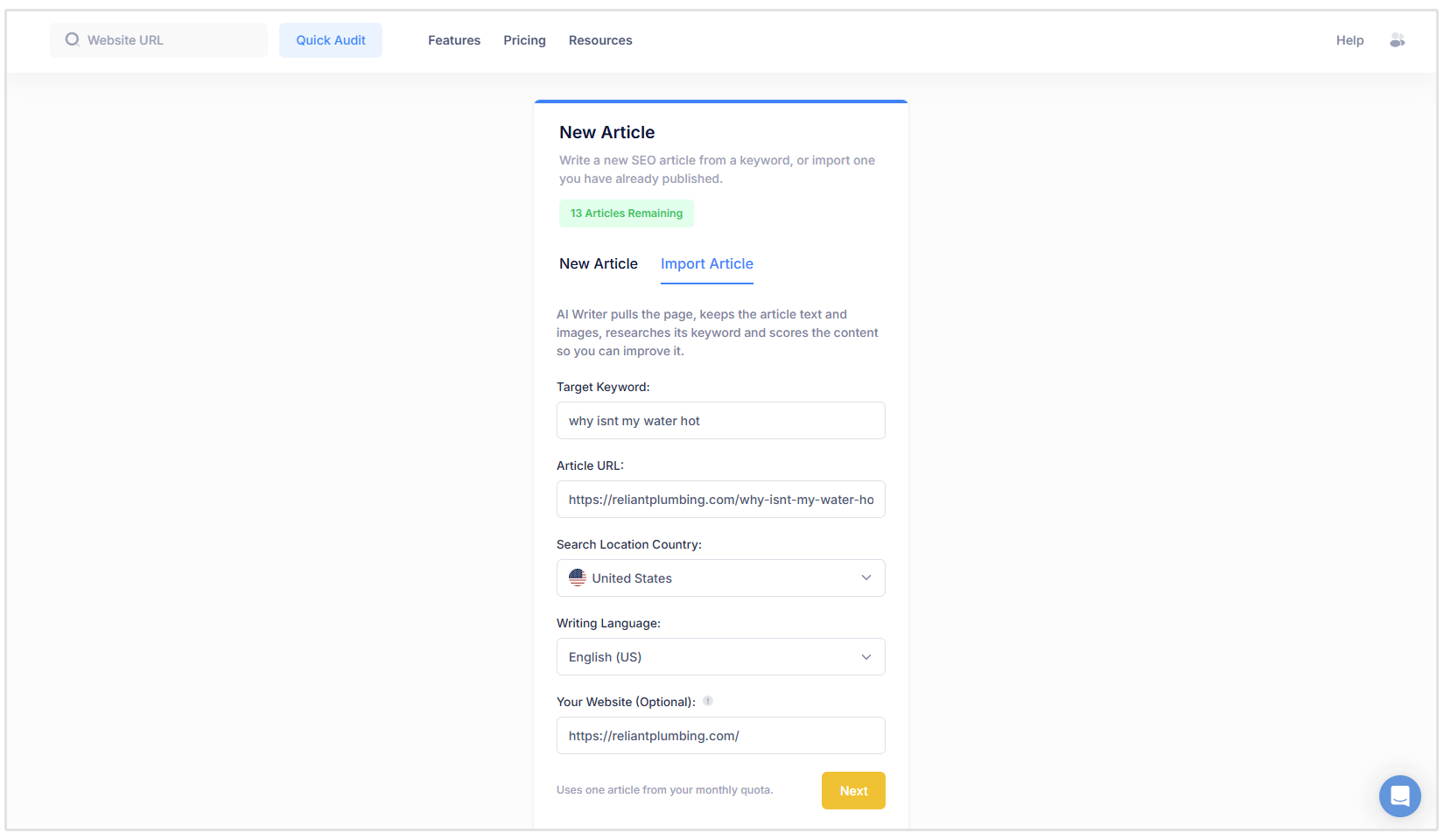
From the AI Writer, select the Import Article tab and provide the following information:
- Target Keyword: Enter the primary keyword for which you want to optimize the existing article.
- Article URL: Add the URL of the published article you want to update. The AI Writer will import the article while retaining its existing text and images.
- Search Location Country: Select the country whose search results should be used when researching the target keyword.
- Writing Language: Choose the language in which the article is written.
- Your Website (Optional): Enter your website address to help the AI Writer identify relevant internal linking opportunities.
Click Next to begin the research process.
The AI Writer will analyze the pages currently ranking for your target keyword and then open your imported article in the editor, ready for you to review and improve.
Importing an article uses one article from your monthly quota.
Understanding the Content Score
The Content Score gives your article an overall score out of 100 based on several on-page content factors. It updates as you edit the article, making it easy to see where improvements may be needed.
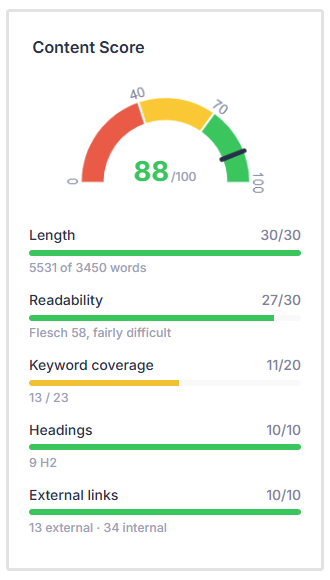
The score is calculated using the following five factors:
- Length (30 points): Compares your article’s word count with the recommended length based on the pages currently ranking for your target keyword.
- Readability (30 points): Uses the Flesch Reading Ease score to assess how easy your content is to read and understand.
- Keyword Coverage (20 points): Measures how many of the recommended keywords and related terms appear naturally within your article.
- Headings (10 points): Checks whether the article contains enough headings to create a clear, well-organized structure.
- External Links (10 points): Looks at whether the article includes links to relevant external sources. The tool also displays the number of internal links included in the content.
These individual scores are combined to produce your overall Content Score:
- 0–39: Needs improvement
- 40–69: Fair, but could be improved
- 70–100: Well optimized
The Content Score should be used as a guide rather than a guarantee of search rankings. Always prioritize accuracy, relevance, and a good reading experience when optimizing your article.
Adding Internal Links
If you entered your website address when setting up the article, the AI Writer will identify relevant internal linking opportunities from across your site. These suggestions are based on pages that already rank and phrases that appear within your article.
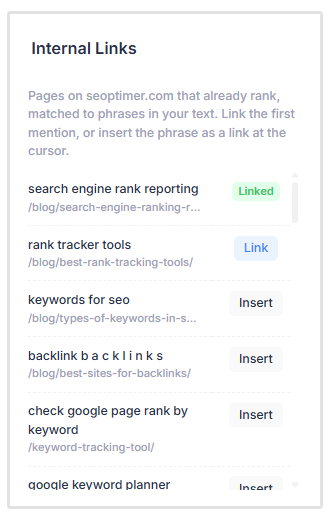
Place your cursor where you want the link to appear and click Insert. The AI Writer will add the suggested phrase and link at that location.
Review each suggestion before adding it to make sure the destination page is relevant and useful to the reader.
Cover the Entire Topical Map
The Keywords to cover section highlights important terms and related topics that appear across the pages ranking for your target keyword. It shows which keywords your article already includes and which ones may still be missing.
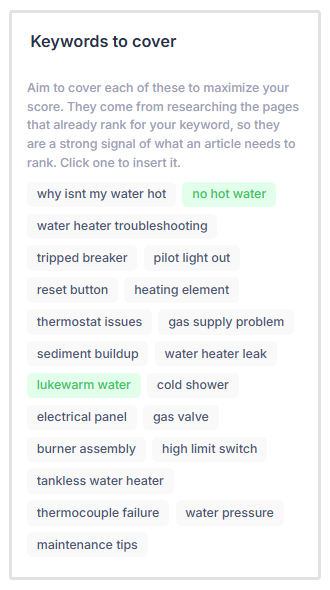
Use these recommendations to identify gaps in your content and cover the topic more thoroughly.
Add relevant missing keywords naturally where they help answer the reader’s questions. There is no need to force every suggestion into the article.
Reviewing and Editing Your Article
Whether you generate a new article or import an existing one, your content will open in the AI Writer’s editor. From here, you can edit the text directly, adjust the headings and formatting, add links or images, and reorganize sections as needed.
You can also use the Write with AI menu to refine or expand your content.
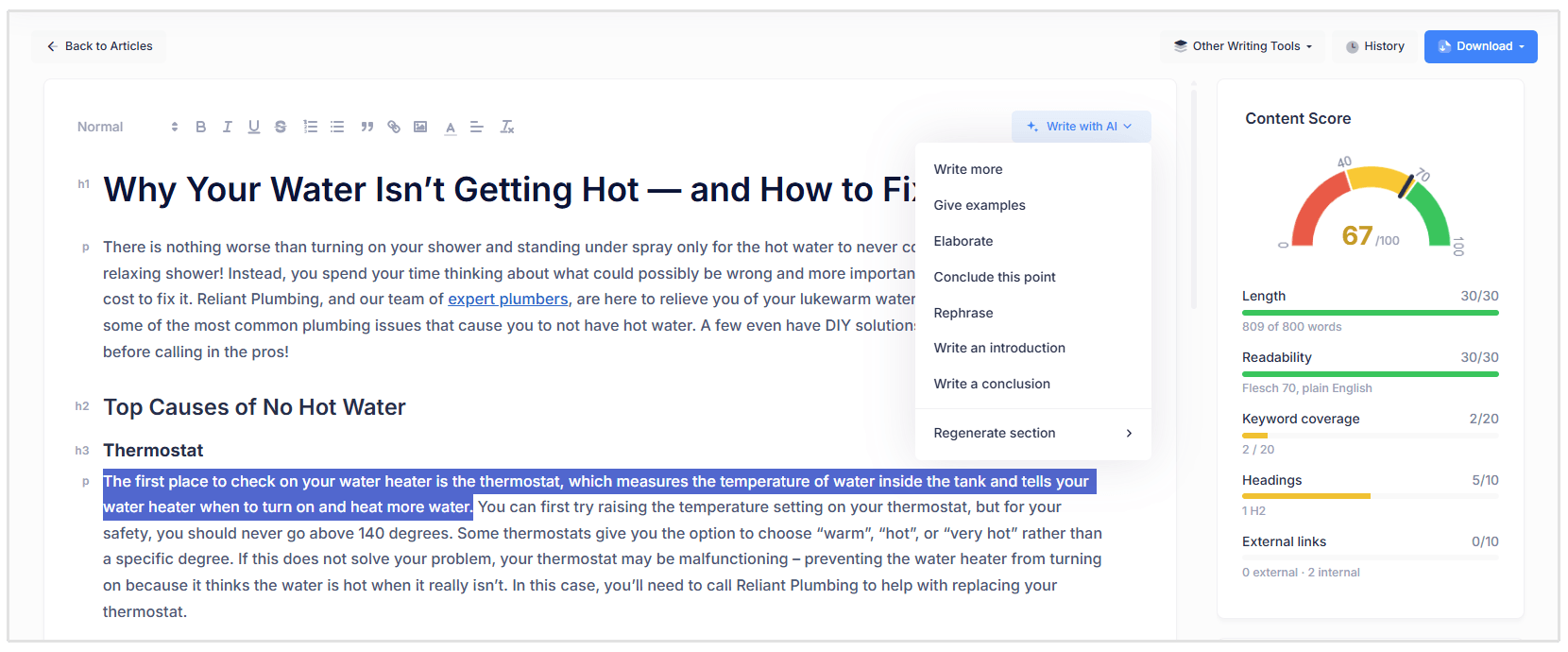
Highlight the text you want to change, select Write with AI, and choose from options such as:
- Rephrase: Rewrite the selected text while preserving its original meaning.
- Extend: Add more detail and depth to the selected passage.
- Shorten: Make the selected text more concise.
- Improve: Refine the writing for greater clarity and readability.
- Continue Writing: Generate additional content from the point where your cursor is placed.
As you make changes, review the article for factual accuracy, tone, search intent, and consistency with your brand. AI-generated content should always be treated as a first draft and checked carefully before it is published.
Exporting Your Content
Once you are happy with your article, click Download in the top-right corner of the editor.
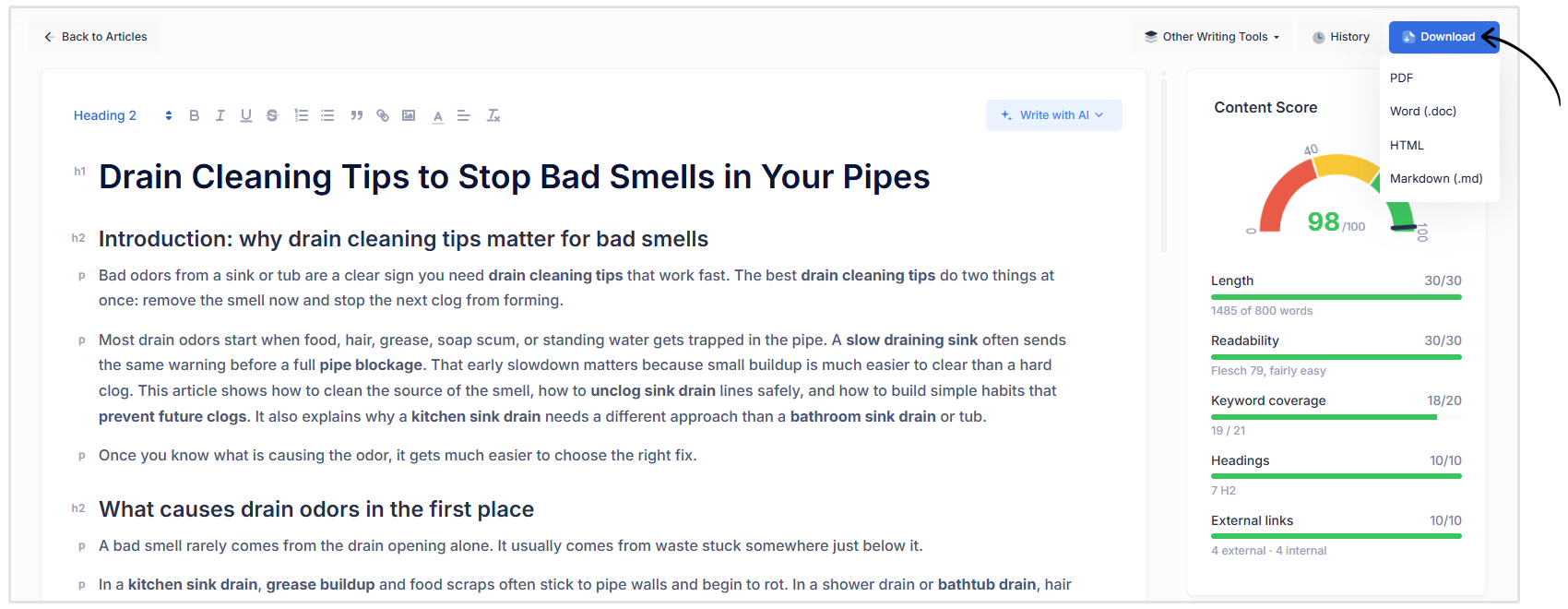
You can export the content as a PDF, Word document (.doc), HTML, or Markdown file (.md), depending on how you plan to review, share, or publish it.
Wrapping Up
SEOptimer’s AI Writer brings research, writing, editing, and content optimization together in one simple workflow.
Whether you are creating a new article or refreshing existing content, you can use its recommendations and AI tools to produce a stronger first draft in less time.
Always review the finished article for accuracy, relevance, and consistency with your brand before publishing.