

Canonical issues occur when search engines find duplicate or very similar pages on your website and are not given a clear preferred URL to index.
These canonical tag errors can cause Google to choose the wrong page, dilute ranking signals across multiple URLs, or waste crawl budget on duplicate pages.
In this guide, we’ll explain what canonical issues are, why they matter for SEO, and how to find and fix common canonical errors on your website.
What is a Canonical Issue in SEO?
A canonical issue in SEO happens when the same, or very similar, content can be reached through more than one URL.
For example, these URLs could all lead to the same page:
- https://yoursite.com/product-page/
- https://www.yoursite.com/product-page/
- https://yoursite.com/product-page?color=blue
- https://yoursite.com/product-page?utm_source=email
To a visitor, these pages may look exactly the same. But to search engines, each version can appear as a separate URL.
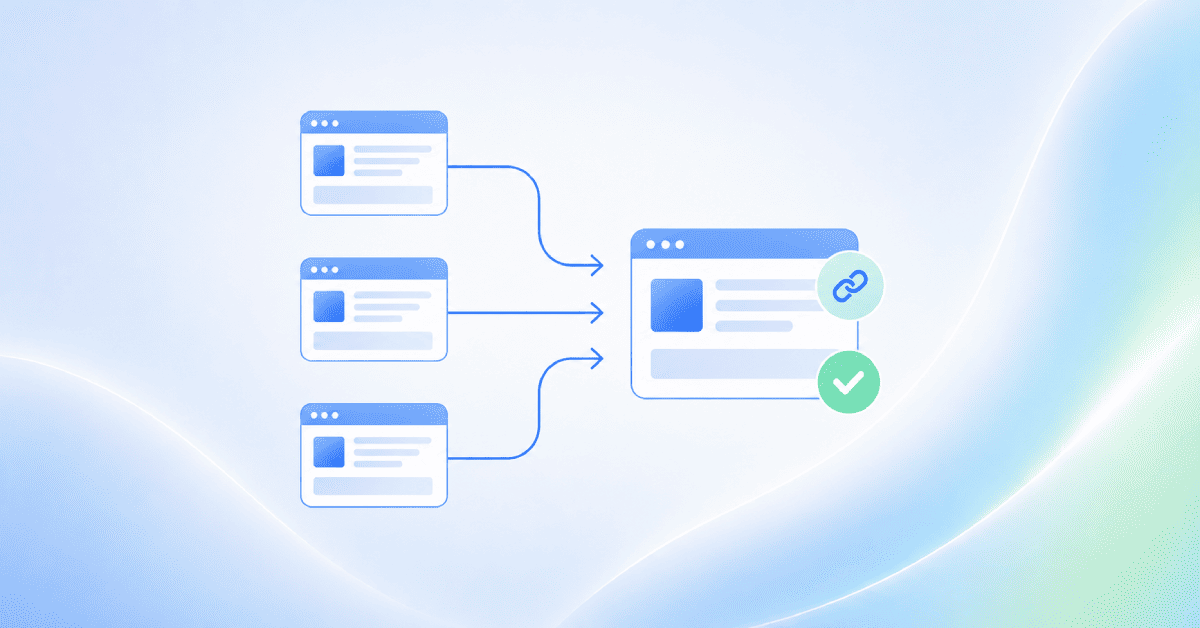
That is where canonicalization becomes important. A canonical URL is the main version of the page that you want search engines to index and show in search results.
A canonical tag is the HTML code that tells search engines which version is preferred. It is added to the <head> section of a page and looks like this:
<link rel="canonical" href="https://yoursite.com/product-page/" />
This helps search engines understand which URL should be treated as the main version, instead of splitting attention across several duplicate URLs.
Why do Canonical Errors Matter for SEO?
Canonical errors harm your website's ability to rank well.
When search engines cannot determine the main page, they might split the ranking power across several duplicate URLs.
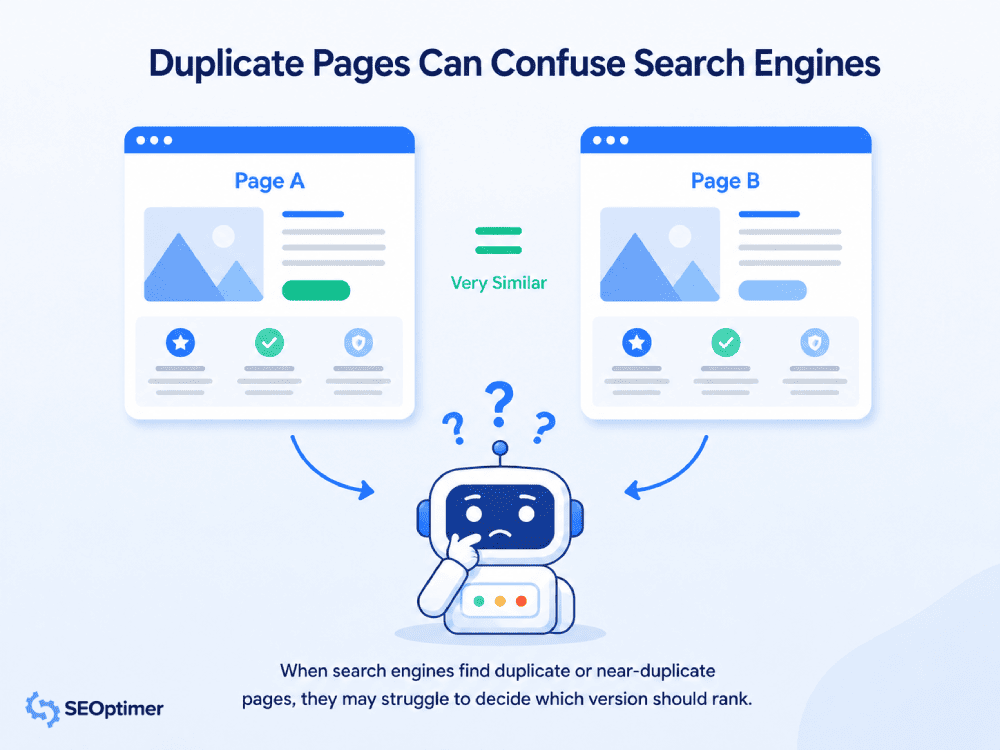
Instead of one strong page ranking on the first page of Google, you end up with three weak pages buried on page five.
Furthermore, canonical errors waste your crawl budget.
Search engines allocate a limited amount of time to crawl your website.
If bots waste time crawling hundreds of duplicate pages caused by canonical issues, they might miss your new, high-value content.
Fixing a canonical tag error ensures search engines focus on the pages that actually drive revenue for your business.
What Causes Canonical Errors?
Canonical errors usually happen when your website sends unclear or conflicting signals about which URL should be treated as the main version of a page.
This is common on websites with duplicate pages, dynamic URLs, ecommerce filters, CMS plugins, redirects, or older pages that have changed over time.
Here are some of the most common causes of canonical issues.
Missing Canonical Tags
A missing canonical tag means search engines have to choose the preferred version of a page on their own.
This is not always a serious problem, but it can become an issue when the same content is available through more than one URL.
For example:
- https://yoursite.com/product-page/
- https://yoursite.com/product-page?utm_source=email
Without a clear canonical tag, Google may still choose the correct version, but you are leaving that decision up to the search engine instead of giving it a clear signal.
Multiple Canonical Tags
A page should only have one canonical tag.
Multiple canonical tags can happen when a CMS, theme, or SEO plugin adds one canonical tag, while another is added manually or through custom code.
For example, one page might contain:
- <link rel="canonical" href="https://yoursite.com/page-a/" />
- <link rel="canonical" href="https://yoursite.com/page-b/" />
This creates conflicting signals because the page is pointing to more than one preferred URL.
Canonical Tags Pointing to Redirected URLs
A canonical tag should point directly to the final preferred URL.
For example, this setup is not ideal: Page A → canonical points to Page B → Page B redirects to Page C.
In this case, the canonical should point directly to Page C.
Canonical tags that point to redirected URLs make it harder for search engines to understand the final preferred version of the page.
Canonical Tags Pointing to Broken Pages
Canonical tags should not point to URLs that return errors, such as 404 or 5XX pages.
For example:
<link rel="canonical" href="https://yoursite.com/deleted-page/" />
If the canonical URL does not exist or cannot be reached, search engines may ignore the canonical signal and choose another URL instead.
The canonical URL should usually return a 200 status code and be accessible to search engines.
Canonical Tags Pointing to Noindexed or Blocked Pages
Another common canonical error happens when a page points to a URL that cannot be indexed or crawled.
This can include:
- URLs blocked by robots.txt
- Pages with a noindex tag
- Pages that require a login
- Pages that are not accessible to search engines
This creates mixed signals. The canonical tag says, “This is the preferred page,” but the other directive says, “Do not index or crawl this page.”
HTTP, HTTPS, WWW, and Non-WWW Conflicts
Canonical errors can also happen when your canonical tags point to the wrong version of your domain.
For example:
- http://yoursite.com/page/
- https://yoursite.com/page/
- https://www.yoursite.com/page/
- https://www.yoursite.com/page/
These may look similar, but search engines can treat them as separate URLs.
If your site uses HTTPS and the www version, your canonical tags should consistently point to that version.
URL Parameters and Filtered Pages
URL parameters are one of the most common causes of canonical issues, especially on ecommerce sites.
Some parameter pages are useful, but others create duplicate or near-duplicate versions of the same content.
Canonical tags help search engines understand which version should be treated as the main page.
Canonical Chains and Loops
A canonical chain happens when one page points to another page, which then points to another page.
A canonical loop happens when two pages point back to each other.
Both setups create unnecessary confusion. The best approach is to point duplicate pages directly to the final preferred URL.
This gives search engines a much clearer signal about which page should be treated as the canonical version.
How to Find Canonical Issues on Your Website
Canonical issues are not always obvious when you browse your website manually. A page may look perfectly fine to users, while still sending confusing canonical signals to search engines.
The easiest way to find these problems is to run a technical SEO audit and crawl your site to check how your pages are being discovered, indexed, and linked together.
Run an SEO Audit
A website audit is the fastest way to spot common canonical errors across your site.
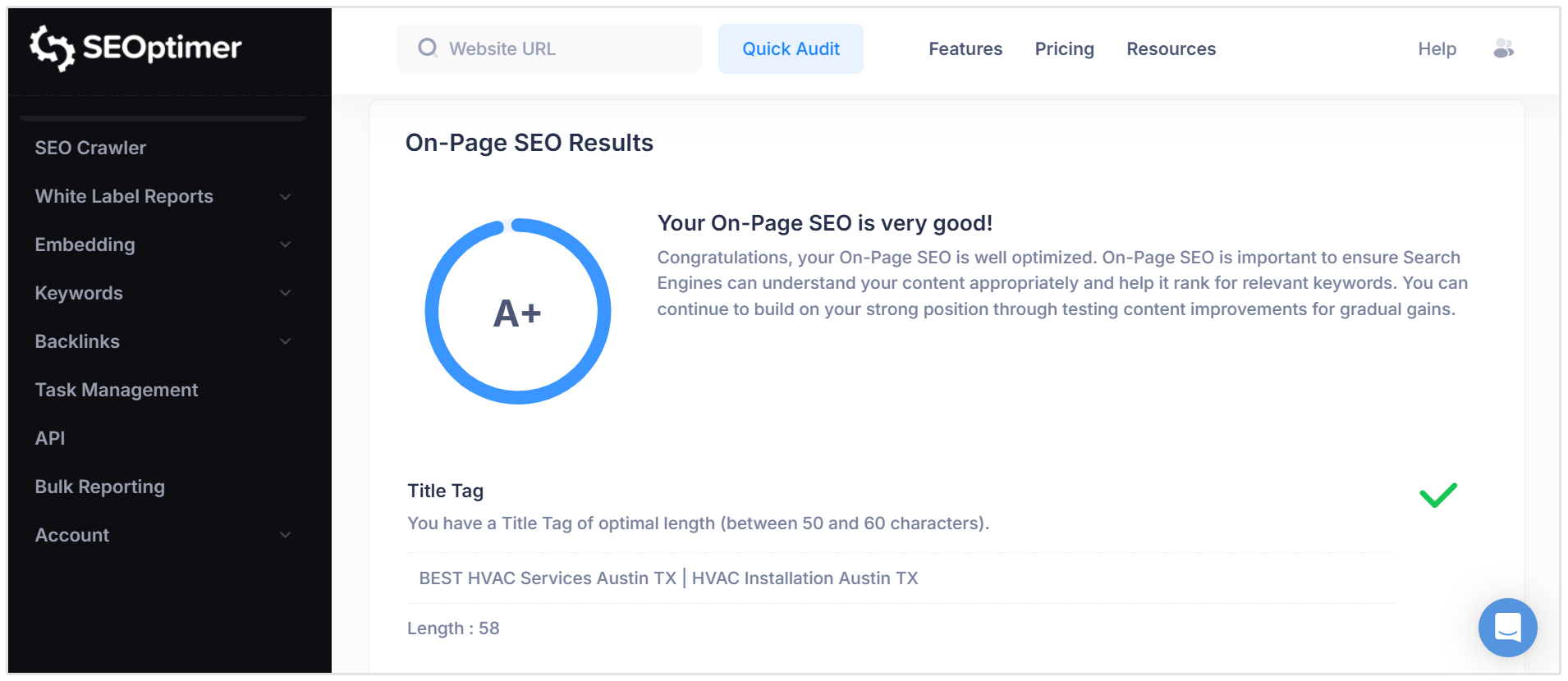
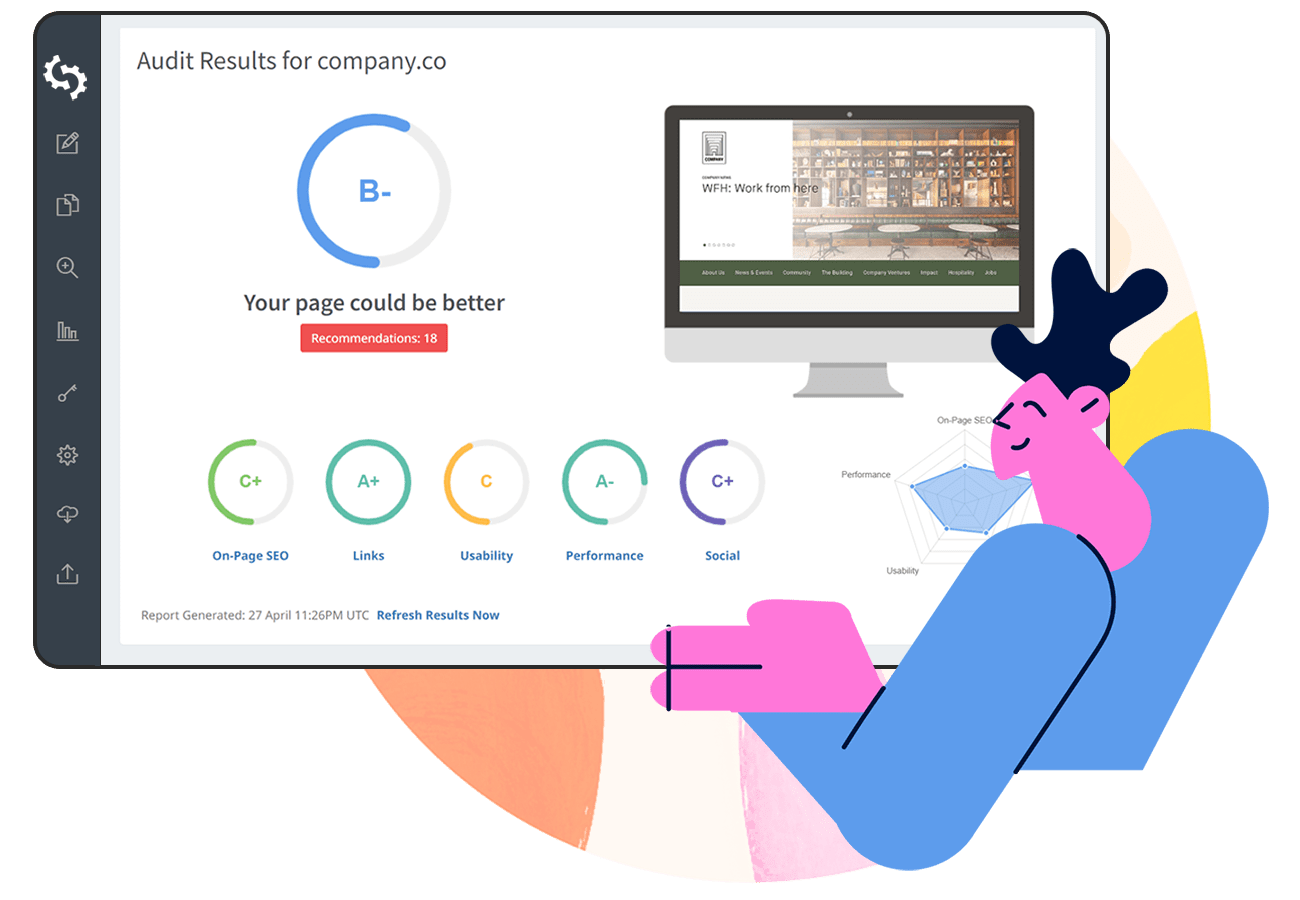
SEOptimer’s SEO Audit Tool checks your website for technical SEO issues that can affect crawling, indexing, and search visibility.
This includes problems such as duplicate content, incorrect canonical signals, redirect issues, missing tags, and other technical errors that may stop search engines from understanding your preferred pages.
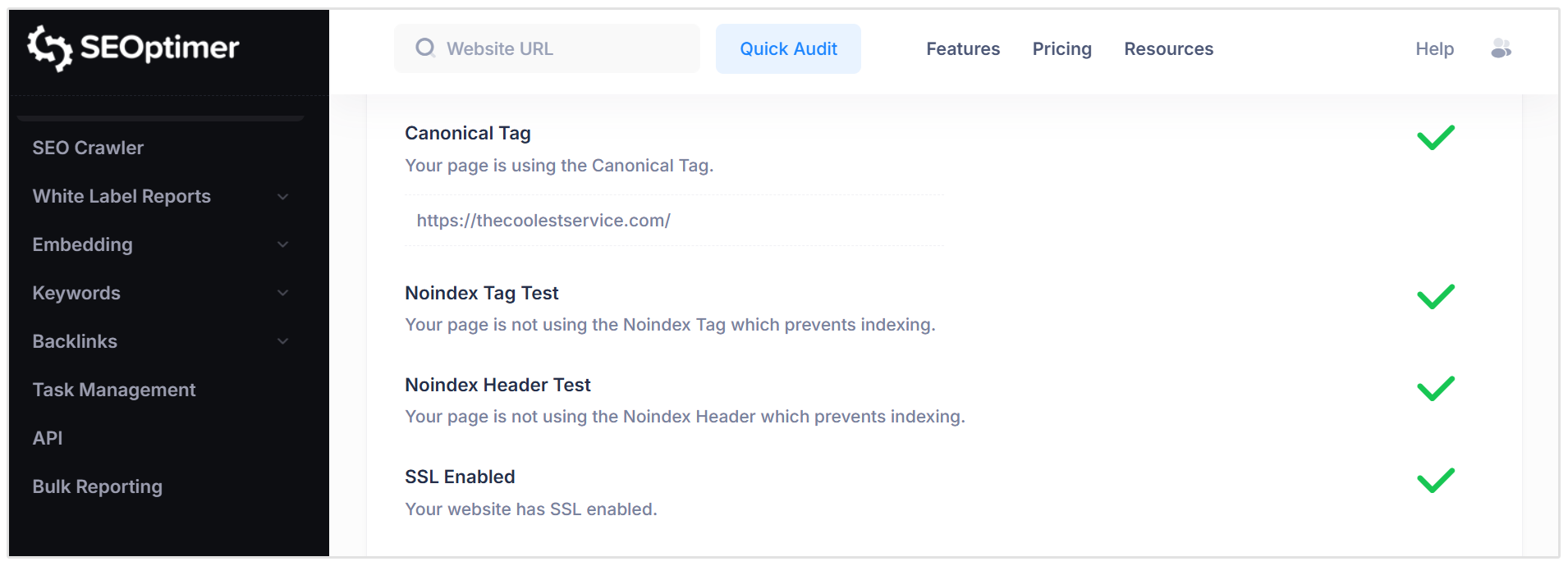
This is useful if you want a quick overview of your site’s technical health and a prioritized list of issues to fix.
For example, an audit can help you identify whether important pages have technical problems that may affect how Google understands or indexes them.
Crawl Your Website
For larger websites, you should also use a crawler to check canonical issues across multiple pages.
Our SEO Crawler scans your website in a similar way to how a search engine bot would move through your pages. This helps you find hidden canonical problems that may not be obvious from checking a few pages manually.
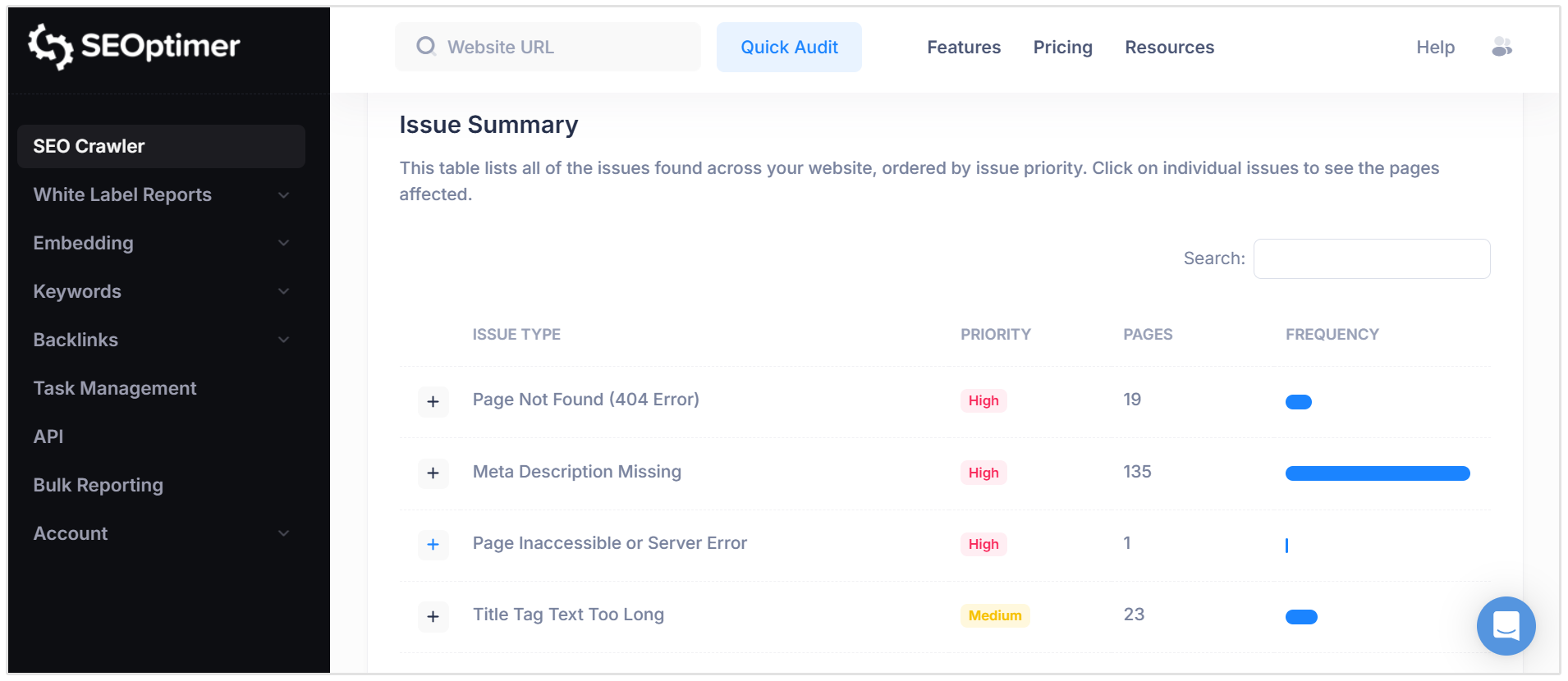
A crawl can help you review things like:
- Pages with missing canonical tags
- Pages with multiple canonical tags
- Canonical tags pointing to redirected URLs
- Canonical tags pointing to broken pages
- Canonical URLs that do not match your preferred URL structure
- Internal links pointing to non-canonical URLs
.This is especially useful for ecommerce sites, large blogs, agency client websites, and sites with lots of filters, tags, categories, or URL parameters.
Check Google Search Console
Google Search Console can also show how Google is interpreting your canonical setup.
To check pages that have canonicla issues, navigate to your GSC account, then click on Indexing > Pages > Page Indexing > Why pages aren't indexed.
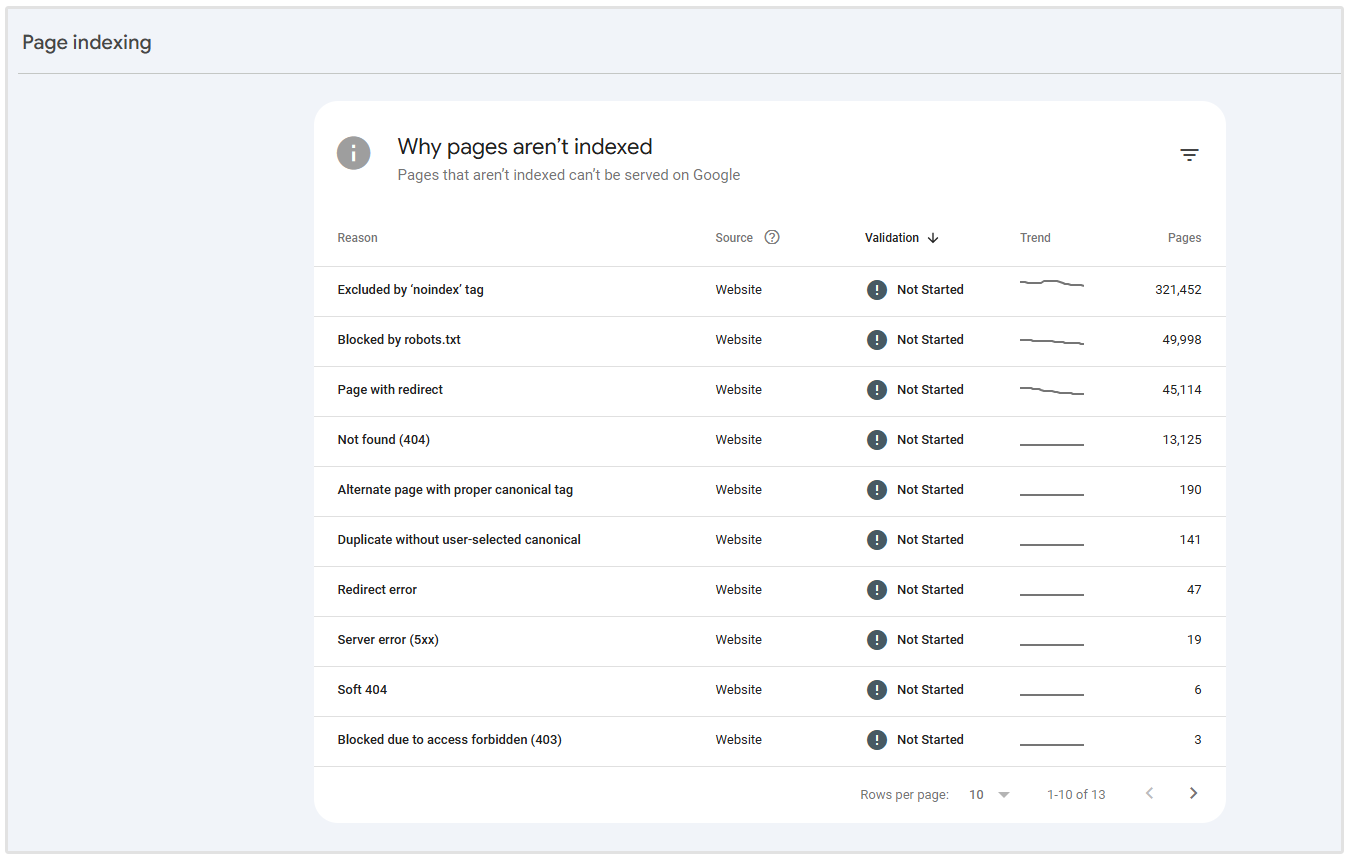
Look for errors such as:
- Duplicate without user-selected canonical
- Duplicate, Google chose different canonical than user
- Alternate page with proper canonical tag
These reports can help you see whether Google agrees with your declared canonical URL or whether it has selected a different version.
Keep in mind that not every canonical-related status is a serious problem.
For example, “Alternate page with proper canonical tag” often means Google found a duplicate page but correctly identified the preferred version.
Inspect Important Pages Manually
Finally, manually check your most important pages, such as your homepage, service pages, product pages, location pages, category pages, and high-traffic blog posts.
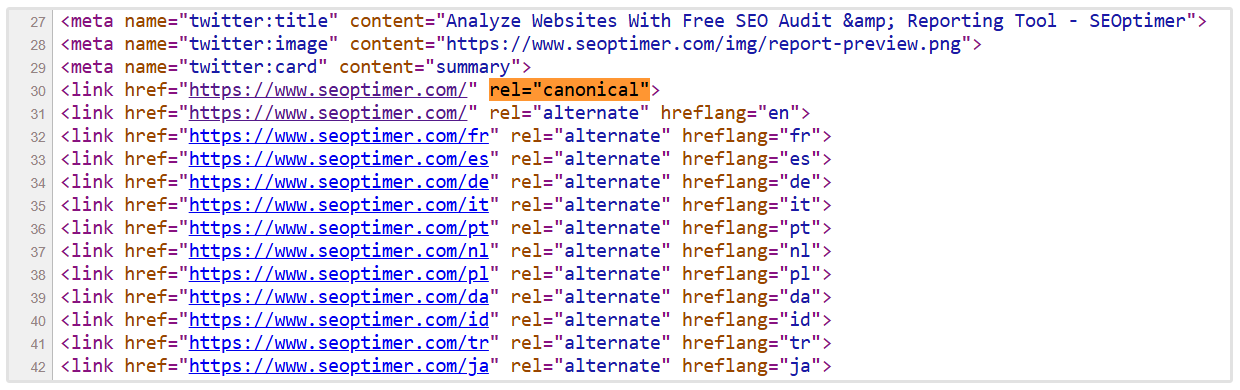
You can right click on any page and click on View page source and search for:
rel="canonical"
Then check that the canonical tag points to the correct URL, uses HTTPS, returns a 200 status code, and matches the version of the page you want search engines to index.
How to Fix Canonical Errors
Once you have identified canonical errors on your website, the next step is to clean up the signals you are sending to search engines.
Choose the Preferred URL
Start by deciding which version of the page should appear in search results.
The preferred URL should usually be the version that:
- Uses HTTPS
- Returns a 200 status code
- Has the cleanest URL structure
- Is internally linked across your website
- Is included in your XML sitemap
- Has the strongest SEO value, such as backlinks or historical traffic (You can use SEOptimer's Free Backlink Checker tool to find the URLs that have the best track record and SEO value)
Point Duplicate Pages to the Preferred URL
If the same or very similar content exists on more than one URL, the duplicate versions should point to the preferred URL using a canonical tag.
Use the full absolute URL in the canonical tag so search engines can clearly understand the preferred destination.
Fix Broken, Redirected, or Blocked Canonical Targets
Canonical tags should point to live, accessible pages.
Review your audit or crawl results and look for canonical tags that point to:
- 404 pages
- 5XX error pages
- Redirected URLs
- Noindexed pages
- URLs blocked by robots.txt
- HTTP versions when HTTPS is preferred
If a canonical tag points to a redirected URL, update it so it points directly to the final destination.
Conclusion
Canonical tags serve as a fundamental pillar of technical SEO.
By monitoring your site for canonical issues and fixing them promptly, you consolidate your link equity and guide search engines to your most valuable content.
Implement these strategies today to protect your search engine rankings and maximize your organic visibility.
Frequently Asked Questions about Canonical Errors
What is the difference between a canonical tag and a 301 redirect?
Use a 301 redirect if you want to permanently move users and search engines to a new page.
Choose a canonical tag if you need both pages to remain live and accessible to users, but you want search engines to only index one preferred version.
Can canonical issues drop my search rankings?
Yes. Canonical errors confuse search engines, split your inbound link equity across multiple duplicate pages, and waste crawl budget. This confusion directly results in lower search engine rankings and decreased organic traffic.
How long does it take Google to process canonical tag changes?
Google processes canonical tag updates the next time it crawls the affected pages.
Depending on your website's crawl budget and authority, this process can take anywhere from a few days to several weeks.
Should paginated pages have canonical tags pointing to the first page?
No. Paginated pages (like page 2 or page 3 of a blog category) contain unique content and should typically have self-referencing canonical tags. Pointing all paginated pages to page 1 tells Google to ignore the content on the subsequent pages.