


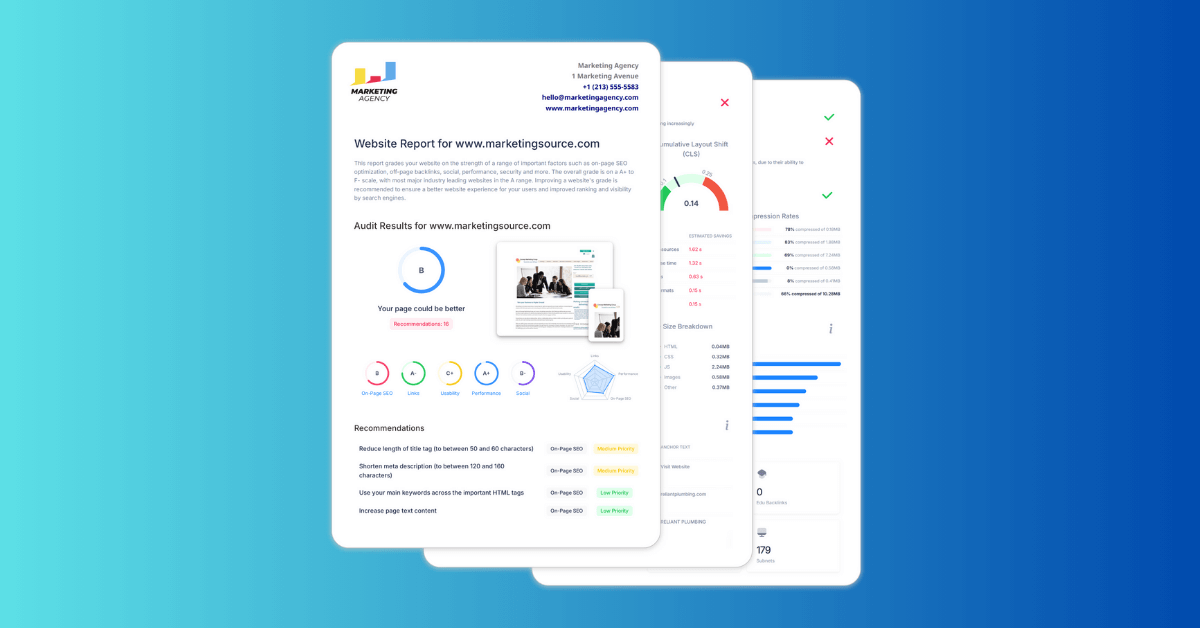
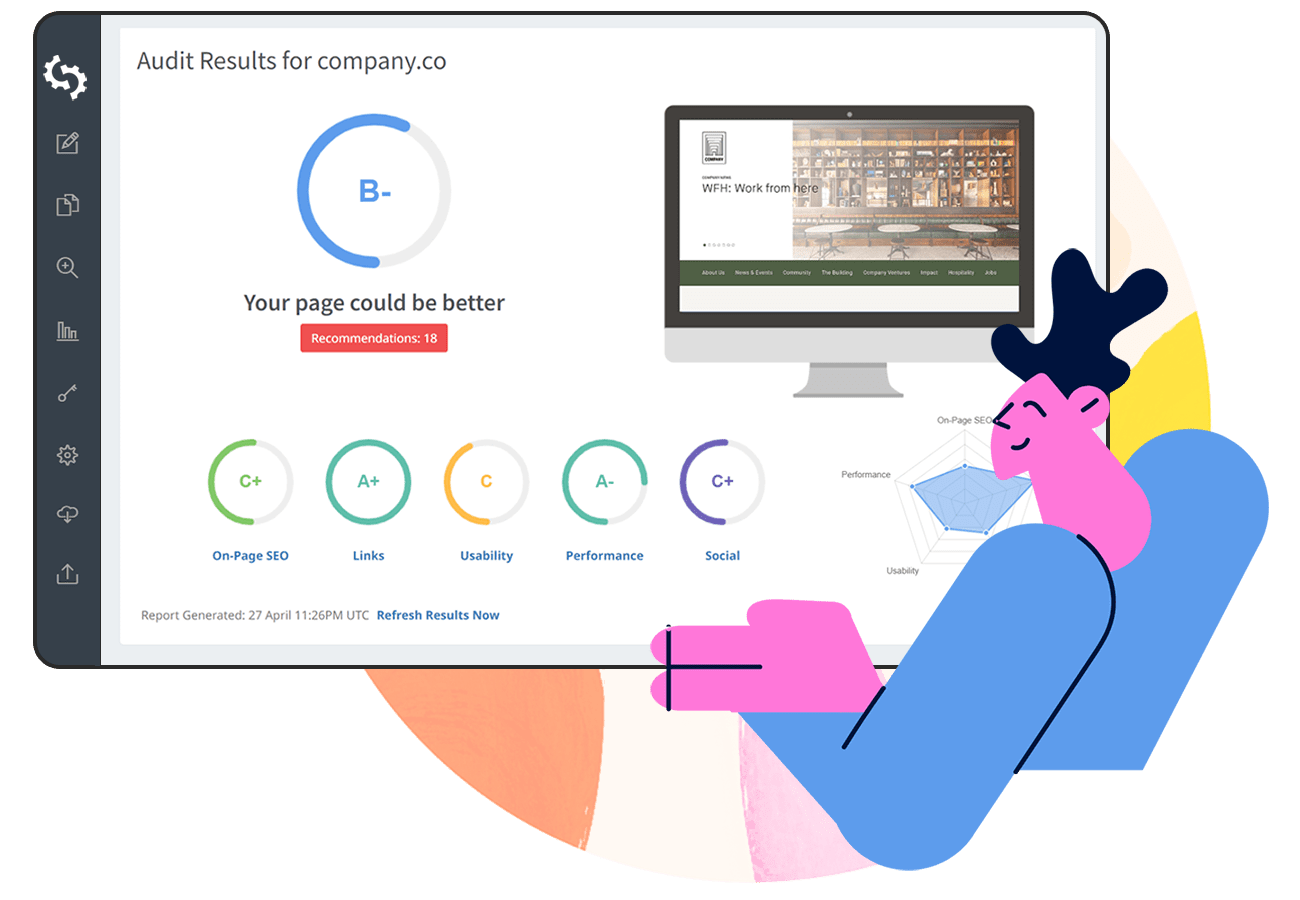
SEOptimer's White Label Reports are the perfect solution for digital agencies to provide beautiful, branded and completely customized reports to clients or prospective clients.
Before we dive into how you set up your Report Template, let’s look at our White Label Reports and what they offer.
White Label Reports
The Quick Audit tool is ideal if you want to run an audit with no branding for in-house use or if you aren’t interested in providing branded reports.

An important thing to keep in mind is that Quick Audits are not saved and therefore can’t be retrieved at a later date. So, you’ll need to ensure that you download all your Quick Audit reports if you want to be able to access them at a later stage.
Our White Label Reports audit tool which you can find under the Auditing drop down on the White Label Reports page, offers a suite of additional features.
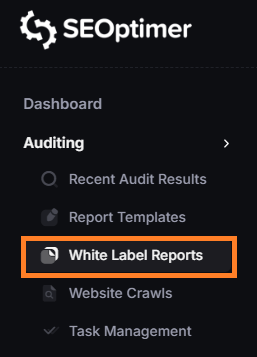
The main feature is the ability to run an audit report with your custom branding. To do this you will need to set up your Report Template first which we’ll cover later. Keep in mind that audit reports are by default unbranded so you also have the option to run an unbranded report via the White Label Reports audit tool.
.png)
To run an unbranded report, simply add your website URL or domain to the audit field and click Add Report.

Once you’ve added the report you can either access the web version of the report by clicking on the link or you can access the PDF version of the report by clicking on the PDF button on the right hand side of the page.
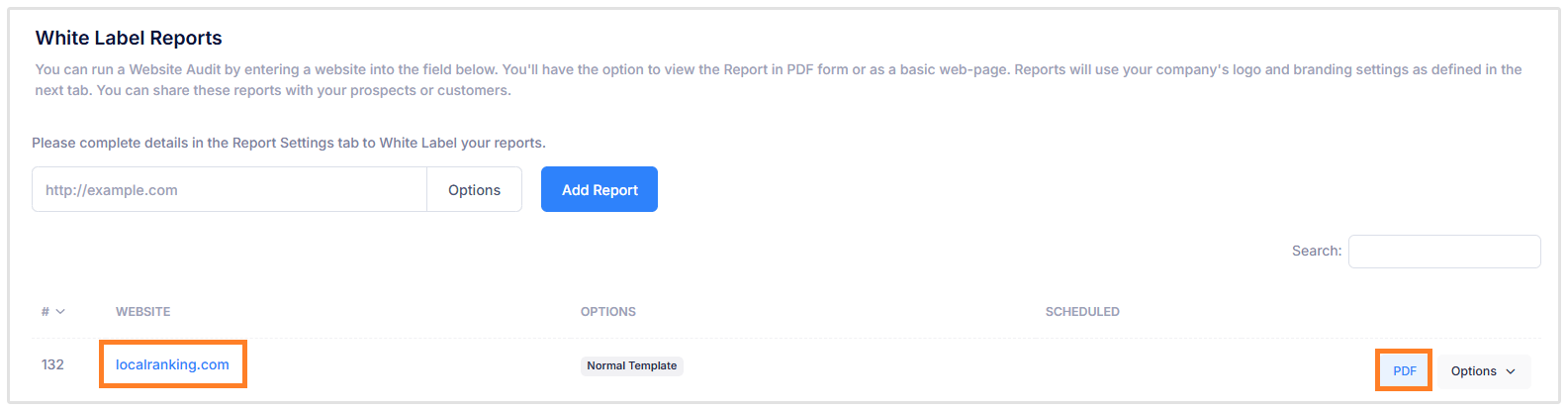
Your web report will look like this:
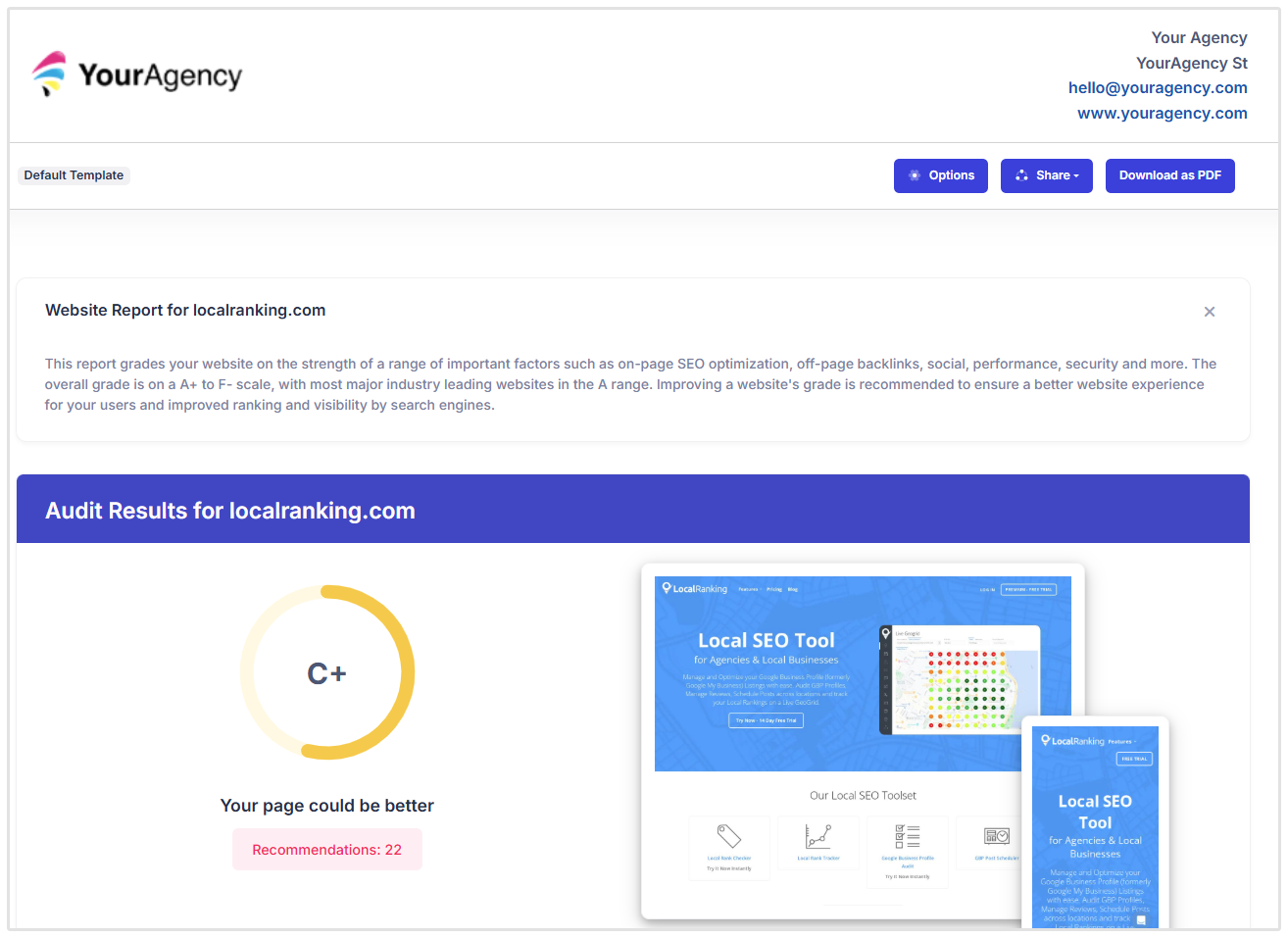
And your PDF report will look like this:
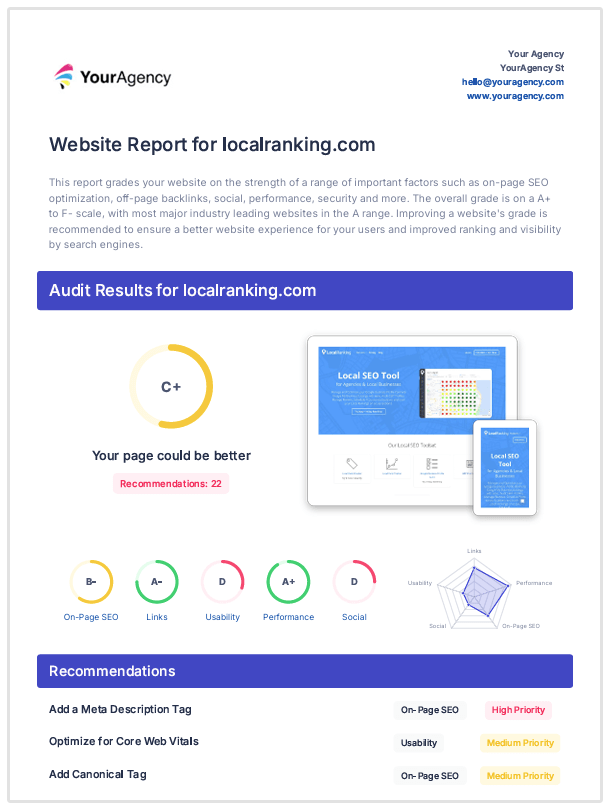
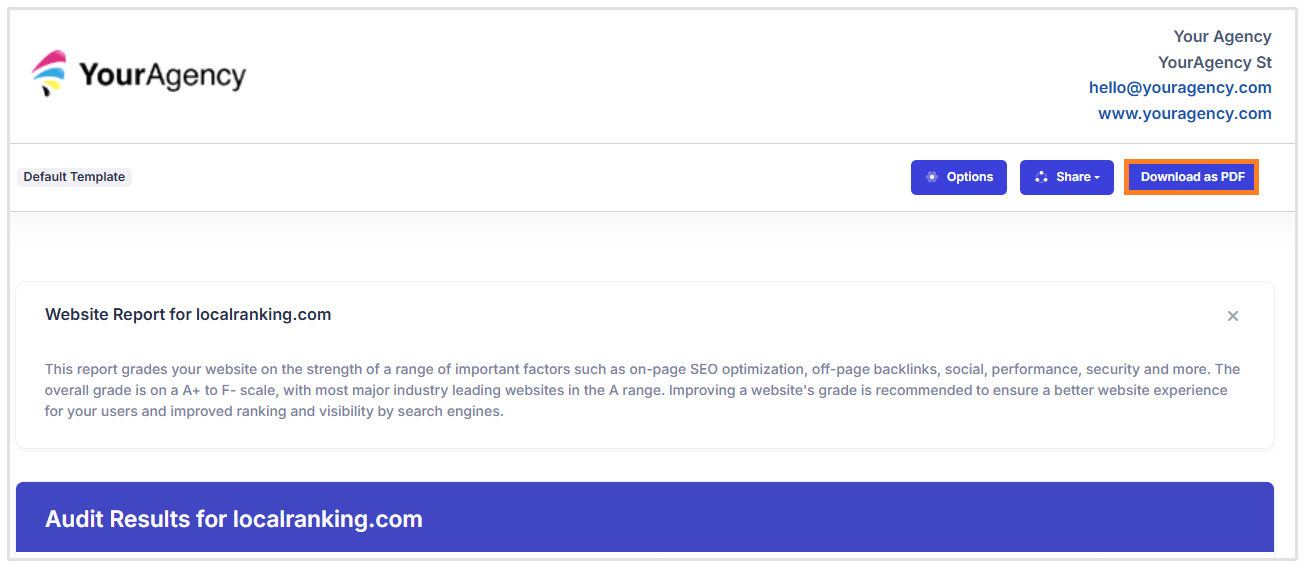
You will also see another option to download the report as a PDF when you open the web report.
Running your audits via the White Label Reports audit tool also gives you the option to directly email the audit report to your customers, schedule audit reports that can automatically be emailed to your customer, and add competitors and a target keyword to your audit.
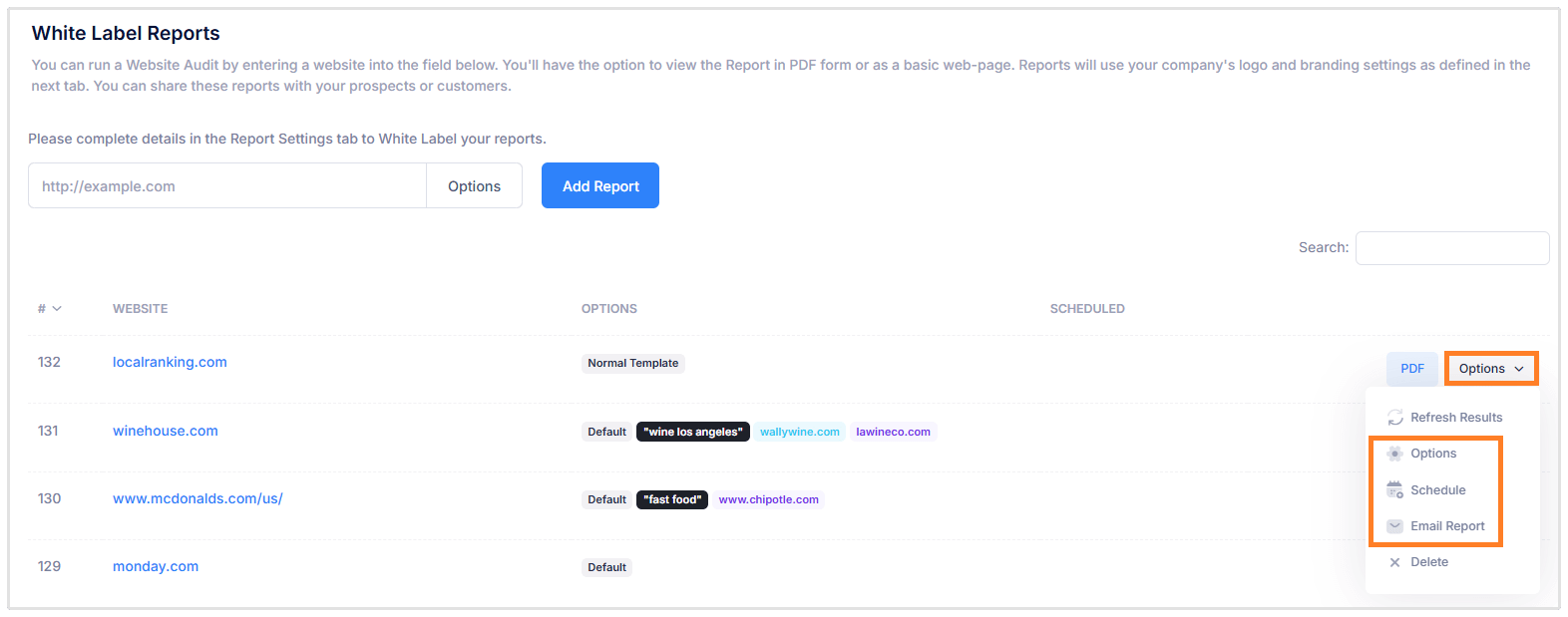
Any sites audited via the White Label Reports audit tool will be saved on the White Label Reports page which you can access if and when needed.
Another great benefit of our white label reports is our white label custom domain that allows you to create a custom domain for your report generation.
Creating a custom domain means your customers or prospects will see your custom domain, instead of our generic websiteauditserver.com domain when viewing web reports or running audits via your embed form.
Now that you know what our White Label Reports are capable of, let’s look at how you can customize your reports with our Report Templates.
What is a Report Template?
Customization of Audit Reports in SEOptimer is powered by report templates. Rather than having static settings, SEOptimer supports multiple templates so you can set up many different kinds of reports.
These different reports might just be look and feel (style) or they might be more structural and include different checks and different levels of information. It's really up to you as to whether you use 1 template or several.
Creating multiple report templates is very useful for a number of reasons. You might want to set up a shorter version of the report with fewer checks as more of an introductory audit.
Then you could have a more comprehensive and detailed report template for a new client onboarding session. Some other reasons include:
- different branding for your agency based on who the client is (or if you operate sister agencies or sub-brands)
- deliver reports in different languages
- deliver reports in different auditing methodologies (grade scoring vs numeric scoring)
- regional differences for example Canadian agencies delivering reports in English and French
But if you don't feel like you need multiple report templates, no problem! You can simply use our Default Template and make any changes you need to that single template.
Using your White Label Report Templates
Once you've created some new report templates, you can apply them to new reports. Simply navigate to White Label Reports in the menu and click the "Options" button when creating a new report. Then select the template you want to apply in the dropdown menu.
.png)
You can also click the "Options" button next to existing White Label Reports to change the report template on any reports you've already generated.
White Label Reports Features at a Glance
Every report check can be turned on/off in White Label Reports including several other report customizations and settings. The full list of customizable features are:
- Support for custom logo, favicon, colors and fonts
- Switch between grade scoring and numeric scoring
- Show/hide description details for each check
- Show/hide Recommendations box and Priority labels
- Up to 28 On-Page SEO checks
- Up to 5 Keyword Rankings checks
- Up to 8 Link checks
- Up to 11 Usability checks
- Up to 11 performance checks
- Up to 9 Social checks
- Up to 8 Technology checks
- Support for 28 different languages
Customize your White Label Report Templates
Digital agencies can customize every aspect of White Label Reports. This is all controlled from the Report Templates section of SEOptimer. In this definitive guide we'll cover how Report Templates work and what each of the customizations can do.
The Report Templates section comprises the following settings:
General Settings
This section is where you can define your report language. SEOptimer supports white label reports in 16 languages:
- US English
- UK English
- Azerbaijani
- Czech
- Danish
- Dutch
- Estonian
- Finnish
- French
- German
- Greek
- Hungarian
- Icelandic
- Italian
- Korean
- Norwegian
- Polish
- Portuguese
- Portuguese(Brazilian)
- Romanian
- Russian
- Spanish
- Swedish
- Traditional Chinese(Taiwan)
- Turkish
You can also switch between Grade scoring or Numeric scoring and show or hide check details text.
.png)
This is what the grade scoring looks like:
.png)
And this is what the numeric scoring looks like:
.png)
If you choose to show the check detail, you'll see a Show Details button under certain checks:

Which expands to give you more information relating to the check. In this case, it's showing the URLs of the images that don't have an alt attribute:
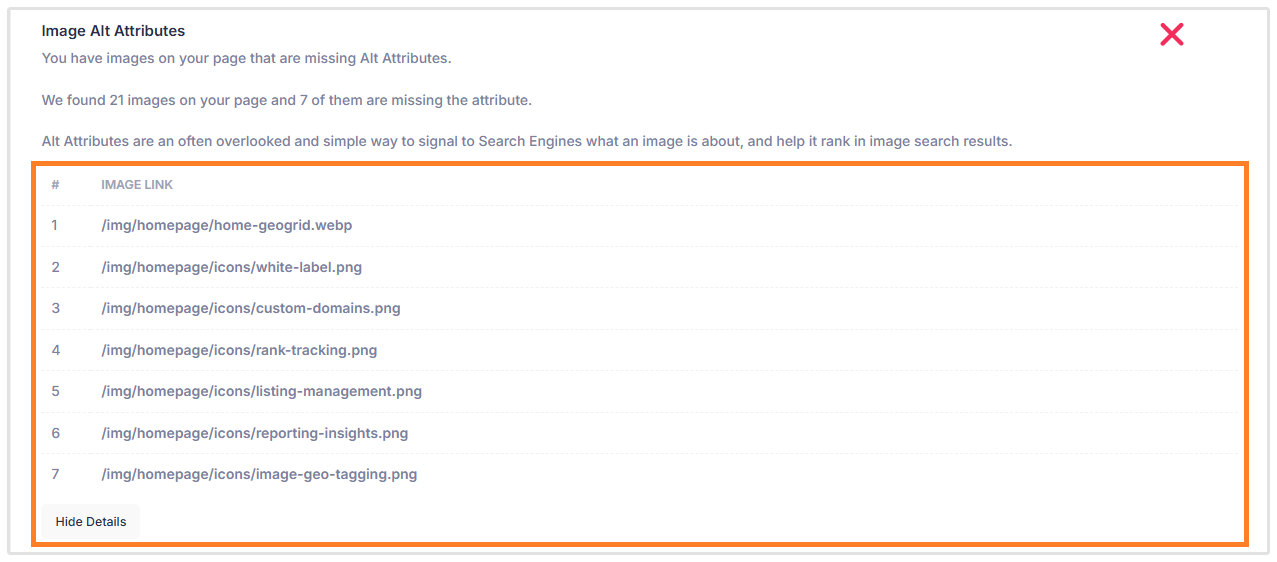
The Explainer Text also expands to provide more context for each check:

.png)
Report Header Settings
This section is where you can upload your agency logo and add your contact details. First impressions count so ensure you upload a clear, good quality logo (landscape aspect ratio is optimal).
-
-
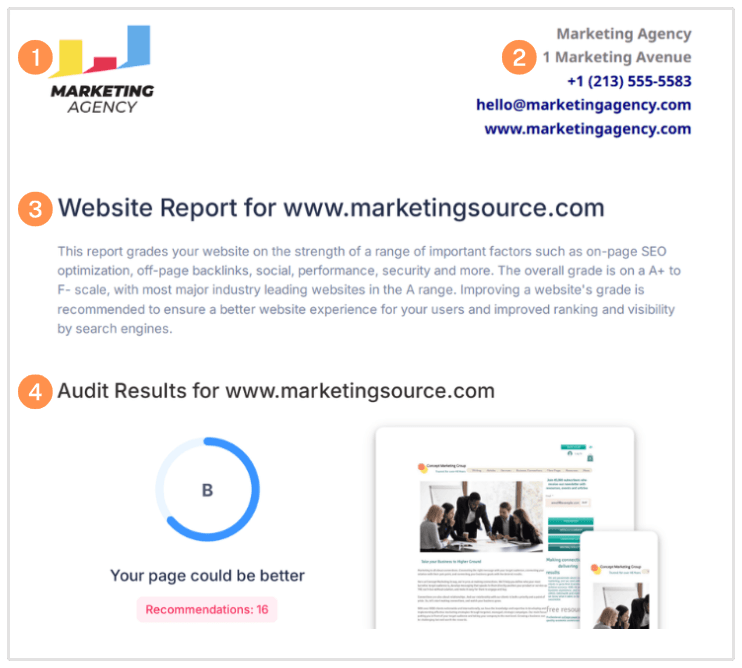
- Upload your logo
- Add your company name and contact details
- Toggle the Report title on/off or customize the text
- Toggle the Introductory Paragraph on/off or customize the text
-
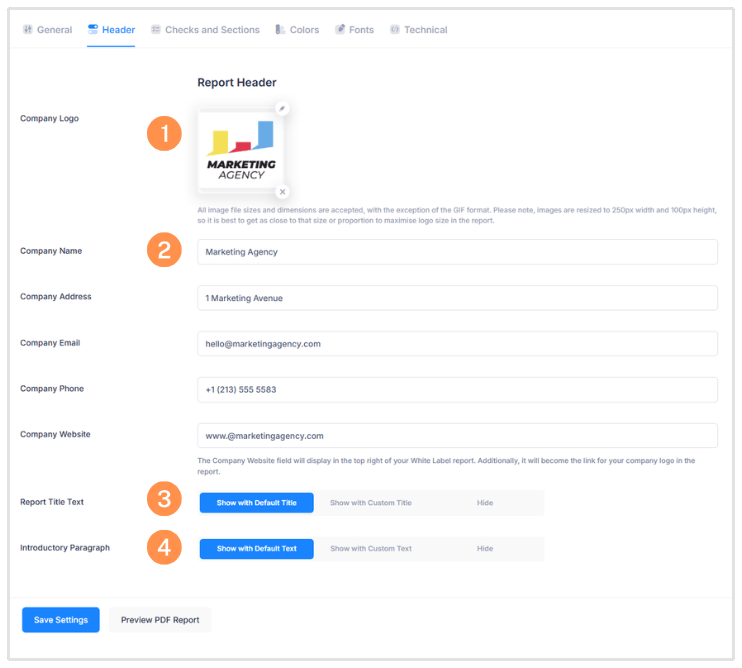
These 4 Report Header settings map to the White Label Report as shown below:
Include Checks and Sections
This is where you can customize what checks and sections are used in the report. This area is quite large and encompasses 7 different sub-sections:
On-Page SEO Results
-
-
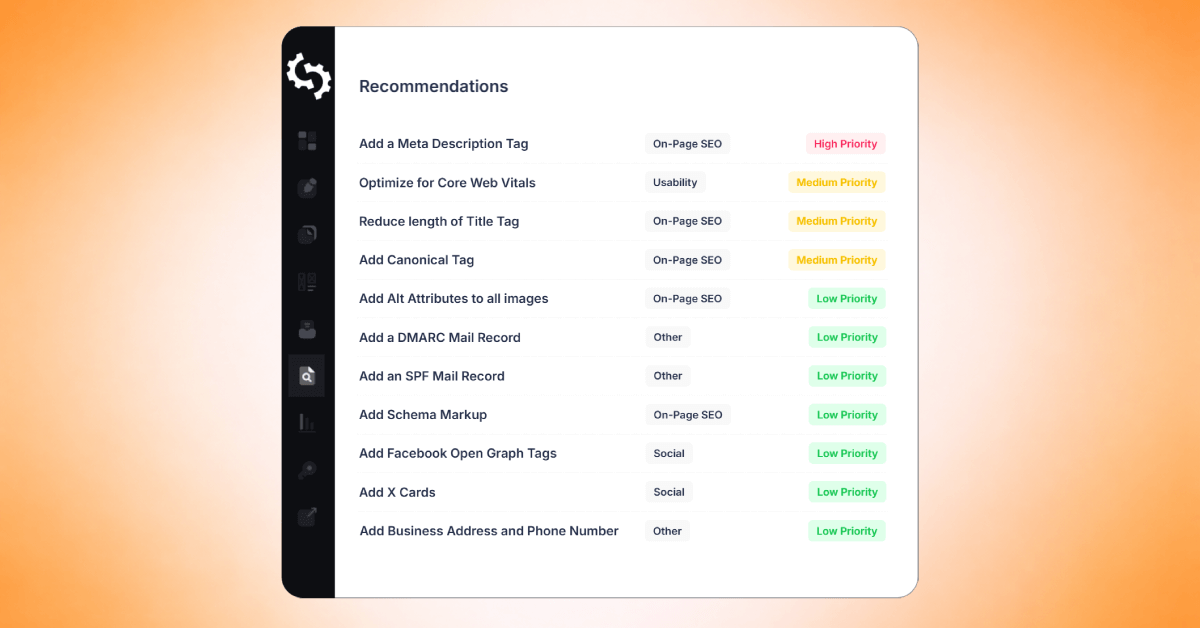
- Recommendations table appears directly underneath the main audit score
- Toggle the Priority labels on/off
- Toggle the Title Tag check on/off (checks for the Title Tag AND returns the full text including character count)
- These 4 checks highlighted in gold below check for the Target Keyword in each of the applicable fields. These checks will only show if you run a White Label report with a Target Keyword set
- Toggle the Meta Description Tag check on/off (checks for the Meta Description Tag AND returns the full text including character count)
- Toggle the SERP Snippet Preview on/off(Shows how your page may appear in the search results)
- Toggle the Hreflang check on/off(checks whether the pages makes use of Hreflang attributes)
- Toggle the Language check on/off(checks whether the pages is using the Lang attribute)
- H1 Header Tag check on/off(checks whether the page has an H1 tag)
- Toggle the H2-H6 Header Tag check on/off (checks for H2-H6 Header Tags and returns a frequency count for each)
- Toggle the Keyword Consistency check on/off (checks for both individual keywords and phrases and ranks their locations and frequency in a table)
- Toggle the Amount of Content check on/off (performs a word count on the page text)
- Toggle the Image Alt Attributes check on/off (checks for missing ALT tags in all images)
- Toggle the Canonical tag on/off
- Toggle the Noindex Tag check on/off
- Toggle the Noindex Header Test on/off
- Toggle the SSL Enabled check on/off
- Toggle the HTTPS Redirect check on/off
- Toggle the Robots.txt check on/off (checks for robots.txt and returns the URL)
- Toggle the Blocked By Robots check on/off (checks whether the page is blocked by robots.txt)
- Toggle the LLMs.txt check on/off( checks whether the page has an LLM txt file)
- XML Sitemaps check on/off (checks for an XML Sitemap and returns the URL)
- Toggle the Analytics check on/off (checks for Google Analytics on page)
- Toggle the Schema.org Structured Data check on/off
- Toggle the Identity Schema check on/off(checks if the page has an Organization or Person Schema)
- Toggle the Rendered Content(LLM Readability) check on/off
- Traffic From Search which shows an estimate of total monthly organic search traffic
- Top Organic Keyword Rankings which lists top 10 keywords driving traffic from Google Organic Searches
- Top AI Overview Citations which shows the top searches for which an AI Overview is displayed with a citation to your site
- Top Paid Keyword Rankings which shows the top 10 Paid Keywords driving traffic to your site
- Organic Keyword Positions which shows a summary of the positions for your Organic Keyword Rankings
-
 (1).png)
These On-Page SEO and Keyword Rankings checks map to the White Label Report as shown below:
.png)
.png)
.png)
.png)
.png)
.png)
.png)
.png)
Links
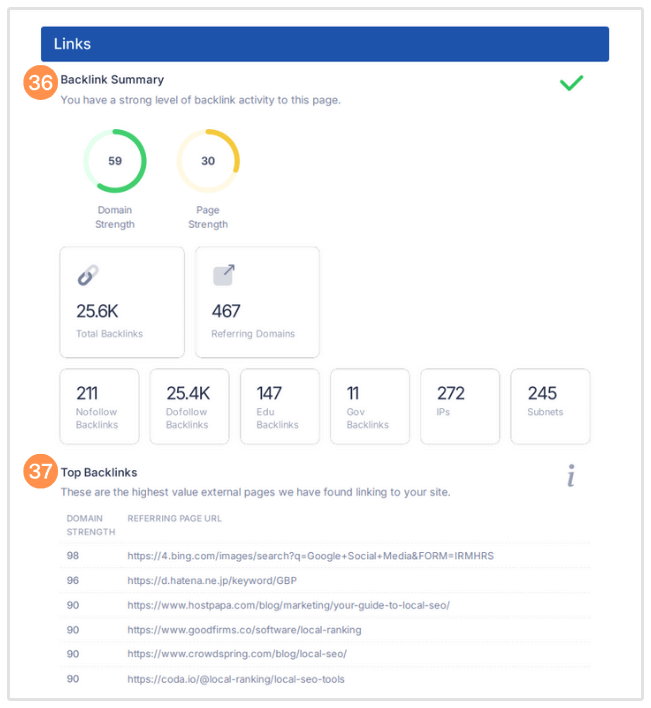
- Toggle the Backlink Summary check on/off
- Toggle the Top Backlinks check on/off(shows the highest value external pages linking to your site)
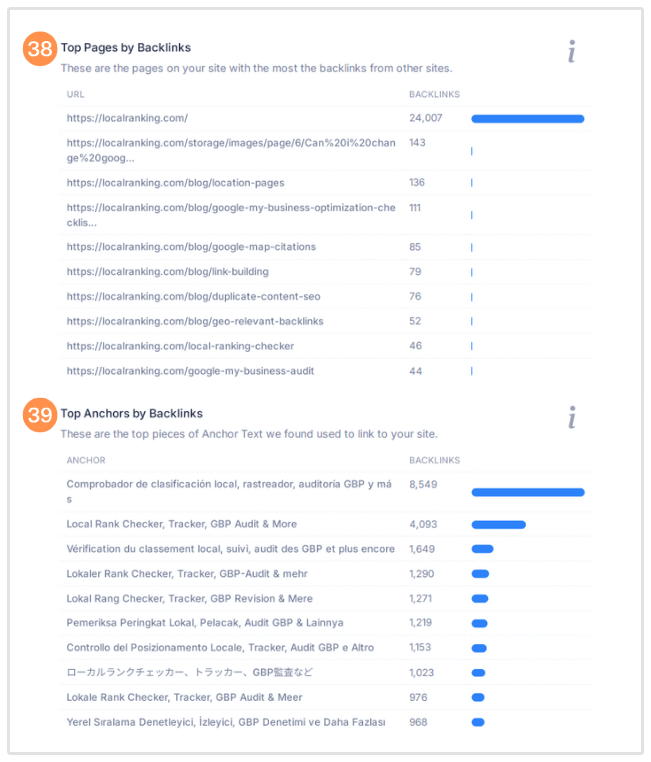
- Toggle the Top Pages by Backlinks check on/off (shows the pages on your site with the most backlinks)
- Toggle the Top Anchors By Backlinks check on/off (shows the top pieces of Anchor Text used to link to your site)
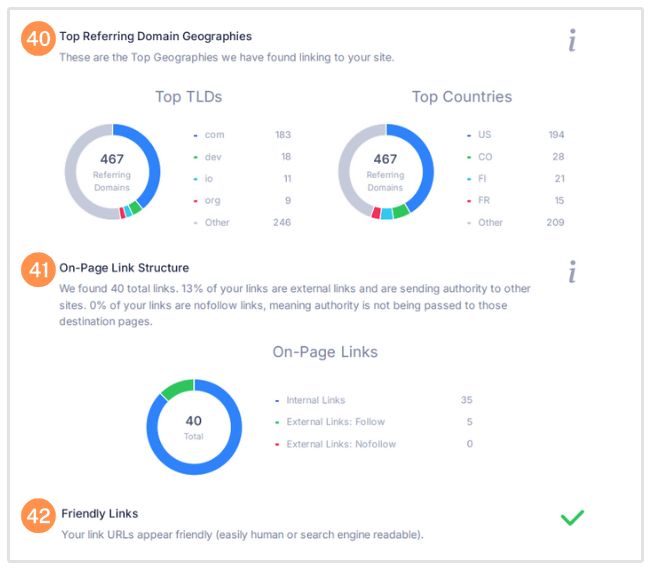
- Toggle theTop Referring Domain Geographies check on/off (shows the Top Geographies linking to your site)
- On Page Link Structure shows the breakdown of Internal vs External links on your site.
- Shows whether your links are easy to read by humans and search engines
Usability Results
-
-
- Device Rending returns visualizations of the site loading in a smartphone and a tablet
- Google's Core Web Vitals returns a pass or fail on the overall check and includes the 3 scores for LCP, FID and CLS
- Use of Mobile Viewports checks if a mobile viewport has been specified
- Google's PageSpeed Insights-Mobile gives you page speed score for your page on a mobile device
- Google's PageSpeed Insights-Desktop gives you page speed score for your page on a desktop device
- Flash Used? checks if any Adobe Flash content is present on the page
- iFrames Used? checks if any iFrames are present on the page
- Favicon checks if a favicon has been defined
- Email Privacy checks for any plain text email addresses on the page
- Legible Font Sizes checks for small font sizes which may be difficult to read on mobile
- Tap Target Sizing checks for any links or buttons which may be difficult to tap on touchscreen devices
-
Performance Results
-
-
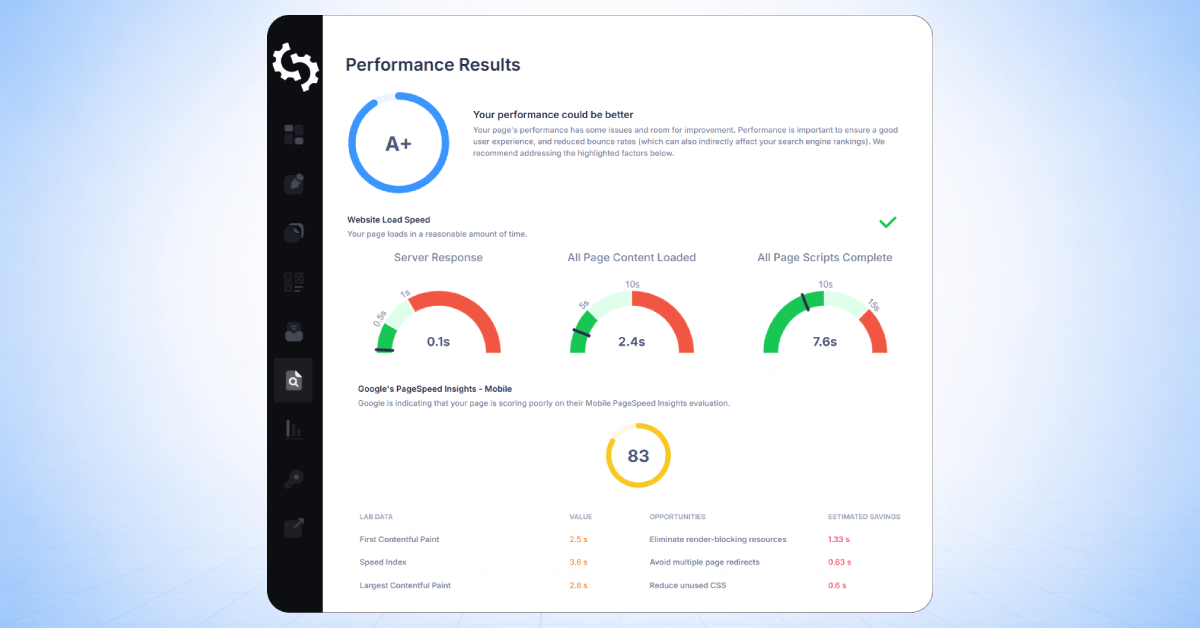
- Website Load Speed returns 3 speed dials (in seconds) for Server Response, All Page Content Loaded and All Page Scripts Complete
- Website Download Size returns filesize dial showing total page size (in megabytes) and a page size breakdown donut chart
- Compression Usage(Gzip, Deflate, Brotli) shows compression rates for HTML, CSS, Javascript, Images and other sources.
- Resources Breakdown returns 6 counts for: the total number of objects, number of HTML pages, number of JS resources, number of CSS resources, number of images and other resources
- Google Accelerated Mobile Pages (AMP) checks if AMP is enabled
- JavaScript Errors checks for any JS errors
- HTTP2 Usage checks if your site is using the recommended HTTP/2+ protocol
- Optimize Images checks if images are unoptimized
- Minification checks if the JS and/or CSS are minified
- Deprecated HTML checks for any deprecated HTML tags
- Inline Styles checks if any inline styles are being used
-
.png)
These Links, Usability and Performance checks map to the White Label Report as shown below:
.png)
.png)
.png)
.png)
.png)
.png)
Social Results
-
-
-
- Facebook Page Linked checks whether the page has a link to a Facebook Page
- Facebook Open Graph Tags checks whether the OG Tags are present on the page
- Facebook Pixel checks whether a Facebook Pixel is installed and if so, returns the Pixel ID
- X(formerly Twitter) Account Linked checks whether the page has a link to a X profile
- X Cards checks whether X Cards structured data are present on the page
- Instagram Linked checks whether the page has a link to an Instagram Profile
- YouTube Channel checks whether the page has a link to a YouTube Channel
- YouTube Activity checks whether there is any recent activity on the linked YouTube Channel
- LinkedIn Connected checks whether the page has a link to a LinkedIn Company Page
-
-
Local SEO Results
- Address and Phone Shown on Website
- Local Business Schema shows whether your website has local business schema on your site
- Google Business Profile Identified shows whether a Google Businesses Listing has been found for your site
- Google Business Profile Completeness shows whether all the relevant business details have been populated on your business listing
- Google Reviews
Technology Results
- Technology List returns a table of all the technology used on the website
- Server IP Address returns the server's IP Address
- DNS Servers returns the DNS Servers for the domain
- Web Server returns the technology of the web server
- Charset returns the HTML charset used on the page
- DMARC Record shows if your site has DMARC record in place
- SPF Record shows whether your site has an SPF record in place
- Child Pages returns a table listing all the sub-pages on the site
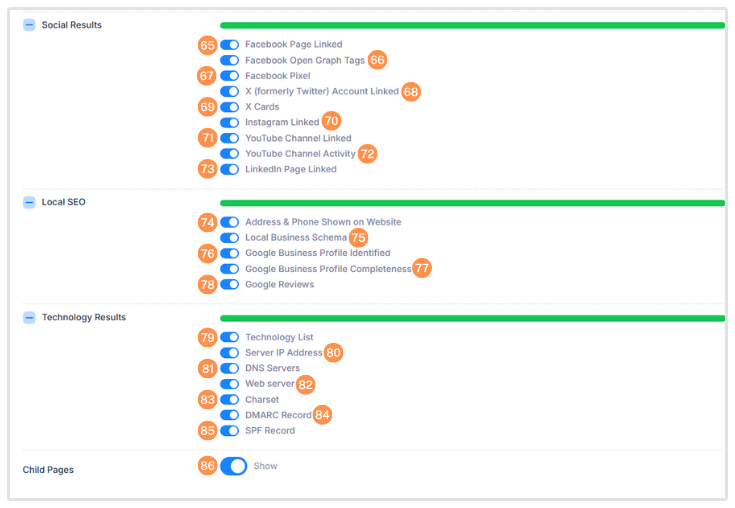
These Social and Technology checks map to the White Label Report as shown below:
.png)
.png)
.png)
.png)
Colors and Fonts
In this section you can customize the look and feel of your reports by specifying colors and fonts. There are 11 popular fonts to choose from and you can separately specify a header and body font.
Colors can be picked using the color picker in each box or you can paste a HEX color code (beginning with '#') to exactly match your branding or style guidelines. There are 5 different color customizations:
-
.png)
-
.png)
- 1. Background Color: only visible for reports in web/browser view (not PDFs) - usually this should be white (#ffffff)
- 2. Highlight Color: this is the score dial color - default is blue with multi-color dials shown on the Summary page based on score (as shown in the example below)
- 3.Section Headers Background Color: default is #ffffff (ie: invisible)
- 4.Section Headers Text Color: default is dark grey
- 5.Hyperlink Color: color of all clickable text links
The most prominent color setting to align to your branding is the Section Headers background and text color. As you can see in the example below, if you set a color other than white in the Section Headers background color, this will appear as a long rectangular box underneath each section title.
When using a darker color like the blue we've used, make sure you set your Section Header text color to a lighter color like #ffffff (white).
Also, if you've defined a Section Header background color, it is customary to use this same color as the Highlight Color for all the score dials.
Note that if you define a Highlight Color, this changes the color of all dials and replaces the multi-color score dials on the Summary page. To switch back to the multi-color score dials, simply delete the Highlight Color HEX code.
.png)
Technical
In this section you can define a favicon for web reports and also define the <title> and <meta description> tags of the page:
.png)
Finally, at the bottom of the page the blue "Preview PDF Report" button enables you to preview your report template before saving it. This is handy for ensuring all your updates show in the report exactly how you anticipate.
Below is an example of the web report showing the favicon which appears in the top left of the browser tab next to the <title>. The <meta description> is invisible on the page however it appears in link previews - which are shown if you share the report link on Facebook Messenger, Slack or most other messaging apps.
 (1).png)
These are all the customizations we currently offer for our white labeled reports. If there are any additional checks or customizations you'd like us to add, we'd love to hear from you, just send us a message via our Live Chat.

.png)
.png)