

The SEO Audit Tool helps you analyze a website’s overall SEO performance and identify issues that may affect search visibility.
By scanning a site across a wide range of SEO factors, the tool highlights areas that may need improvement and provides recommendations to help optimize your website.
After running an audit, you will receive a report summarizing the site’s SEO health, along with detailed results for individual checks covering areas such as on-page SEO, links, usability, performance, and technical configuration.
After reading this guide, you’ll know:
- How to run an SEO audit
- What you can see in each audit report
- How to share and export audit reports
Ready? Let’s start.
How to Access the SEO Auditing Tool
There are three primary ways to run an SEO Audit, let’s look at each of them:
From the SEOptimer Homepage
One of the quickest ways to run an SEO audit is directly from the SEOptimer homepage.
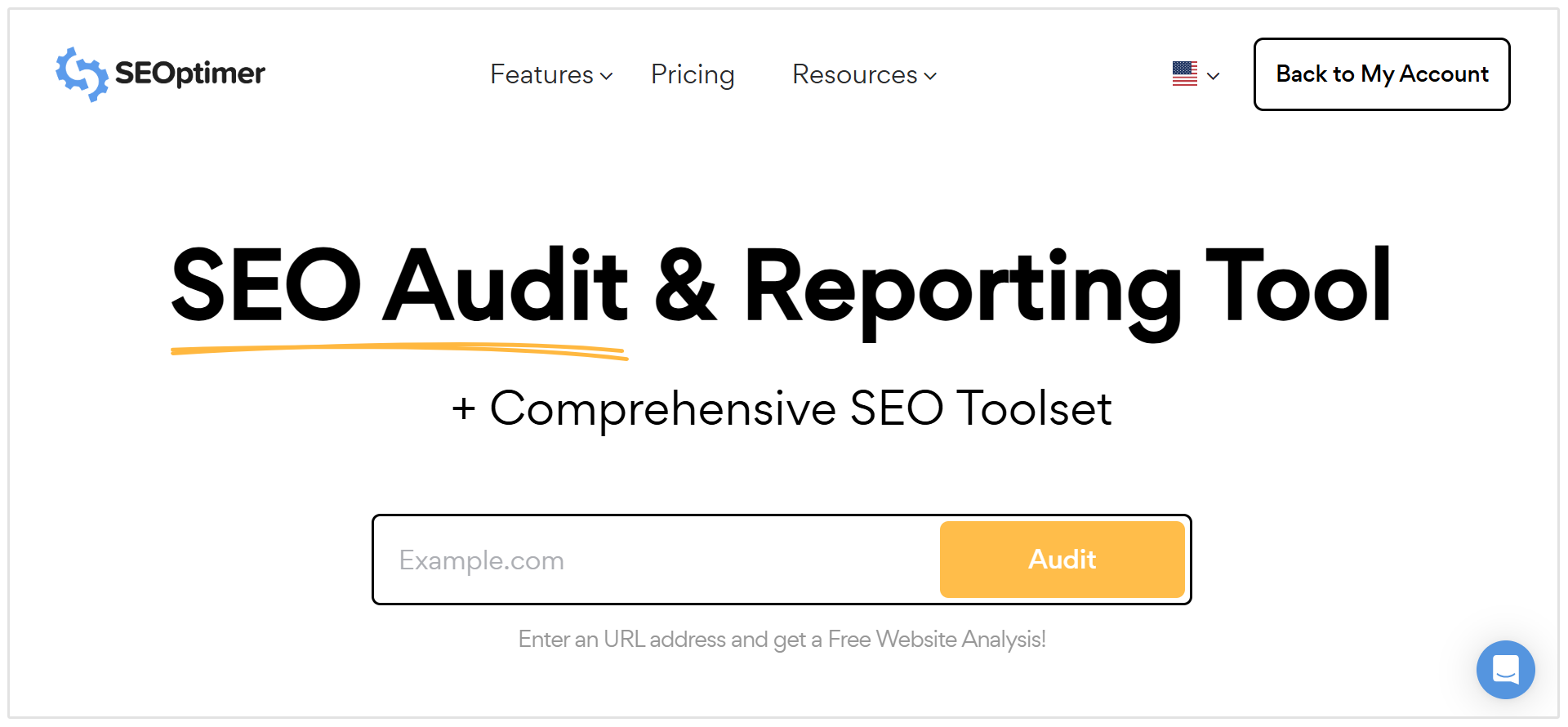
To start an audit:
- Go to the SEOptimer homepage.
- Locate the URL input field in the center of the page.
- Enter the website address you want to audit (for example, bestdenverhvac.com/).
- Click the Audit button.
SEOptimer will then begin analyzing the website and generate a detailed SEO audit report.
Once the scan is complete, you will be taken to the full report where you can review the site’s SEO score and detailed results for each check.
Run a Quick Audit
You can also run an SEO audit using the Quick Audit field located at the top of the SEOptimer application.
This option is available throughout the entire platform, allowing you to start a new audit from any tool or page (inside your account).
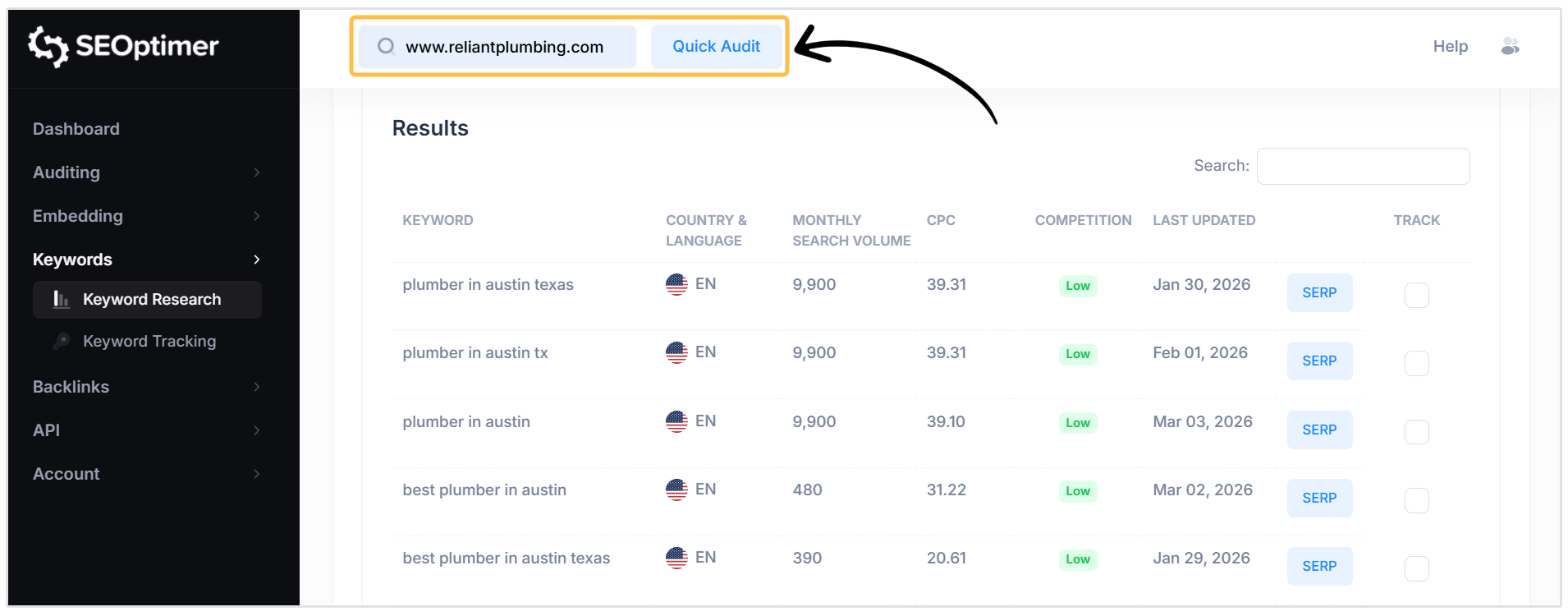
To run an audit using Quick Audit:
- Locate the Website URL field at the top of the SEOptimer interface.
- Enter the website address you want to audit.
- Click Quick Audit.
SEOptimer will immediately begin analyzing the website and generate a new SEO audit report.
Once the scan is complete, you will be taken to the crawl report where you can review the results and recommendations.
From the SEOptimer Dashboard
You can also run an SEO audit directly from the SEOptimer Dashboard.
To run an audit from the dashboard:
- Go to the Dashboard in your SEOptimer account.
- Find the Run an Audit section.
- Enter the website URL in the input field.
- Click Run.
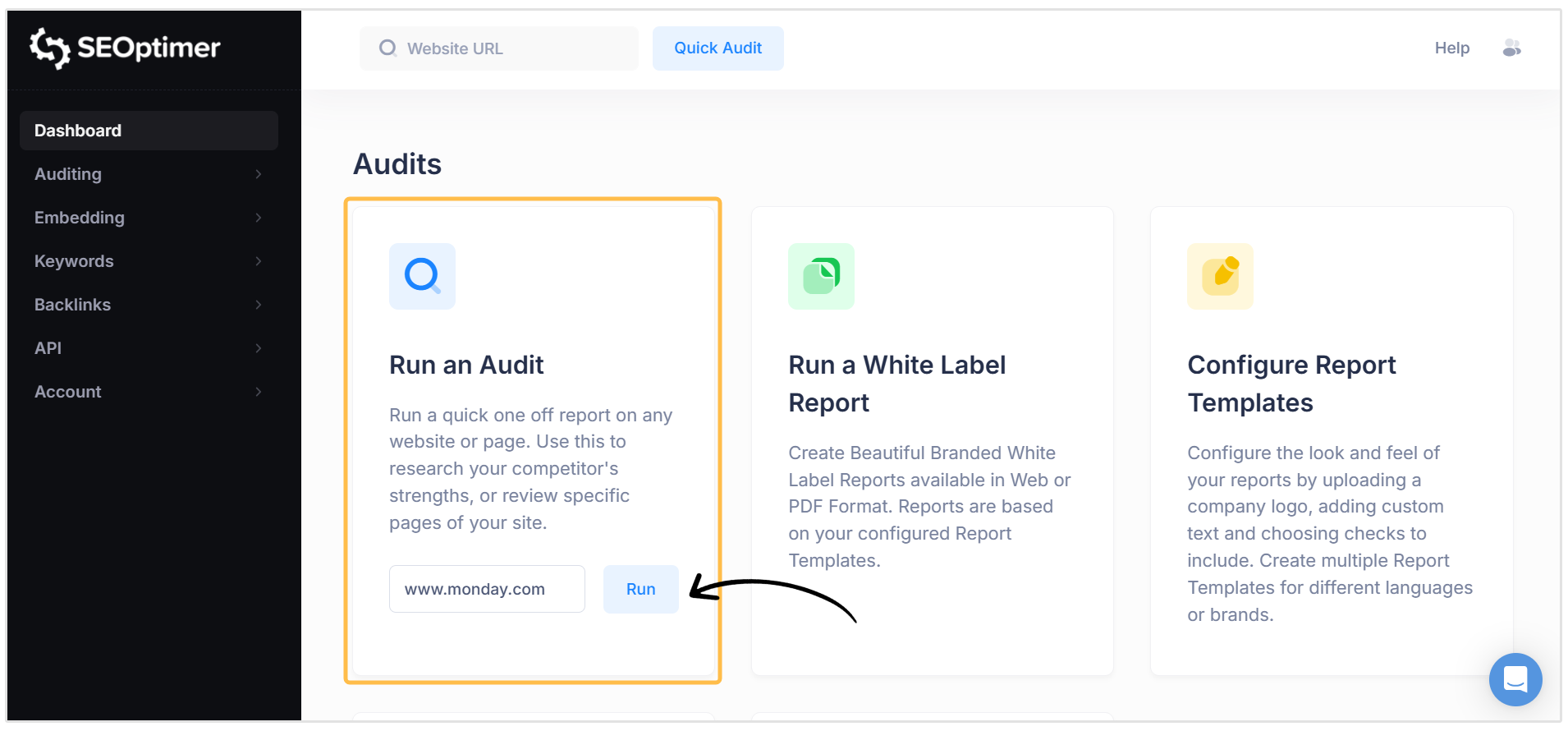
SEOptimer will then begin analyzing the website and generate a new SEO audit report.
Viewing your SEO Audit Results
Each time you run an SEO audit using any of the access points described above, the results will appear in the Recent Audit Results section located on the left-hand menu of the SEOptimer dashboard.
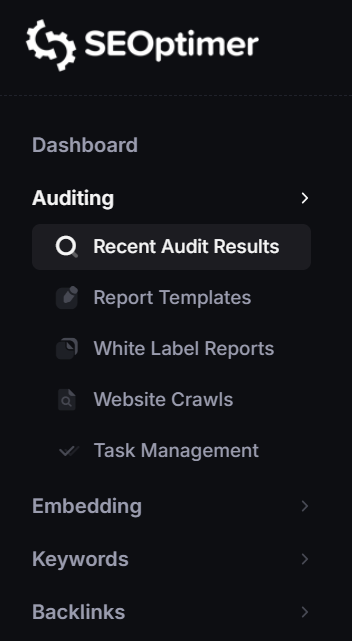
This section allows you to quickly open the most recent audit that was generated for a website.
Please note that SEOptimer does not permanently store Quick Audits or standard SEO audit reports that are generated through these entry points.
The system only keeps the most recently generated report.
If you need to access the results again later, you will need to run the audit again.
Alternatively, users on certain plans can download and save reports for future use.
If you are on the White Label or Embedding plans, you can generate downloadable reports that can be stored and shared outside of SEOptimer.
The White Label plan and higher also allow you to fully customize your audit reports.
You can create White Label report templates where you control the appearance and content of the report, including:
- Adding your company logo and branding
- Customizing colors and fonts
- Including company information such as name, address, phone number, and website
- Choosing which SEO checks and sections are included in the report
These customization features are available on the White Label plan or higher.
Related Reading: SEOptimer’s White Label Reports & Report Templates Explained
Overview of the SEO Audit Report
The audit report is organized into several sections, each focusing on a different aspect of SEO such as on-page optimization, technical configuration, usability, performance, and more.
Within each section, the tool runs a series of checks and provides clear results along with recommendations where applicable.
Related Reading: Understanding All of the SEO Report Checks
Audit Results
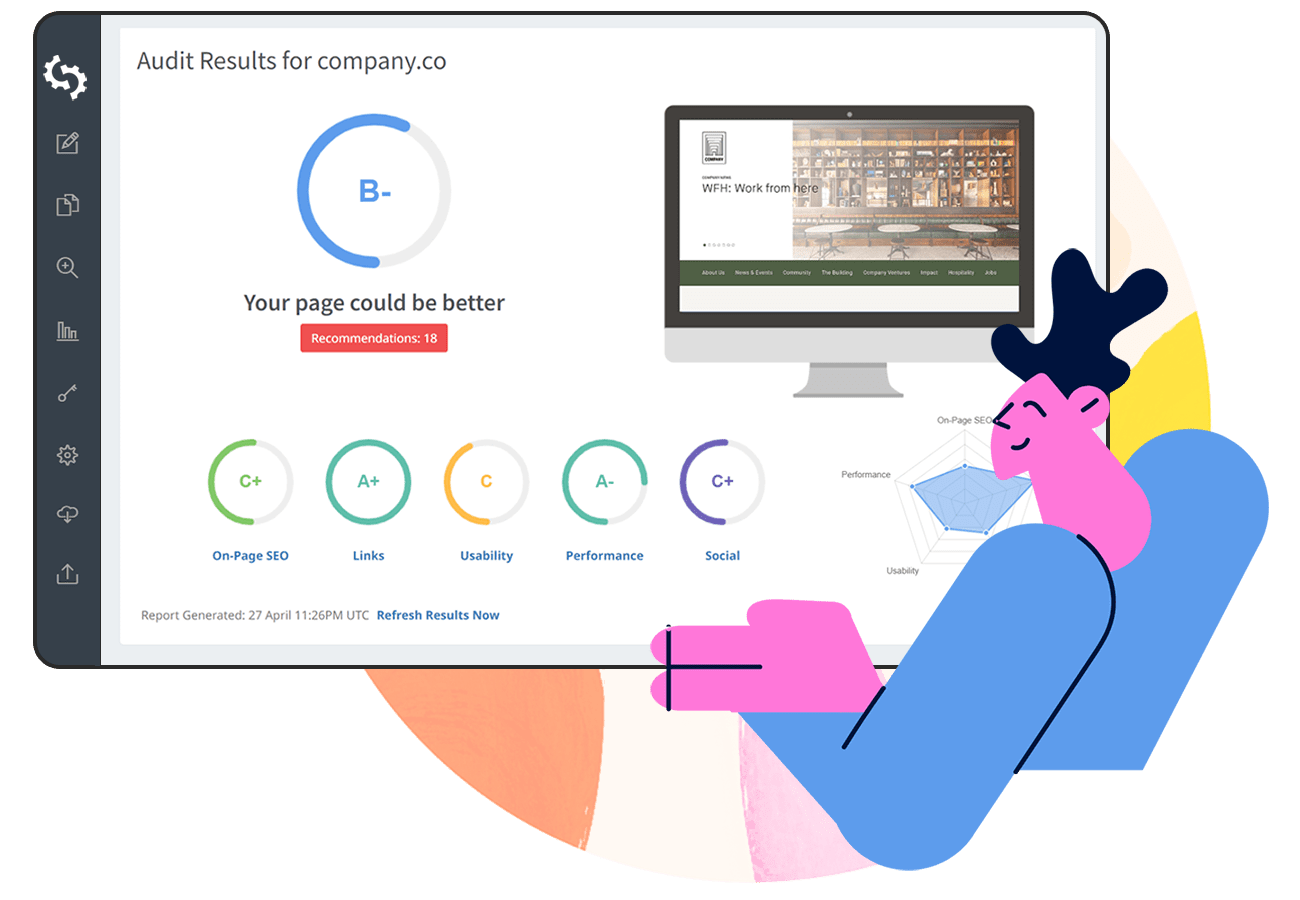
The Audit Results section appears at the top of the SEO audit report and provides a quick summary of the website’s overall SEO performance.
This section displays the overall SEO score, which reflects how well the site performs across all of the checks included in the audit. It also shows the number of recommendations identified during the scan.
Below the overall score, you will see a set of category indicators for the main SEO areas analyzed in the audit, such as:
- On-Page SEO
- Links
- Usability
- Performance
- Social
Each of these indicators shows a score for that specific category. You can click on any of these sections to jump directly to the corresponding part of the audit report and review the detailed checks and recommendations.
Recommendations
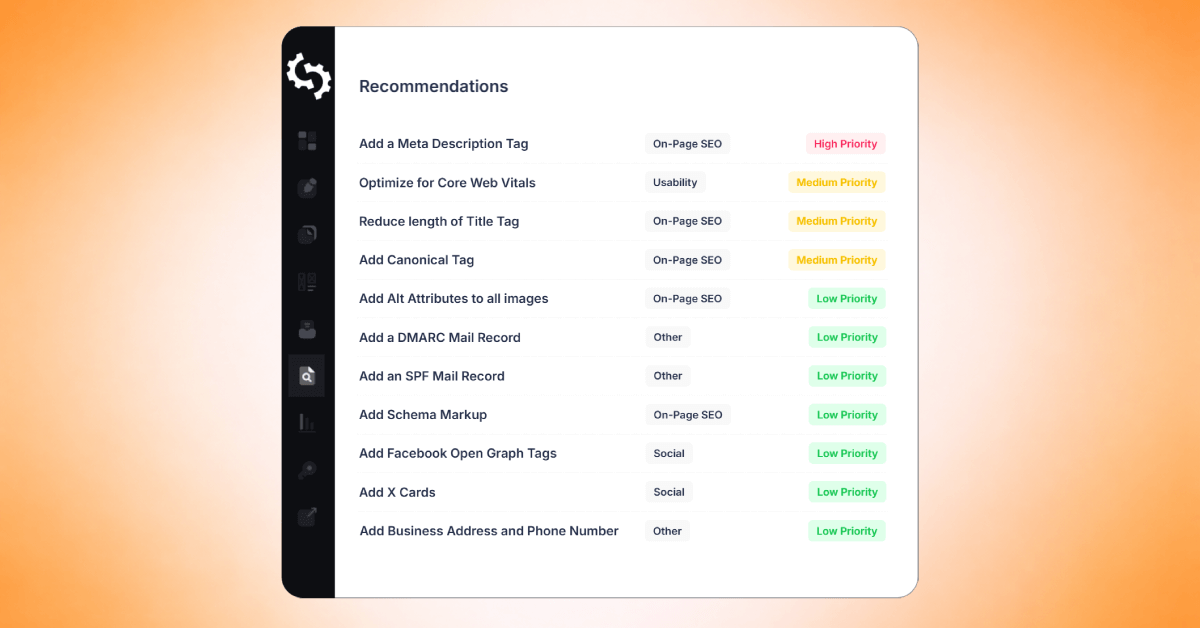
The Recommendations section lists the SEO issues and improvement opportunities identified during the audit.
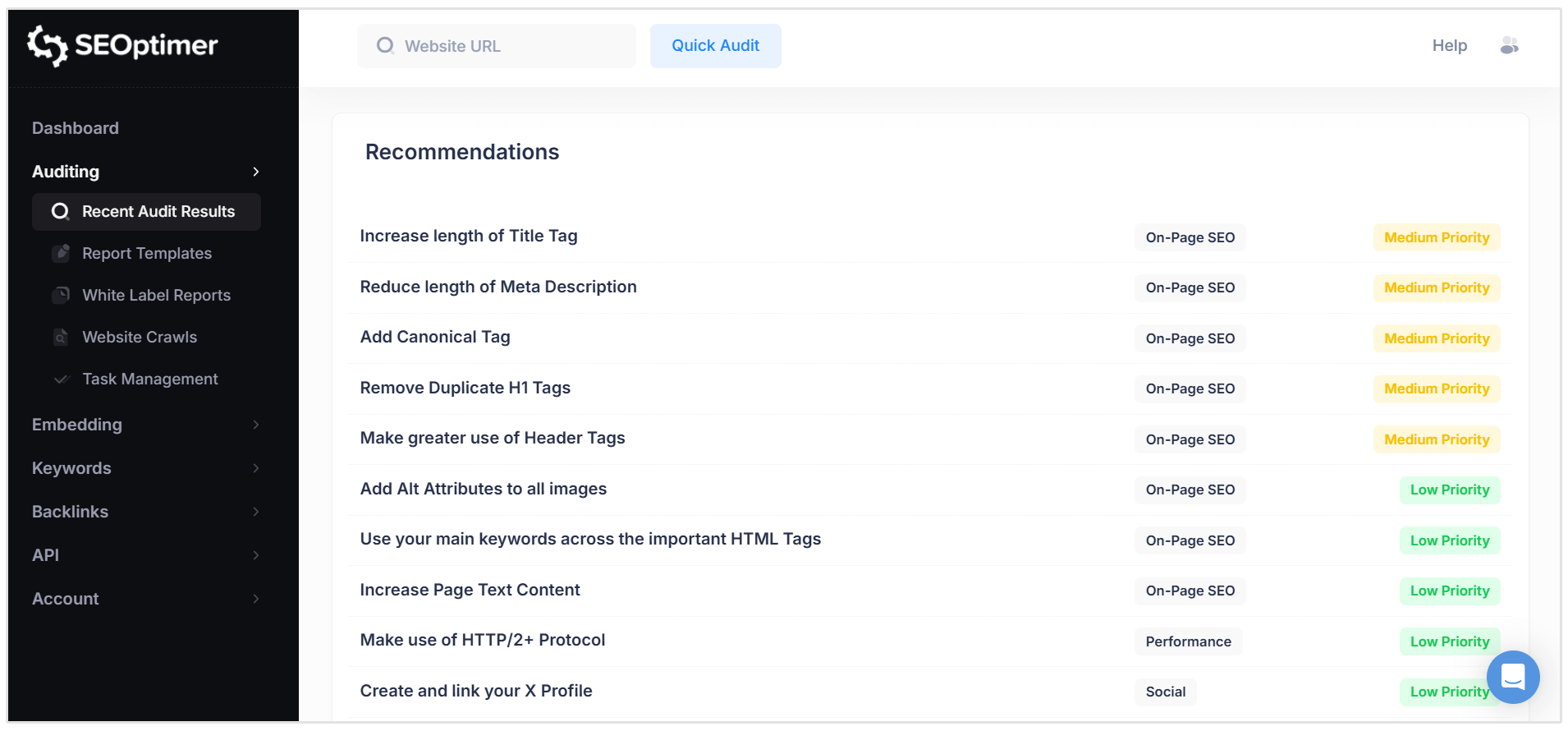
Each recommendation highlights a specific issue detected on the website along with the suggested action to improve it. The list helps you quickly identify areas that may need attention.
For each recommendation, you can also see:
- Category: The SEO area the issue belongs to (for example On-Page SEO, Performance, Usability, or Other).
- Priority: Indicates how important the issue is to address, such as Low, Medium, or High priority.
Each recommendation in the list is clickable. Selecting a recommendation will take you directly to the detailed section of the audit report where that specific issue is explained, along with additional information and guidance on how to resolve it.
On-Page SEO Results
The On-Page SEO Results section analyzes elements on the page that help search engines understand and rank your content.
At the top of this section, you will see a summary score and grade for your website’s on-page SEO performance, along with a short explanation of how well the page is optimized.
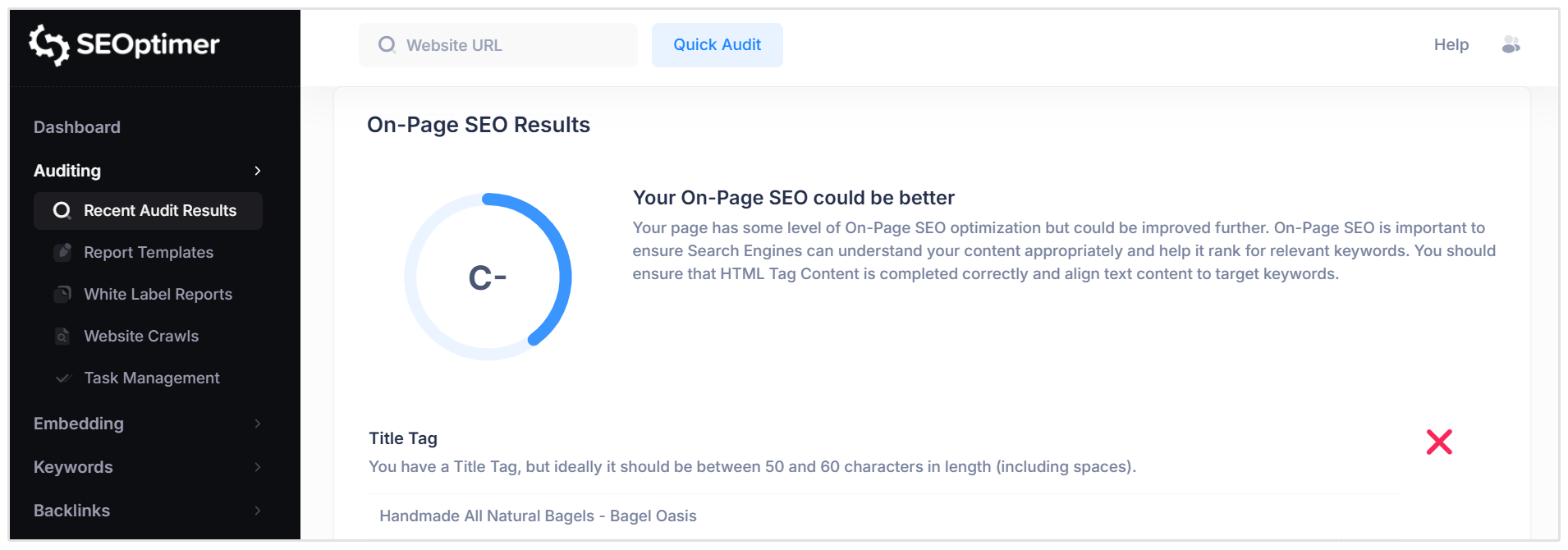
Below the summary, SEOptimer displays a list of individual on-page SEO checks.
Each check shows whether the element has been implemented correctly and includes additional details or suggestions for improvement.
Examples of checks included in this section include:
- Title Tag
- Meta Description
- SERP Snippet Preview
- Header Tag Usage (H1, H2, etc.)
- Keyword usage in HTML tags
- Image Alt Attributes
- XML Sitemaps
Each check helps identify opportunities to improve how search engines interpret the page and how the page may appear in search results.
.png)
Rankings
The Rankings section provides insights into how the audited page performs in search results and the keywords that drive traffic to the site.
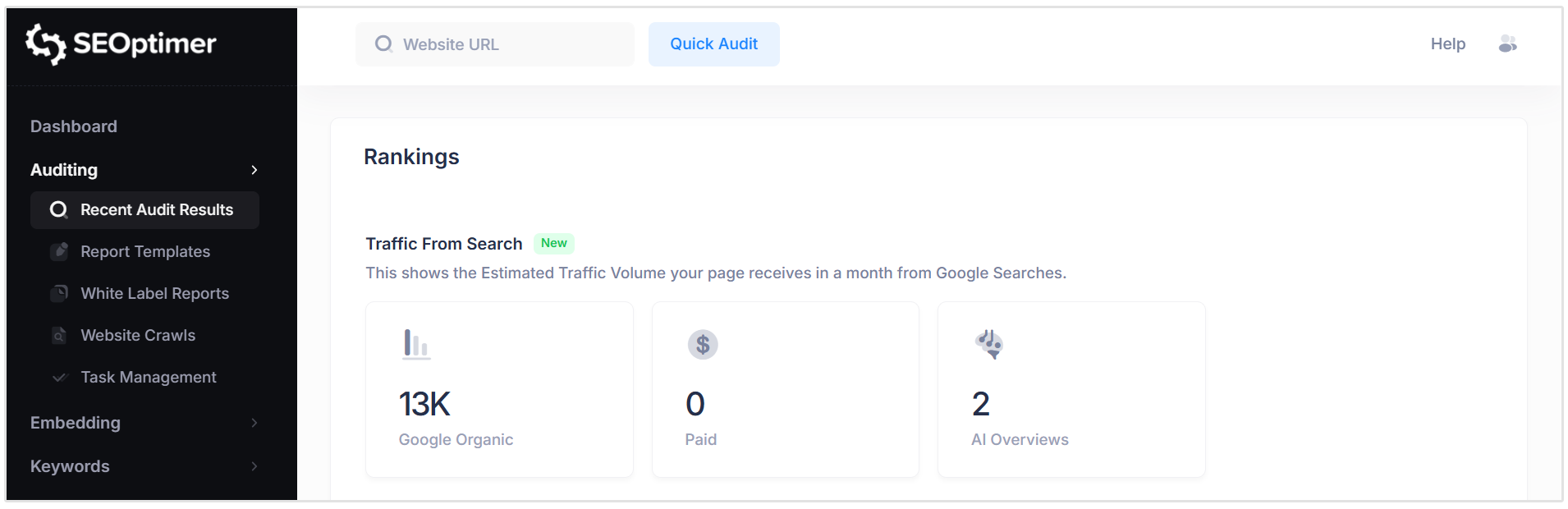
At the top of this section, the Traffic From Search panel shows an estimate of the monthly traffic the page receives from search engines.
This includes:
- Google Organic: Estimated traffic from organic search results
- Paid: Estimated traffic from paid search campaigns
- AI Overviews: Estimated appearances in AI-generated search results
Below this, the report displays the Top Organic Keyword Rankings for the page as well as three other tables:
- Top Paid Keyword Rankings
- Top AI Overview Citations
- Organic Keyword Positions
Related Reading: How to Track Keyword Rankings with SEOptimer
Links
The Links section provides an overview of the website’s backlink profile and the strength of the page based on incoming links.
At the top of this section, the Backlink Summary shows key metrics that indicate the authority and link activity associated with the page. This includes metrics such as:
- Domain Strength
- Page Strength
- Total Backlinks
- Referring Domains
Additional metrics provide further insight into the types and sources of backlinks, including:
- Dofollow and Nofollow backlinks
- .edu and .gov backlinks
- Unique IP addresses
- Subnets linking to the site
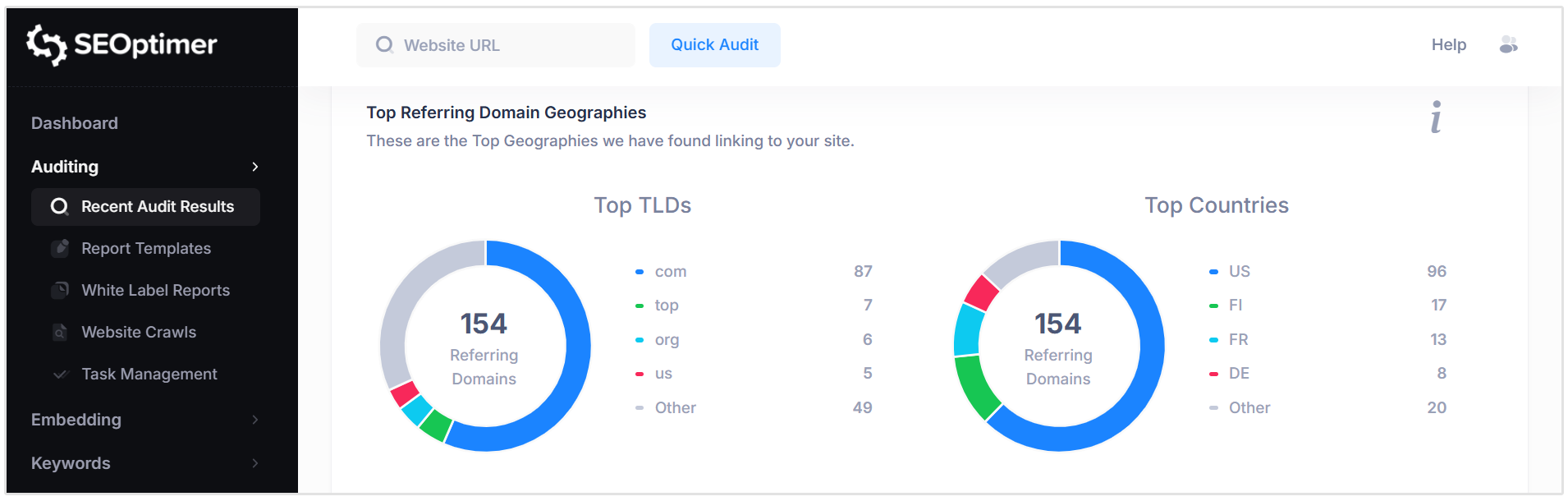
Below the summary, the report includes additional tables and visualizations that help you better understand the site’s backlink profile and the distribution of links pointing to the page.
Related Reading: How to Use SEOptimer’s Backlink Research Tool
Usability
The Usability section evaluates how well the page performs for users across different devices and browsing environments.
At the top of this section, you will see a summary score and grade that reflects the overall usability of the page. This provides a quick indication of whether the site delivers a good user experience.
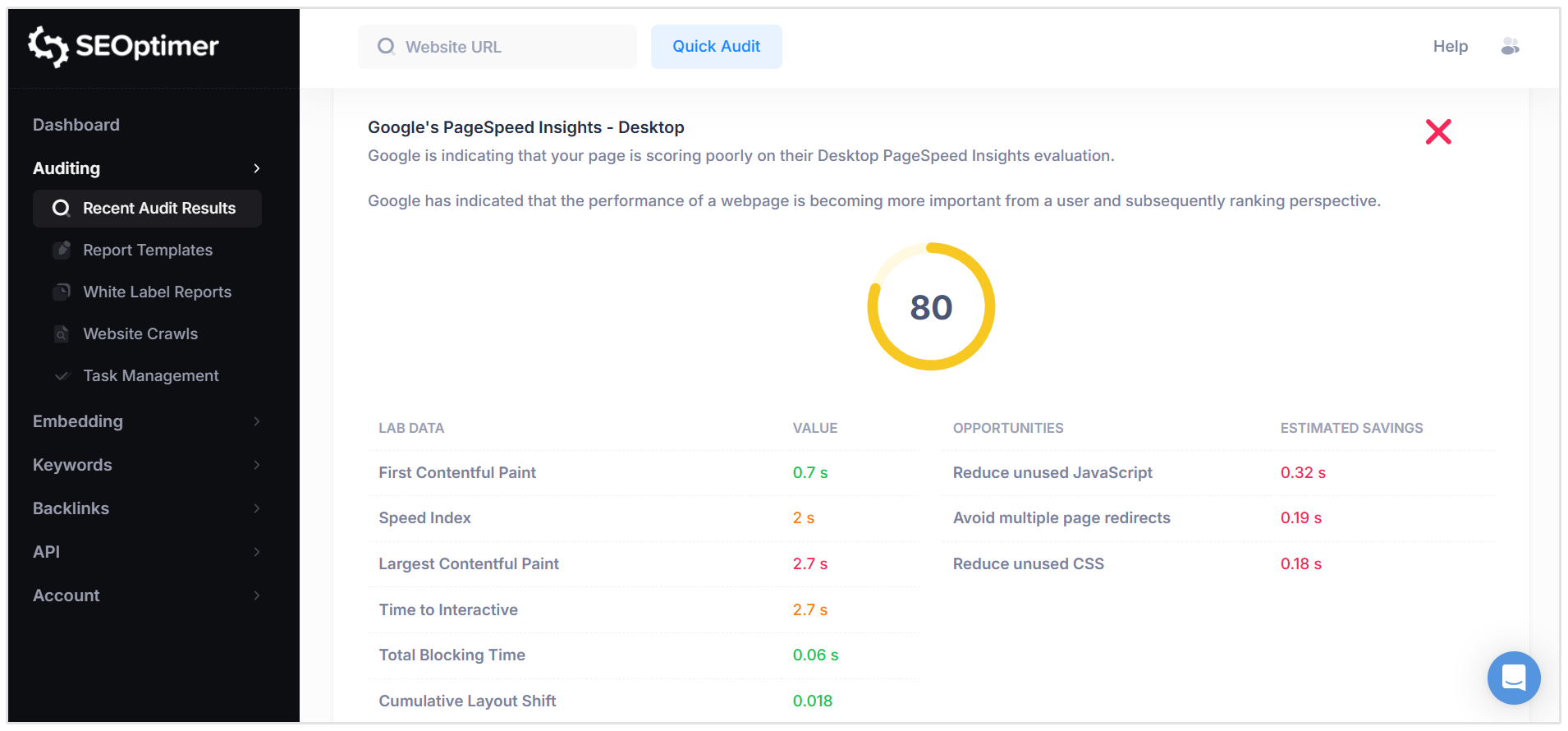
Below the summary, the report includes a series of checks that analyze usability and performance factors that can affect both user experience and search rankings.
Examples of checks in this section include:
- Google Core Web Vitals
- PageSpeed Insights (Mobile and Desktop)
- Device Rendering
- Flash Usage
- Viewport Configuration
These checks help identify potential issues that may affect how users experience the website, particularly on mobile devices where a large portion of web traffic originates.
Performance Results
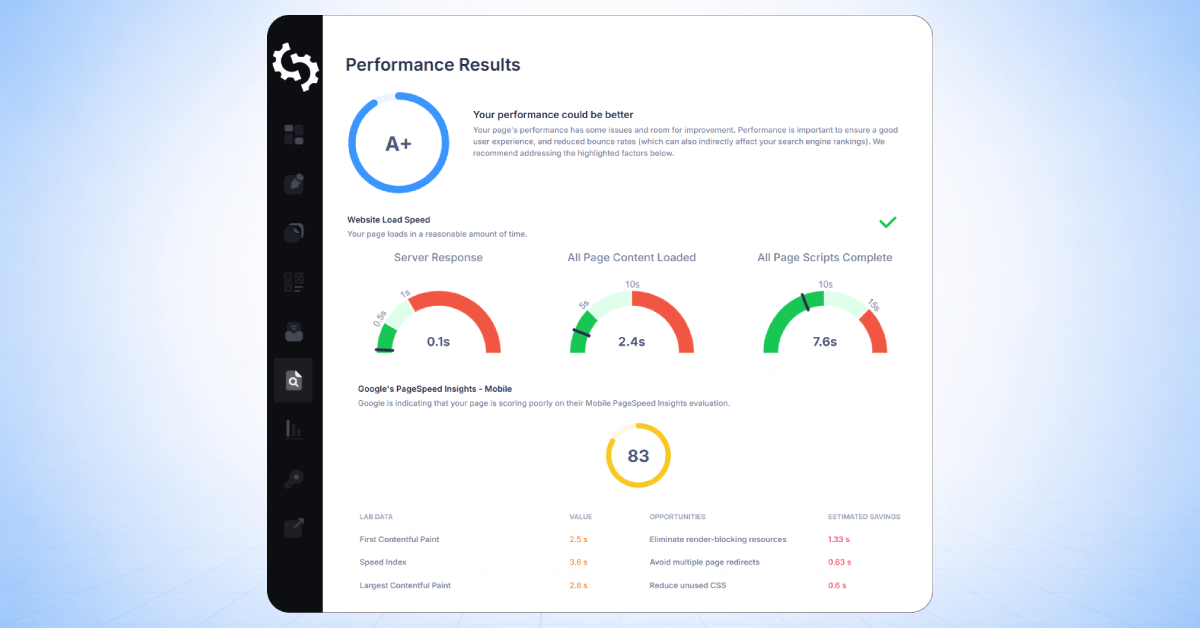
The Performance Results section evaluates how quickly the page loads and how efficiently its resources are delivered to users.
At the top of this section, you will see a summary score and grade that indicates the overall performance of the page. This provides a quick view of whether the site loads efficiently or if improvements may be needed.
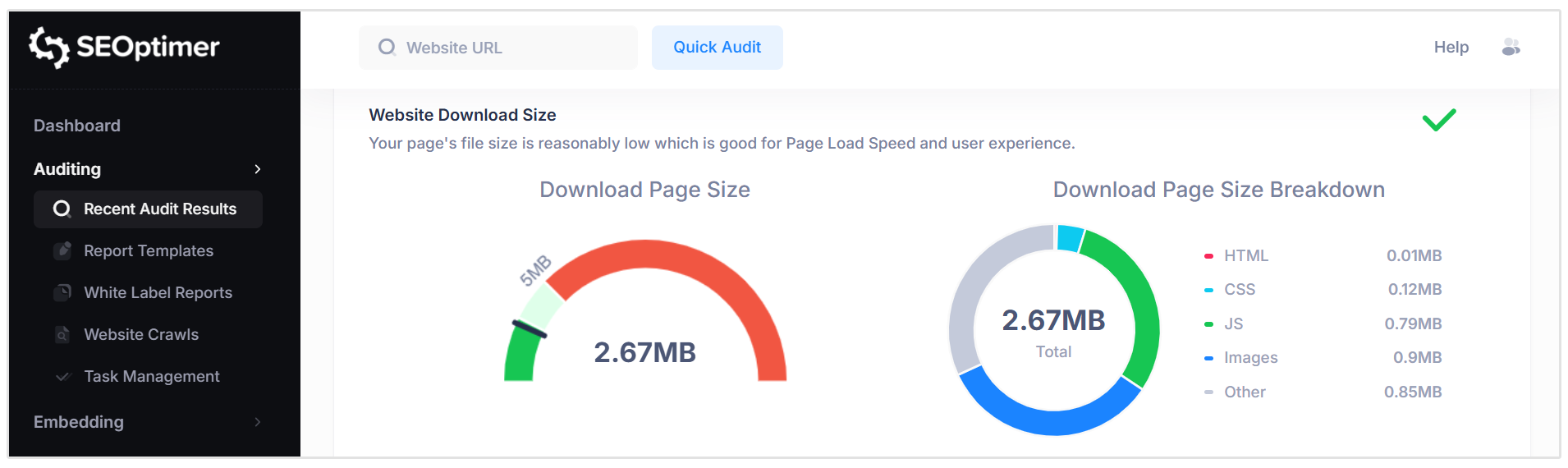
Below the summary, SEOptimer displays several performance-related checks and metrics, including:
- Website Load Speed
- Server Response Time
- All Page Content Loaded
- All Page Scripts Complete
- Website Download Size
Additional charts and visualizations also show a breakdown of page size by resource type (such as HTML, CSS, JavaScript, and images). These insights help identify elements that may be slowing down the page and impacting user experience.
Social Results
The Social Results section evaluates how well the page is connected to social media platforms and whether the necessary social sharing elements are in place.
At the top of this section, you will see a summary score and grade that reflects the site’s social integration.
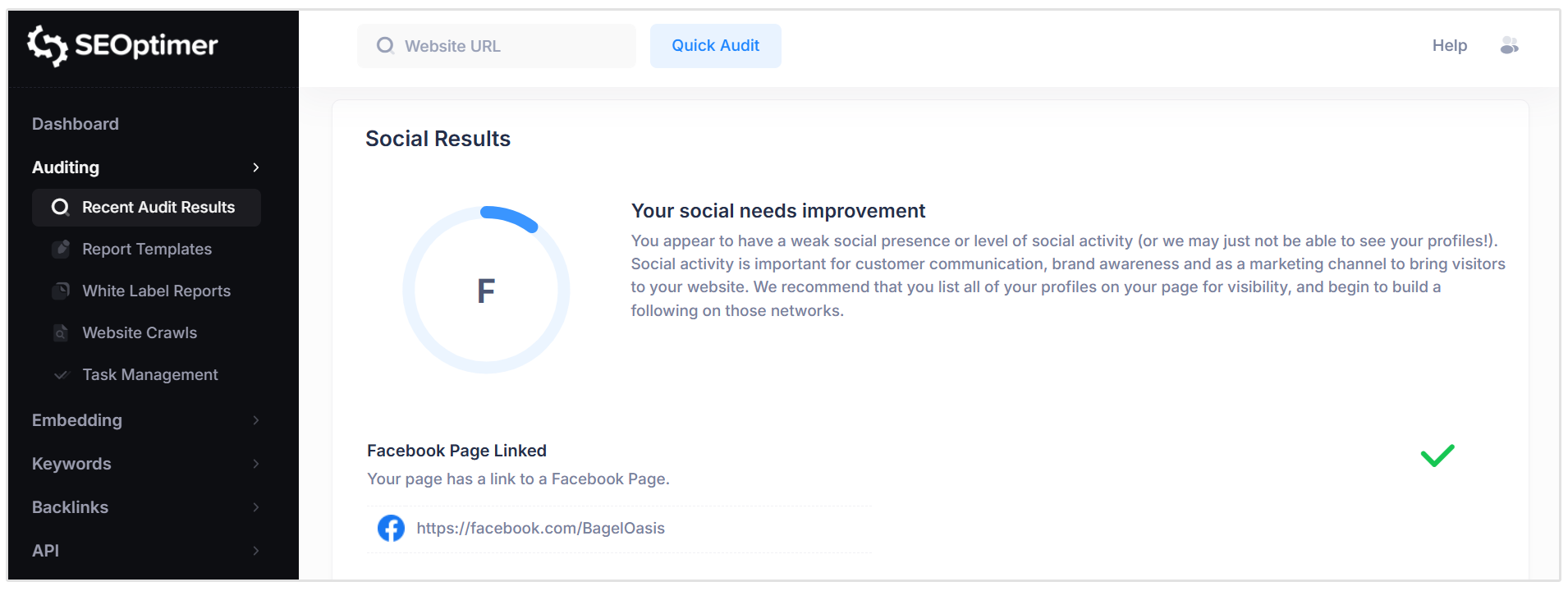
Below the summary, SEOptimer checks several elements that help improve how content appears and performs on social platforms.
Local SEO
The Local SEO section evaluates elements that help businesses appear in local search results and map listings.
This section checks whether key local business information can be identified on the page and across Google services.
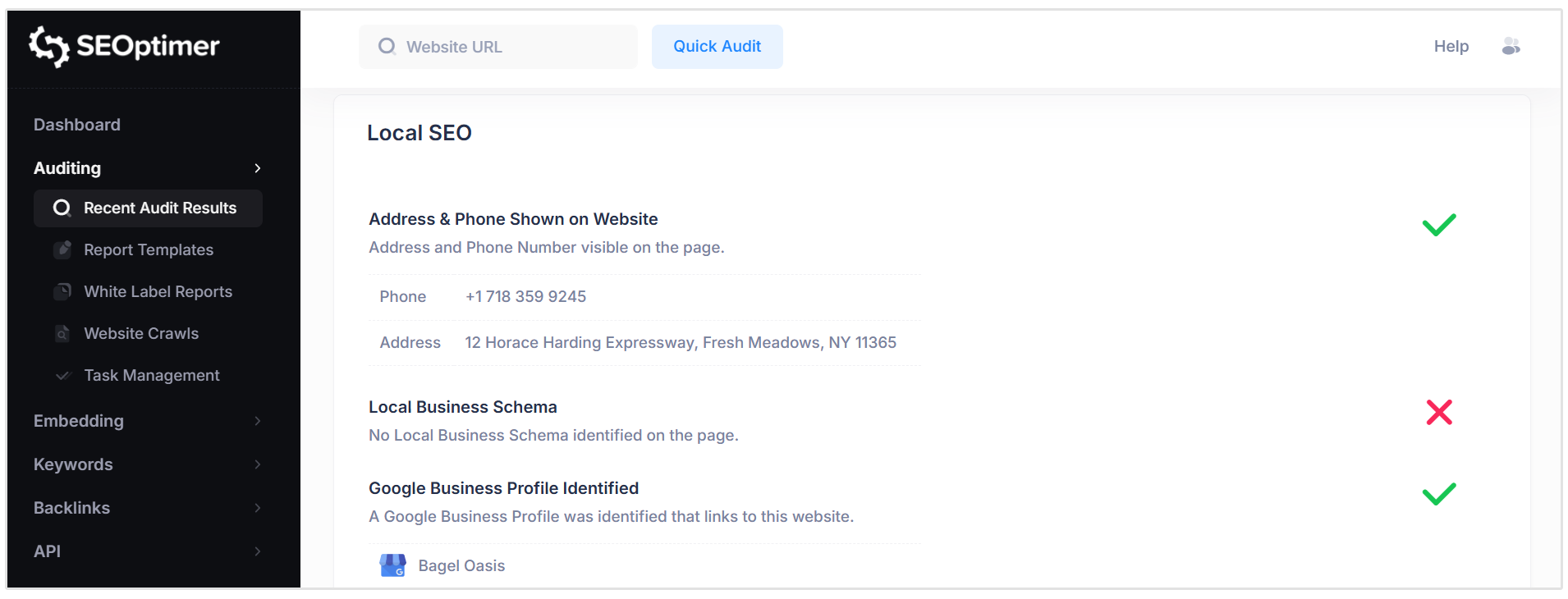
Examples of checks included in this section include:
- Address and Phone Number on the Website
- Local Business Schema
- Google Business Profile Identification
- Google Business Profile Completeness
- Google Reviews
These checks help determine whether the website is properly optimized for local search visibility and whether important business information is available for users and search engines.
Technology Results
The Technology Results section identifies the technologies and infrastructure used by the website.
At the top of this section, SEOptimer lists the software, services, and libraries detected on the page. This may include analytics tools, marketing scripts, hosting technologies, and other frameworks used to power the website.
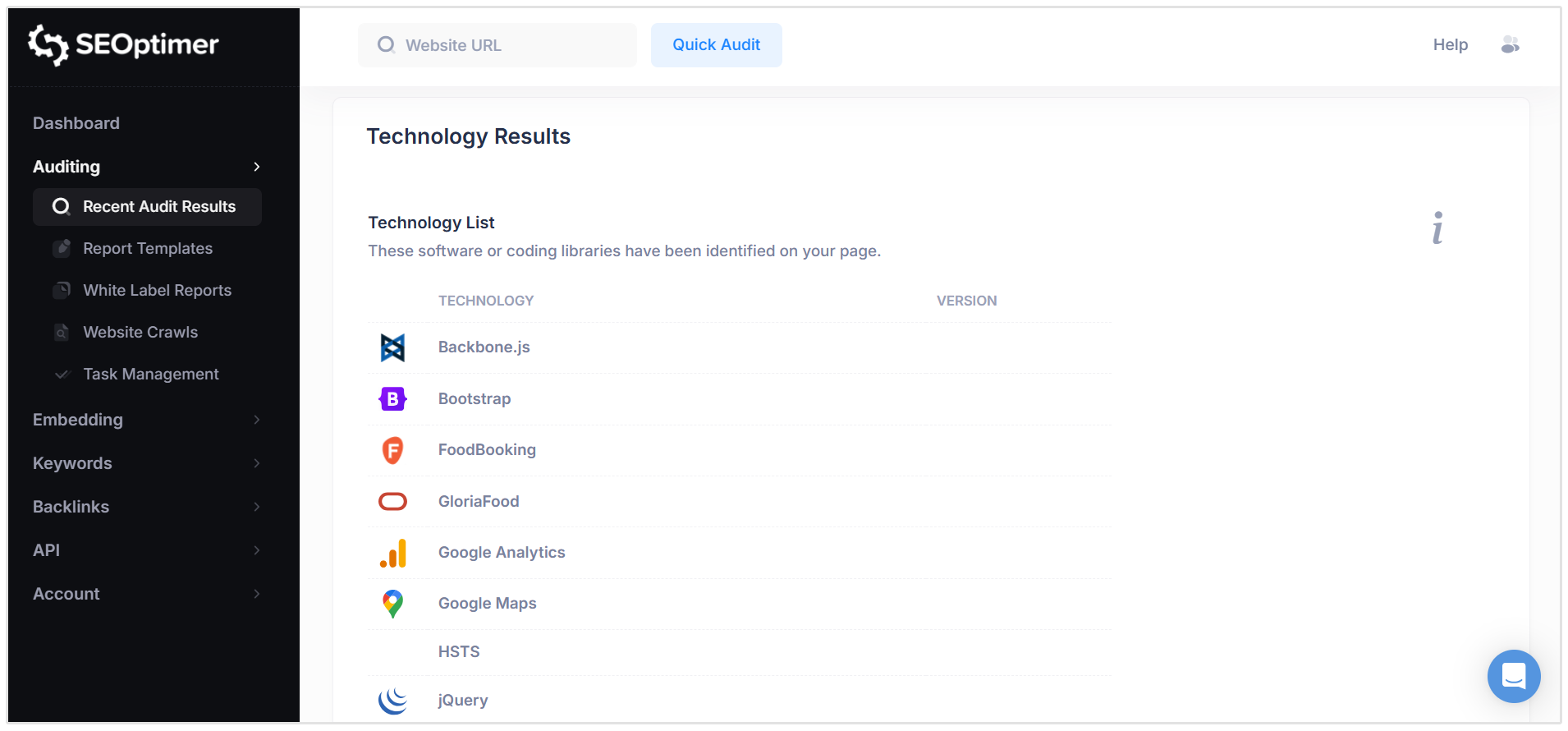
Below the technology list, the report also displays additional technical information about the site, such as:
- Server IP Address
- DNS Servers
- Web Server
- Character Encoding (Charset)
- DMARC and SPF records
This section provides a technical overview of the website’s infrastructure and the services that are being used to operate and track the site.
Review Child Pages
The Review Child Pages section lists additional pages that were discovered on the audited website.
Each page in the list is clickable, allowing you to quickly generate a new SEO audit report for that specific page. This makes it easy to analyze and compare the SEO performance of different pages across the same site.
How to Export and Share the SEO Audit Report
Once an SEO audit has been generated, the report can easily be shared with others using the built-in sharing options.
SEOptimer provides several ways to share the audit report:
- Copy Report URL: You can copy the direct link to the audit report and share it with colleagues, clients, or team members. Anyone with the link will be able to view the report in their browser.
- Share on Facebook: The report can be shared directly to Facebook, allowing you to quickly post the audit results or insights to your network.
- Share on Twitter (X): You can also share the audit report on X (formerly Twitter) using the built-in sharing option.
Downloading the Report as a PDF
If you are using a White Label or Embedding Plan, you also have the option to download the SEO audit report as a PDF. This allows you to save the report for later use or share it as a downloadable document with clients or team members.
Related Features
SEOptimer includes a range of additional tools that can help you act on the insights from your SEO audit and further improve your website’s search performance.
SEO Task Management Tool
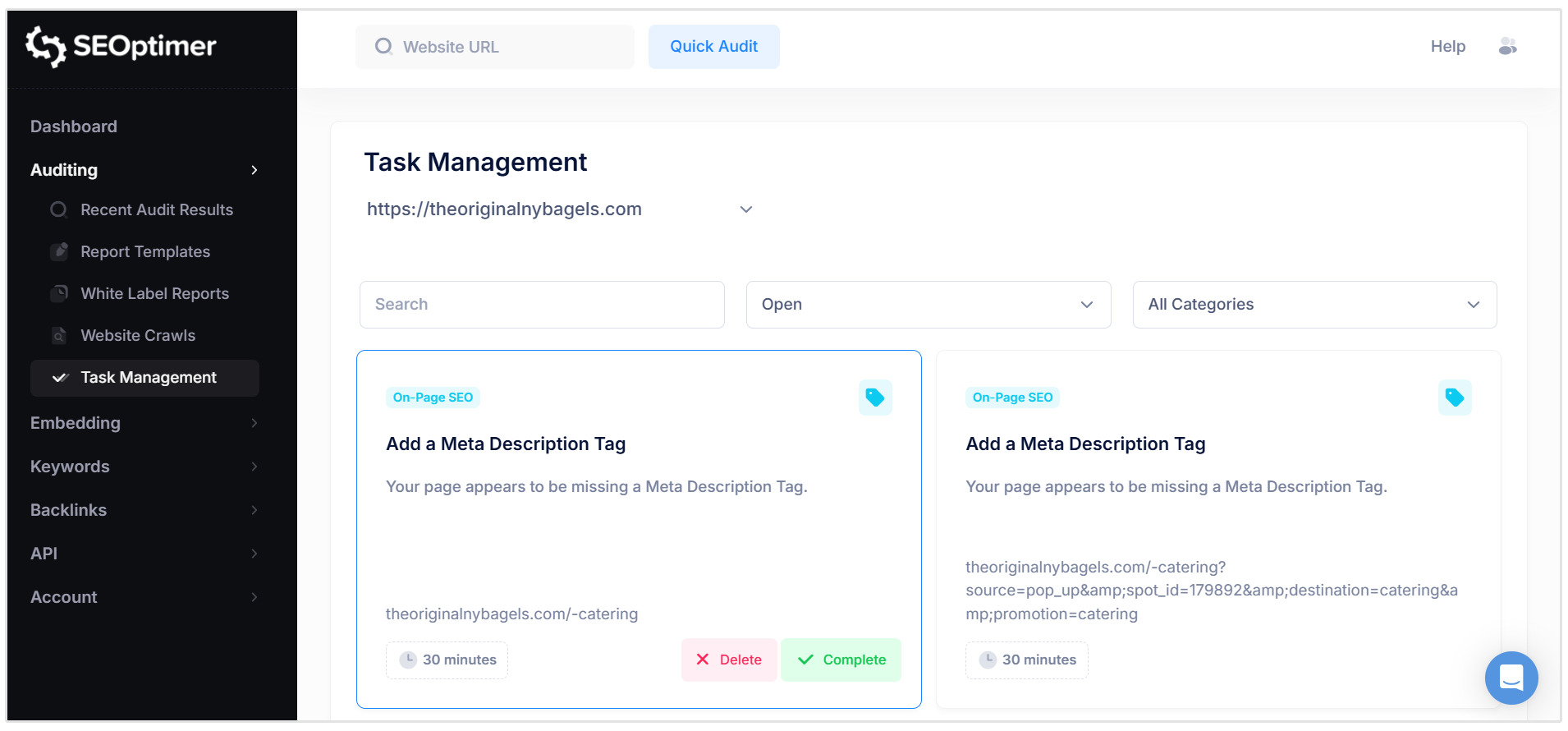
The SEO Task Management tool helps you organize and track the issues identified in your audit reports.
You can create tasks and monitor progress as SEO improvements are implemented.
Related Reading: How to Use SEOptimer's Task Management Tool
SEO Crawler
The SEO Crawler scans your website to identify technical SEO issues across multiple pages.
It helps uncover problems such as broken links, missing metadata, and crawlability issues that may affect search engine visibility.
Related Reading: How to Use SEOptimer's SEO Crawler
Keyword Research
The Keyword Research tool helps you discover new keyword opportunities and analyze search demand.
You can explore keyword ideas, evaluate search volumes, and identify terms that can drive more organic traffic to your website.
Related Reading: How to Use SEOptimer's Keyword Research Tool
Keyword Tracking
The Keyword Tracking tool allows you to monitor how your website ranks for important keywords over time.
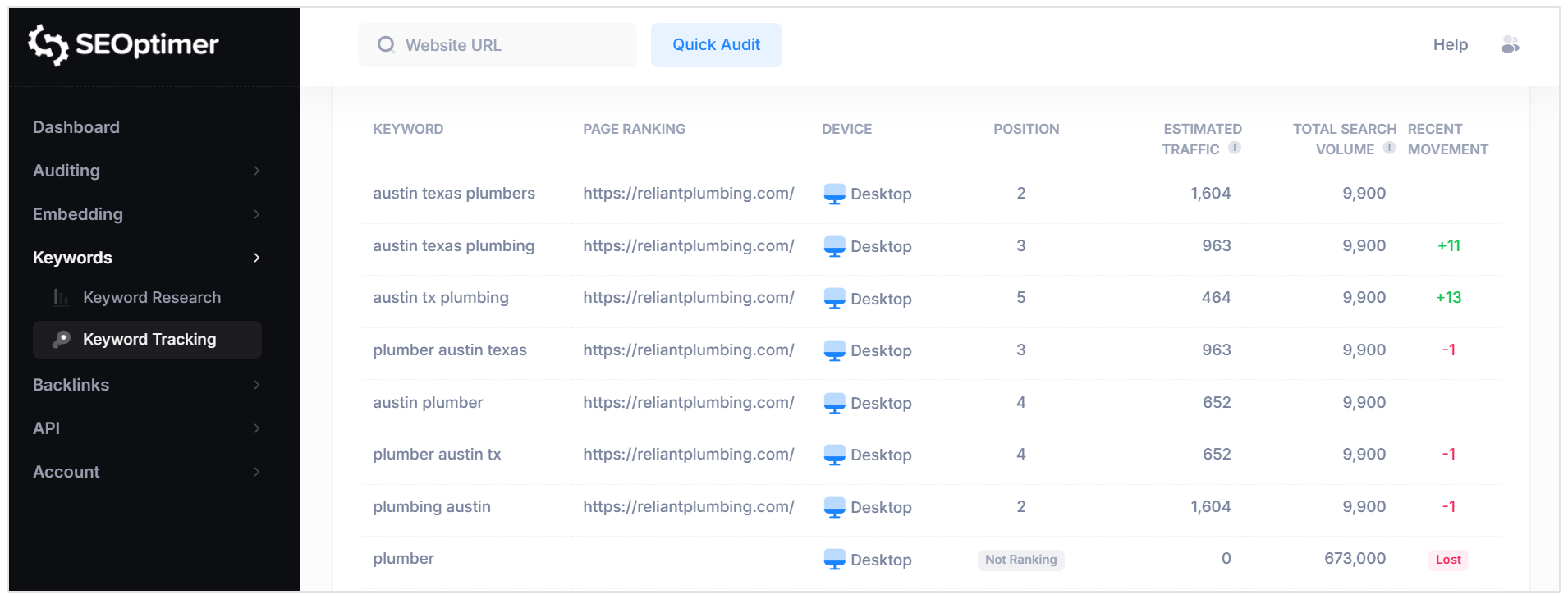
This helps you measure the impact of your SEO efforts and track ranking improvements across different search engines and locations.
Backlink Research
The Backlink Research tool provides detailed insights into the backlinks pointing to any website.
It allows you to analyze link sources, anchor text, and link quality to better understand a site’s backlink profile.
Backlink Monitoring
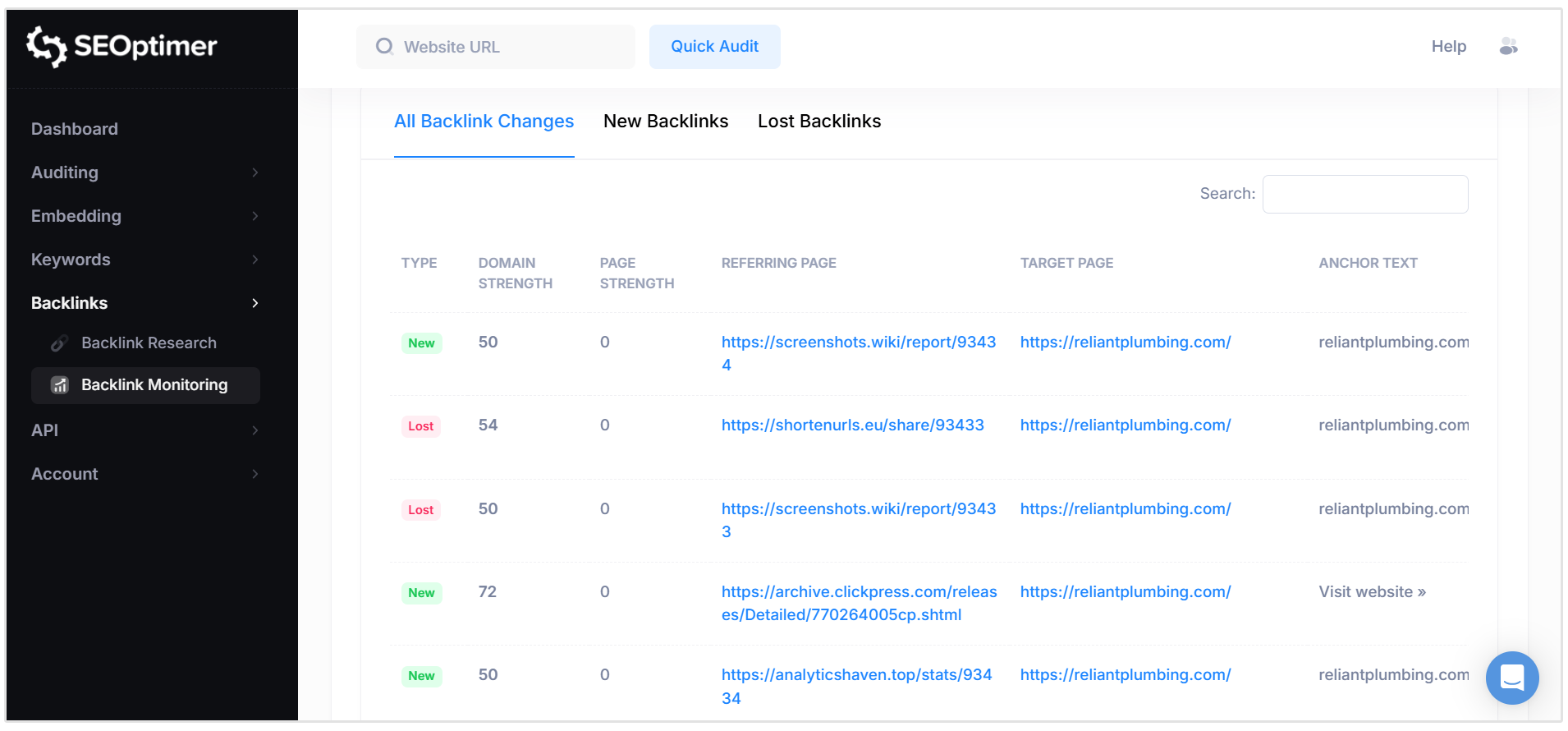
The Backlink Monitoring tool allows you to track changes in your website’s backlink profile over time.
You can see newly discovered links, lost backlinks, and ongoing link activity.
Related Reading: How to Monitor Backlinks with SEOptimer
Note: The Backlink Monitoring feature is available for White Label and Embedding plan users.
Wrapping Up
In this guide, you learned how to run an SEO audit using SEOptimer and how to navigate the different sections of the audit report.
We covered the main ways to access the SEO Audit Tool, how to view and interpret the results, and how each section of the report highlights different aspects of your website’s SEO performance.
By understanding how to use the SEO Audit Tool and interpret its results, you can more easily identify opportunities to improve your website’s search visibility and overall SEO performance.
Need Help?
Live Chat: Click Live Chat (bottom right)
Email: [email protected]
Response time: Within 24 hours

.png)
.png)