


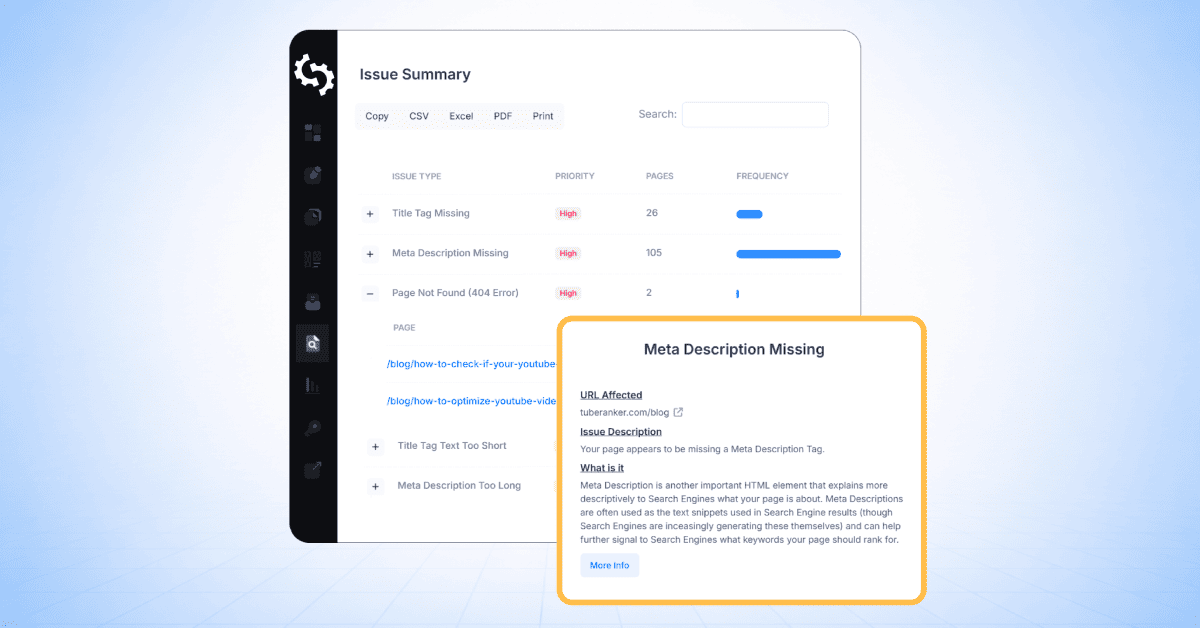
SEOptimer’s SEO Crawler helps you scan and audit the pages on your website to identify technical SEO issues at scale.
Instead of checking pages one-by-one, the crawler reviews your site structure, analyzes SEO elements across multiple URLs, and highlights issues that may impact indexing, usability, or search visibility.
In this guide, you will:
- Run your first crawl
- Review the crawl report
- Learn how to set up custom crawl rules
- Schedule and export website crawls
What is SEOptimer’s SEO Crawler?
SEOptimer’s SEO Crawler is a website crawling tool that scans your site’s pages and identifies SEO-related issues across multiple URLs.
It works by visiting pages on your website and collecting technical and on-page SEO data such as page titles, meta descriptions, headings, status codes, indexability, redirects, and broken links.
After the crawl is complete, the tool generates a crawl report that summarizes issues found across your site and groups them by type and severity.
This makes it easier to spot recurring problems and prioritize fixes, especially on larger websites where manual page checks are not practical.
The SEO Crawler is useful for running technical SEO audits, monitoring site health over time, and checking whether key pages follow SEO best practices.
How to Run Your First Crawl
To run your first crawl, click on the “Website Crawls” option under “Auditing” in your SEOptimer dashboard.
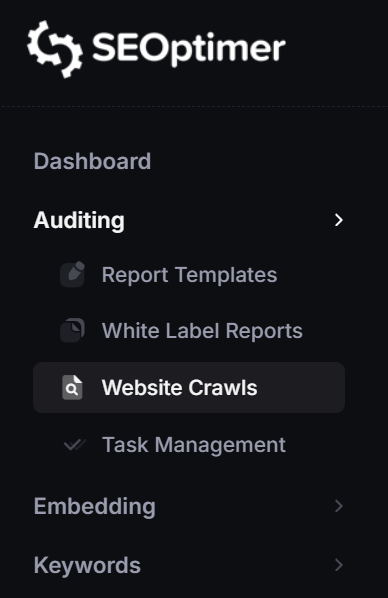
Then, add your website’s URL to the open field and click on “Add Crawl.”
That’s it, you’ve started your first SEOptimer site crawl!
Our SEO Crawler will now go through all of the pages on your site to spot any issues they might have.
Crawls run in real time, but the total crawl time will vary depending on the size of your website and the number of pages that need to be scanned.
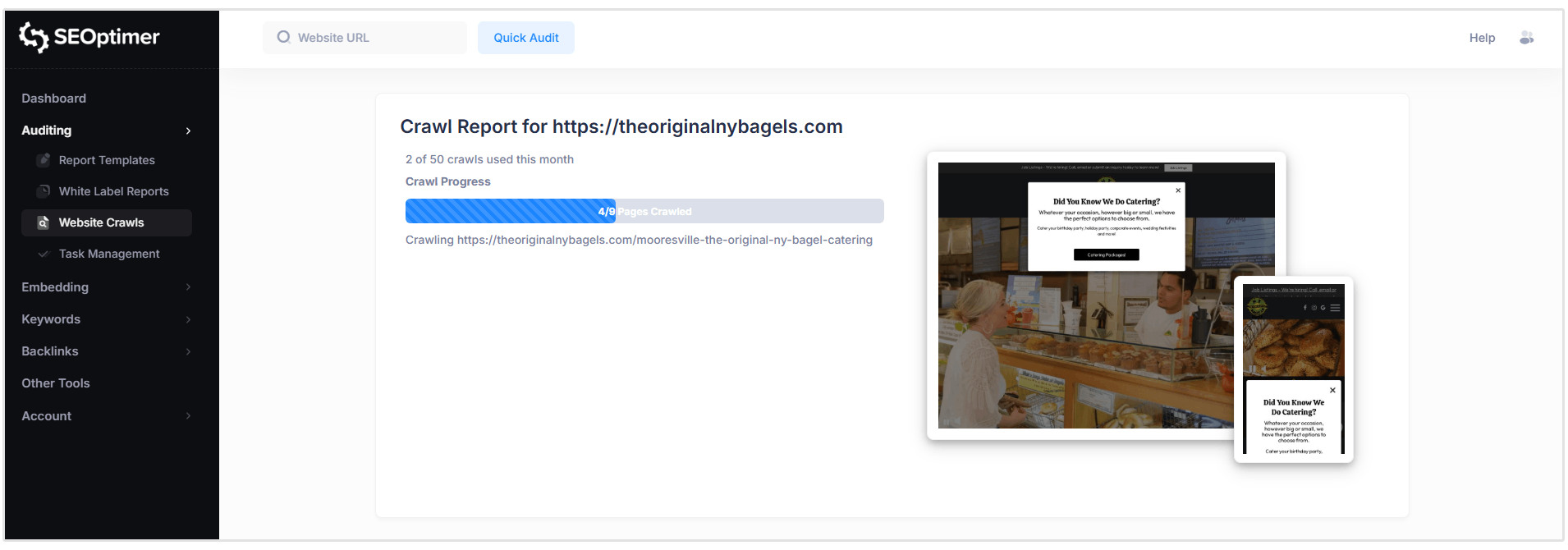
While the crawl is still running, you can begin reviewing issues as they are detected by opening the crawl report.
What can you See in Each Crawl Report?
Once our tool has finished crawling your site, you’ll see three main sections:
- Report Header
- Identified Pages
- Issue Summary
Let’s walk through each of these sections.
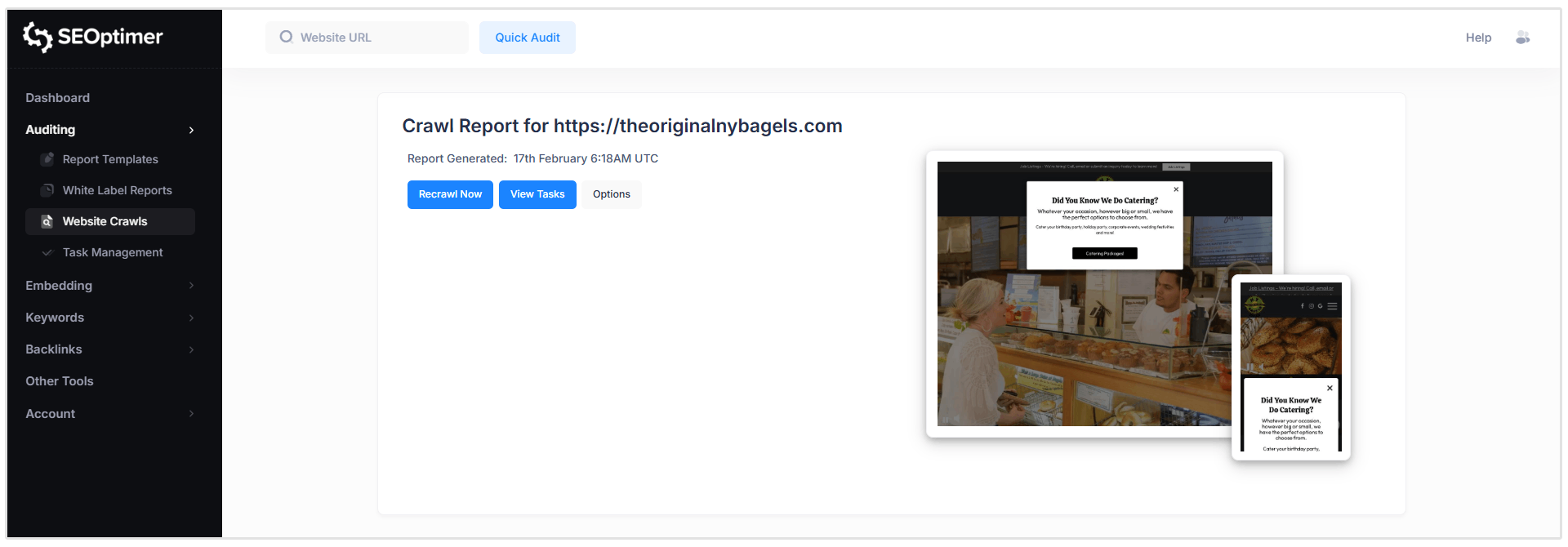
Report Header
Here you can see when the report was generated, ask for a recrawl, view tasks, and customize crawl rules. (more on these features later)
Identified Pages
This section shows a table of all pages discovered during the crawl, along with the SEO issues detected for each page.
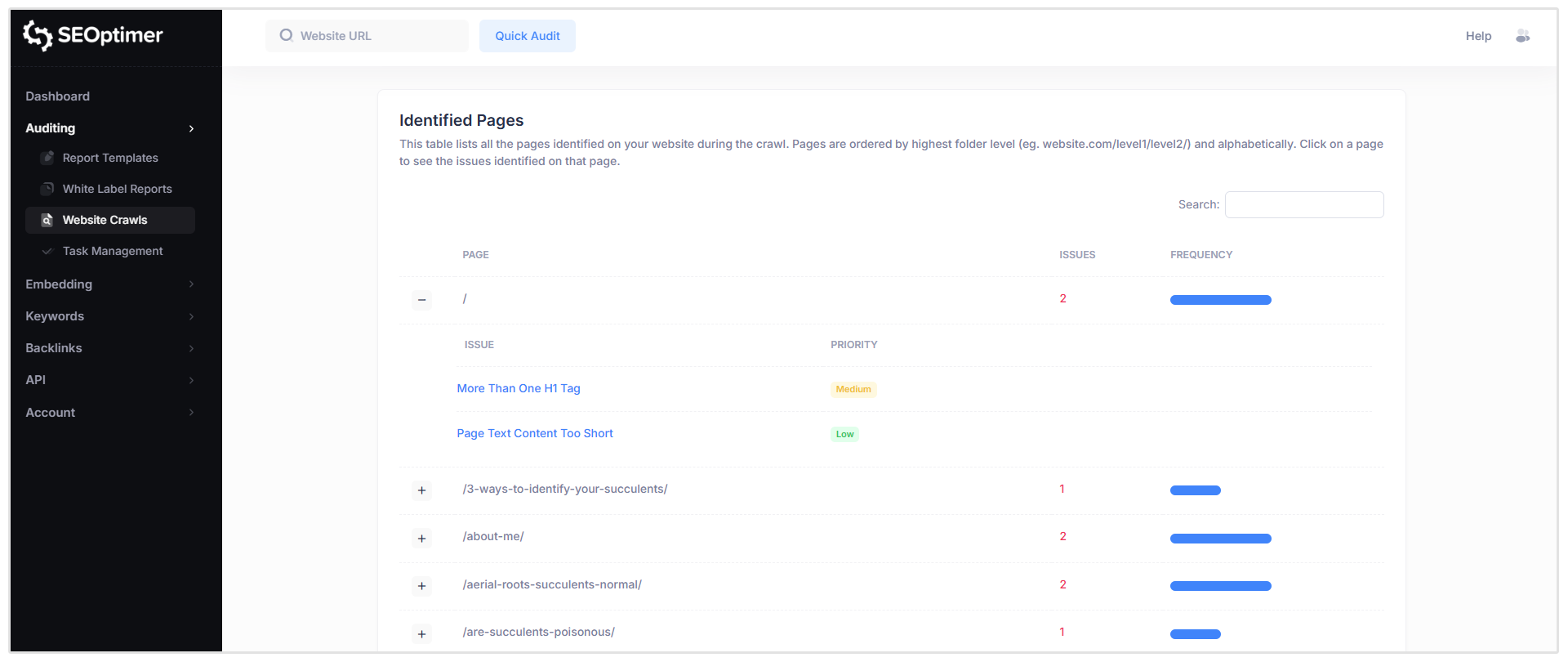
When you click on a specific page (for example, the root homepage path shown as “/”), you’ll see a list of all issues flagged for that URL, including the severity level of each issue.
To view more detail, click on any issue in the list.
For example, selecting “More Than One H1 Tag” will open a detailed breakdown of that issue for the selected page.
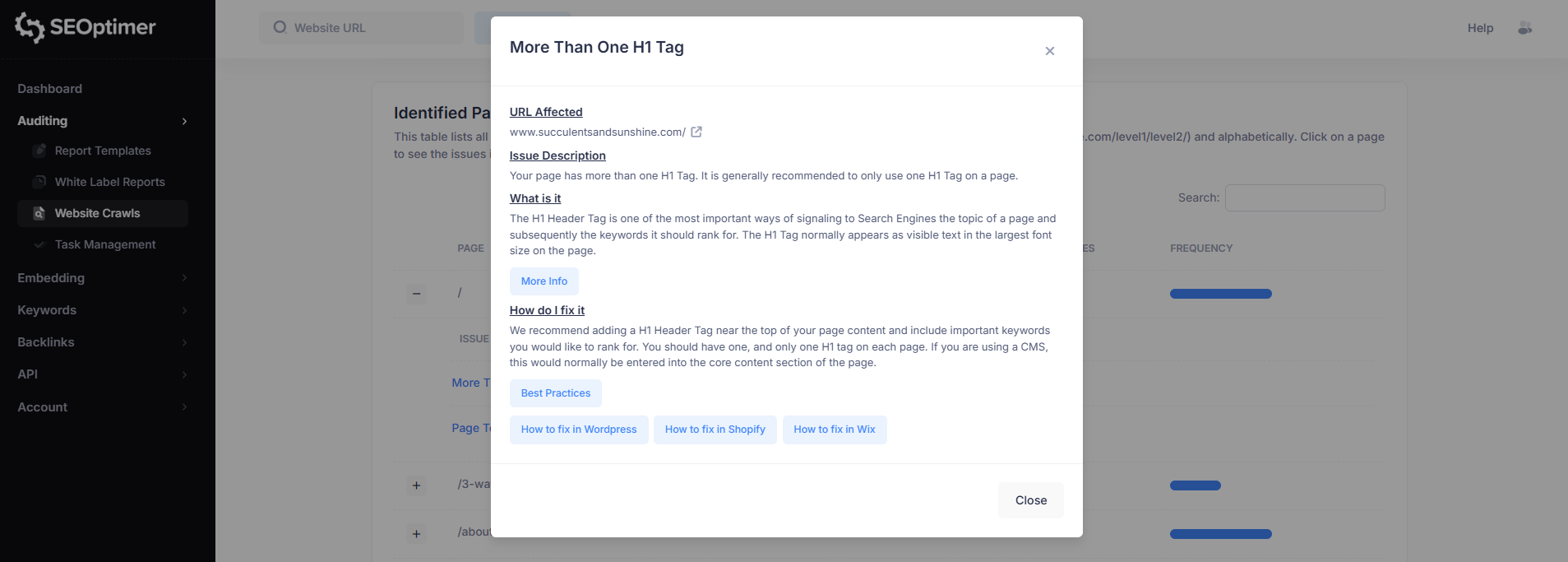
This issue view includes:
- Affected URL
- Issue description
- What the issue means
- How to fix it
Each issue pop-up will also include links to supporting guides to help you resolve the problem on your website.
Issue Summary
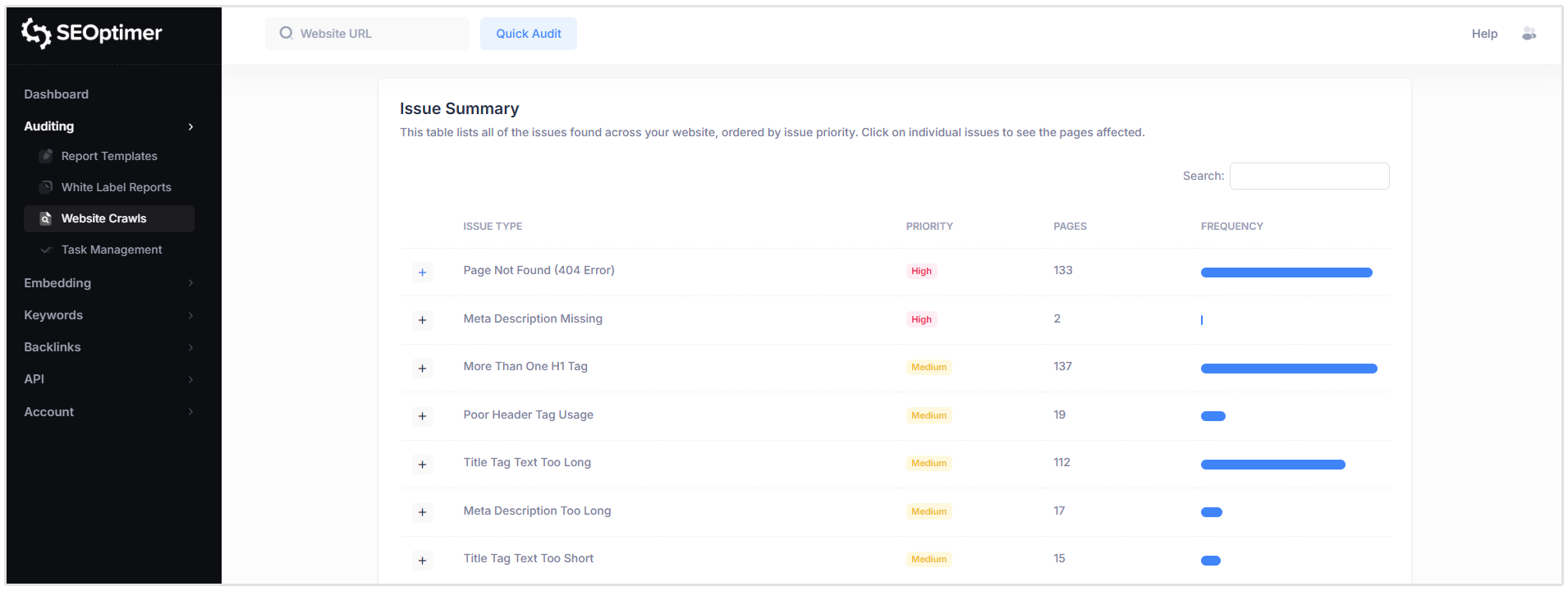
The Issue Summary section provides an overview of all SEO issues detected across your website, grouped by issue type and ordered by priority.
For each issue, the table shows:
- Issue type
- Priority level
- Number of affected pages
So in the below screenshot of a site I crawled, you can see that there are 137 pages that have more than one H1 tag, 133 pages that have 404 errors, and 2 pages that don’t have a meta description.
Once you’ve reviewed the issue summary, you can move on to configuring crawl settings and exploring additional SEO Crawler options.
View Tasks
After completing a website crawl, you can use SEOptimer’s Task Management feature to organize and track the issues identified in your crawl report.
The Task Management tool converts crawl issues into a task list that you can work through in a single workspace, making it easier to prioritize fixes and track progress over time.
How to Access the Task List
You can open your task list in two ways:
- Click the blue “View Tasks” button in the Crawl Report header.
- Or select Task Management from the left-hand navigation menu in your dashboard.
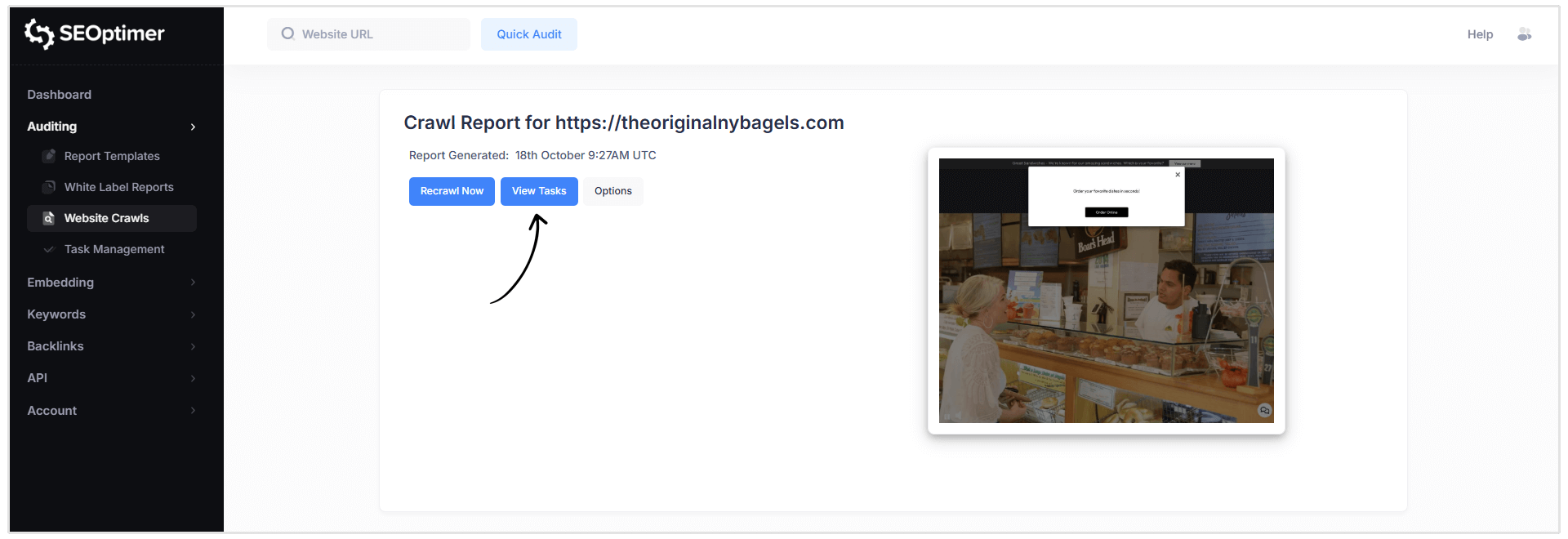
Note: If you have crawled multiple websites, you can switch between task lists using the dropdown menu at the top of the Task Management page.
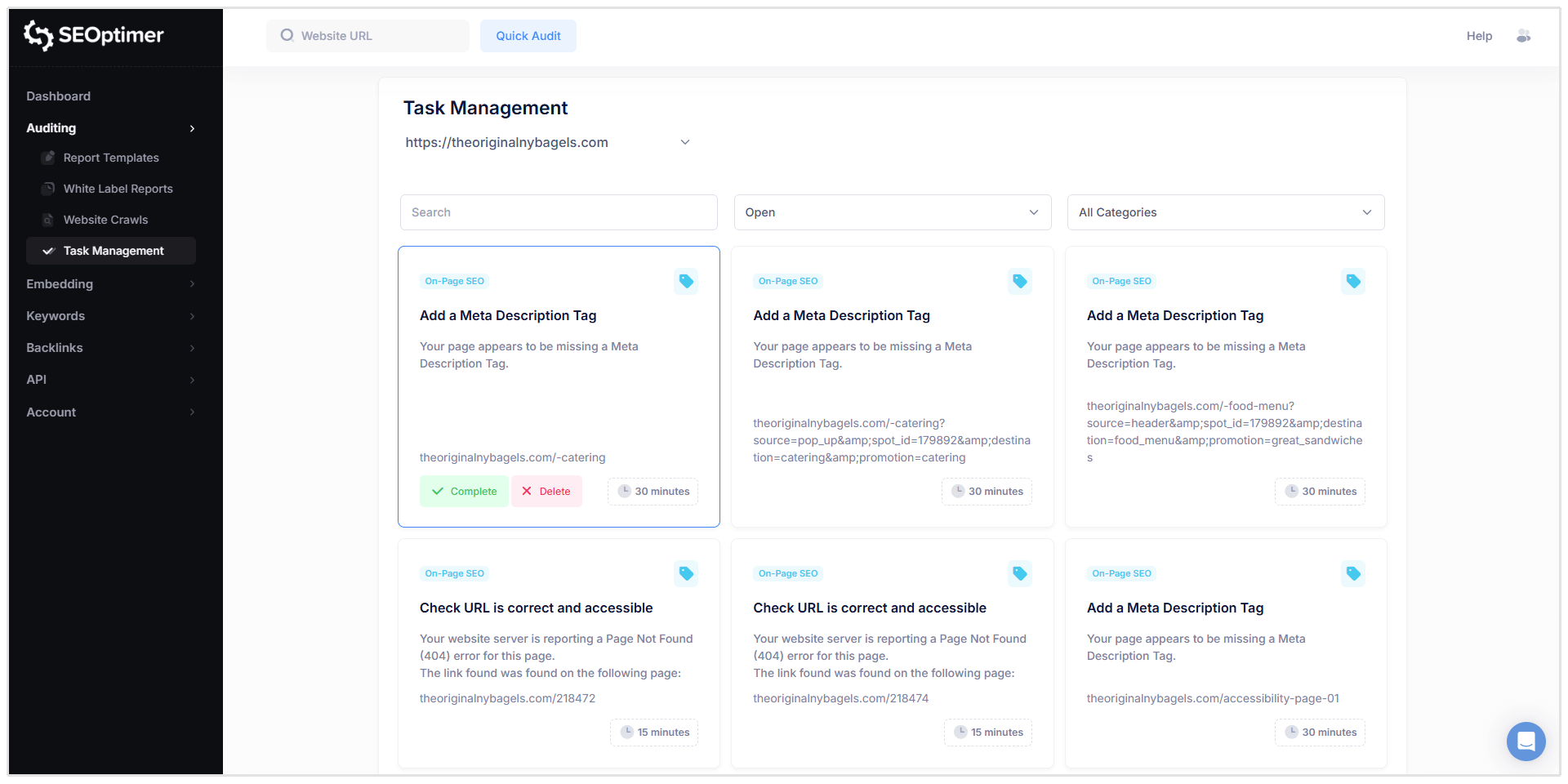
Filtering and Managing Tasks
Tasks can be filtered by:
- Status (Open, Completed, Deleted)
- Category (e.g. On-Page SEO, Links, etc.)
When you click on a task, you’ll see detailed information similar to the crawl report, including:
- Affected URL
- Issue description
- What the issue means
- How to fix it
- Options to complete the task or delete it from the task list
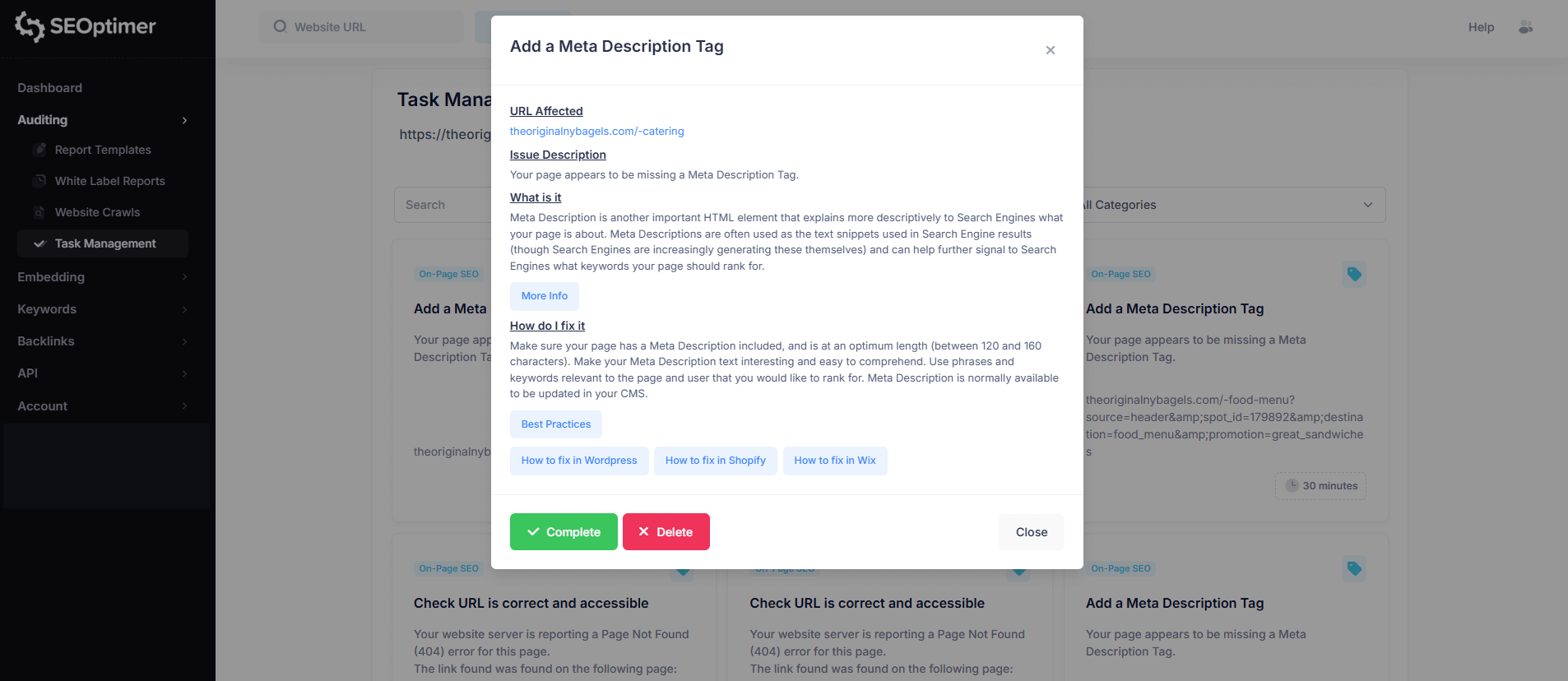
How to Schedule Crawls
You also have the option to schedule crawls to run on a weekly or monthly basis. This feature is especially useful for agencies managing multiple client websites.
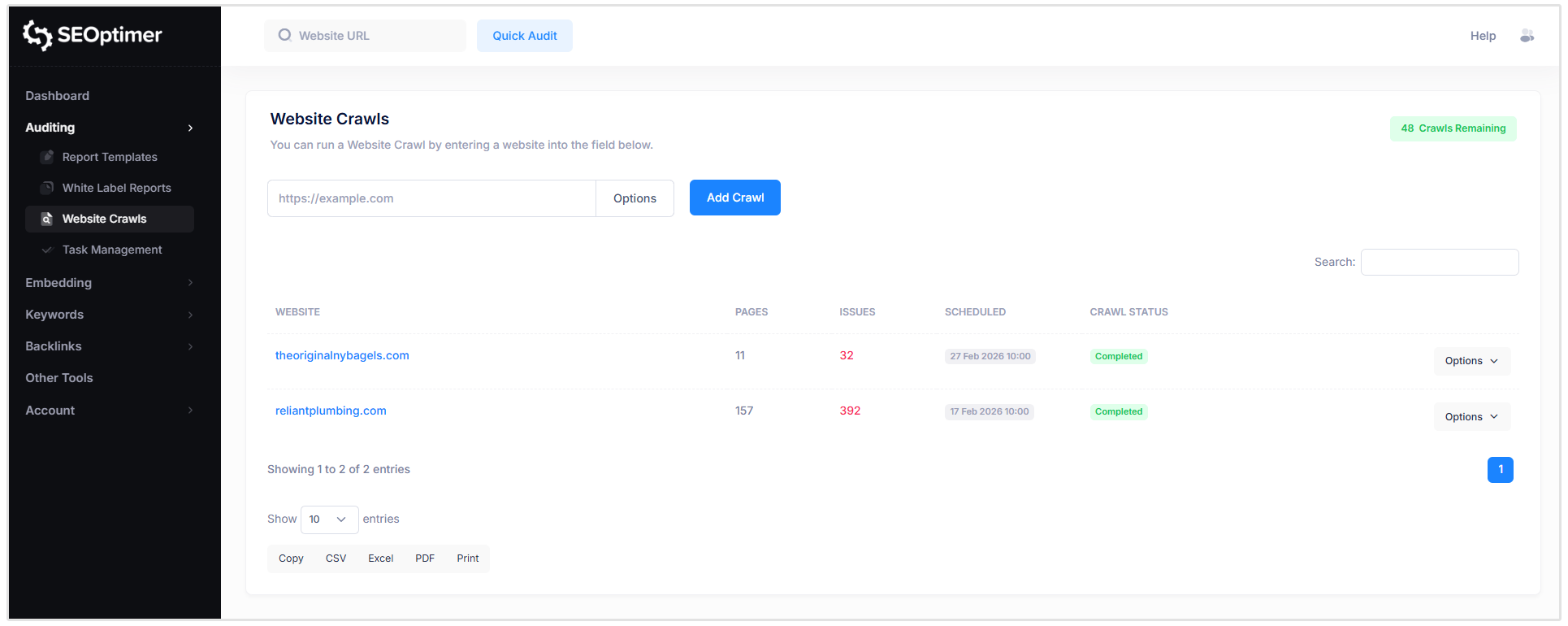
To set up a crawl schedule, simply click on the “Options” button to the right of the website you want to schedule a crawl for.
Then, click on the “Schedule” option and customize the crawl schedule according to your preference.
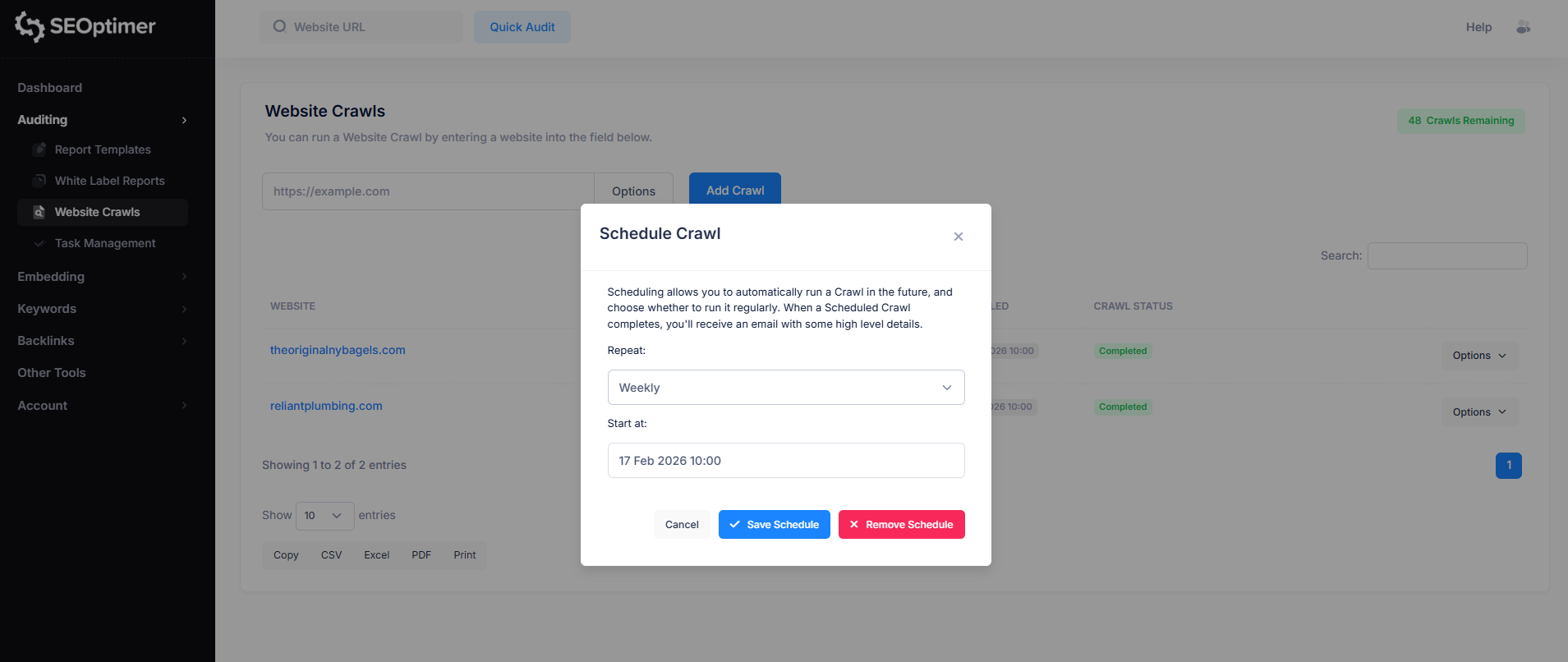
When a scheduled crawl completes, you’ll receive an email with some high level details.
Setting your own Crawl Rules
The SEO Crawler includes crawl configuration options that let you control which pages are included in a crawl.
These settings are useful if you want to limit results, avoid duplicate URLs, or ensure the crawler behaves in line with your site’s indexing rules.
Obey Robots.txt Exclusions
By default, the crawler can follow the rules defined in your site’s robots.txt file. This determines whether the crawler should avoid scanning pages that are marked as disallowed.
- Enabled (recommended): The crawler will respect robots.txt exclusions and skip blocked pages.
- Disabled: The crawler will ignore robots.txt rules and attempt to crawl all pages it can access.
In most cases, it is recommended to obey robots.txt, especially when running crawls on live production sites.
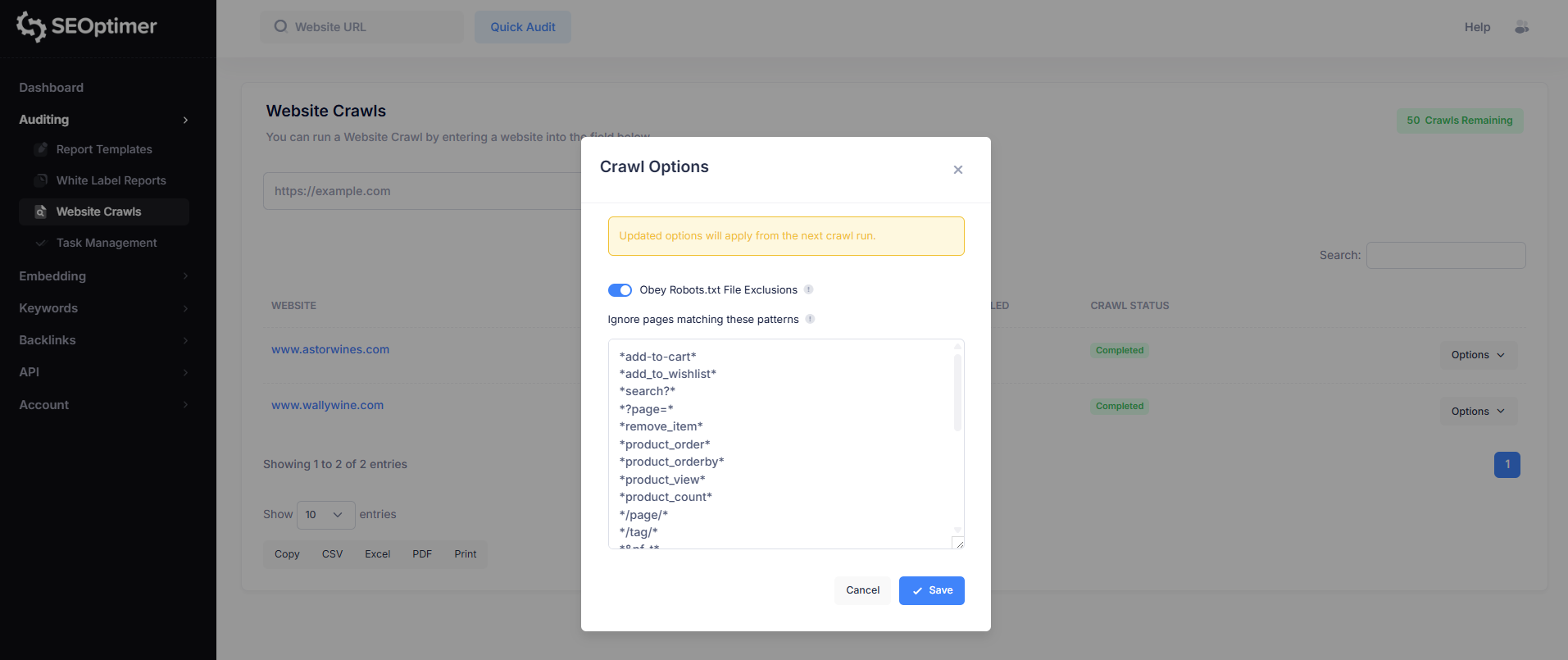
Ignore Pages Matching These Patterns
Some websites generate multiple versions of the same page using URL parameters (for example, sorting, filtering, pagination, or tracking codes).
This is especially common on ecommerce websites.
The “Ignore pages matching these patterns” option allows you to exclude these duplicate or low-value URLs from being crawled. This helps keep crawl results cleaner and makes issue reporting easier to review.
This is a more advanced feature and is mainly useful for websites with large numbers of parameter-based URLs.
SEOptimer includes a default set of exclusion patterns to filter out common parameter-based duplicates, but you can add your own rules if needed.
These patterns follow standard robots.txt matching syntax.
If you're not familiar with robots.txt rules or URL pattern matching, it’s recommended to review the basics before adding custom crawl exclusions. Incorrect patterns may prevent important pages from being crawled.
Here are a few useful references:
- Robots.txt - The Ultimate Guide
- Robots.txt Introduction and Guide | Google Search Central
- How Google interprets the robots.txt specification
- Robots.txt Syntax
How to Export Crawl Data
Each table in the SEO Crawler report includes built-in export options, allowing you to download or share crawl results outside of the platform.
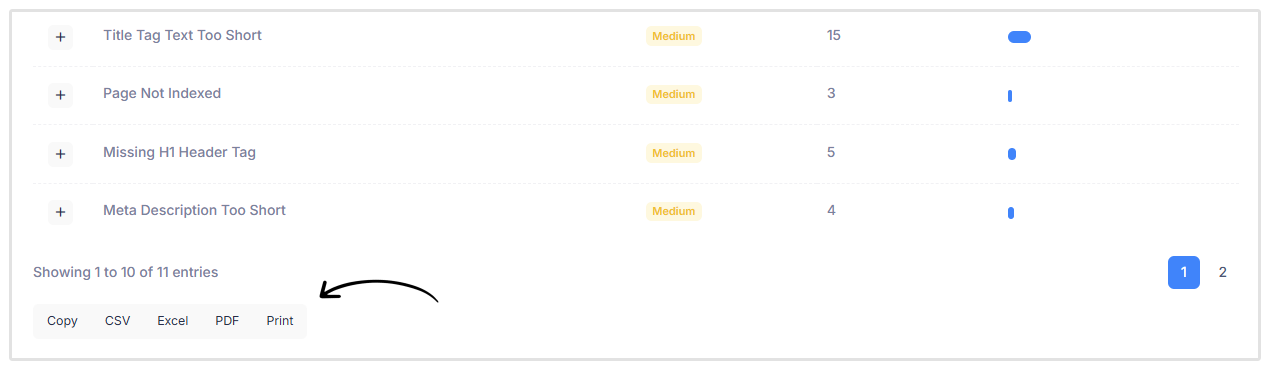
At the bottom of each table, you’ll see export buttons that let you output the data in different formats:
- CSV: Download the table as a .csv file (useful for spreadsheets and data processing).
- Excel: Export the table as an Excel file for reporting or further analysis.
- PDF: Generate a PDF version of the table for sharing or documentation.
- Print: Open a print-friendly version of the table.
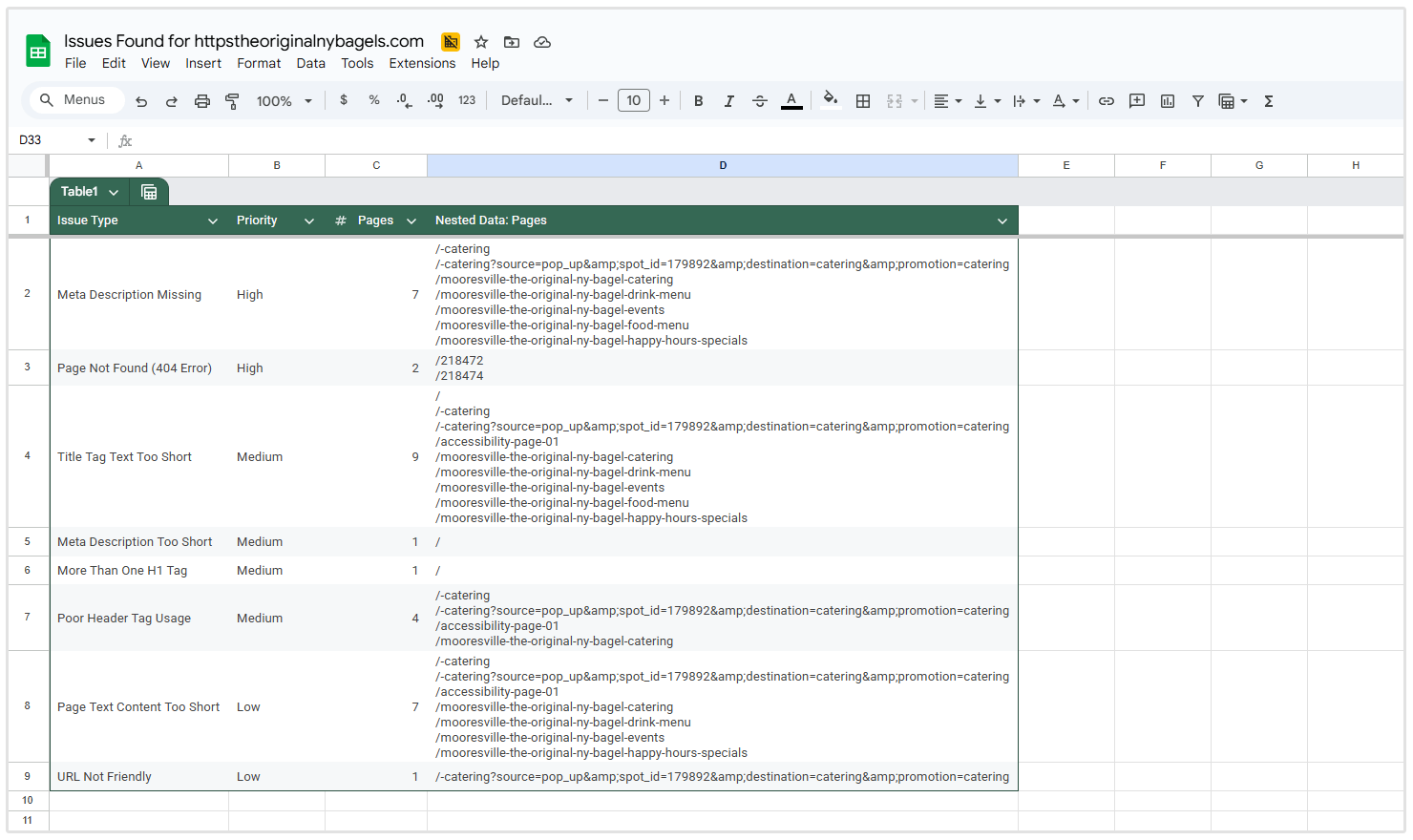
Exports apply to the specific table you are viewing, making it easy to download issue lists, page reports, or filtered results as needed.
Wrapping Up
SEOptimer’s SEO Crawler makes it easy to identify technical and on-page SEO issues across your entire website in a single crawl.
By reviewing the crawl report and using the built-in task list, you can quickly turn crawl findings into actionable improvements.
For best results, consider scheduling regular crawls to monitor changes over time and catch new issues as your website grows.
Need Help?
Live Chat: Click Live Chat (bottom right)
Email: [email protected]
Response time: Within 24 hours

.png)
.png)