



Adding the SEOptimer Embedded Form to your WordPress site can be done in a couple of different ways, depending on your preference.
The easiest option is to use our official WordPress plugin, which allows you to install and manage the form without needing to work directly with HTML, CSS, or JavaScript.
Alternatively, you can still embed the form manually using the generated embed code if you’d prefer more control or are working with a custom setup.
In this guide, we’ll walk through both methods, starting with the plugin, followed by the manual embed option.
Installing the Embedded Form using the WordPress Plugin
Before getting started, make sure that your white label report template has been set up and that you’ve configured your embed form settings on the Embedding Settings page.
This guide also assumes that you’ve already set up your WordPress site and the page where you want to embed your audit form.
You are also going to need to download the plugin file below as our plugin is currently not searchable in WordPress:

1. First log in to your WordPress admin dashboard.
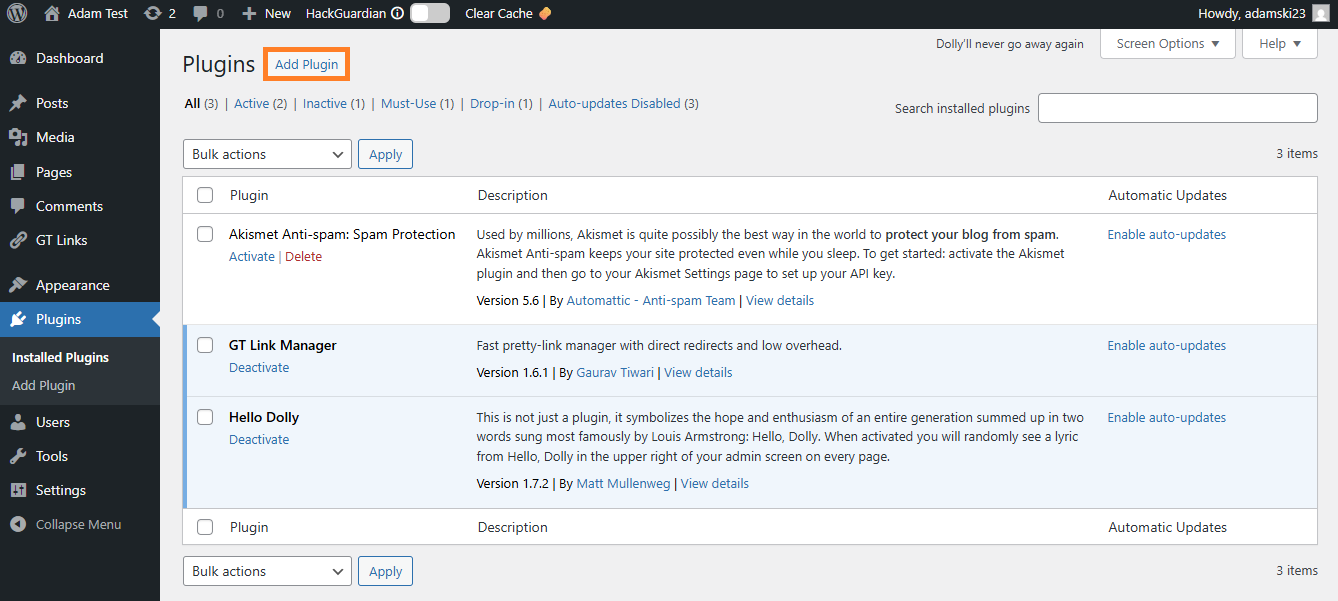
2. Next you’ll want to navigate to the Plugins page and click on Add Plugin.
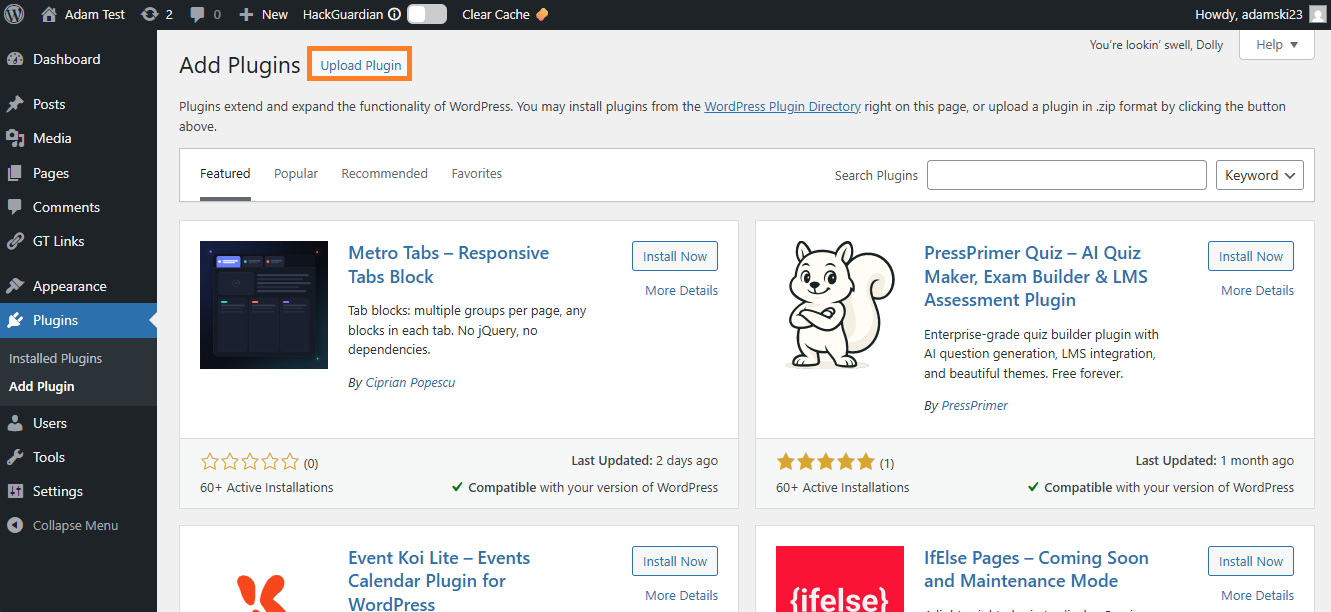
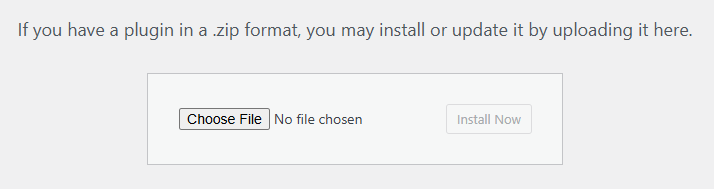
3. Once the page has loaded, you need to click on the Upload Plugin button in the top left corner of the page, upload the plugin file you downloaded earlier, and click Install Now.
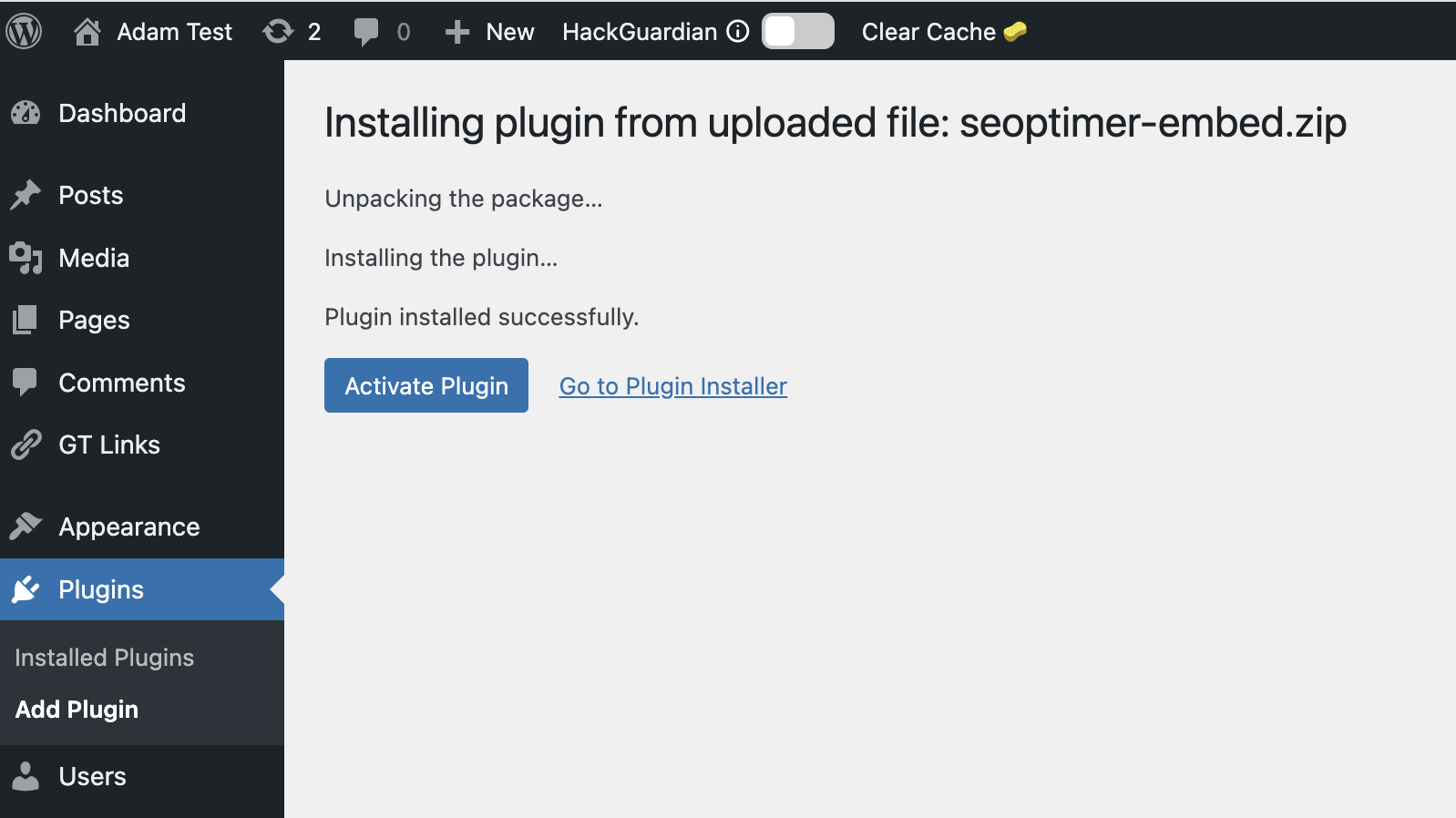
4. You’ll need to wait for the upload to complete and install and then click “Activate Plugin”. It should redirect you back to the Plugins page where you’ll see the SEOptimer plugin listed. You’ll also see a new tab called SEOptimer on your sidebar.
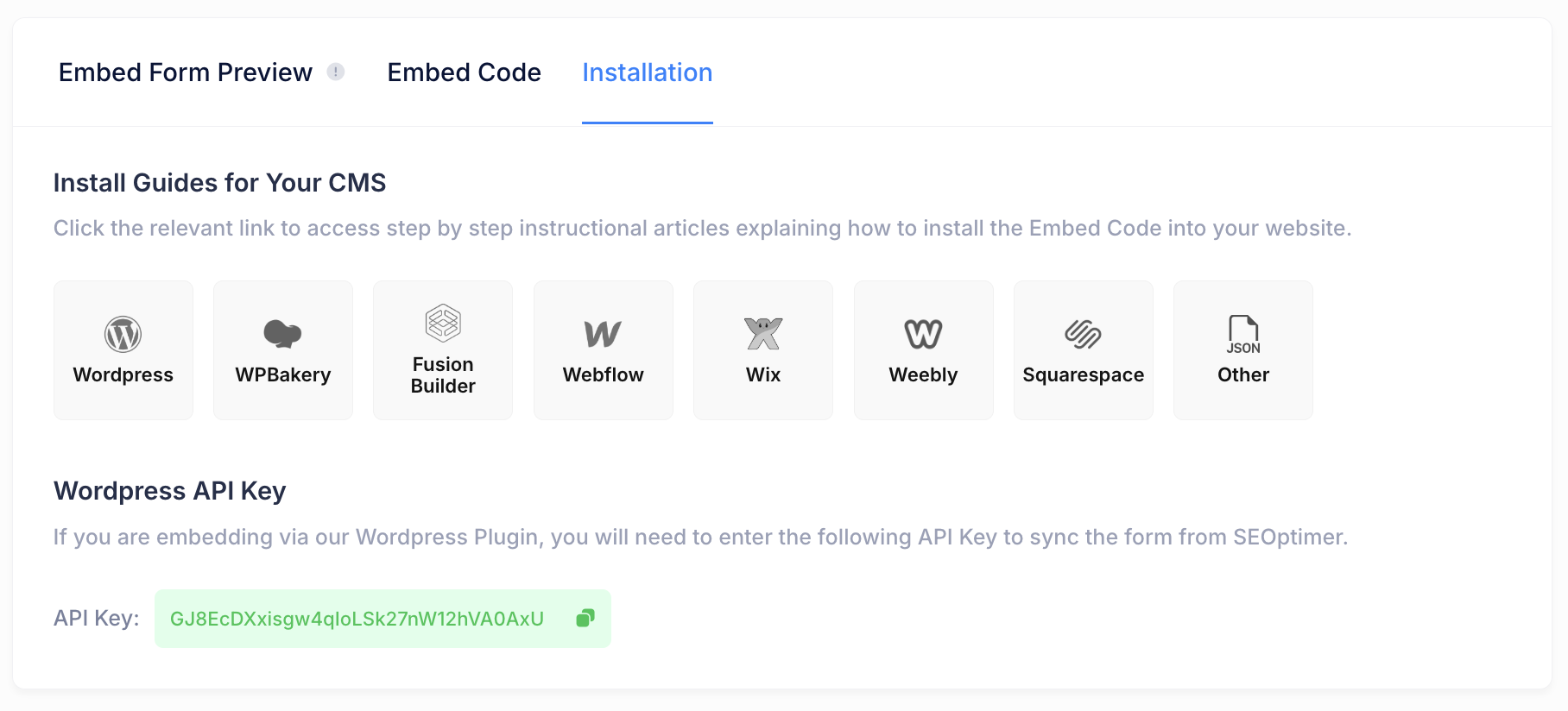
5. Click on the SEOptimer tab in your sidebar, navigate back to your Embedding Settings page in SEOptimer and copy the WordPress API key found under the HTML code block.
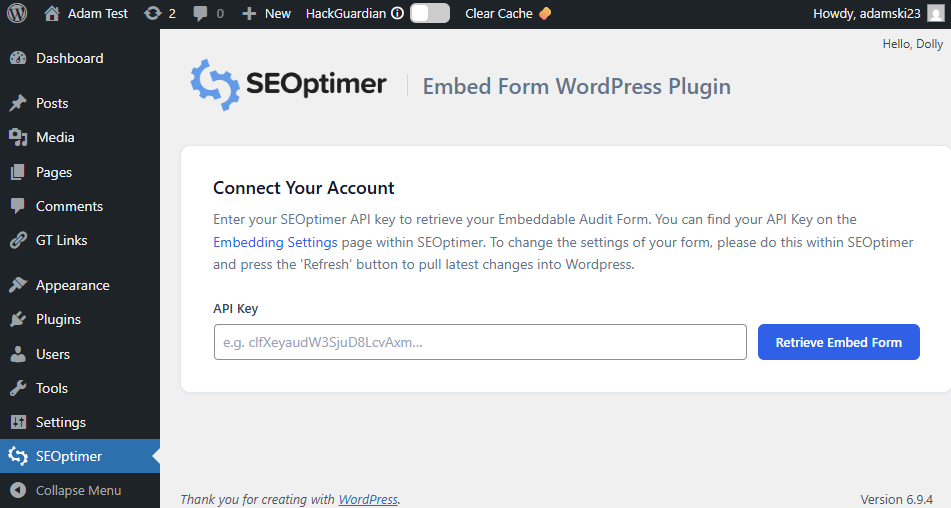
5. Paste this WordPress API key into the field provided on the SEOptimer page in WordPress and click Retrieve Embed Form.
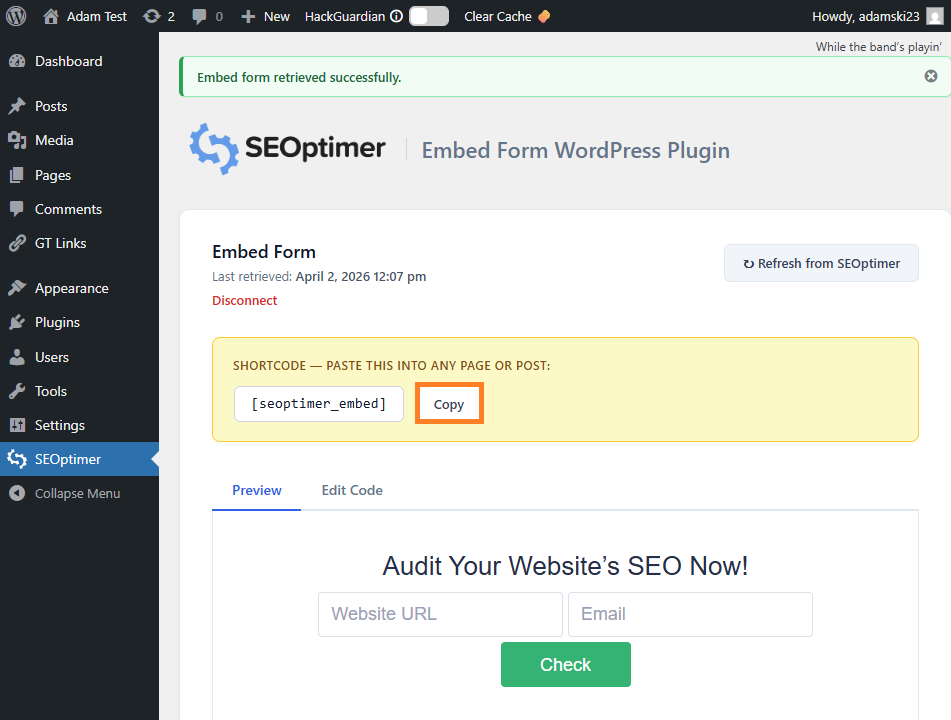
6. A new page will load with the short code for your embed form and a preview of the form, copy this shortcode using the Copy button.
7. Next, navigate to the page you’d like to embed the form on by clicking on the Pages page and clicking Edit on the page you'd like to embed your form on.
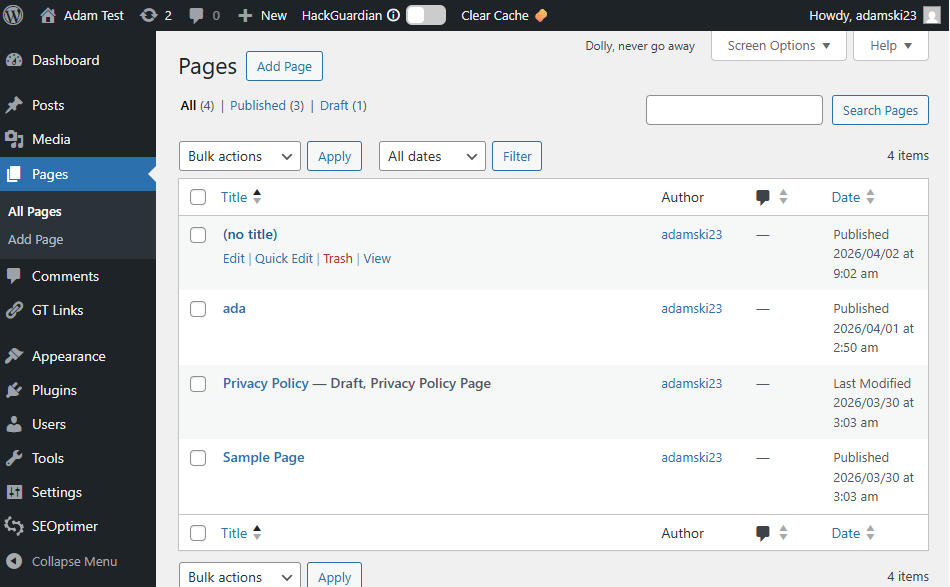
8. When your page has loaded, paste the short code where you would like your form to appear and click Save.
.png)
9. You can preview how your form looks by clicking on the Laptop icon in the top right corner and selecting Preview in New Tab
.png)
Keep in mind that if you need to make any changes, you’ll need to make the changes in your SEOptimer account on the Embedding Settings page and then navigate back to the SEOptimer tab in your WordPress account and click Refresh from SEOptimer.
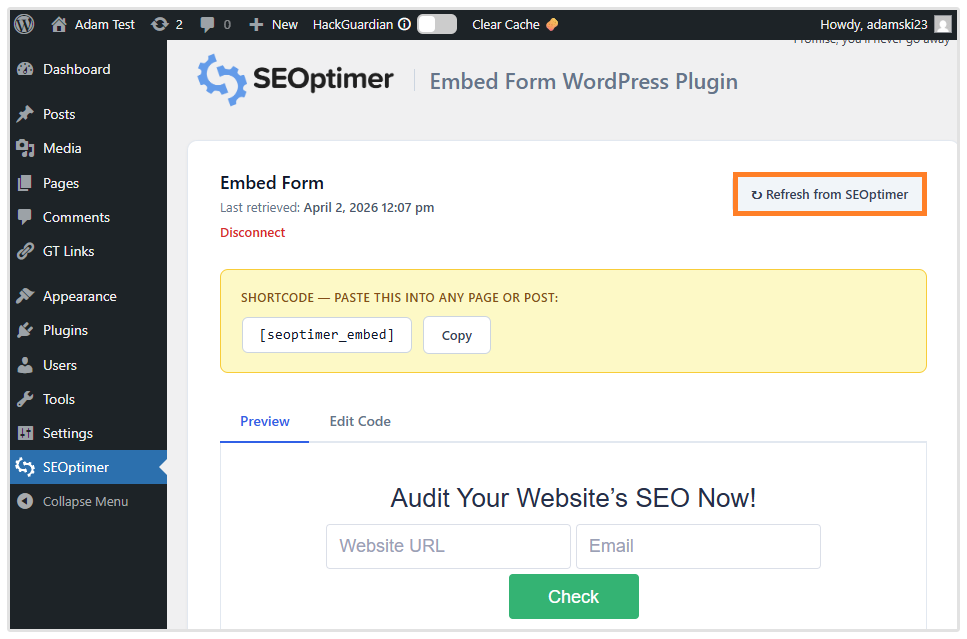
If you know how to edit code, you can also manually edit the code by clicking on the SEOptimer tab in WordPress and clicking on the Edit Code tab. Keep in mind that clicking the Refresh from SEOptimer button will overwrite any manual changes you’ve made to the code.
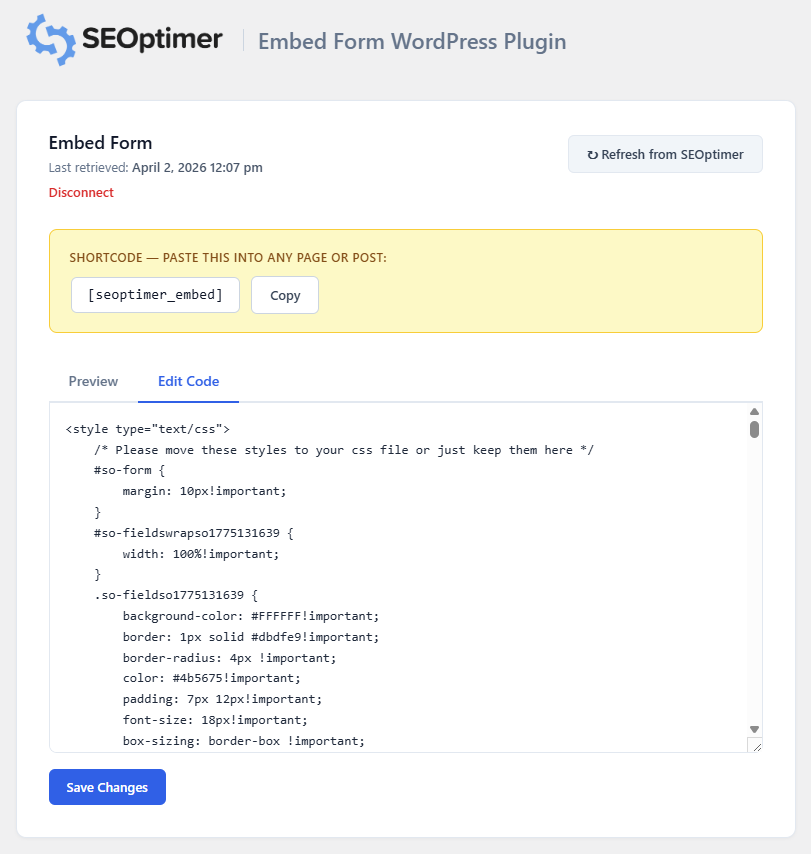
Note, the SEOptimer embedding plugin only works when you have an active White Label and Embedding subscription.
Adding your Embed Form Using the HTML Code
If you’d prefer to manually embed your embed code into your page, please follow the instructions below:
1. Login to your SEOptimer account and go to the Embedding Setting page.
.png)
2. Click “Save Settings & Generate Embed Code” button at the bottom of the page.
 (1) (1).png)
3. You’ll see the HTML Code block at the top of the page, copy the code manually or by clicking “Copy Code” button.
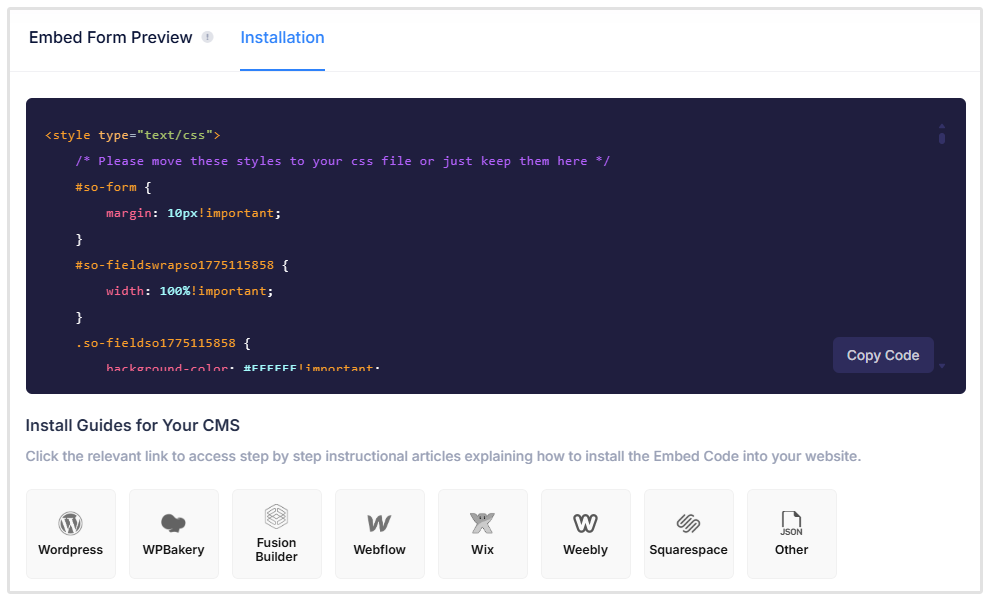
4. Log in to your Wordpress site
5. Click on the Pages page on the sidebar and click Edit on the page where you’d like to embed the code.
6. Since SEOptimer provides HTML code for the embedding form, you need to create a new “Custom HTML” section in order to be able to embed this code on the page properly. The form’s code won’t work properly in other block types so please be sure to use this type we've recommended.
To do so, click on the Add Block option, click on the Browse All option on the pop up, in the search bar type Custom HTML and select Custom HTML.
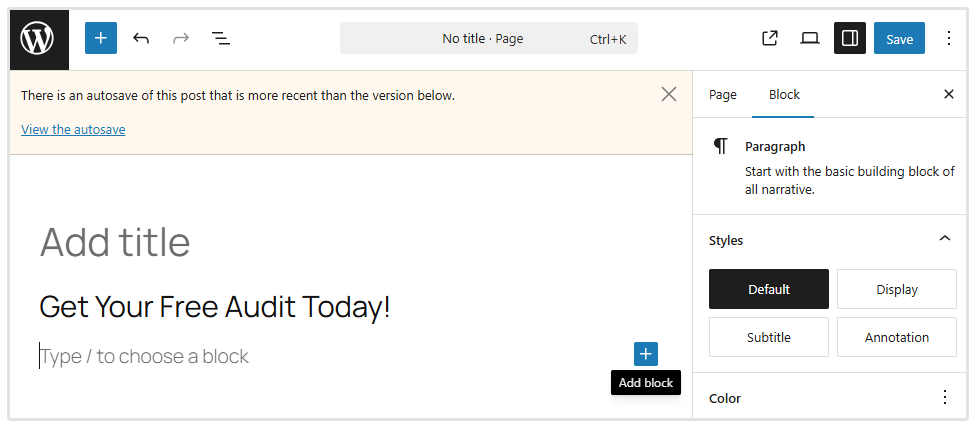
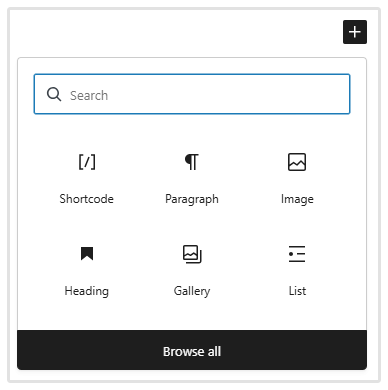
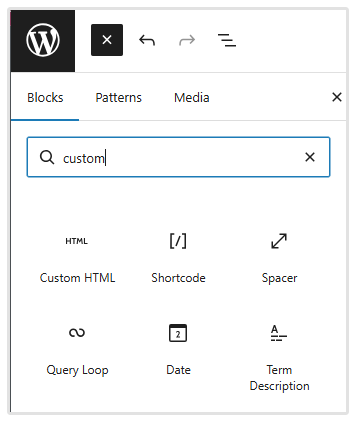
7. Paste the code you’ve copied from the Embed Form in SEOptimer into the box provided and click Save.
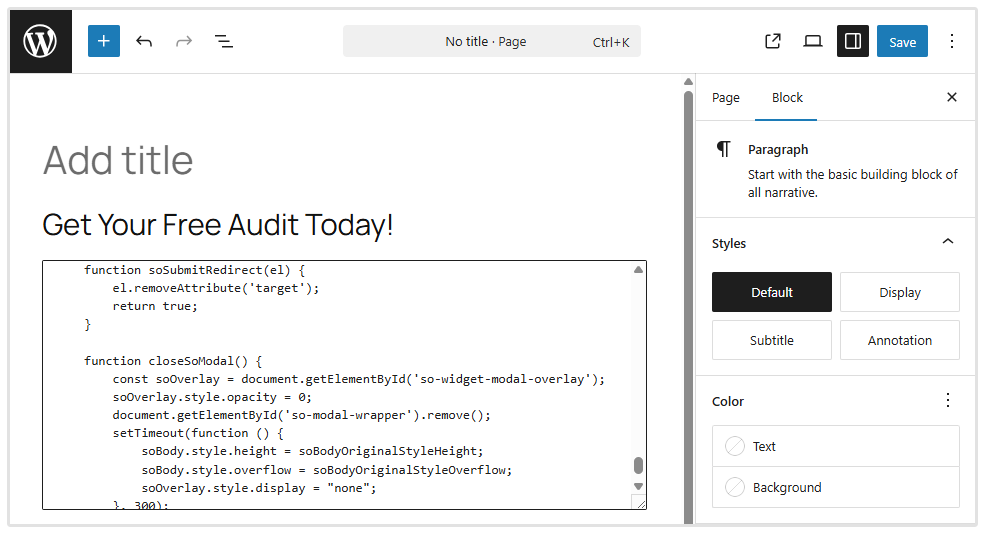
8. Click the laptop icon in the top right corner of your screen tand select Preview in New Tab to see how the form looks.
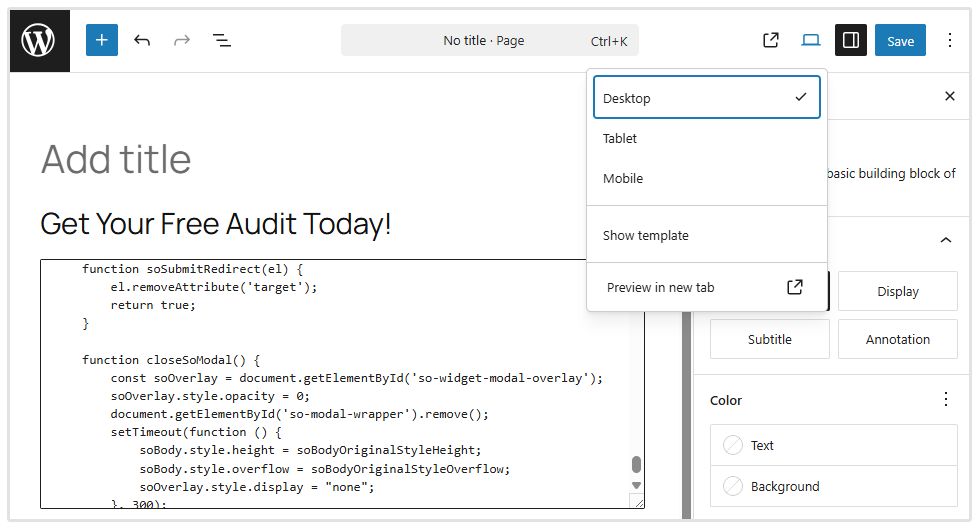
9. The last step would be to try the form functionality on your website. Submit an audit to see if the form is functioning as expected according to the settings you've provided on the Embedding Settings page.
Adding Embedded Form Code Into a Widget on a Wordpress Site
Sometimes it’s necessary to display the form on all pages of the website instead of incorporating it into a single page as we did before.
Widgets are the fastest and the simplest solution for this problem. If the active Wordpress theme on your website supports widgets, you can use a widget either in the sidebar or footer to embed the form.
Most classic Wordpress themes like Astra and Kadence have the possibility to work with widgets, but in case your active theme doesn’t support widgets, you’ll need to amend the theme’s back-end files in order to add this feature to your Wordpress installation (requires PHP coding knowledge), or hire a specialist to complete this task for you.
1. Log in to your Wordpress installation and navigate to Appearance/Widgets page

2. Select the widget area you’d like to embed your form into eg. footer bar or main side bar.
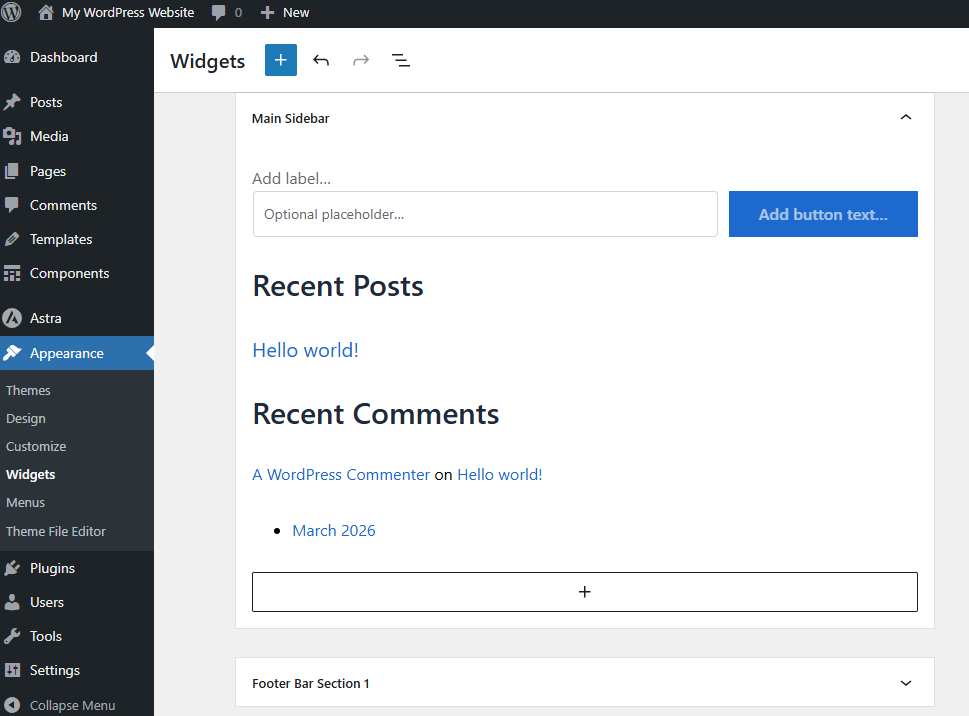
3. Click the plus icon and select the Custom HTML option.
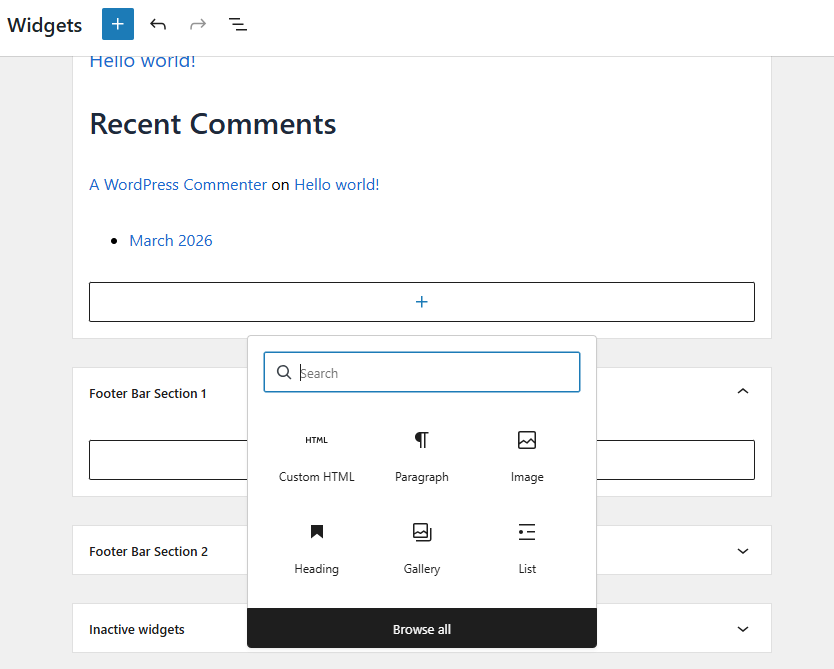
4. In the HTML block, paste your SEOptimer embed code from the Embedding Settings page and click Update in the top right corner.
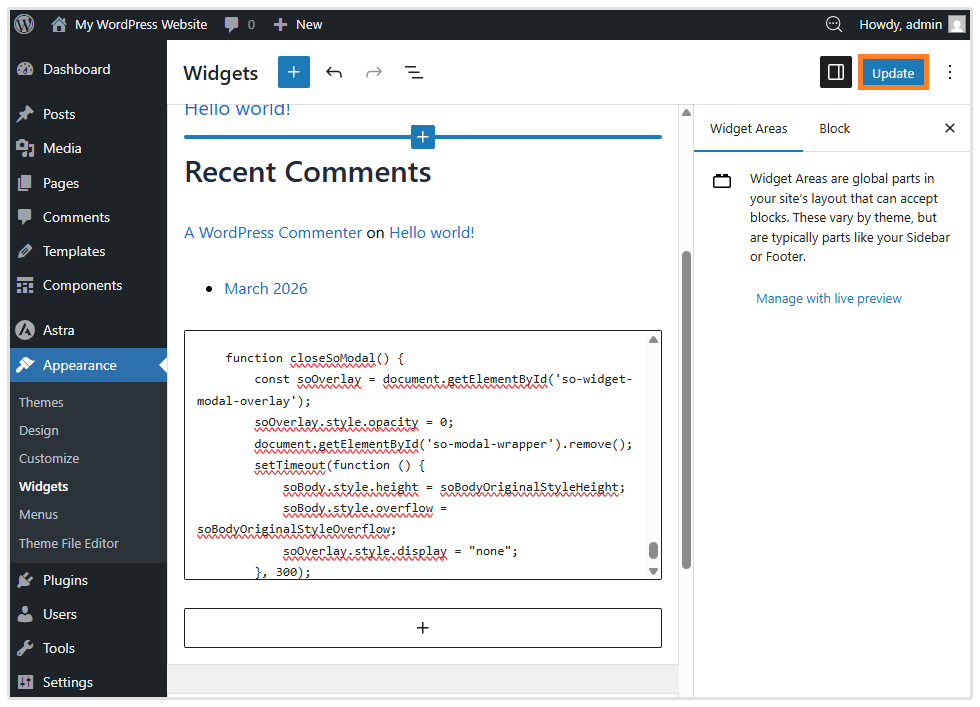
5. Finally, submit a test enquiry via the form you’ve just installed to confirm the form matches your settings.
Potential Issues and Conflicts
If the SEOptimer Embedded Form is still not functioning correctly on your website correctly: there are some potential culprits:
Third-party WordPress plugins – Some plugins, in particular analytics or click tracking plugins, append tracking parameters to any URLs on a website, and can interfere with the form logic. We recommend turning off plugins on your website one by one to pinpoint a conflicting plugin.
Javascript compatibility – Our embedding code includes Javascript which carries out some of the form actions.
It is possible other Javascript code on the site could interfere with this, or prevent it running. You could attempt to diagnose a Javascript issue by looking at Chrome's Developer Panel 'console' area and look for red Javascript errors.
Need Help?
Live Chat: Click Live Chat (bottom right)
Email: [email protected]
Response time: Within 24 hour

.png)
.png)