

Backlinks are an important ranking factor used by search engines to evaluate a website’s authority and trustworthiness. Monitoring and analyzing backlinks is an essential part of managing any SEO strategy.
SEOptimer’s Backlink Research Tool allows you to review backlink data for any domain, analyze link quality, assess authority metrics, and identify linking domains.
In this guide, we will show you all the features of the Backlink Research Tool and explain how to use each section to analyze backlink data effectively.
Accessing SEOptimer’s Backlink Research Tool
You can perform comprehensive backlink research for any domain and URL on the web, including competitor domains.
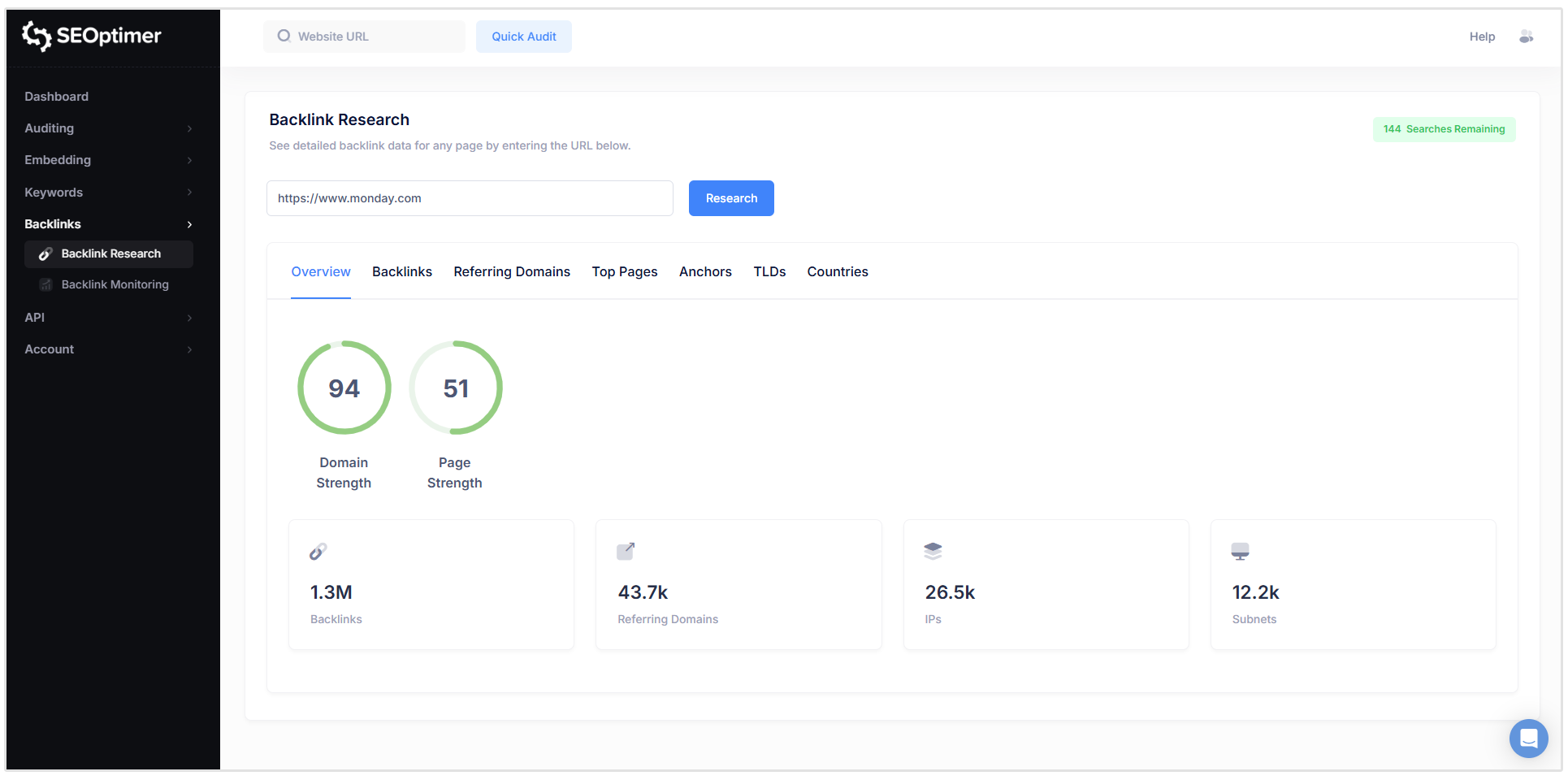
Simply click on Backlink Research in the left tab of your SEOptimer dashboard to access the backlink research tool.
Then, paste the URL of the site that you want to study.
Overview Tab
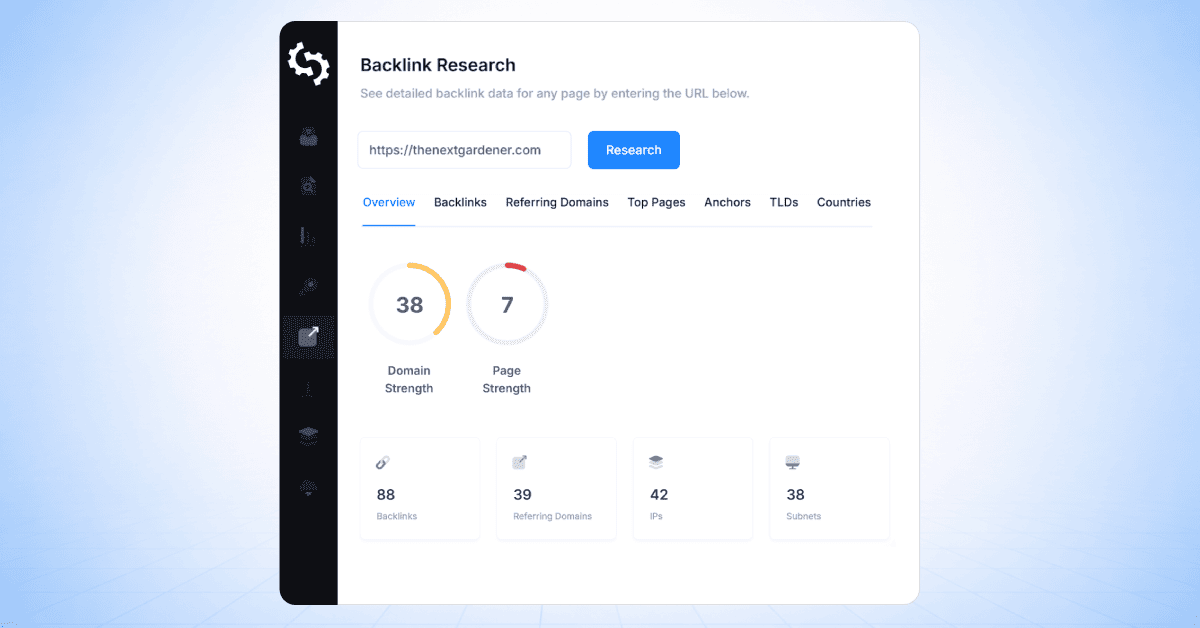
The Overview tab gives a high-level summary of all the most important backlink metrics including Referring Domains, Backlinks, Domain Strength, Page Strength, and then secondary metrics such as IPs and Subnets.
Both metrics give you a score from 0 to 100, Domain Strength checks the strength of the entire domain’s backlink profile, whereas Page Strength only focuses on the page you’re analyzing.
Related Reading: What is a Backlink Profile? How to Spot a Strong vs Weak Link Profile
Backlinks Tab
The Backlinks tab is where you’ll likely be spending the most of your time.
This section is where you can really perform backlink research, whether that be for your own website, that of a client, or any competitor.
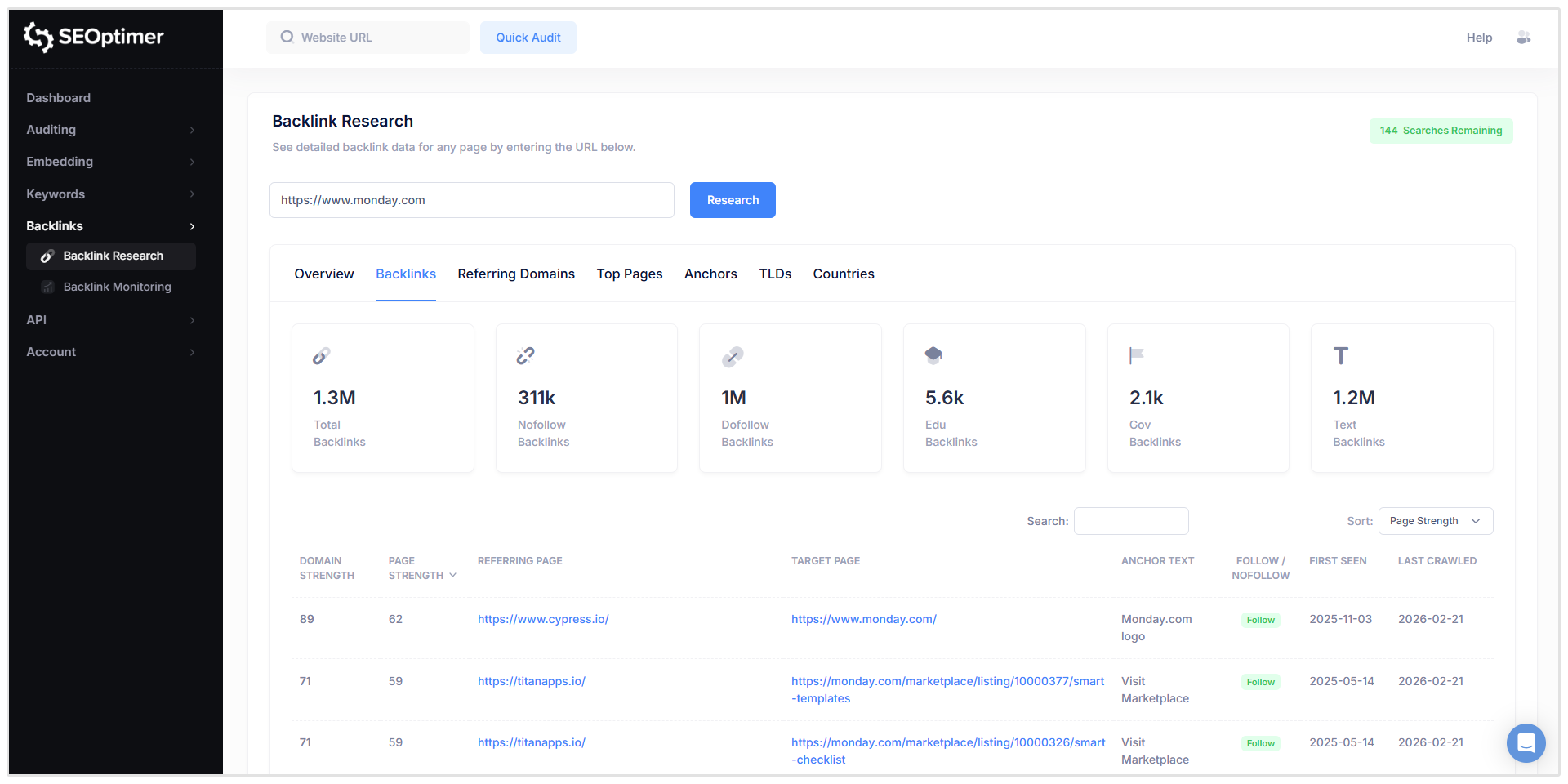
The Backlinks tab lists all your backlinks based on particular sorting conditions. You have the flexibility to sort by First Seen, Domain Strength, or Page Strength.
We’ve also included a metric called Text Backlinks, which counts the number of text-based links as opposed to backlinks coming from naked URLs (https://www.seoptimer.com/keyword-research-tool).

Scrolling down, users will see a list of the top backlinks pointing to the specific URL they are analyzing.
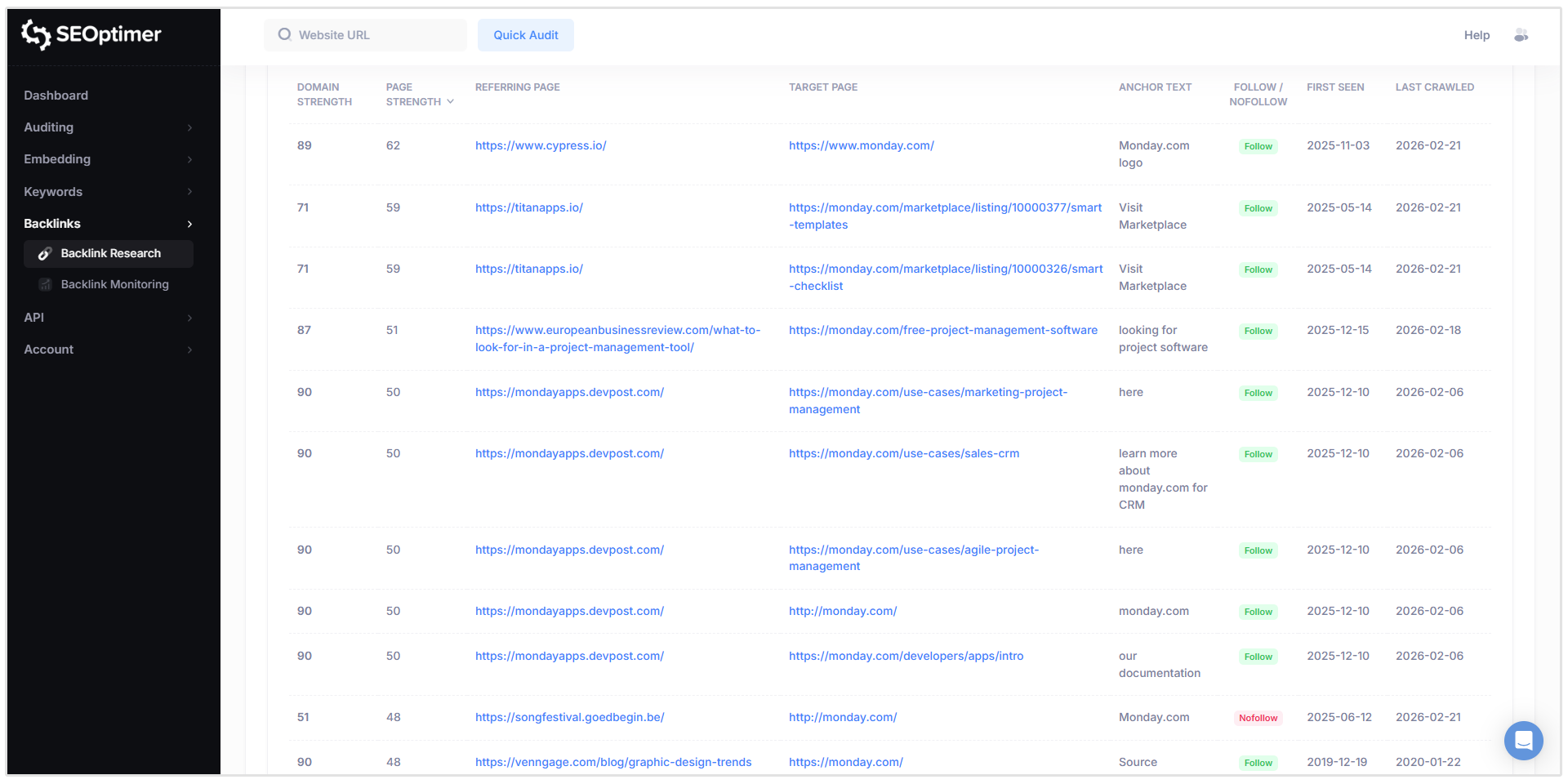
This section gives you a detailed list of all the backlinks pointing to your site. Here you can view a myriad of data points for any individual link pointing to your site.
This includes:
- Domain Strength: A score from 0–100 that reflects the overall strength of a domain’s backlink profile, based on the quantity and quality of links pointing to that domain. Higher scores generally indicate domains with stronger link profiles.
- Page Strength: A score from 0–100 that reflects the strength of the specific referring page’s backlink profile. This helps you evaluate the strength of the exact page where the backlink appears.
- Referring Page: The exact URL of the page that contains the backlink pointing to your website.
- Target Page: The specific page on your website that the backlink is pointing to.
- Anchor Text: The clickable text used in the hyperlink. Anchor text helps search engines understand the context and relevance of the linked page.
- Follow/Nofollow: Indicates whether a backlink is dofollow or nofollow. Dofollow links can pass ranking value, while nofollow links include an attribute that signals search engines not to pass ranking value.
- First Seen: The date when SEOptimer first discovered the backlink in its index.
- Last Crawled: The most recent date SEOptimer checked and confirmed the existence of the backlink.
This feature is especially useful if you want to perform analysis on your competitor’s backlinks to reverse engineer their link-building strategy.
This section is used by SEO and link-building agencies to see how effective their marketing campaigns are in generating the right types of backlinks (dofollow vs nofollow) for clients.
Related Reading: How to Build Backlinks for a New Website
Referring Domains Tab
Moving onto the Referring Domains tab you can see more information about the domains sending you backlinks.
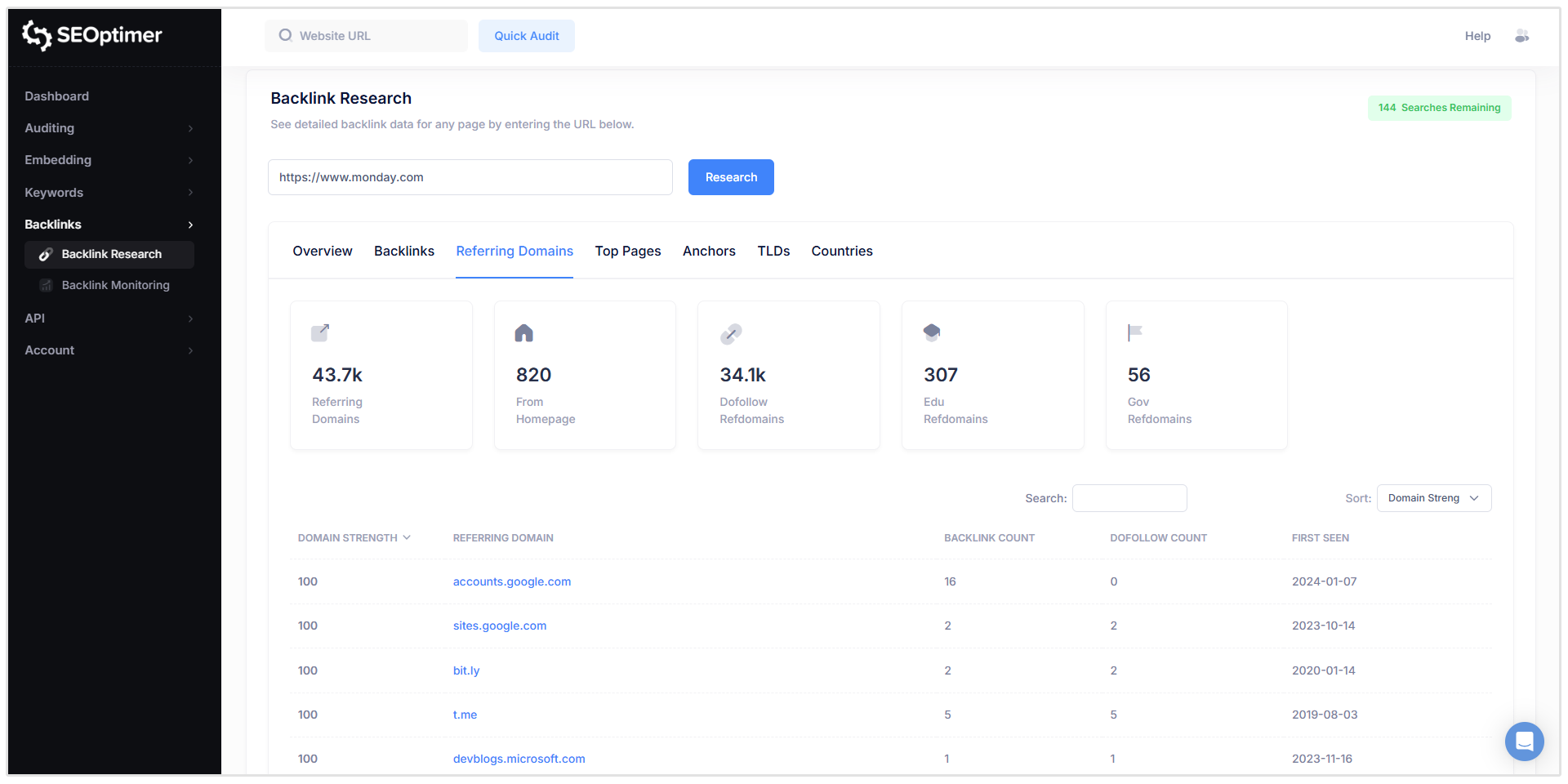
More specifically, you can see the total Referring Domains that are pointing links to your website. The more domains talking about your website in the form of backlinks, the more authoritative your website will be perceived in the eyes of Google.
You also don’t want thousands of backlinks but only a few referring domains linking to your website.
Ideally, you should have a diverse backlink profile with links from a broad range of different domains, in other words, more referring domains compared to backlinks.
We’ve also added a check called From Homepage, this counts the number of links pointing to your website for other homepages.
Links from homepages tend to be more powerful and carry more weight than those from subpages.
At the bottom of this tab, you can see a table with more information about the referring domains linking to your website.
For each Referring Domain, you can view information about its Domain Strength, Backlink Count (the total number of links from that domain), Dofollow Count, and First Seen.
Related Reading:
- What are Referring Domains? How to Check Them and Get More
- Who Links to My Site? How to Find All Your Backlinks
Top Pages Tab
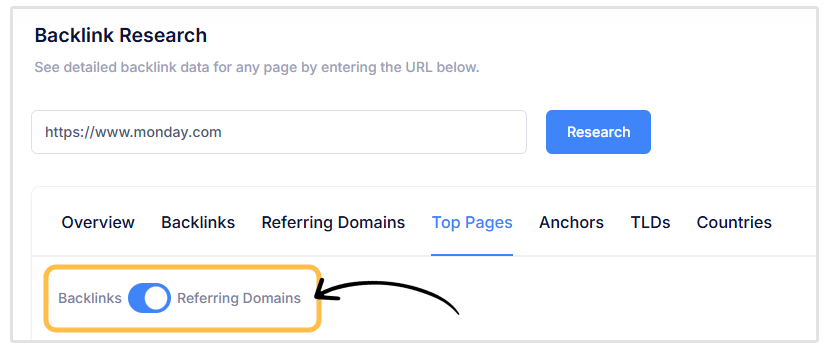
The Top Pages tab shows you which of your site’s pages have the most backlinks and referring domains. In other words, these are the most “popular” pages on your website when it comes to total links.
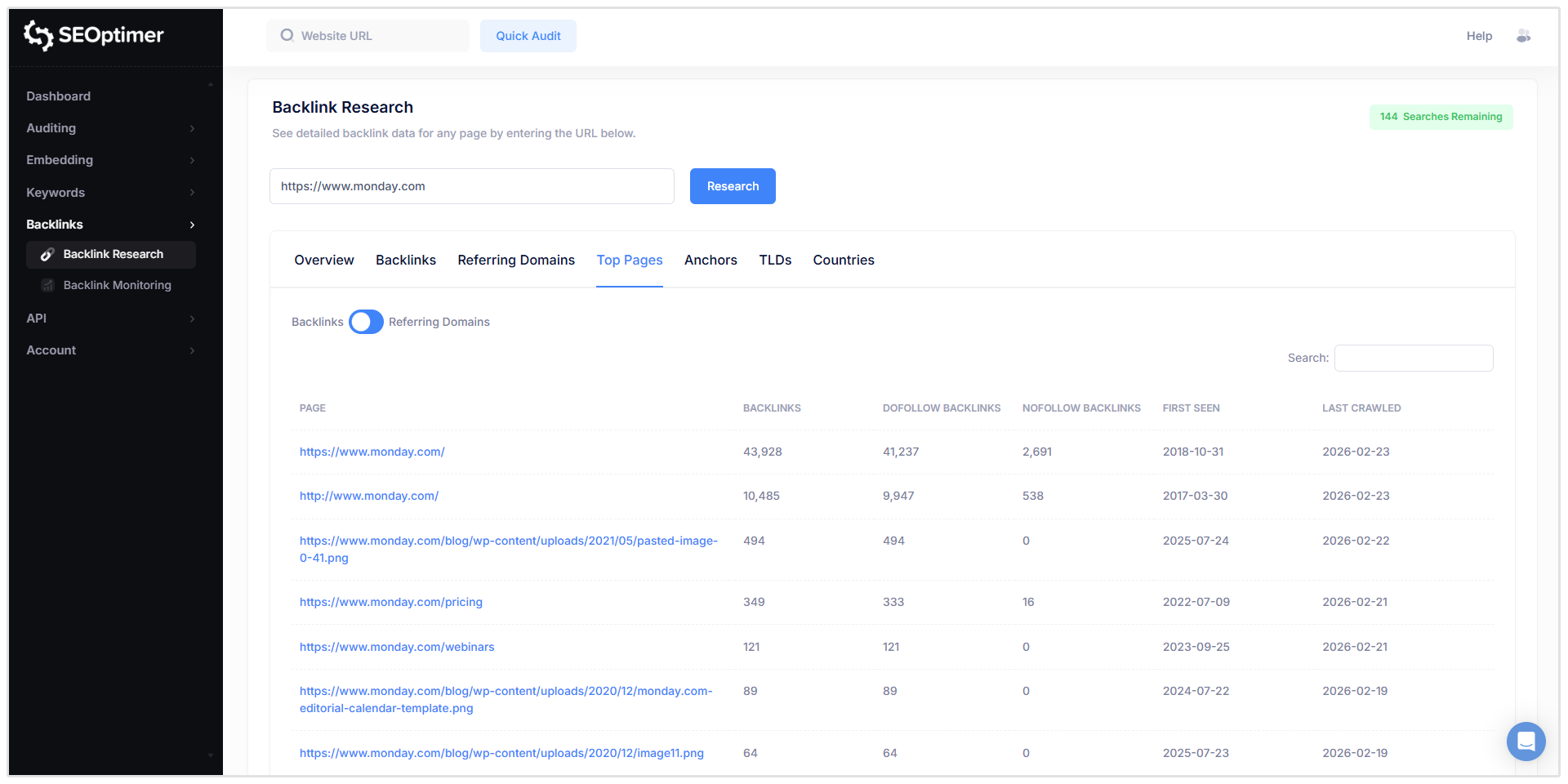
Simply switch between Backlinks and Referring Domains by clicking on the switch at the top of the table.
This is useful for identifying pages with the most ranking potential, and the pages that are driving the most overall value to your site.
Anchors Tab
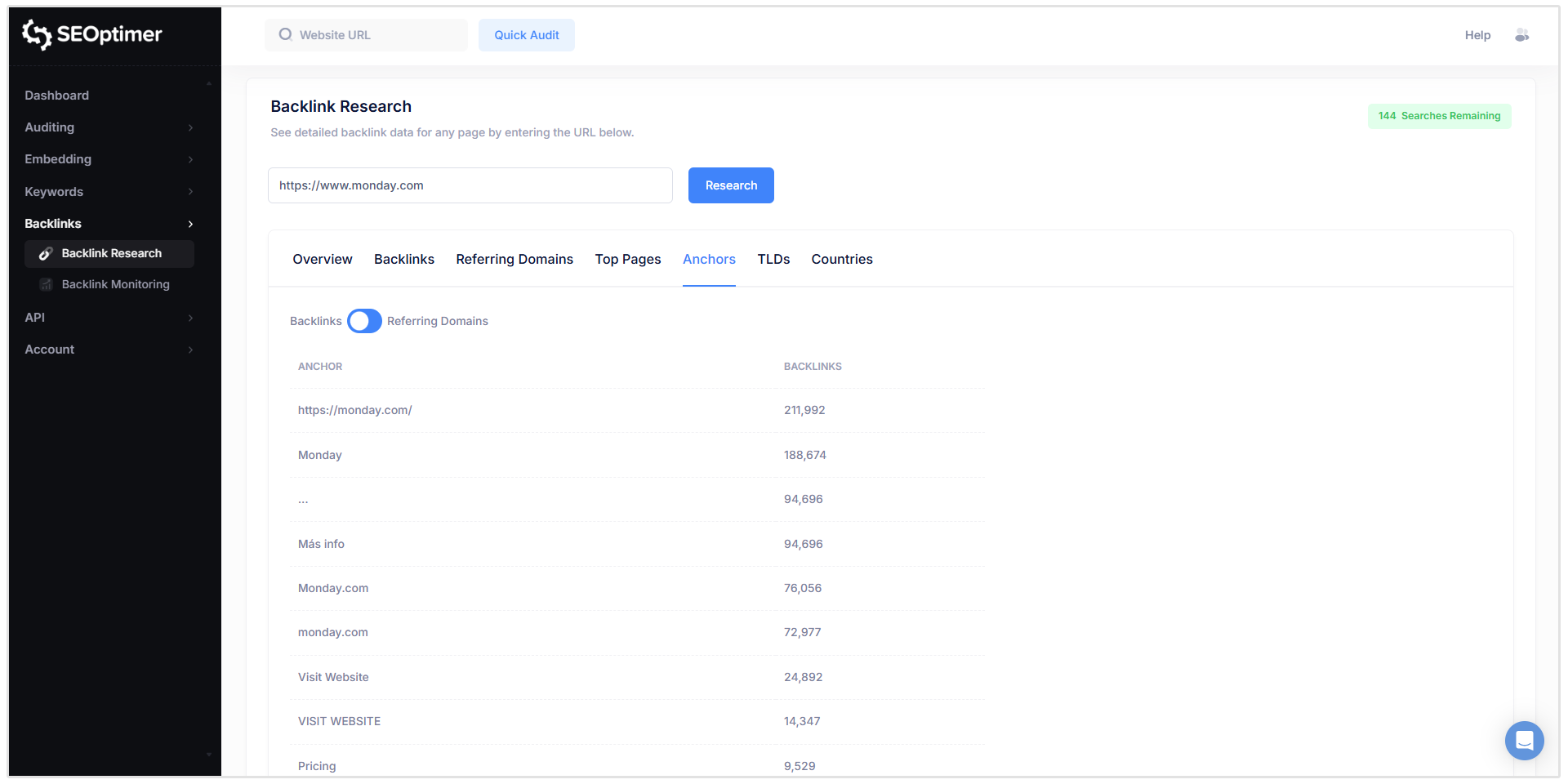
The Anchors tab shows you the most popular anchor text other websites use when linking back to your website.
Again, here you can also switch between Backlinks and Referring Domains.
For instance, if you want to view how many backlinks are using specific anchor text, you’d switch to the Backlinks option.
TLDs Tab
The TLDs tab shows you the Top-Level-Domains linking to your site.
This is especially useful if you want to build links from sites in your country.
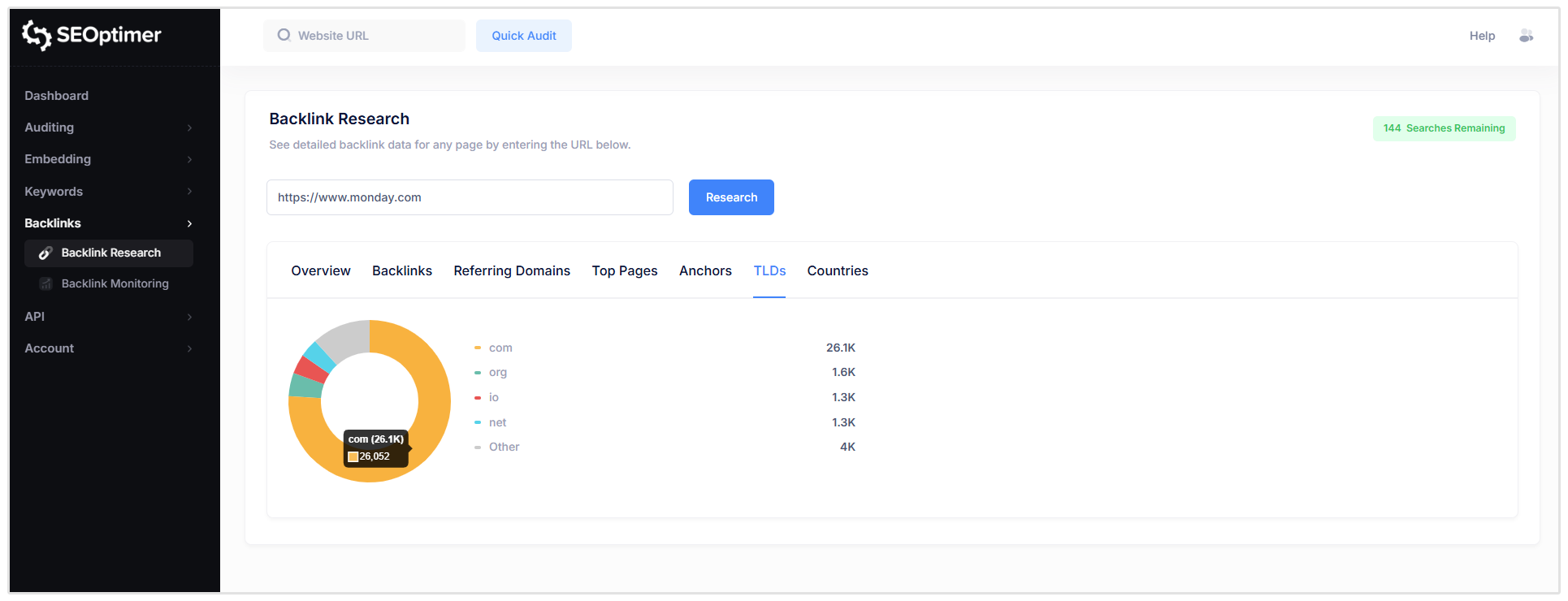
The TLDs section will show whether your region-specific link-building is effective or if you need to build some relationships with sites in your own region in order to get a link from them.
Related Reading: What Domain Extension (TLD) is Best for SEO?
Countries Tab
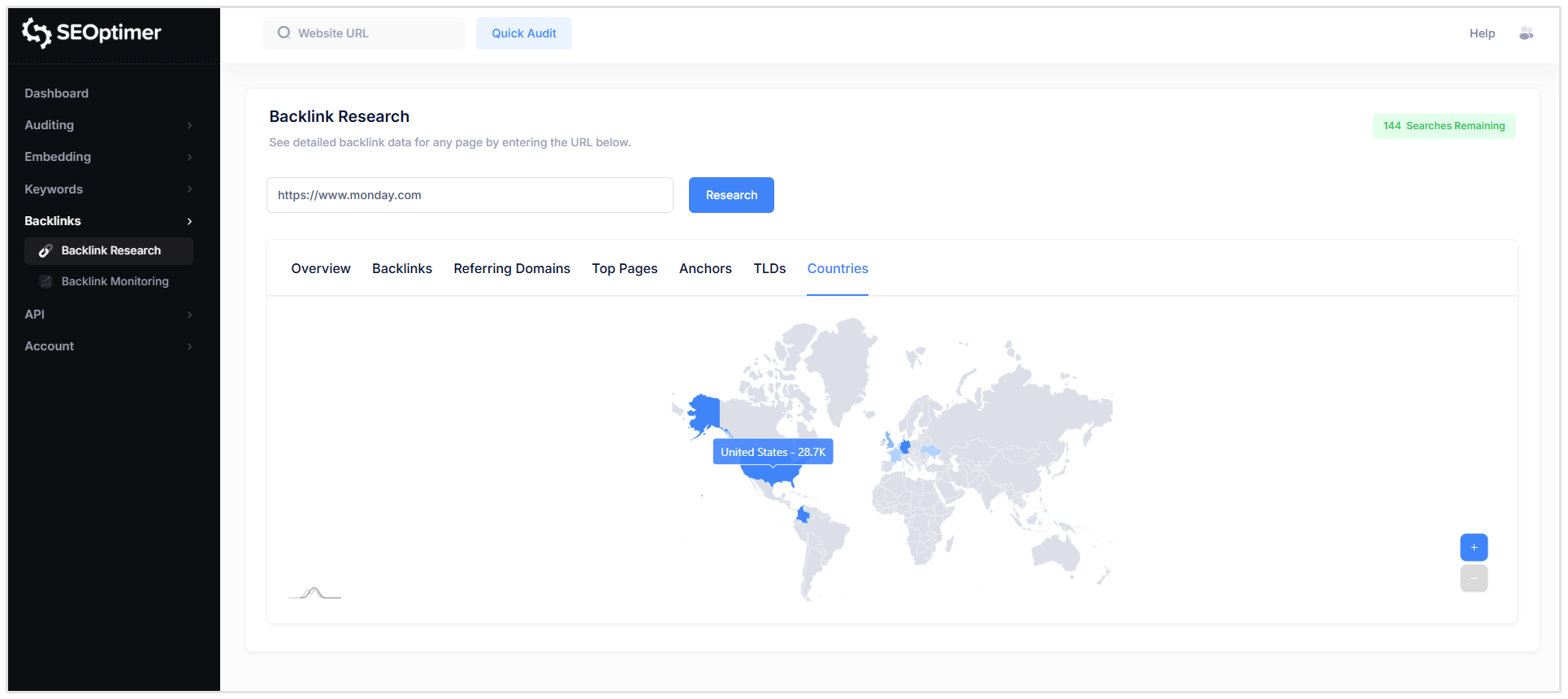
Like the TLDs section, the Countries tab will show you how many links you are getting from sites in a specific country.
Wrapping Up
SEOptimer’s Backlink Research Tool gives you the data needed to understand, evaluate, and analyze any website’s backlink profile.
From high-level authority metrics in the Overview tab to detailed link-level analysis in the Backlinks, Referring Domains, Anchors, TLDs, and Countries sections, the tool provides a complete view of your backlink landscape.
The Backlink Research Tool is part of SEOptimer’s broader backlink and link-building toolkit, which also includes our Backlink Monitoring feature.
While Backlink Research helps you analyze and discover backlink data, Backlink Monitoring allows you to track new and lost links over time helping you stay on top of changes and protect your SEO performance.
Related Reading: How to Monitor Backlinks with SEOptimer
Need Help?
Live Chat: Click Live Chat (bottom right)
Email: [email protected]
Response time: Within 24 hours

.png)