


SEO can feel like a never-ending to-do list. You run an audit, get back a hundred different warnings, and suddenly you’re staring at a spreadsheet wondering where to even begin.
Do you fix the meta tags first? Or is site speed more important? What about that broken link on the contact page?
If you’ve ever felt paralyzed by an audit report, you aren’t alone.
That’s why we built the SEOptimer Task Management tool.
The Task Management tool is your roadmap to fixing all the issues on your site.
Whether you are a solo business owner trying to boost your traffic or an agency juggling multiple clients, this guide will walk you through exactly how to use the Task Management tool.
What is SEOptimer’s Task Management Tool?
At its simplest, the Task Management tool is your personal SEO project manager.
It organizes and prioritizes every SEO issue found on your website in one simple workspace.
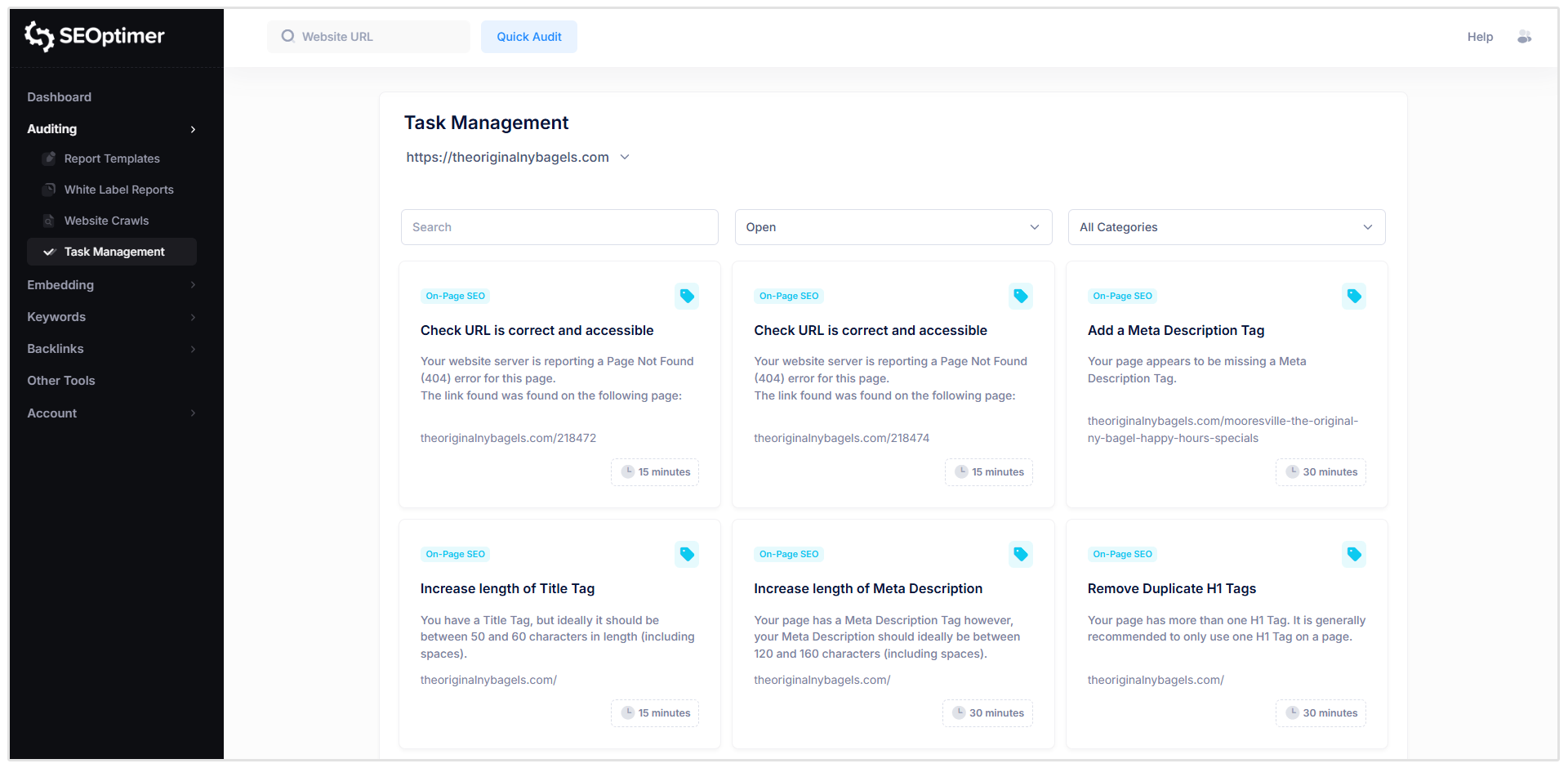
Most SEO tools just hand you a report full of red flags and technical jargon, then wish you good luck.
But we take it a step further.
How the Task Management Tool Works
The Task Management tool is the bridge between finding a problem and fixing it.
Here is how it works:
- Crawl: You run a website crawl to scan for issues.
- Process: Our system analyzes the data, determining which issues are hurting your rankings the most.
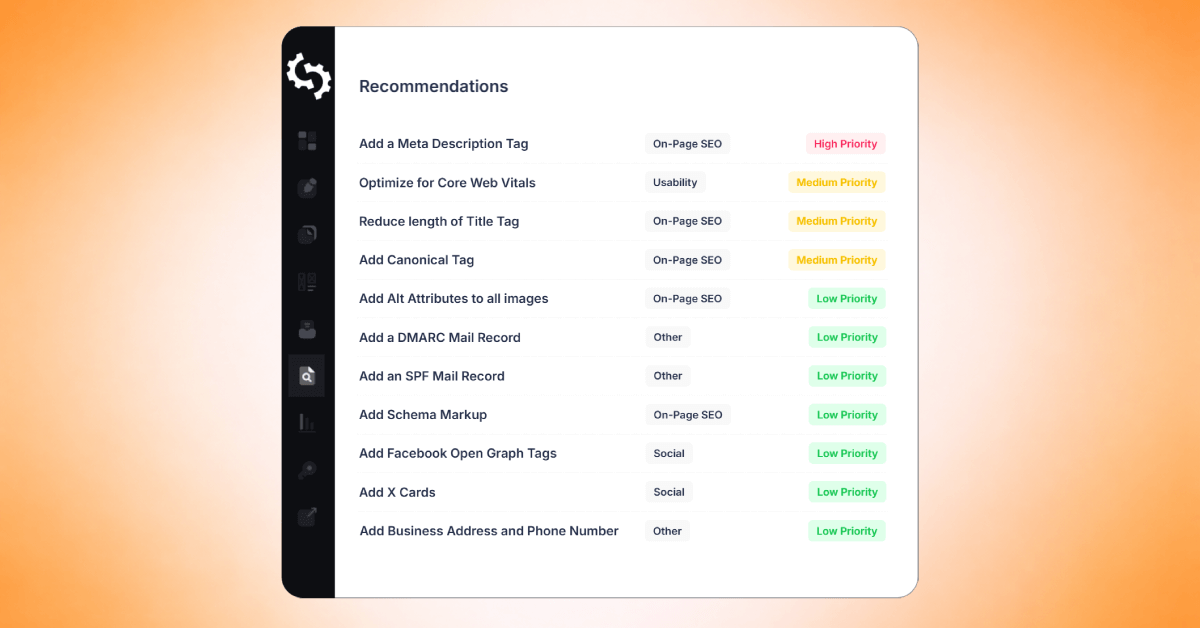
- Task Generation: The tool automatically generates a task list sorted by impact.
- Execution: You work through the list, checking off items as you go.
This means you don't have to manually transfer issues into other platforms or even separate spreadsheets.
You don't have to wonder if a missing H1 tag is more urgent than a 404 error.
The tool does the heavy lifting for you, instantly creating a To-Do list the moment your crawl finishes.
Why You’ll Love It
Spreadsheets are terrible for SEO.
Here is why switching to a dedicated Task Management tool is great for marketers.
It Ends Analysis Paralysis
When you see 50 errors on a site, it’s natural to freeze up.
Our tool sorts tasks by importance and impact.
You log in, see exactly what needs to be done right now to move the needle, and leave the low-priority noise until later.
It Centralizes Your Workflow
Instead of jumping between a PDF report or a spreadsheet, everything lives in one place.
You can view the issue, read the guide on how to fix it, and mark it as complete without leaving the dashboard.
It’s Built for Teams and Agencies
If you manage multiple sites or work with a team, the Task Management tool keeps everyone aligned.
You can filter by project, see what has been completed, and track progress over time.
Getting Started: Accessing the Task Management Tool
Ready to get to work? Accessing your task list is easy. There are two main ways to find it within the SEOptimer dashboard.
Method 1: From the Crawl Report
Immediately after you finish running a website crawl, look at the header of your report.
You will see a blue button labeled “View Tasks.”
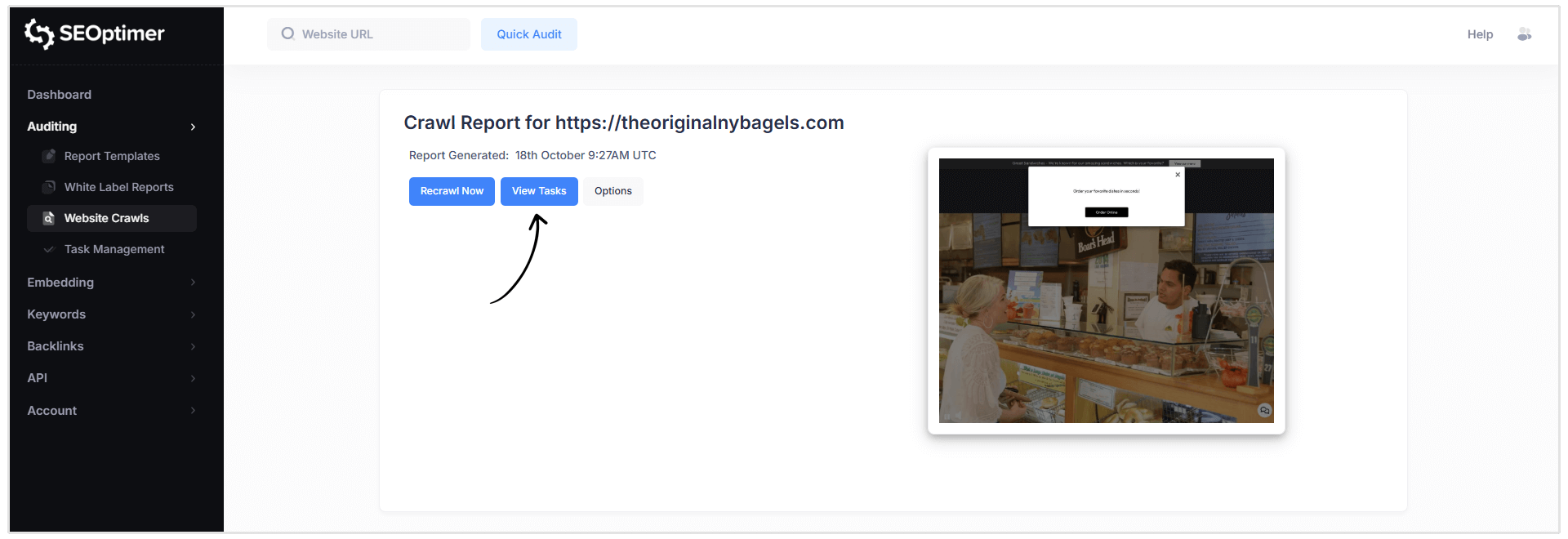
Clicking this will take you straight to the prioritized list of issues found in that specific crawl.
Method 2: From the Dashboard
If you are logging into your SEOptimer dashboard or you’ve been busy with some of our other tools, you don’t need to run a new crawl to view the tasklist.
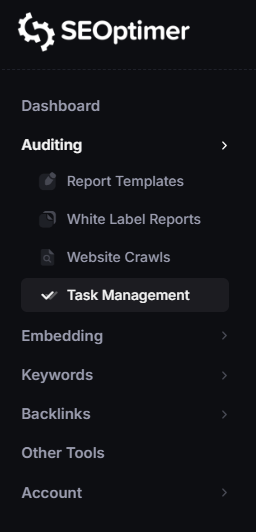
Simply look at the left-hand navigation menu in your dashboard and click on “Task Management.”
Note: If you manage multiple websites, make sure you have selected the correct project from the dropdown menu at the top of the Task Management page to see the relevant to-do list.
Completing Your First Task
So let's go through the process of completing your first task.
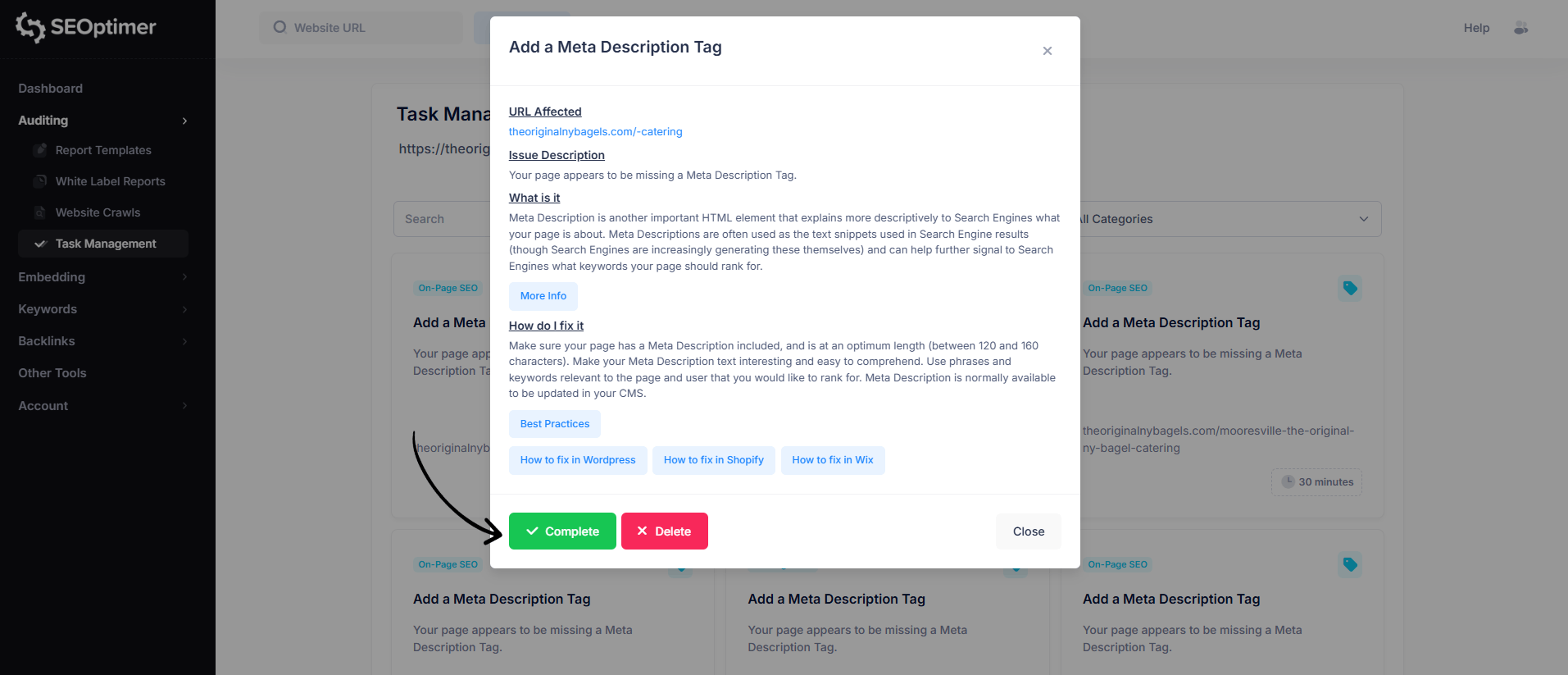
For this example, I'm going to go through the process of completing a task from a site crawl that I ran for a bagel store in NYC.
I'd suggest picking an easy task first — usually something like "Fix Title Tag Length."
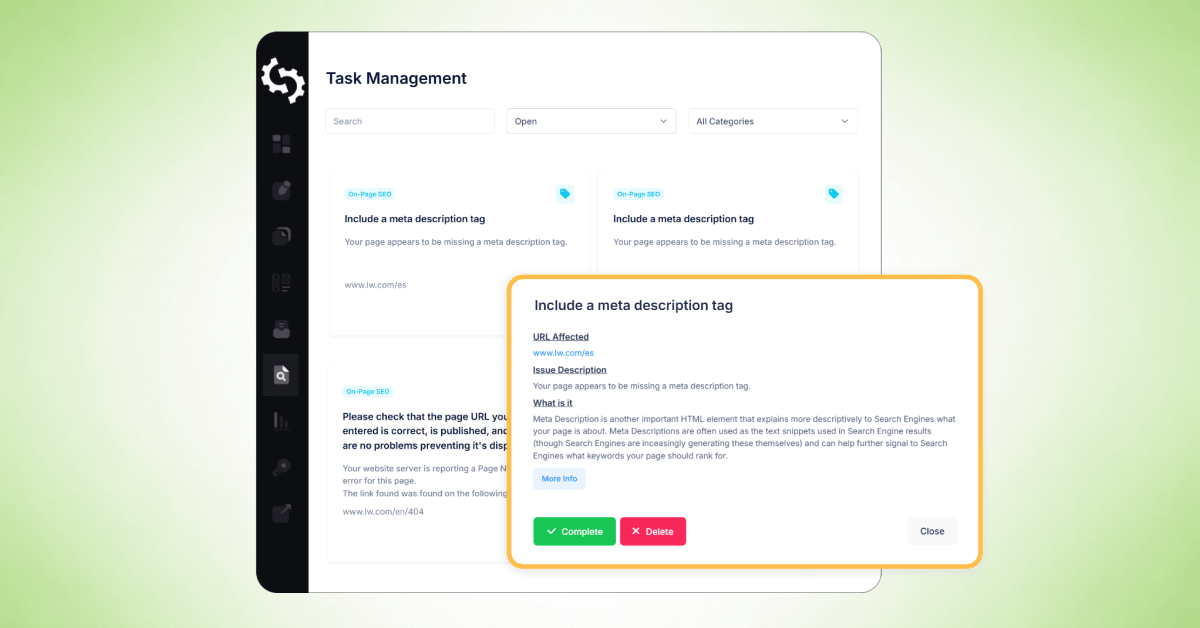
For the bagel shop, I'm going to pick "Add a Meta Description Tag."
What you'll see in this task summary:
- The problem: "Your page appears to be missing a Meta Description Tag"
- Why it matters: "Meta Description is another important HTML element that explains more descriptively to Search Engines what your page is about. Meta Descriptions are often used as the text snippets used in Search Engine results (though Search Engines are increasingly generating these themselves) and can help further signal to Search Engines what keywords your page should rank for."
- How to fix it: "Make sure your page has a Meta Description included, and is at an optimum length (between 120 and 160 characters). Make your Meta Description text interesting and easy to comprehend. Use phrases and keywords relevant to the page and user that you would like to rank for. Meta Description is normally available to be updated in your CMS."
How to Fix in WordPress
- Go to your page editor
- Find the SEO section (usually at the bottom)
- Add a 1-sentence description of what the page is about
- Save
That's it. We've just completed the first task in our to-do list and made the website more visible to Google and AI search engines.
The final step is to mark it as Complete in SEOptimer.
Task Details: What All the Fields Mean
We provide granular details so you know exactly what you are looking at. Here is a breakdown of the fields you will see in your task view.
Task Name
This is the headline of the issue, such as "Missing Meta Description" or "404 Error Detected." It gives you an instant understanding of the problem type.
Description
This section explains what the problem actually is in plain English.
For example, if the task is about a title tag, the description will explain that the title tag is the clickable headline in search results and why yours needs attention (e.g., it’s too long, too short, or missing entirely).
URL Affected
You need to know exactly where the problem is hiding.
This field lists the specific page (or pages) on your website where the issue was found. You can often click the link to go directly to the page to verify the issue.
Category
SEO is broad, so we group tasks into categories to help you stay organized. Common categories include:
- On-Page SEO: Content, headers, and meta tags.
- Links: Internal and external linking structures.
- Performance: Site speed and loading issues.
- Usability: Mobile-friendliness and user experience.
Estimated Time to Complete
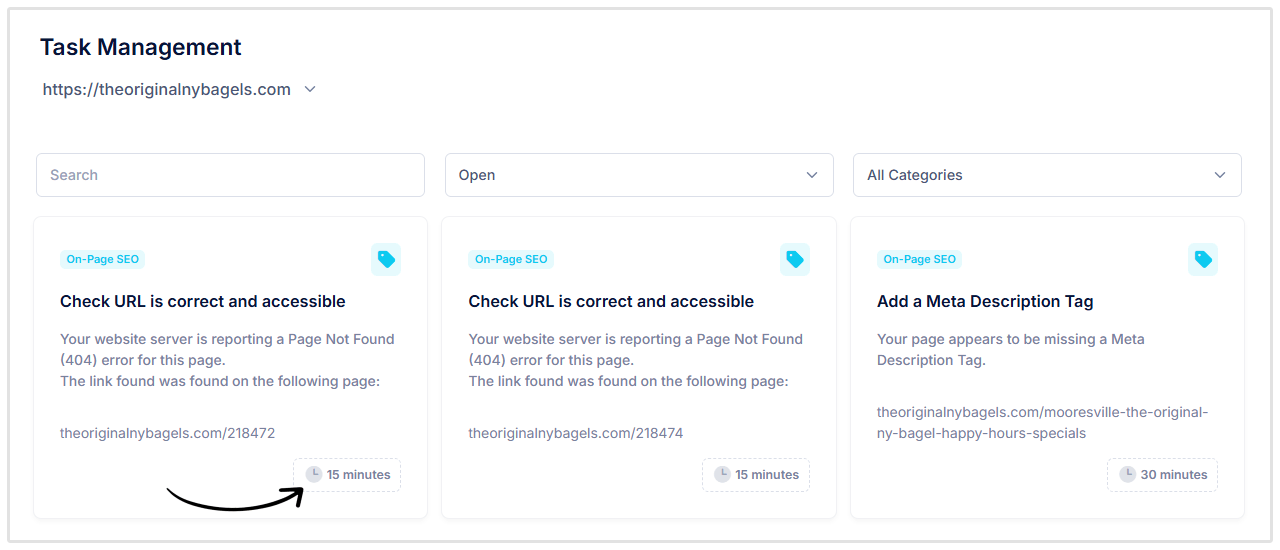
We also provide an estimate of how long the task typically takes to fix (e.g., "15 mins").
This can be seen in the clock icon at the bottom right of each task.
How to Fix It
We don’t just tell you what is broken; we tell you exactly how to repair it.
This section includes step-by-step guides tailored to popular CMS platforms like WordPress, Wix, and Shopify.
It serves as a tutorial for every single issue, ensuring you never feel stuck.
Final Wrap-Up
SEO doesn't happen overnight, but it does happen one task at a time.
The difference between a site that ranks and one that doesn't often comes down to execution.
So, don't let that audit report gather dust.
Log in, open your Task Management tab, and cross just one item off your list today.
Additional Resources
- SEOptimer Help Docs: Browse our comprehensive guides and tutorials.
- SEO Crawler Guide: Learn more about how our crawler finds the issues that populate your task list.
Need Help
Live Chat: Click Live Chat (bottom right)
Email: [email protected]
Response time: Within 24 hours

.png)
.png)