

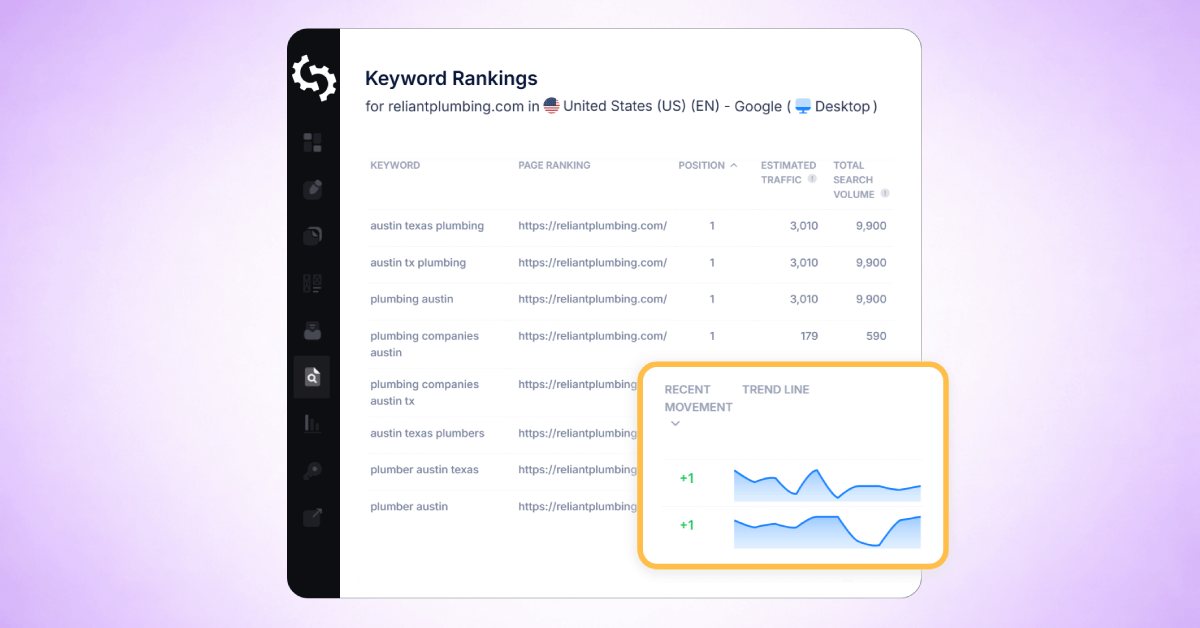
SEOptimer’s Keyword Tracking Tool monitors how your website ranks for selected keywords in search engines over time.
It tracks position changes and displays ranking trends across different locations and devices.
The tool solves the problem of not knowing whether your SEO efforts are improving visibility.
Instead of manually checking search results or relying on one-time snapshots, it provides consistent, automated rank tracking so you can measure progress accurately and identify gains or declines.
Once target keywords are identified and you've optimized your web pages for these keywords, the tool measures your performance over time.
So let’s look at how to set up the Keyword Tracking tool for your site.
By the end of this post, you’ll be able to:
- Track rankings on Google and Bing
- Track rankings for Desktop and Mobile SEO
- Set up local rank tracking
- Track your first keyword
How to Access SEOptimer’s Keyword Tracking Tool
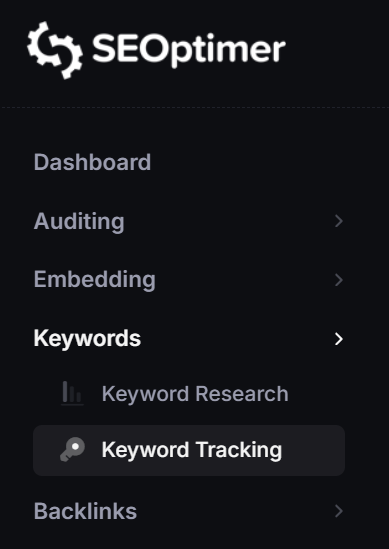
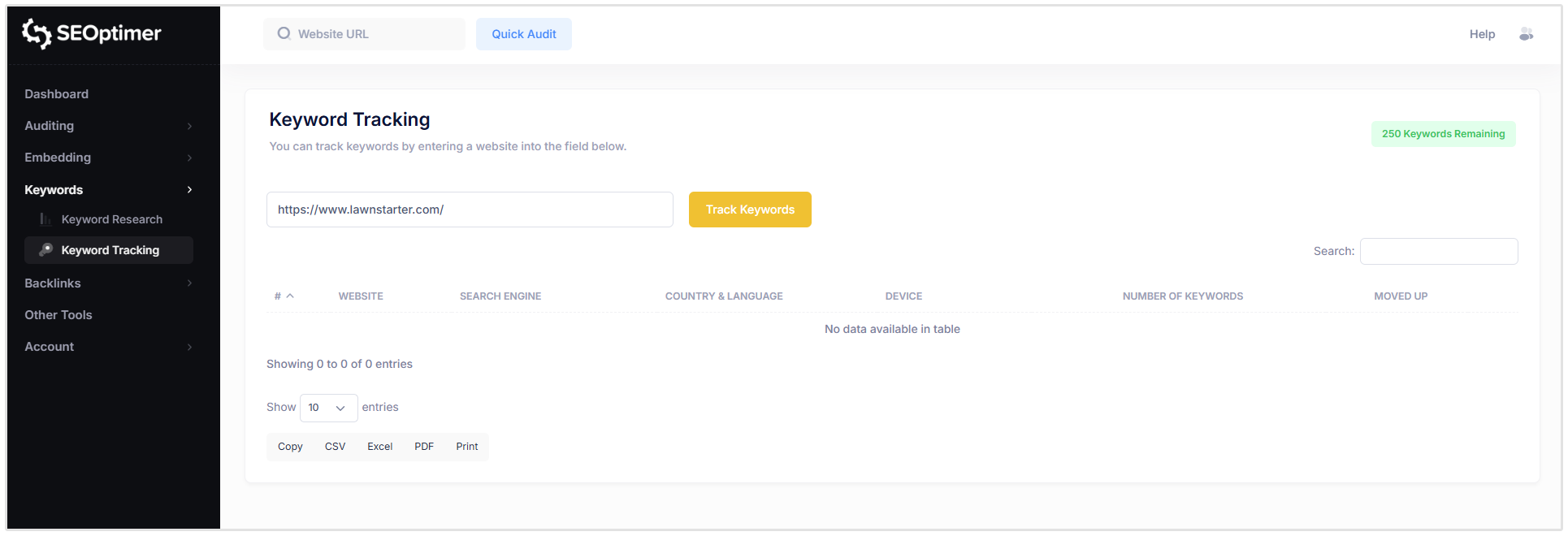
You can easily access the Keyword Tracking tool by clicking on the Keyword Tracking menu item under the Keywords option.
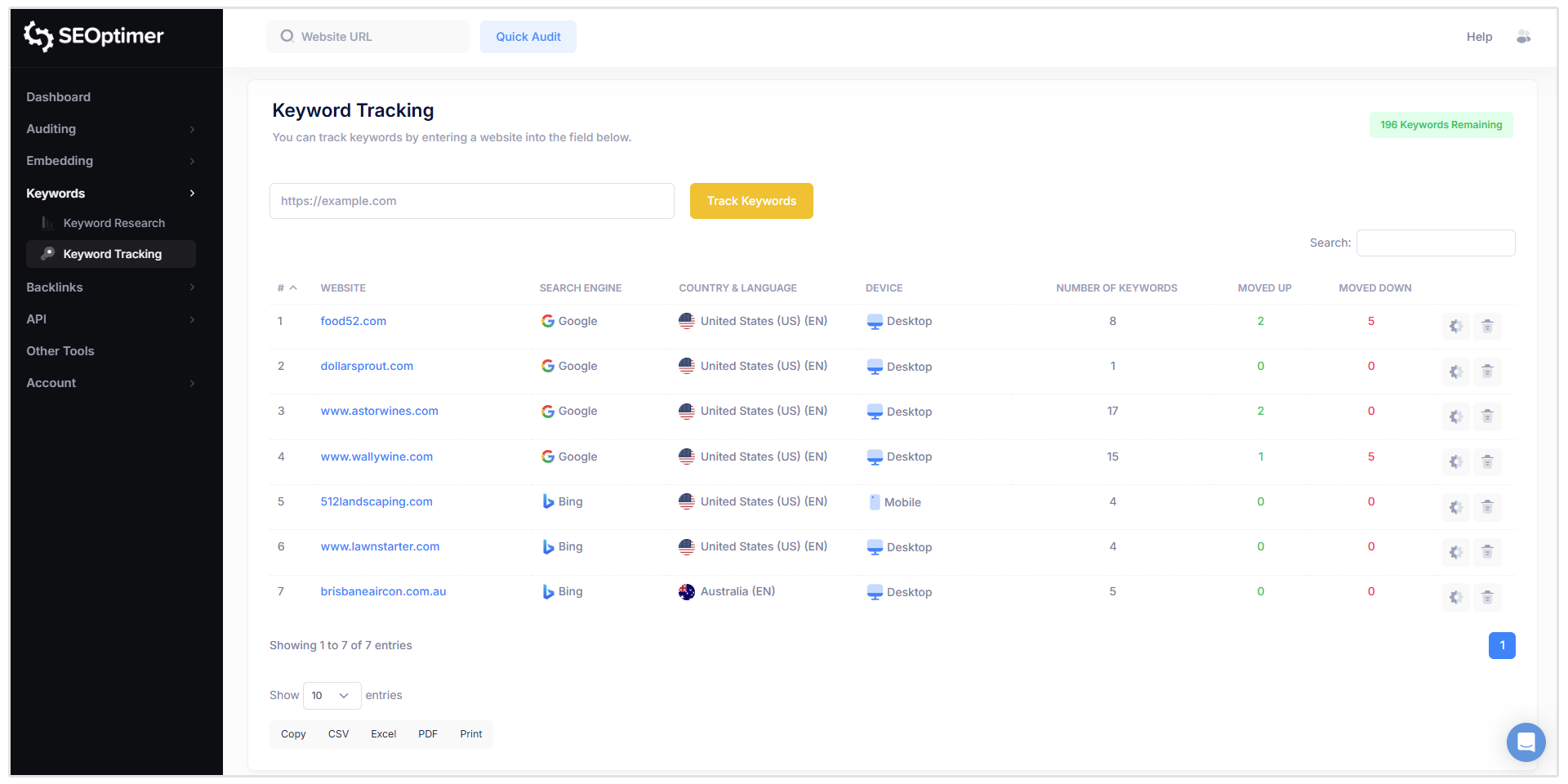
If you don’t have any sites that you’re tracking, then the table will be blank.
But as you add sites and keywords, the table will start populating with the following fields:
- Website
- Search Engine
- Country and Language
- Device
- Number of Keywords
- Moved Up
- Moved Down
- Settings and a Delete option
This gives you a high-level view of how your site and/or client sites are performing in the SERPs.
The Keyword Tracking tool is included in every SEOptimer plan, so if you’ve got an active paid plan, you’ll have access to this tool as part of your subscription.
How to Add Keywords to Track
Let’s look at how to track your first keyword.
There are three ways to do this, we’ll go over each.
1. Manual Keyword Entry
Inside the Keyword Tracking module, paste the website’s URL that you want to track in the open field and then click on Track Keywords.
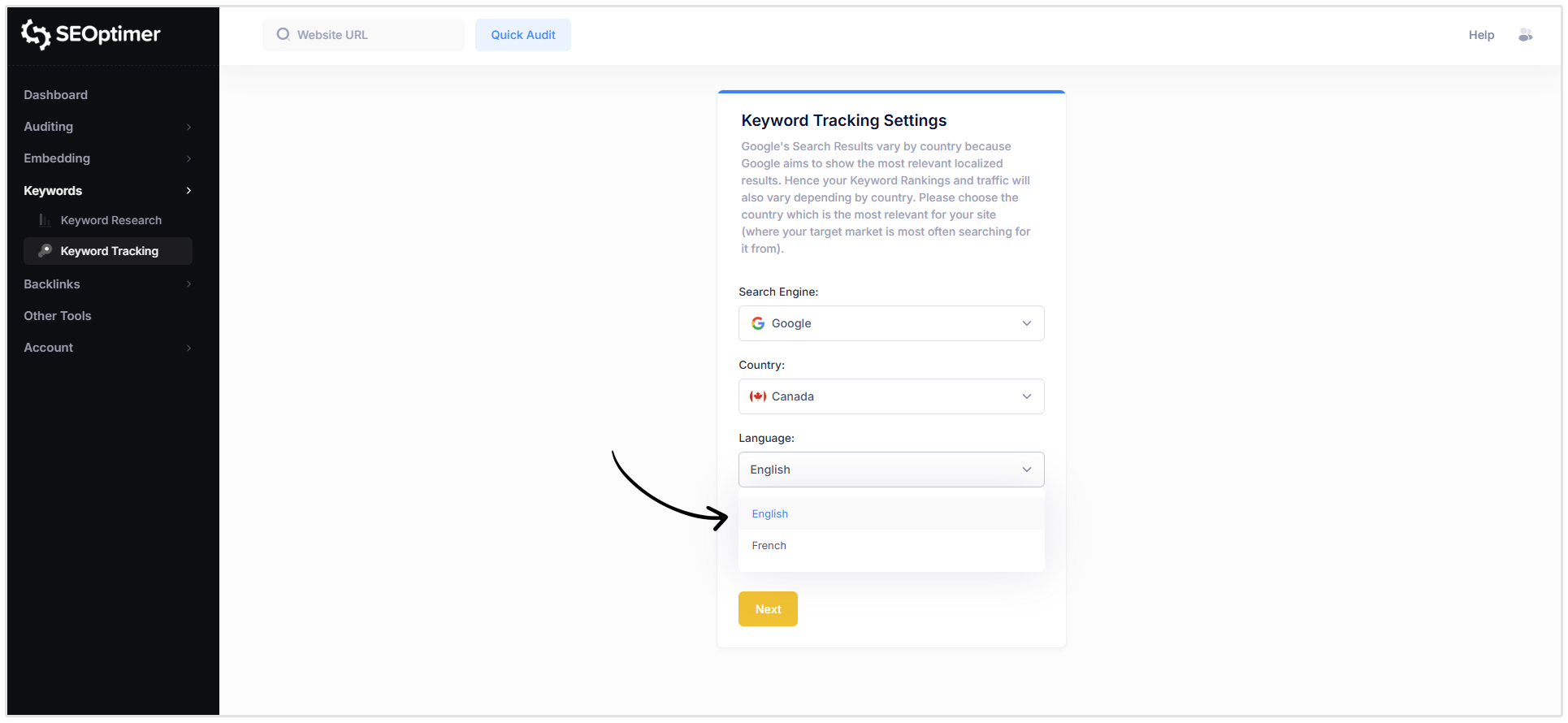
Next, you’ll be redirected to the Keyword Tracking Settings page. This is where you’ll be customizing the keyword tracking settings according to your preferences.
The first option that you have is to select the search engine.
SEOptimer users can track keywords on Google or Bing search engines.
Note: Bing rank tracking is only available for Australia, Canada, France, Germany, United Kingdom (UK), and United States (US) at present. We are working on adding more countries for Bing rank tracking.
For this example, select Google as the search engine. You can also choose Bing if required.
Next, select the country where you want to track rankings. SEOptimer supports keyword tracking in more than 70 countries.
In countries where Google operates in multiple languages, you can also filter by language. For example, in Canada, rankings can be tracked separately for English and French search results.
Finally, select the device type. You can track rankings for Desktop, Mobile, or both.
After configuring these settings, click Next to continue.
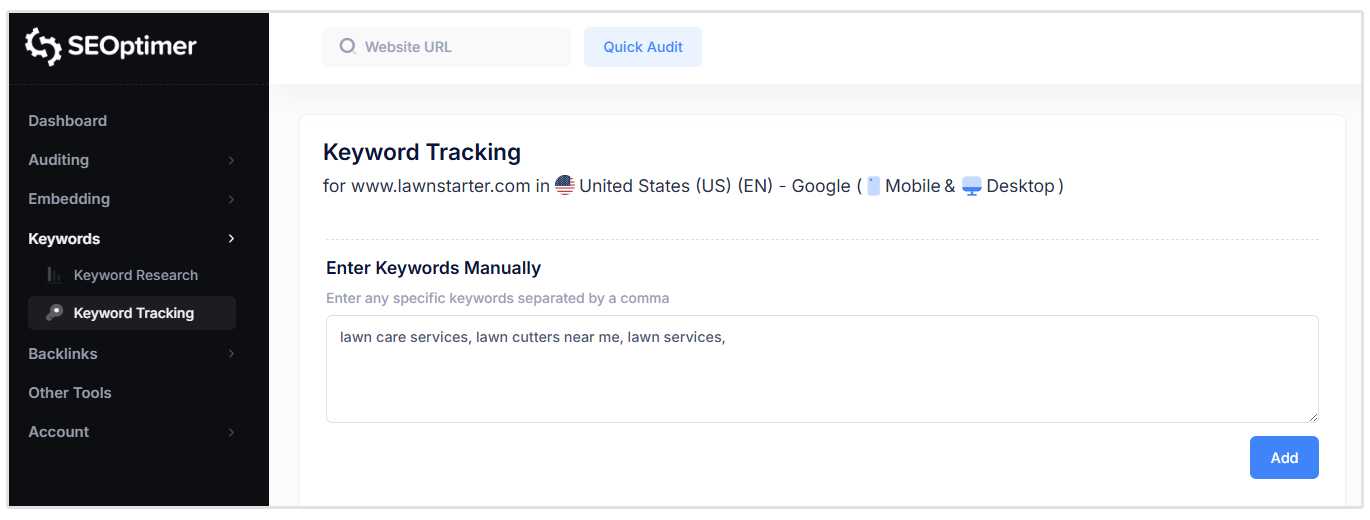
Now, you have to choose the keywords you want to track.
Here you can type the keywords that you want to track and if you want to add multiple keywords, just seperate them by comma.
2. Choose from Suggested Keywords
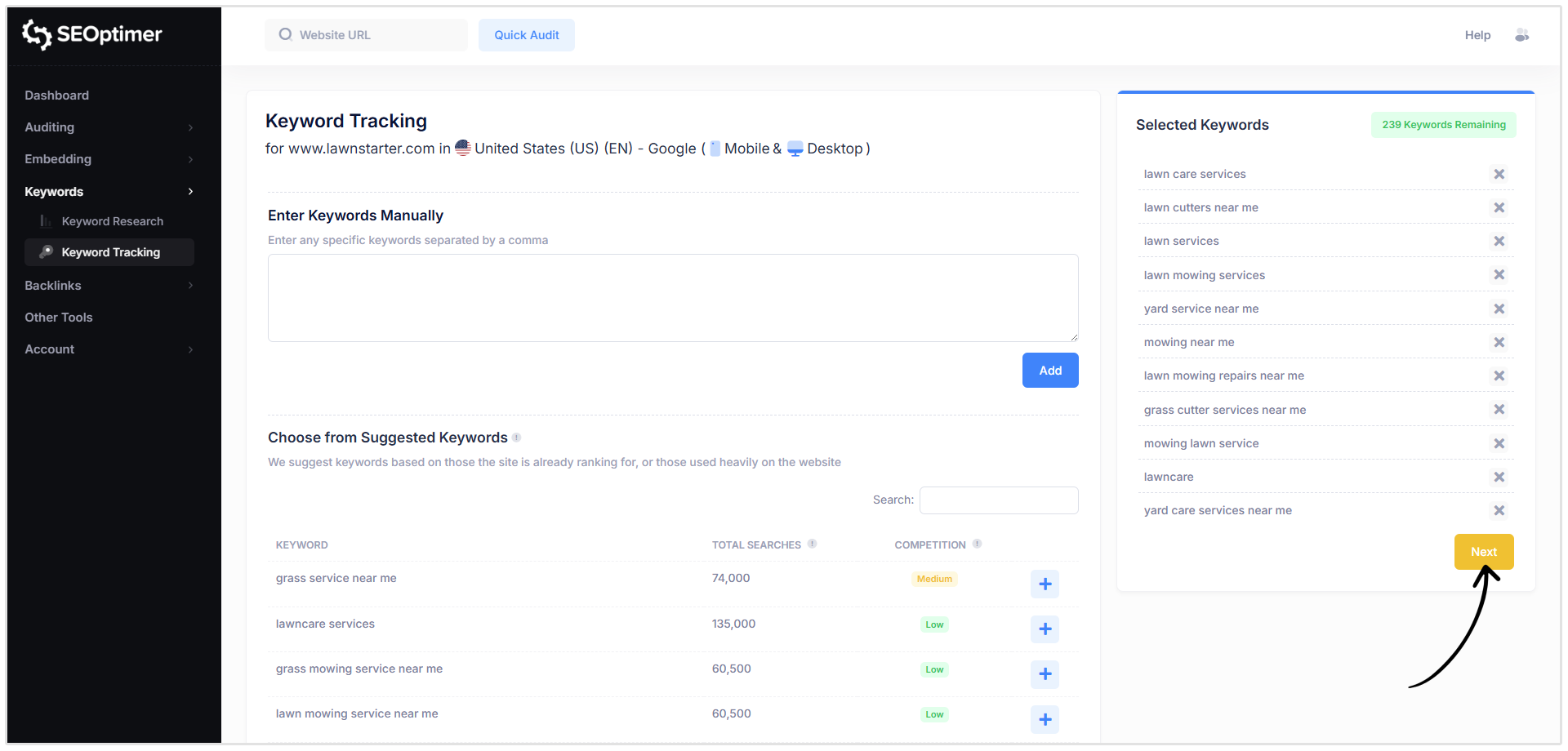
The other method to add keywords is by choosing from the keywords our tool suggests.
SEOptimer suggests keywords based on those your site is already ranking for, or those used heavily on the website.
So in the below example of a lawn care company in Austin, our tool found the following keywords on the site:
- grass service near me
- grass mowing service near me
- lawn mowing services near me
- lawn grass cutting service
- lawn care services
Simply click on the blue Add button to add keywords to your set of tracked keywords.
Once you’re happy with your list, click on the orange Next button in the corner.
SEOptimer will now retrieve your live rankings according to the settings you chose earlier.
3. Adding Keywords from Keyword Research
After generating keyword results in the Keyword Research tool, you can add selected keywords directly to the Keyword Tracking Tool.
In the keyword results table, select the keywords you want to track by clicking the checkbox in the Track column.
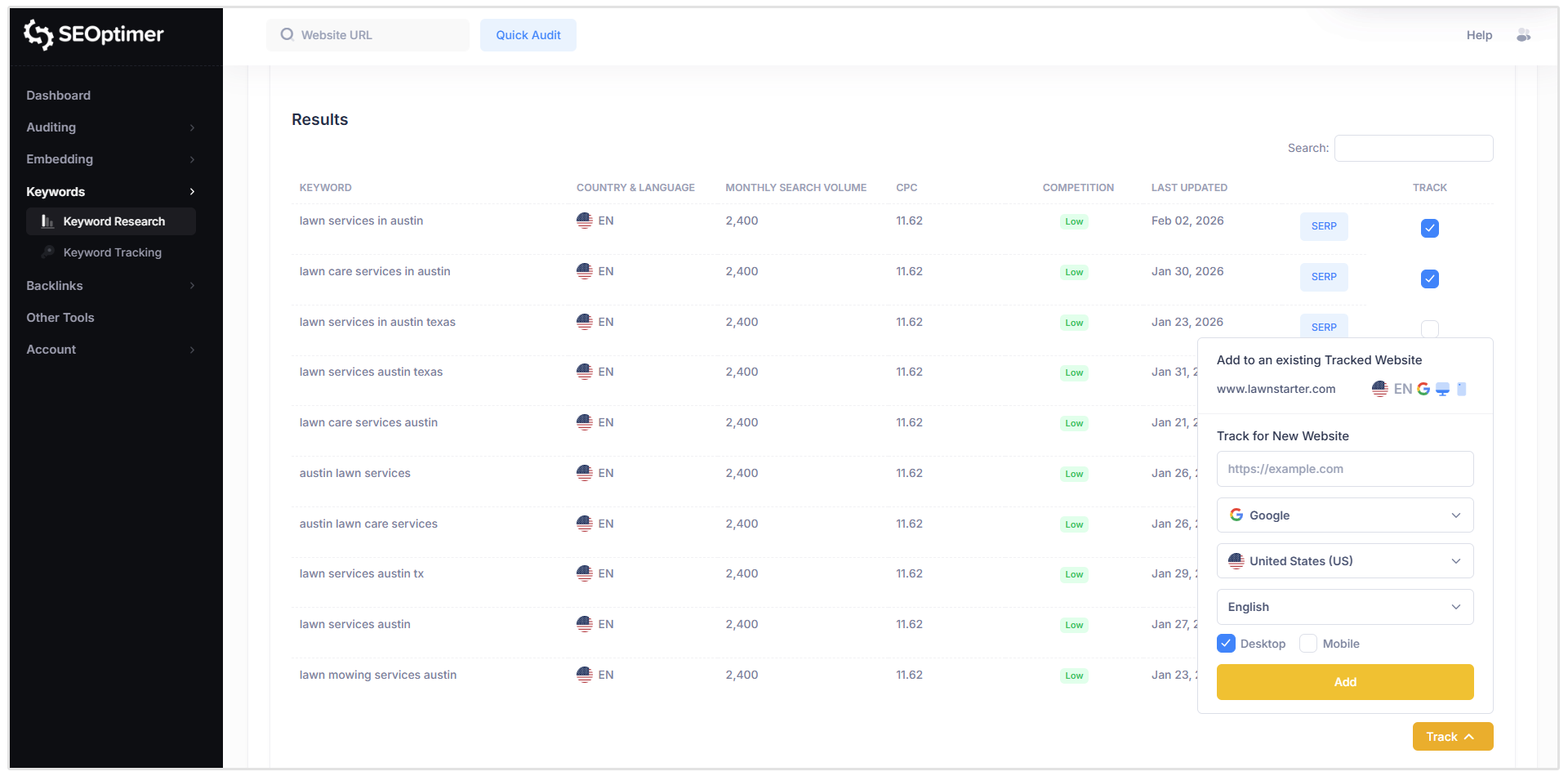
Once selected, choose whether to add the keywords to an existing tracked website or to track them under a new website.
After confirming your selection, the keywords are added to your tracked keyword list and will be monitored according to the Keyword Tracking settings you set up for that specific site.
Related Reading: How to Use SEOptimer's Keyword Research Tool
How to Track Local SEO Rankings
Local rank tracking is available as part of SEOptimer’s Local SEO add-on. It is not included in the standard Keyword Tracking plan and requires an active Local SEO subscription.
Local tracking follows the same setup process as standard keyword tracking, with the addition of a specific local location (city or region).
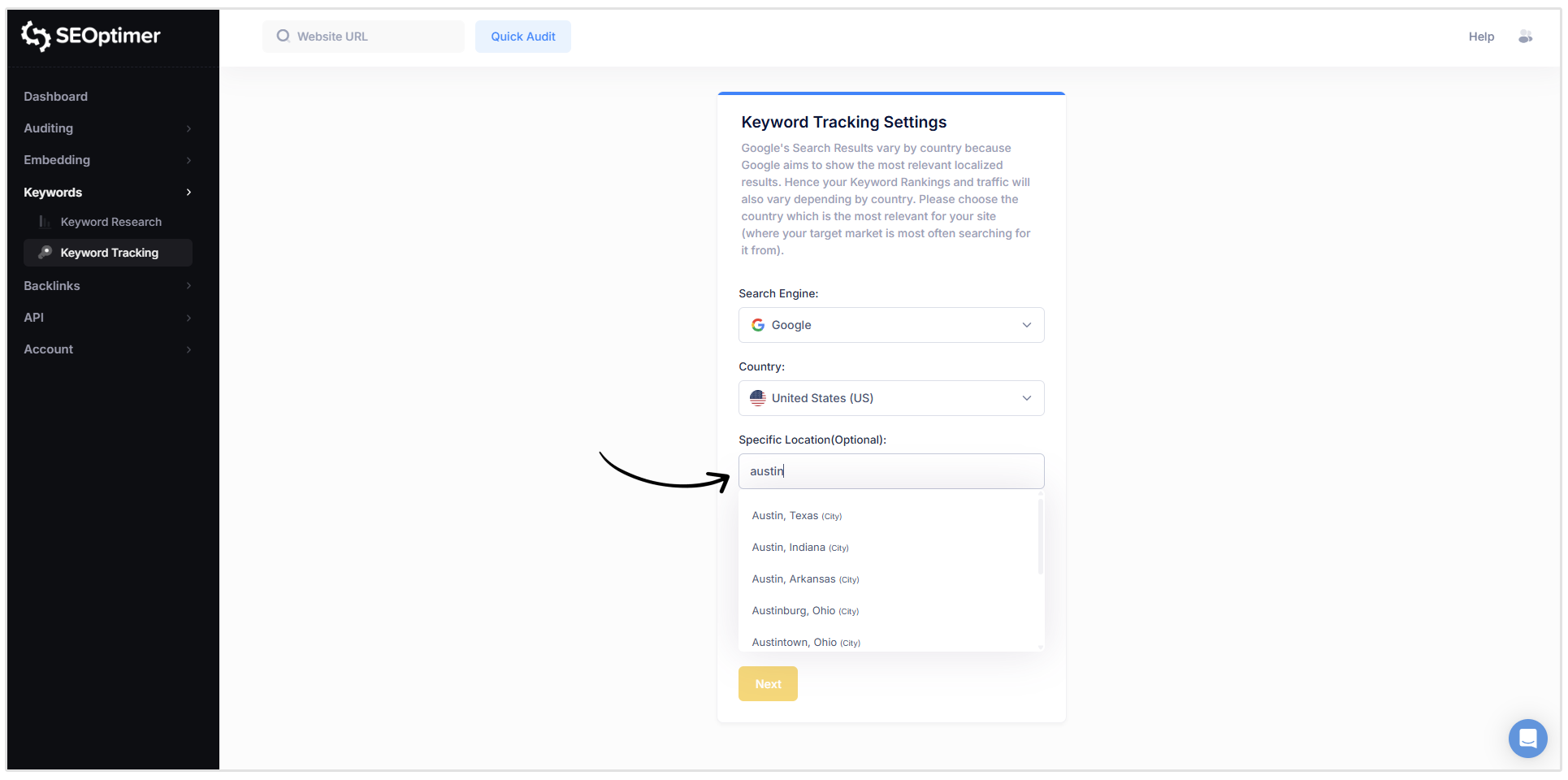
To track local SEO rankings:
- Open the Keyword Tracking module.
- Enter the website URL you want to track and click Track Keywords.
- On the Keyword Tracking Settings page, select your preferred search engine (Google or Bing).
- Select the country.
- Under the Specific Location settings, specify the city or local area where you want rankings tracked.
- If applicable, choose the language.
- Select the device type (Desktop, Mobile, or both).
- Click Next.
- Add keywords manually or select from suggested keywords.
- Click Next to confirm.
SEOptimer will then begin retrieving rankings based on the selected local location, allowing you to monitor visibility within specific cities or service areas rather than nationwide results.
Local tracking is recommended for businesses targeting customers in defined geographic areas, such as service providers, brick-and-mortar businesses, and multi-location companies.
Understanding the Keyword Tracking Table
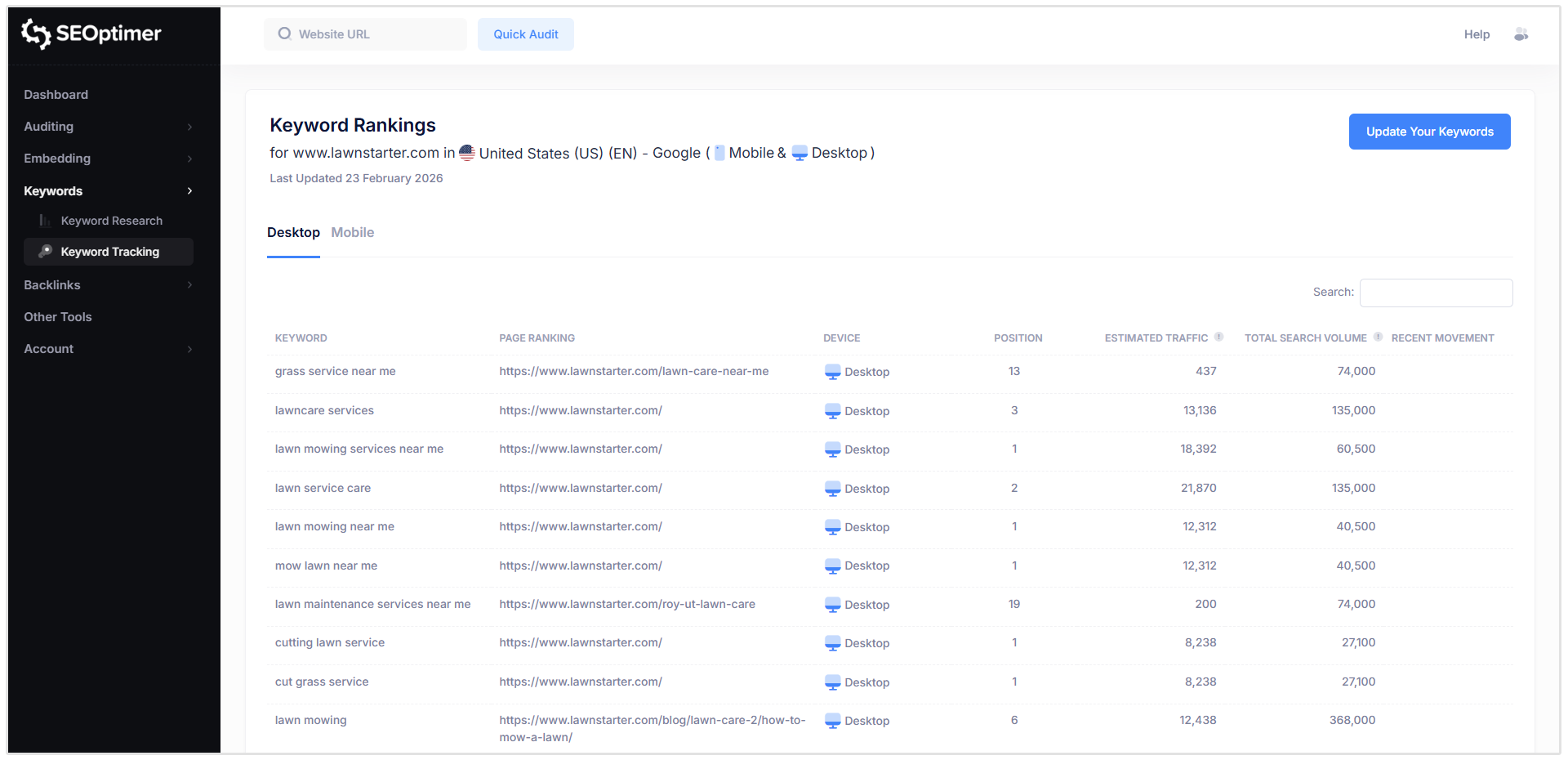
Each column in the Keyword Tracking table provides specific data about how your website is performing for a tracked keyword.
- Keyword: The search term being tracked. Each row represents one keyword added to your tracking setup.
- Page Ranking: The specific URL from your website that is currently ranking in search results for the keyword.
- Device: Indicates whether the ranking data applies to Desktop or Mobile search results.
- Position: The current ranking position of your website for the keyword in the selected search engine, country, and device.
- Estimated Traffic: An estimate of potential monthly traffic based on the keyword’s search volume and your current ranking position.
- Total Search Volume: The average number of monthly searches for the keyword in the selected country.
- Recent Movement: Shows whether the keyword’s ranking has improved, declined, or remained stable since the previous tracking update.
- Trend Line: A visual graph displaying historical ranking performance over time, allowing you to identify upward or downward trends.
The Recent Movement and Trend Line columns will start populating one week after the initial keyword tracking setup.
How Often Should I Check My Keyword Rankings?
You should check your keywords rankings at least once per week.
Wrapping Up
SEOptimer’s Keyword Tracking Tool enables you to monitor search visibility consistently and measure the impact of your SEO efforts over time.
The tool provides structured, location-specific data to help you evaluate performance and identify opportunities for improvement in your SEO.
By combining keyword research, on-page optimization, and ongoing rank tracking, you can start seeing measurable results within a few weeks to months.
Need Help?
Live Chat: Click Live Chat (bottom right)
Email: [email protected]
Response time: Within 24 hours

.png)