

Backlinks play a critical role in improving keyword rankings, strengthening domain authority, and supporting long-term SEO growth.
Whether you’re managing link building in-house or working with an agency, it’s essential to ensure that the backlinks you acquire remain active, high-quality, and beneficial to your site.
Monitoring your backlink profile allows you to measure the impact of your SEO efforts, identify lost links, detect changes in link attributes, analyze competitor activity, and protect your site from potential negative SEO risks.
SEOptimer’s Backlink Monitoring tool automatically tracks your backlinks and keeps your profile updated with the latest status changes.
Note: Backlink Monitoring is available for White Label and Embedding users only.
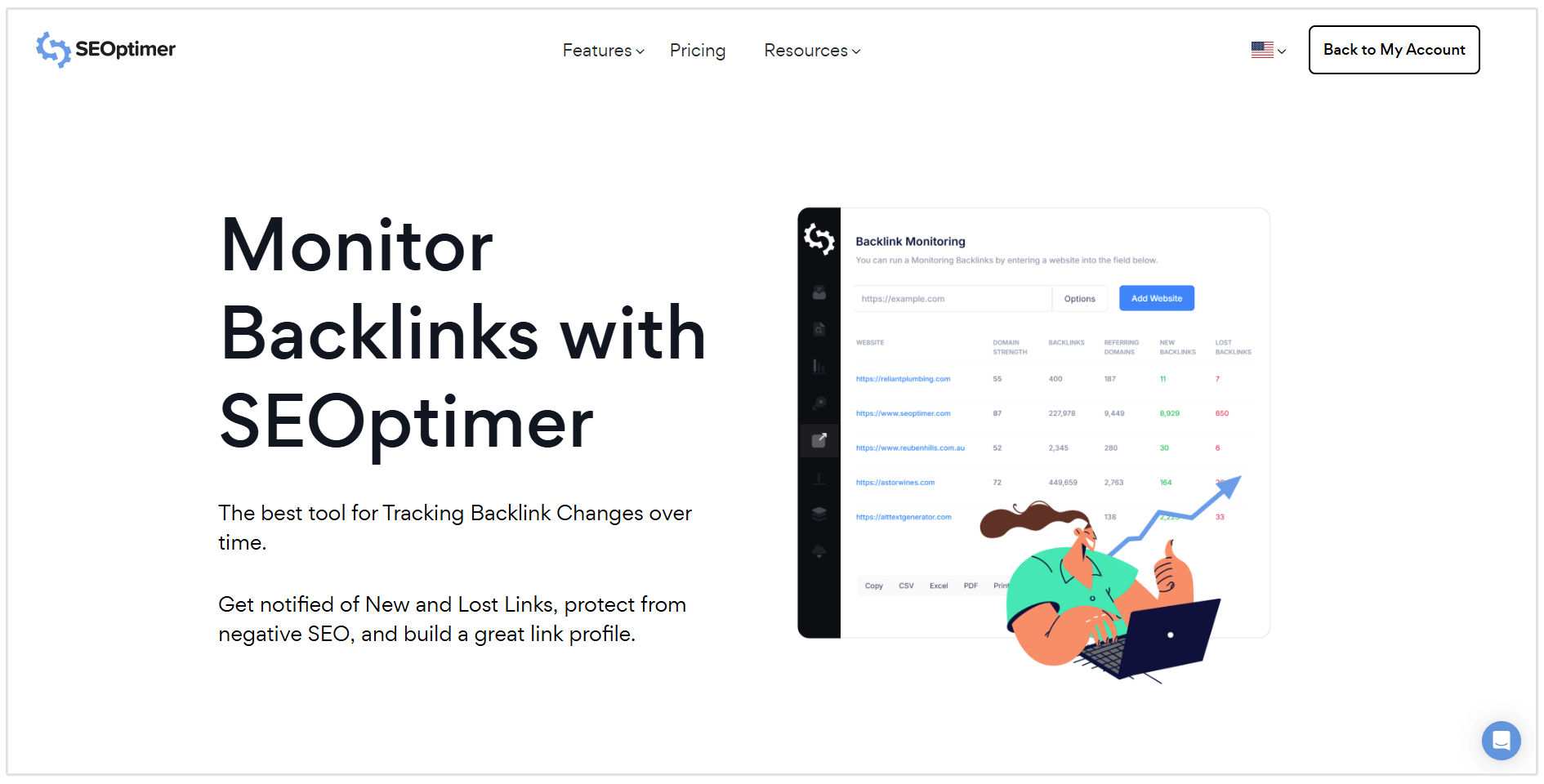
Here are some of the things you can do with the tool:
- Track you or your competitors’ backlink profile.
- Visually see New and Lost links for up to a year ago in the intuitive Backlink Monitoring dashboard.
- View changes (New and Lost links) to your backlink profile on a daily basis.
- Check changes in your link profile over 4 different time periods: Monthly, Weekly, Quarterly, or Yearly.
- Switch between Backlinks vs Referring Domains to get a more granular view of changes.
- Add a site and schedule alerts that give you a weekly or monthly email digest of backlink changes.
How the Backlink Monitoring Tool can Help You
Backlink Monitoring helps you stay in control of your link profile and respond quickly to changes that may impact your SEO performance.
Measure the Impact of Your Link Building
Like keyword tracking, backlink monitoring allows you to measure SEO performance over time.
You can:
- Track new backlinks
- Identify lost backlinks
- Monitor link attribute changes
- Analyze backlink growth trends (including historical changes up to 12 months)
This helps you evaluate whether your link-building efforts are delivering consistent results.
Related Reading: How to Use SEOptimer’s Backlink Research Tool
Monitor Competitor Link Activity
You can also add competitor domains to monitor their backlink changes.
This allows you to:
- Identify new linking domains
- Detect patterns in guest posting or outreach strategies
- Discover potential link opportunities
Monitoring competitor backlinks can provide actionable insights for refining your own link-building strategy.
Related Reading: How to Find Competitor Backlinks
Detect Potential Negative SEO
The Backlink Monitoring tool helps you identify suspicious or low-quality backlinks quickly.
Within the New Backlinks tab, you can review:
- Domain Strength
- Page Strength
- Anchor text
- Link type (text or image)
- Follow/Nofollow status
- Source URL and destination URL
Note: We'll discuss each of the above metrics in more detail later in this guide.
To identify potentially harmful links:
- Sort by Domain Strength (low to high).
- Review anchor text for unnatural or repeated exact-match phrases.
- Investigate suspicious domains.
Low Domain Strength alone does not automatically indicate negative SEO. The context and anchor patterns should also be considered.
Recover Lost Links
The Backlink Monitoring tool tracks removed or lost backlinks so you can take action quickly.
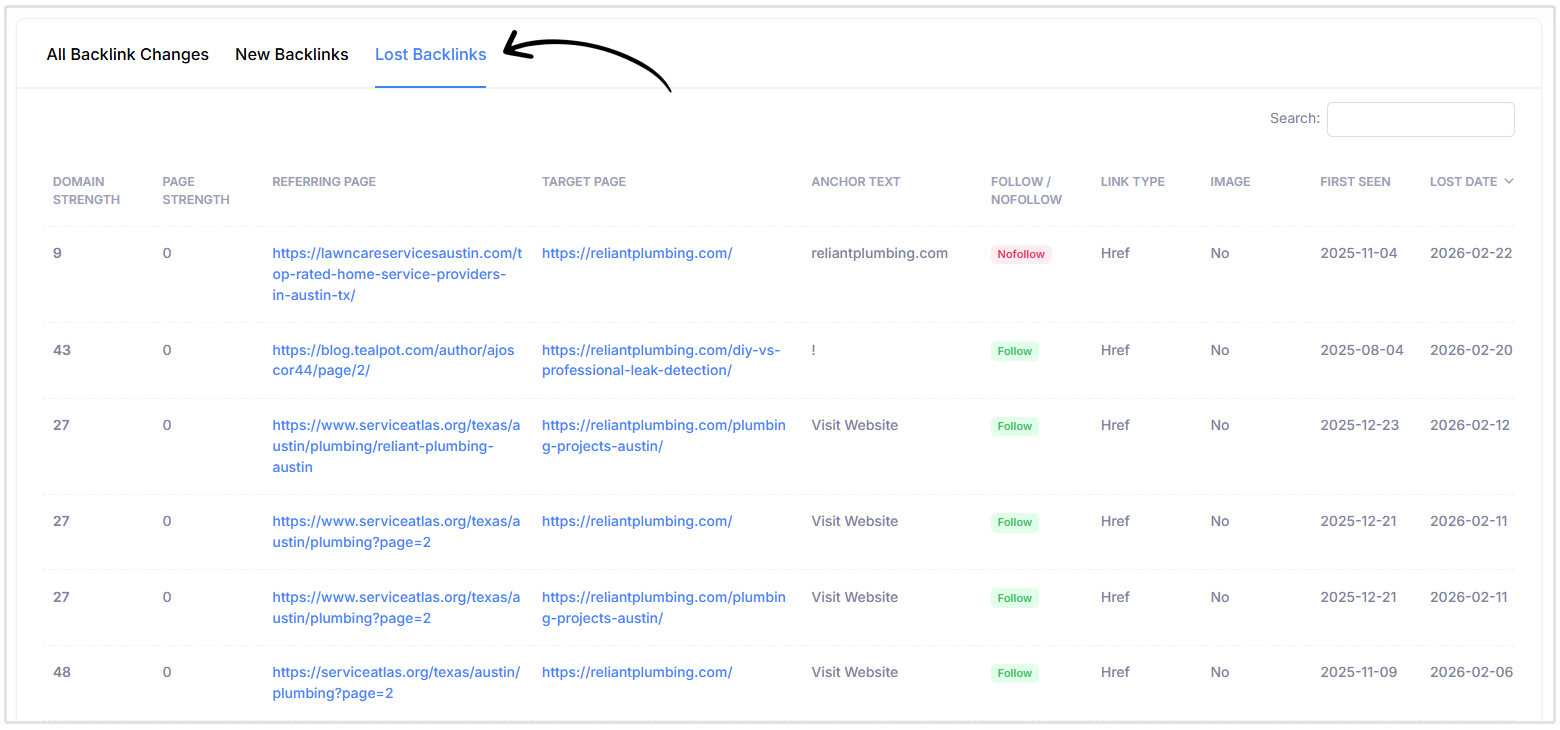
If you detect a lost link from a valuable domain, you can:
- Contact the site owner
- Request reinstatement
- Replace the link through additional outreach
You’ll also receive a weekly email digest summarizing newly gained and lost backlinks, helping you stay informed without manually checking the dashboard.
Related Reading: Link Reclamation: 6 Paths to Quick Backlink Wins
How to Monitor Backlinks using SEOptimer
Now that you know the importance of monitoring backlinks, let’s discuss how you can set up backlink monitoring using SEOptimer.
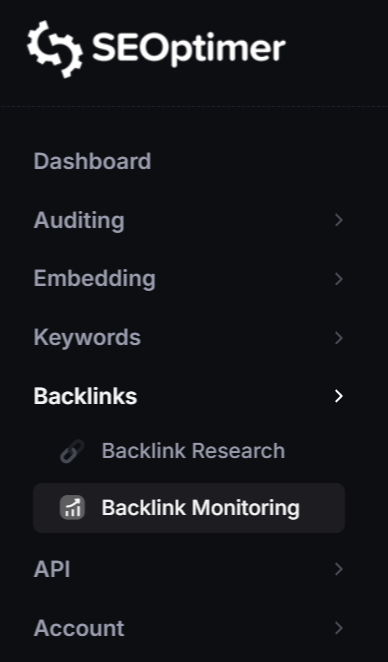
First, login to your SEOptimer account and click on the Backlink Monitoring tab on the left.
Then, add your website’s URL and choose whether you’d like to receive an email summary of backlink changes on a weekly or monthly basis.
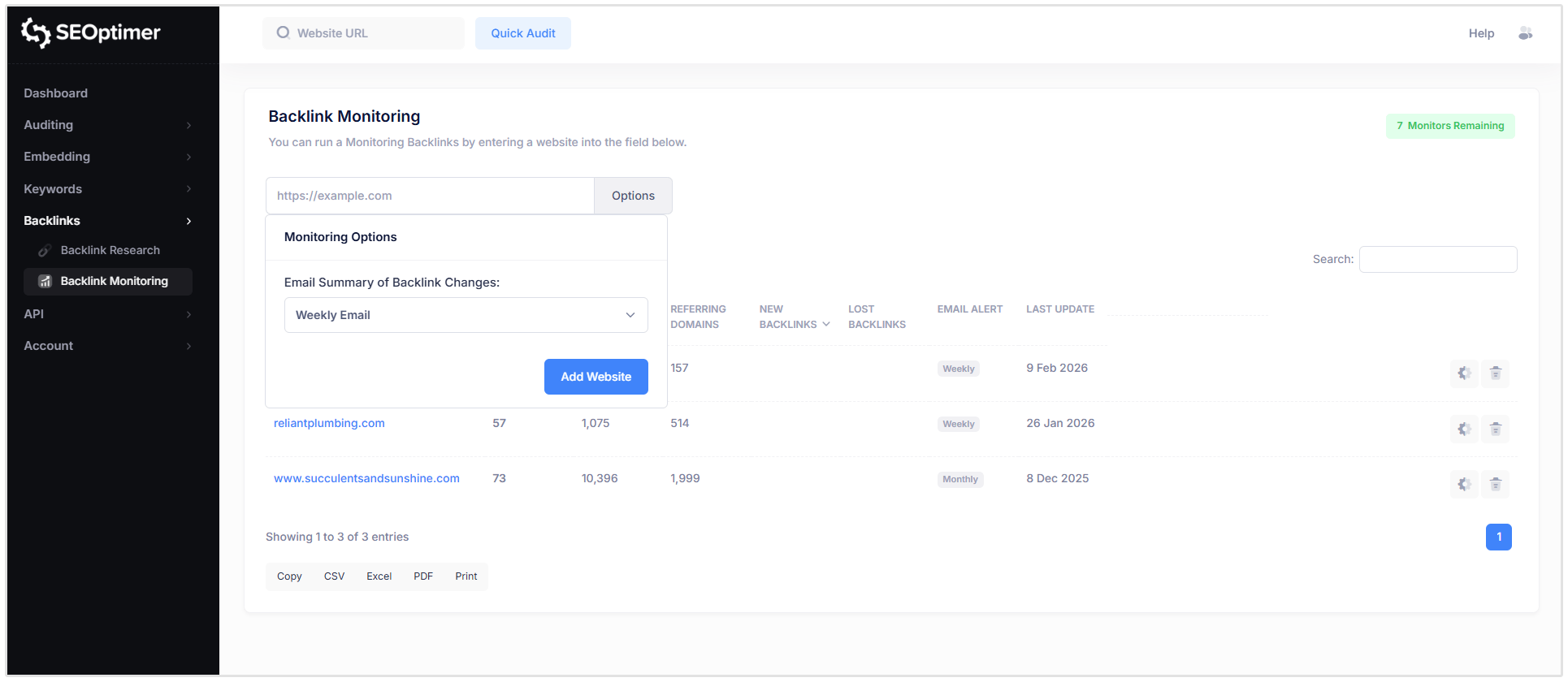
You can also choose to receive no email if desired, although I’d strongly suggest against this if you want to stay updated on changes.
Once done, click on Add Website.
Our tool will then add your chosen website to your Backlink Monitoring dashboard where you can see all of the URLs you’re monitoring along with high-level backlink metrics such as Domain Strength, Backlinks, Referring Domains, New Backlinks, Lost Backlinks, and Email Alert frequency.
Next, click on the website that you’ve added in your Backlink Monitoring dashboard. You’ll be redirected to an interface where you’ll see more in-depth data.
Starting from the top, you’ll see a few settings on the right side of the page.

Here you can switch between viewing changes for Backlink or Referring Domains.
It’s set to view Backlinks by default, but you can switch to Referring Domains if you want to see changes for Referring Domains only.
Related Reading:
- Backlinks vs Referring Domains: Which is Most Important?
- What are Referring Domains? How to Check Them and Get More
You can also choose to view data for a period of 1 Week, 1 Month, 3 Months, or 1 Year.
Lastly, you can also change the email alert frequency by clicking on the blue settings icon.
Now, the next thing that you'll see is a summary of the backlink profile with the latest changes (New Backlinks and Lost Backlinks).

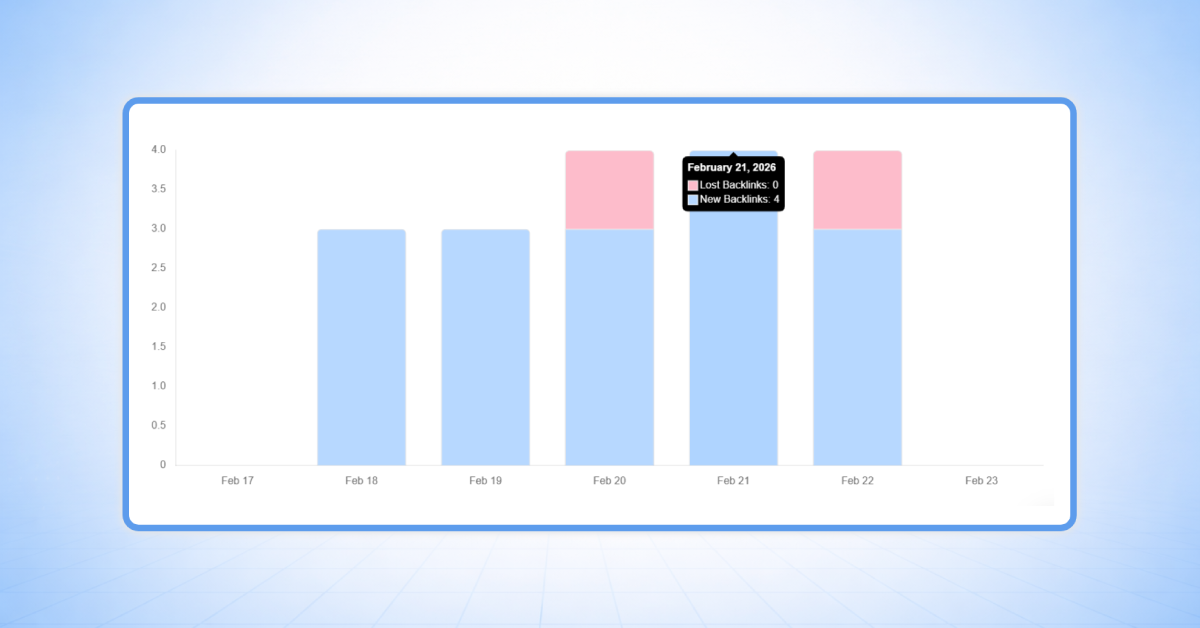
Scrolling down you’ll see a chart that visually shows you backlink changes over the desired period.
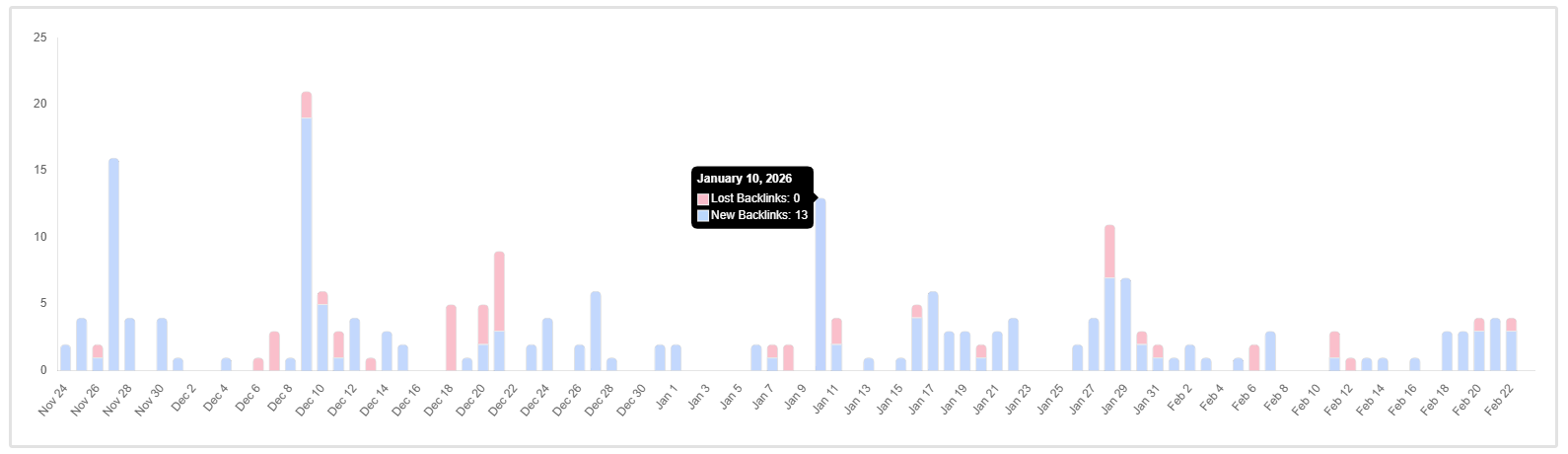
This is useful if you want to get a quick snapshot of how your link-building efforts are going.
You can see changes to your link profile, links gained or lost, on a daily basis by just hovering over each of the individual bars on the chart.
Now, if you scroll down to the bottom of the interface, you’ll see even more detailed information pertaining to your backlink changes.
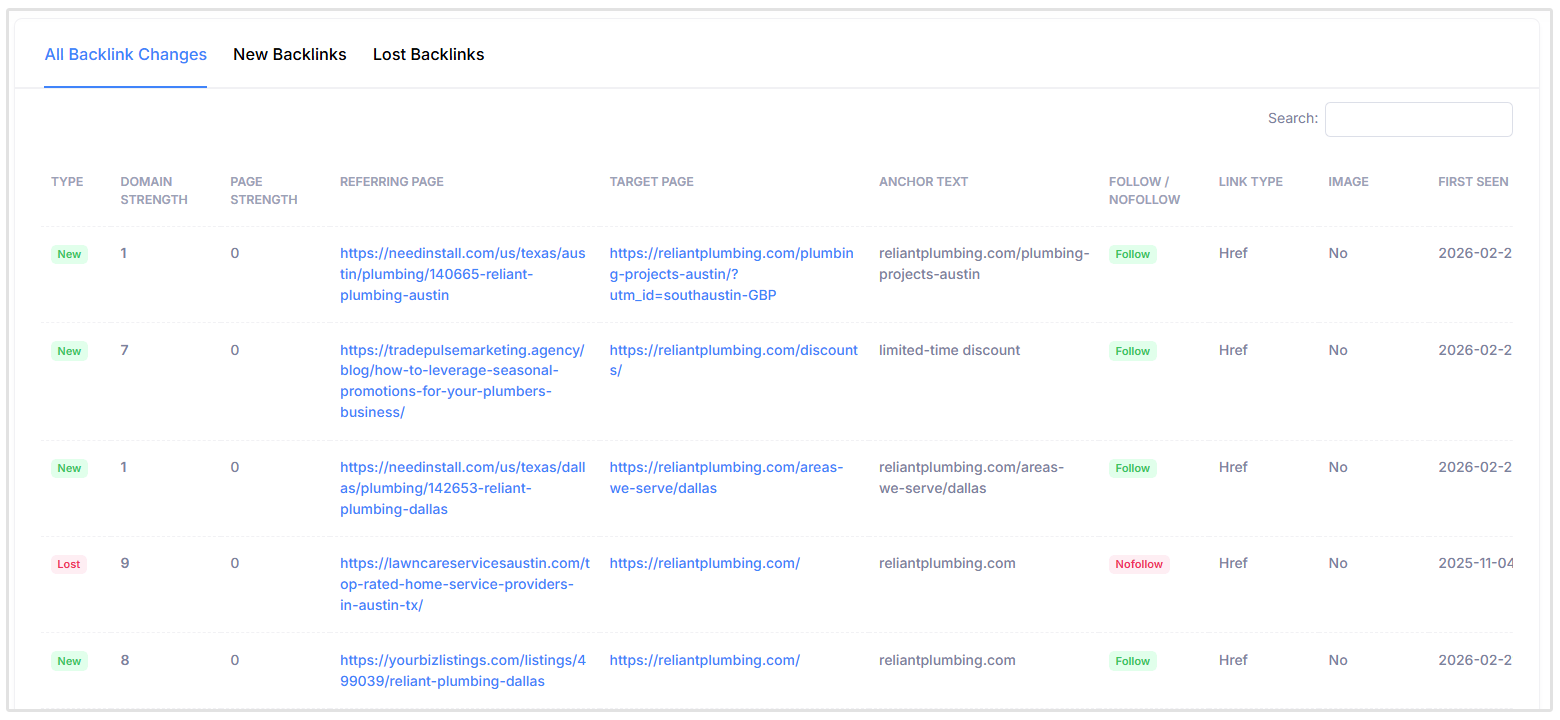
At the top of the table you can choose to view All Backlink Changes, New Backlinks, or Lost Backlinks.
Understanding the Backlink Monitoring Table
Here’s a breakdown of all the backlink information you can view in this table:
- Type: Shows you if a link is New or Lost.
- Domain Strength: A score from 0–100 that reflects the overall strength of a domain’s backlink profile, based on the quantity and quality of links pointing to that domain. Higher scores generally indicate domains with stronger link profiles.
- Page Strength: A score from 0–100 that reflects the strength of the specific referring page’s backlink profile. This helps you evaluate the relative strength of the exact page where the backlink appears.
- Referring Page: The exact URL of the page that contains the backlink pointing to your website.
- Target Page: The specific page on your website that the backlink is pointing to.
- Anchor text: The clickable text used in the hyperlink. Anchor text helps search engines understand the context and relevance of the linked page.
- Follow/Nofollow: Shows whether a link has a dofollow or nofollow attribute.
- Link Type: Indicates whether a link directly points to your site (href) or through a redirect.
- Image: Shows if the incoming link is an image link (Yes) or not (No).
- First Seen: The date when SEOptimer first discovered the backlink in its index.
- New/Lost Date: The date when the link was added or removed.
- Reason Lost: This column will give the reason the link was lost.
As you can see, there’s a tonne of valuable insights that can be gleaned from this data.
Imagine having to track all of this information manually.
How to Monitor Competitor Backlinks
One of the other benefits of using our Backlink Monitoring software is that you can keep an eye on your competitor’s backlink profile and link-building efforts.
Spying on your competitor’s backlink profile can give you an idea of where they are getting their best links from, and how you can replicate those strategies for your own link-building.
To monitor competitor backlinks, simply follow the same process as you did when adding your own domain, except this time, add your competitor’s URL.
Wrapping Up
If you’re serious about improving your site’s domain authority and SEO performance, you need to keep a close eye on your backlink profile as you build new links to your site.
Our Backlink Monitoring tool is ideal for small business owners, marketers, and SEOs who want to see their backlink changes.
Need Help?
Live Chat: Click Live Chat (bottom right)
Email: [email protected]
Response time: Within 24 hours

.png)