



If you’re using WPBakery to build your website, adding custom functionality(like an embedded SEO audit form),might seem a little technical at first. But don’t worry, it’s much simpler than it sounds.
In this guide, we’ll walk you through exactly how to embed your SEOptimer audit form into a WPBakery page so you can start capturing leads directly from your site.
Make sure to set up the look and feel of your White Label Reports and configuredan Embed Form as per our other guide ‘How To Guide for Installing the Embed Form’.
Please, note these steps were tested with Wordpress v. 5.2.1 and WPBakery Page Builder plugin v. 6.0.
Installing The Embedded Form using Wordpress with WPBakery
Follow the next steps to Embed the form within the content of a single page or post:
1. Login to your SEOptimer account and go to Embedding Settings page.
.png)
2. Click “Save Settings & Generate Embed Code” button at the bottom of the page.
 (1).png)
3. Then copy the code manually or by clicking “Copy to Clipboard” button.
4. Log in to your Wordpress site.
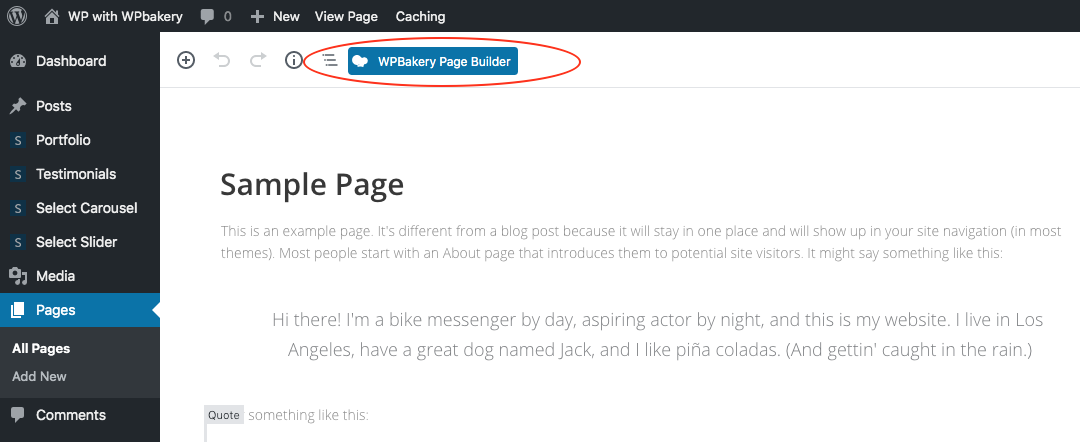
5. Create a page or edit an existing one and click ‘WPBakery Page Builder’ button at the top of the page.
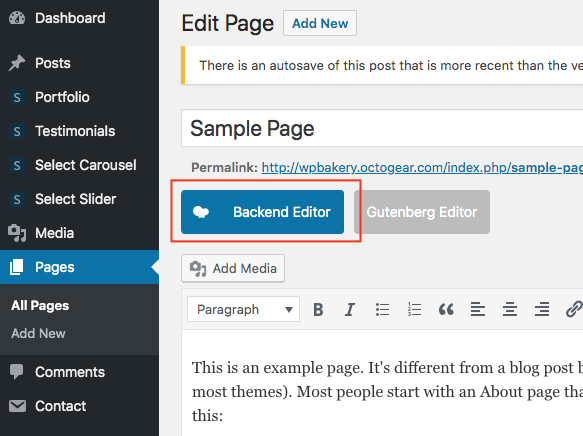
6. Then switch to the 'Backend Editor' by clicking this button in the page editor.
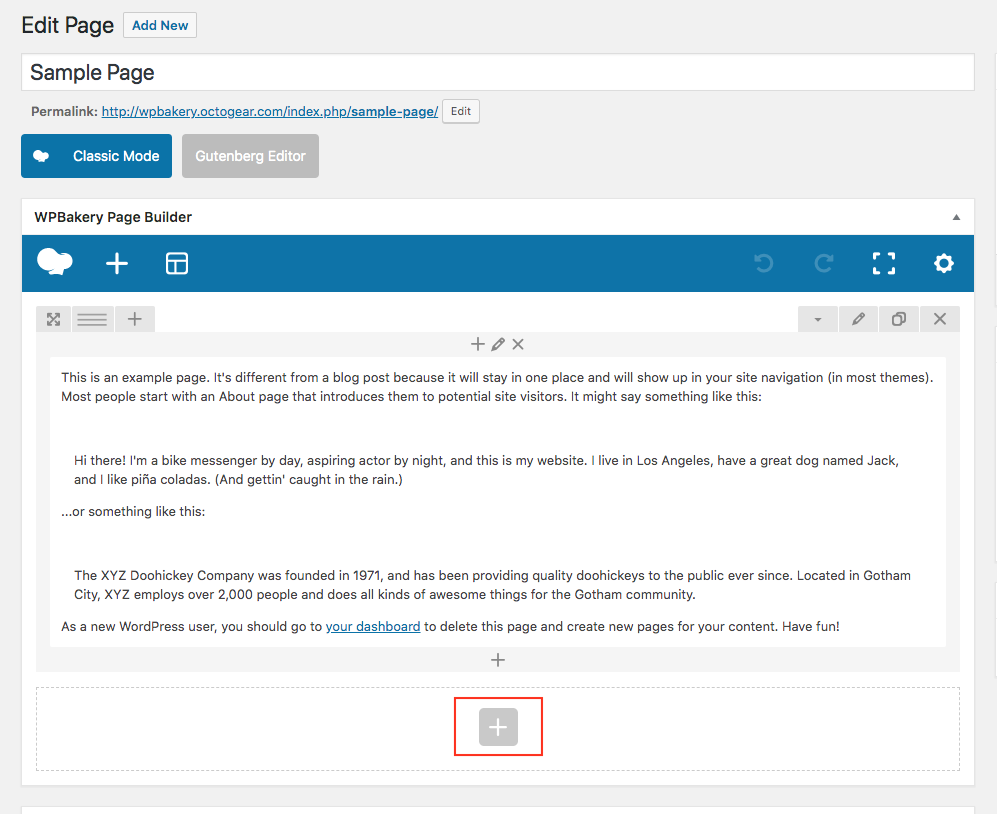
7. Click the Plus (+) button to add a new content section. Don’t worry about the order of the sections, you can change it later.
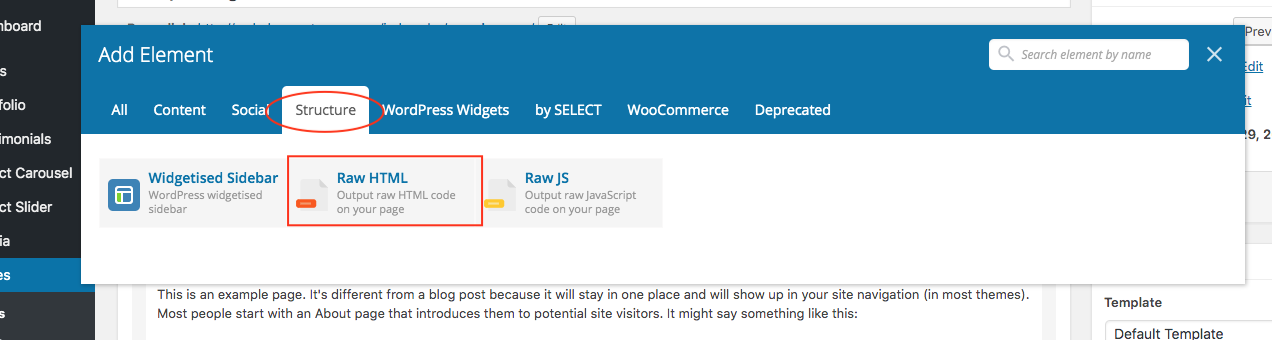
8. In ‘Add Element’ popup window navigate to the ‘Structure’ tab and click ‘Raw HTML’ button.
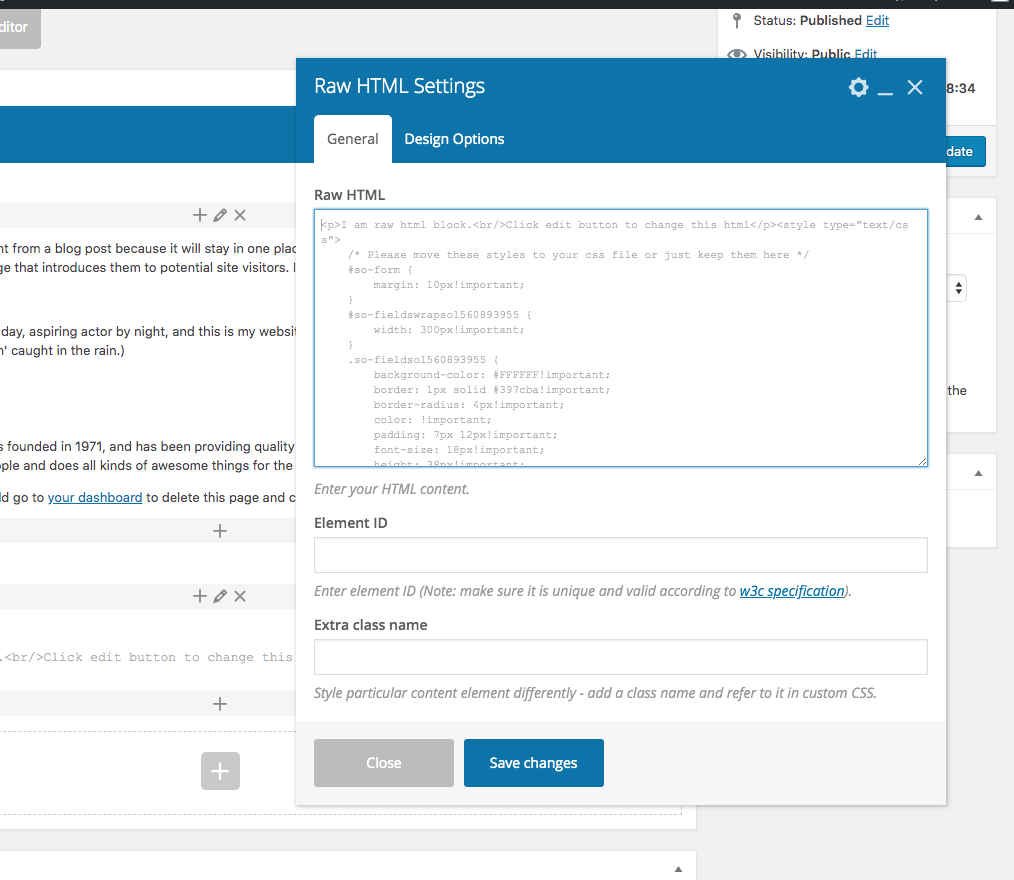
9. The Raw HTML Settings popup window will appear. Paste your SEOptimer Embed Code you’ve copied earlier into ‘Raw HTML’ and click ‘Save Changes’ button.
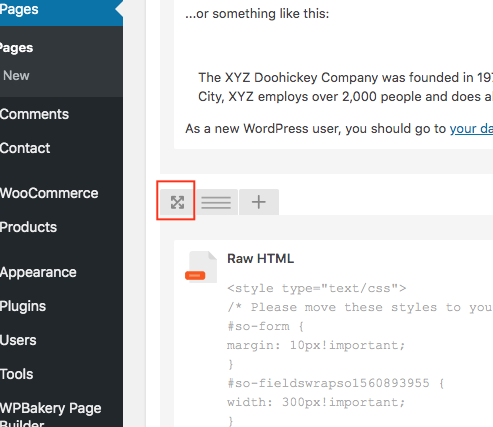
10. You can use the drag button to reorder the content sections on the page. Simply drag and drop the whole section to the place where you need it.
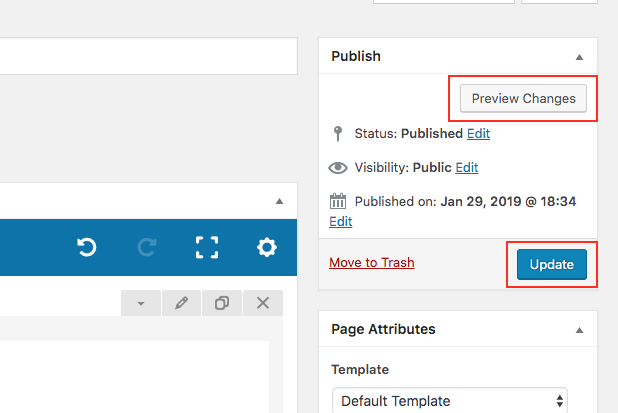
11. Click “Preview” in the top right corner of your screen to see how the page looks with the form. If layout appears fine, navigate back to the page editor and click the “Update” button to save the changes. Now your Wordpress site contains a working SEOptimer Embedded Form!
12. The last but not least step is to test the form functionality on your website. Fill in the fields and click “Check” button to validate that the form is functioning as expected according to the settings you entered on the Embedding Settings page.
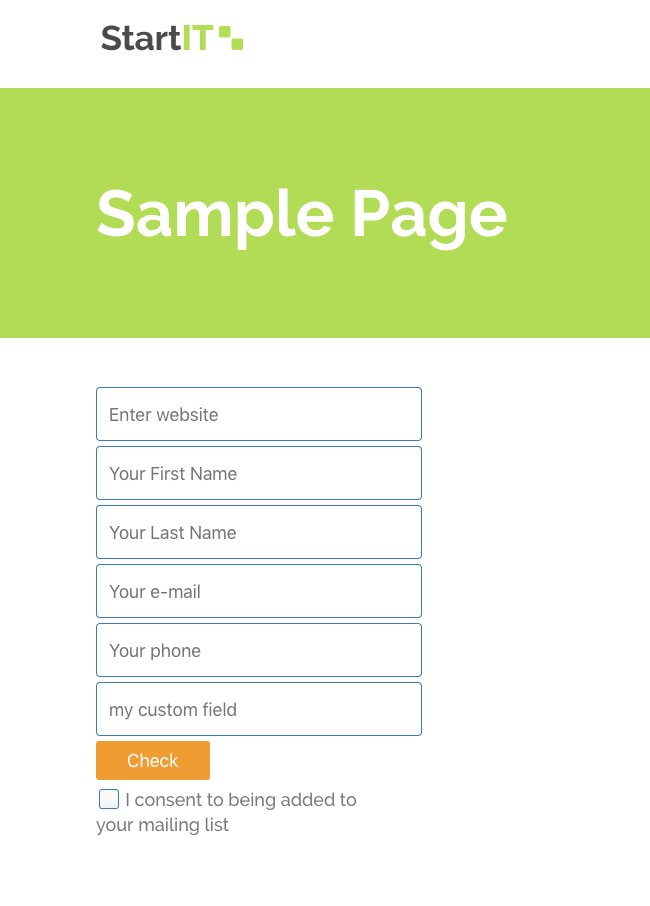
Adding Embedded Form code into a Wordpress Widget
There is the option of including the SEOptimer form into a widget on your website to display the form on multiple pages, or throughout the whole website instead of showing it on a particular page.
You may want to double check that your active Wordpress theme does in fact support widget of course. Most of the modern Wordpress themes include widgets functionality, but in case the theme you use doesn’t have widgets, you may need a developer to edit the theme’s back-end files in order to support widgets.
If your theme works with the widgets, simply follow the next steps to add an SEOptimer Embedded Form to a widget.
1. Log in to your Wordpress installation and navigate to Appearance/Widgets page.
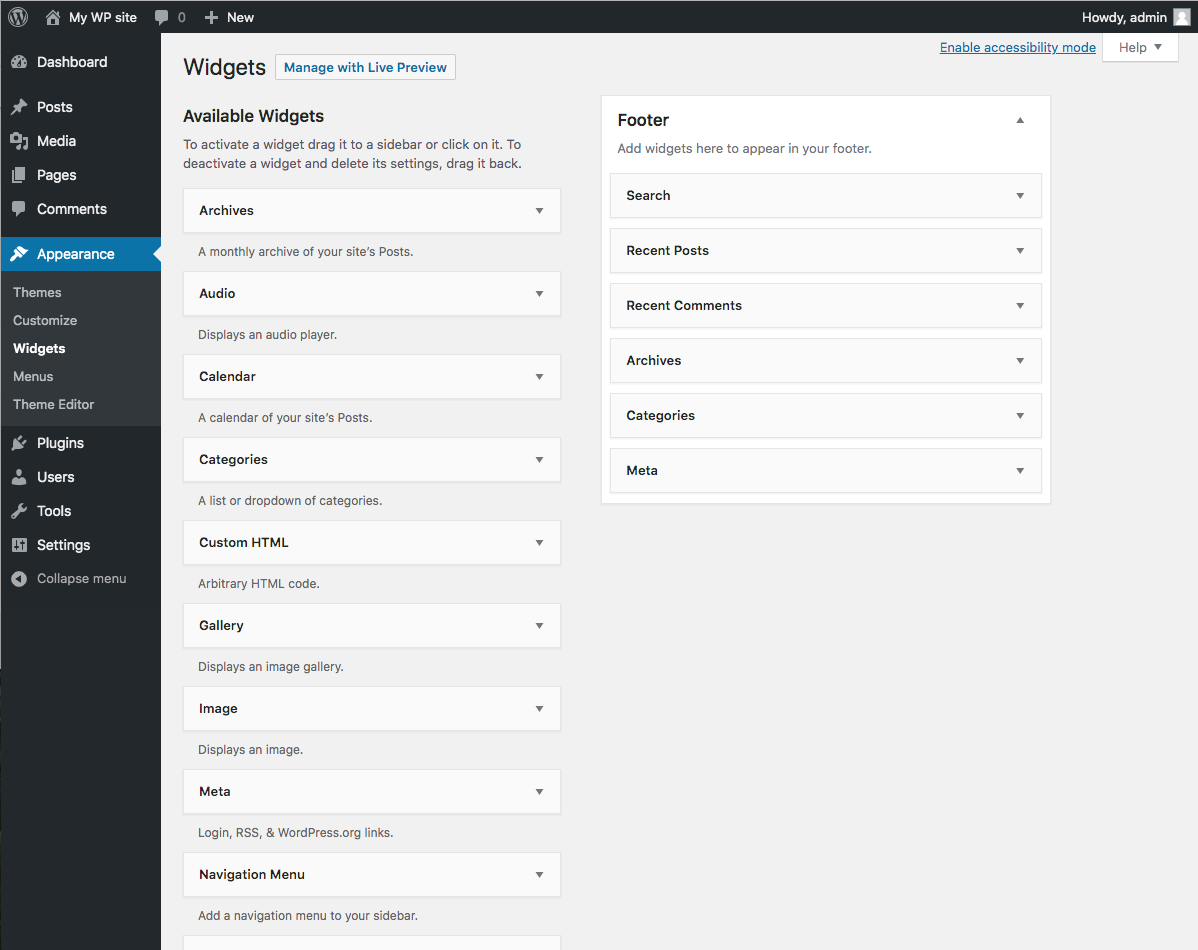
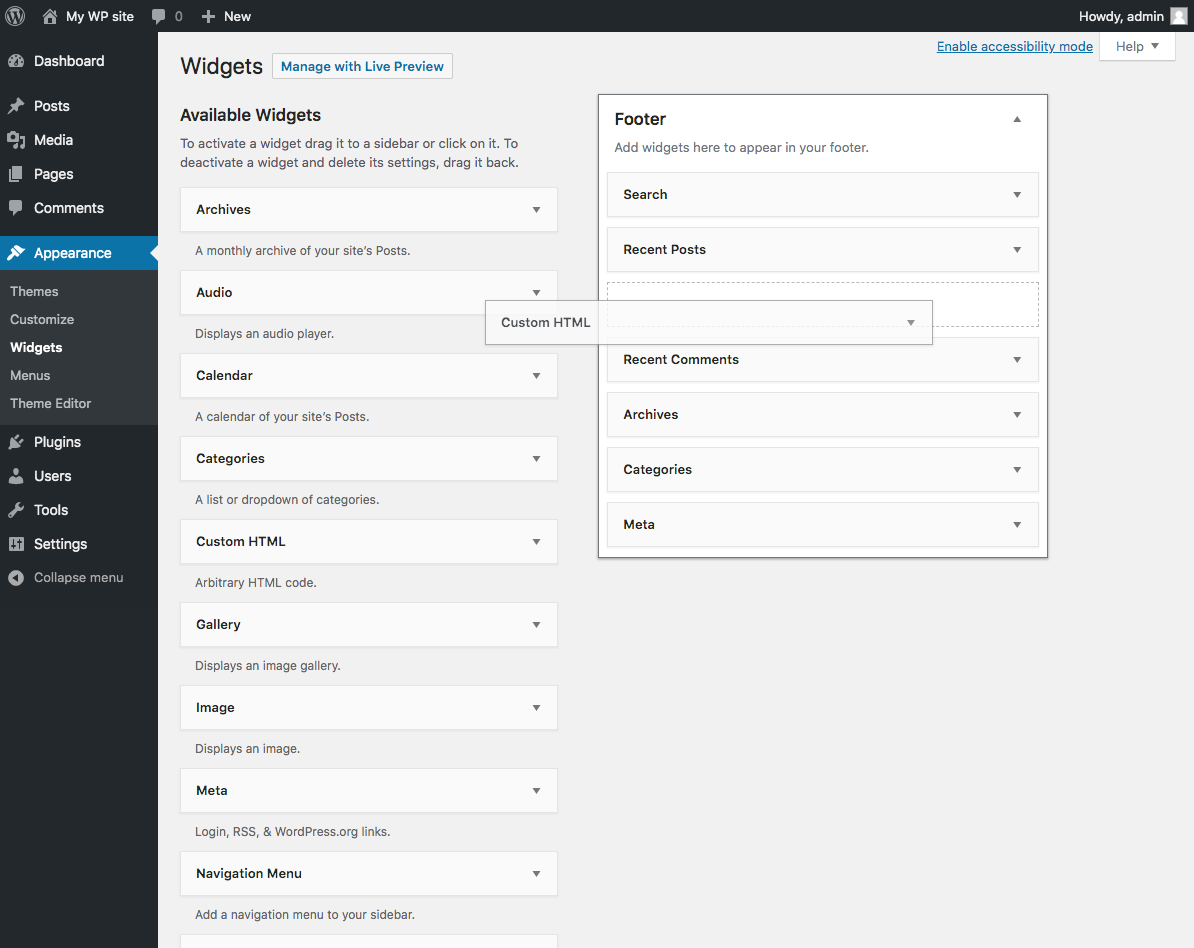
2. From ‘Available Widgets’ section drag the “Custom HTML” widget box and drop it into an active widget area.
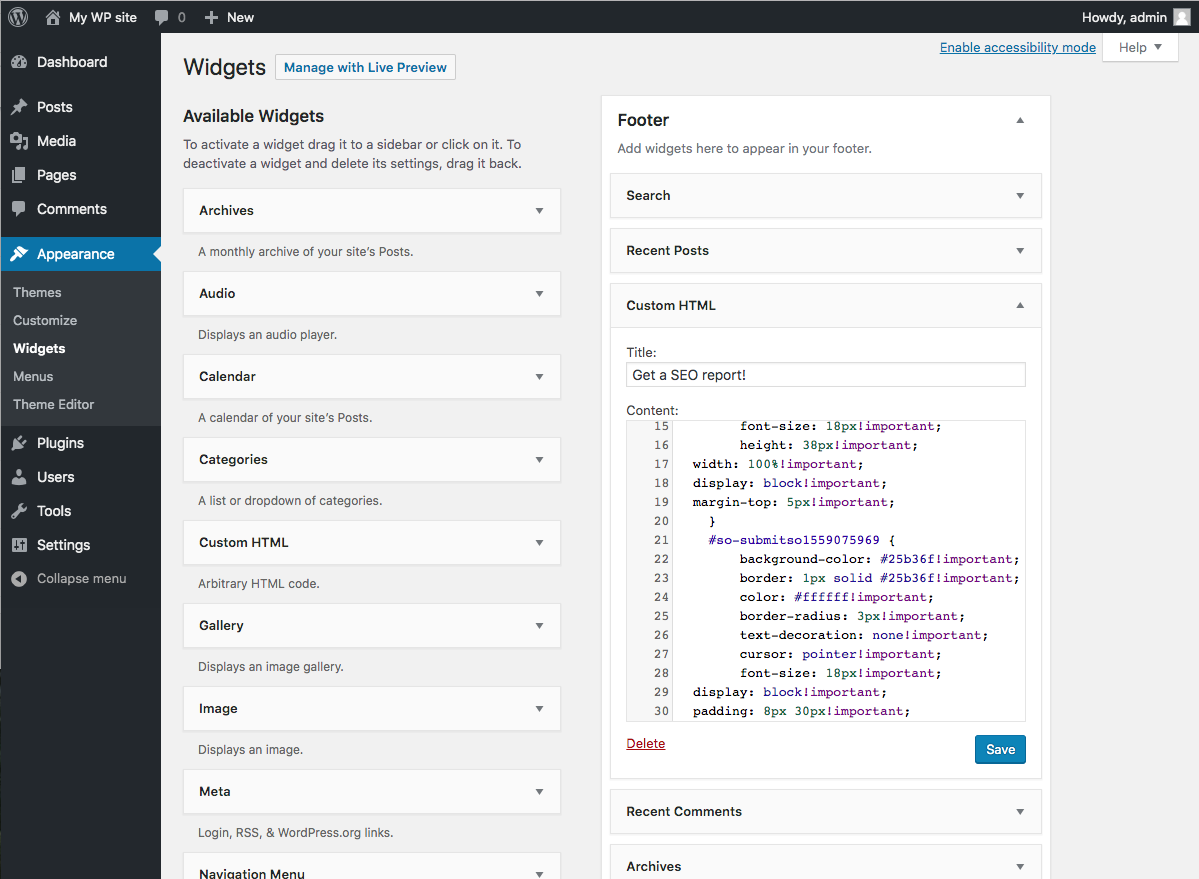
3. Fill in the Title field, paste form code into ‘Content’ text field, and then click ‘Save’ button to apply the changes.
4. After that go to your website and confirm that the form is displayed within the widget on the pages.
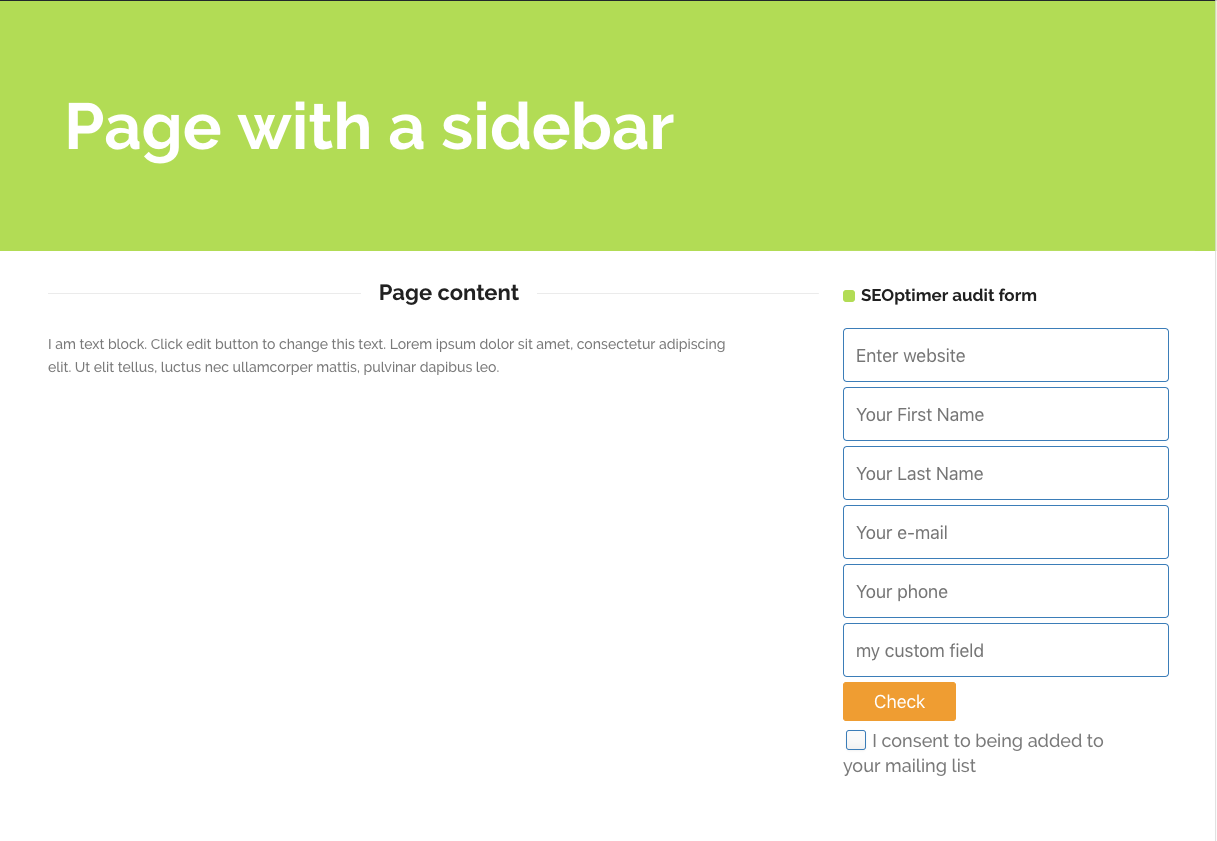
5. As previously, submit a test enquiry via the form you’ve just installed to confirm its proper behaviour.
Potential Issue and Conflicts
If the SEOptimer form is not functioning correctly on your website after performing the steps above, please, try to follow the recommendations below to see if one of the following known possible issues interrupts form’s functionality:
- Check installed third-party WordPress plugins – Some plugins append tracking parameters to any URLs on a website, or otherwise interfere with existing form logic. We recommend to turn plugins on your website one by one to pinpoint a conflicting plugin.
- Check javascript compatibility – The embedding code contains a part of Javascript code to validate the form data. It is possible that other Javascript code could interfere with it. If you are seeing Javascript errors in your Developer Tools console, this could point to a conflict of some kind.
Need Help?
Live Chat: Click Live Chat (bottom right)
Email: [email protected]
Response time: Within 24 hours

.png)
.png)