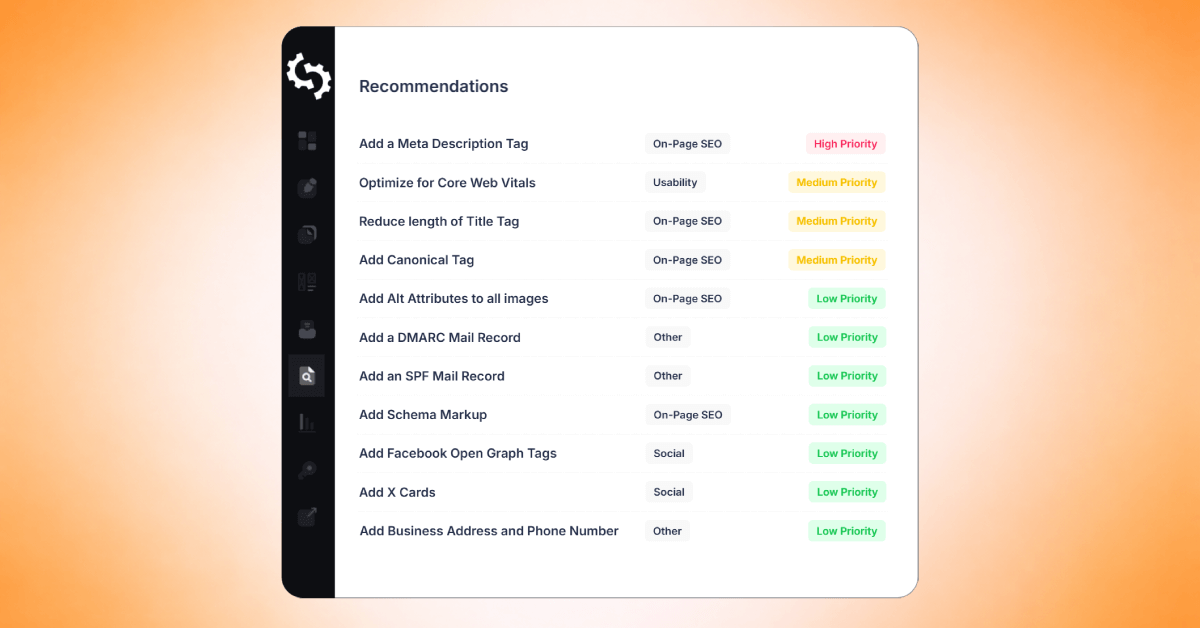



If your website is built as a standard static site, or uses simple files like .html or .php, embedding the SEOptimer Embed Form is usually very straightforward.
This guide covers the most basic installation method for websites where you have direct access to the page’s source code. That includes sites built with plain HTML, PHP, or other simple server-rendered files where the page markup is clearly exposed.
Before You Start
Before generating and embedding your form, make sure that your white label report template is fully set up and your Embed Form settings have been configured. Once these are ready, you can navigate to your Embedding Settings page, scroll down to the bottom of the page and generate your embed code.
Understanding the Embed Code Structure
After generating your embed code, you’ll notice your code is split into three sections:
- CSS
- HTML
- JavaScript
Each section plays a different role:
- CSS controls the appearance of the form
- HTML defines where the form appears on your page
- JavaScript loads and powers the form functionality
You can customize the CSS and HTML sections to match your site and layout however, the JavaScript should be left exactly as provided, as modifying it may break the form.
How to Add the Embed Form to a Plain HTML or PHP Page
Open the file where you want the form to appear. This could be something like:
- index.html
- pricing.html
- contact.php
- audit.php
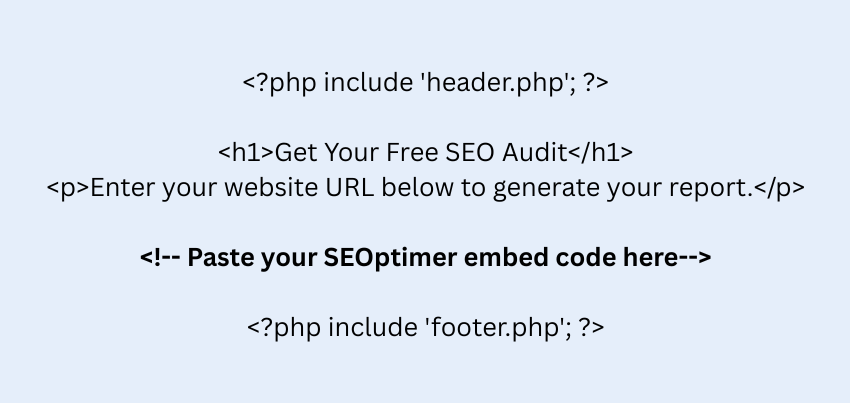
Then paste the SEOptimer embed code into the part of the page where you want the form to display.
Here’s a simple example of what that might look like on a basic HTML page:
.png)
On a PHP page, the process is the same, just paste the embed code into the appropriate place in your file:
Save and Test the Page
After you’ve added your embed code into your page, it’s time to test the form to ensure that it’s working properly. You’ll need to save the file and upload it to your server if needed, open the page in your browser and check whether the form loads correctly.
At this stage you may need to make some tweaks if the form isn’t appearing how you’d like. Most of these changes will need to be made to the CSS portion of the code.
- If the form doesn’t appear at all, you’ll need to check the following:
- If the JavaScript is incomplete or edited
- If you pasted the code into the wrong file or location
- If there are caching issues
- Or if there are conflicts with existing scripts or styles
A Note on Frameworks and Advanced Setups
This guide is designed for simple sites where HTML is directly editable. If your site uses frontend frameworks like React, Vue, or Angular, the process can be different because content is rendered dynamically rather than written directly into static files.
In those cases, embedding the form may require a more technical approach.
Wrapping up
For plain HTML or PHP sites, embedding the SEOptimer form is a quick process , generate your code, paste it into your page, and you’re good to go.
Once installed, you’ll have a fully functional SEO audit form ready to capture leads and deliver branded reports directly from your site.
Need Help?
Live Chat: Click Live Chat (bottom right)
Email: [email protected]
Response time: Within 24 hours


.png)