



In this article we’ll guide you through the process of adding an SEOptimer Embed Form to a website created on the Squarespace.com platform.
This guide assumes that you have registered with Squarespace and chosen a template for your site already.
We also assume that you have set up the look and feel of your SEOptimer White Label Report and configured the Embed Form as per our other guide ‘How To Guide for Installing the Embed Form’.
Steps to Add the Embed Form to Your Squarespace Site
1. Login to your squarespace.com account and find the site you’ve created earlier. Click the site tile to start editing it.
.png)
2. After the site editor has been loaded,click the “Edit” button in the top right corner.
.png)
3.Once the page has loaded you'll see a side bar on the left where you can select which pages you want to edit.
.png)
Click on Pages, and once the options have loaded click on the Page you'd like to edit. You'll see the page you've selected load on the right hand side of the page. Make sure to click the "Edit" button at the top to make the page editable.

4. Next you need to navigate to the section of the page where you'd like to add your embed form. You may need to add a Section if there is no space already available. If you need to add a section click Add Section, alternatively use the Edit Section function to edit an existing section.

If you're adding a section, you'll see a few options pop up on the left hand side of the screen. I've chosen a blank section but you can choose whicever Section type you would prefer.
.png)
5. Once you've got your Section set up, click the Add Block button at the top border of the section you've added. You'll see a box pop up with various elements.
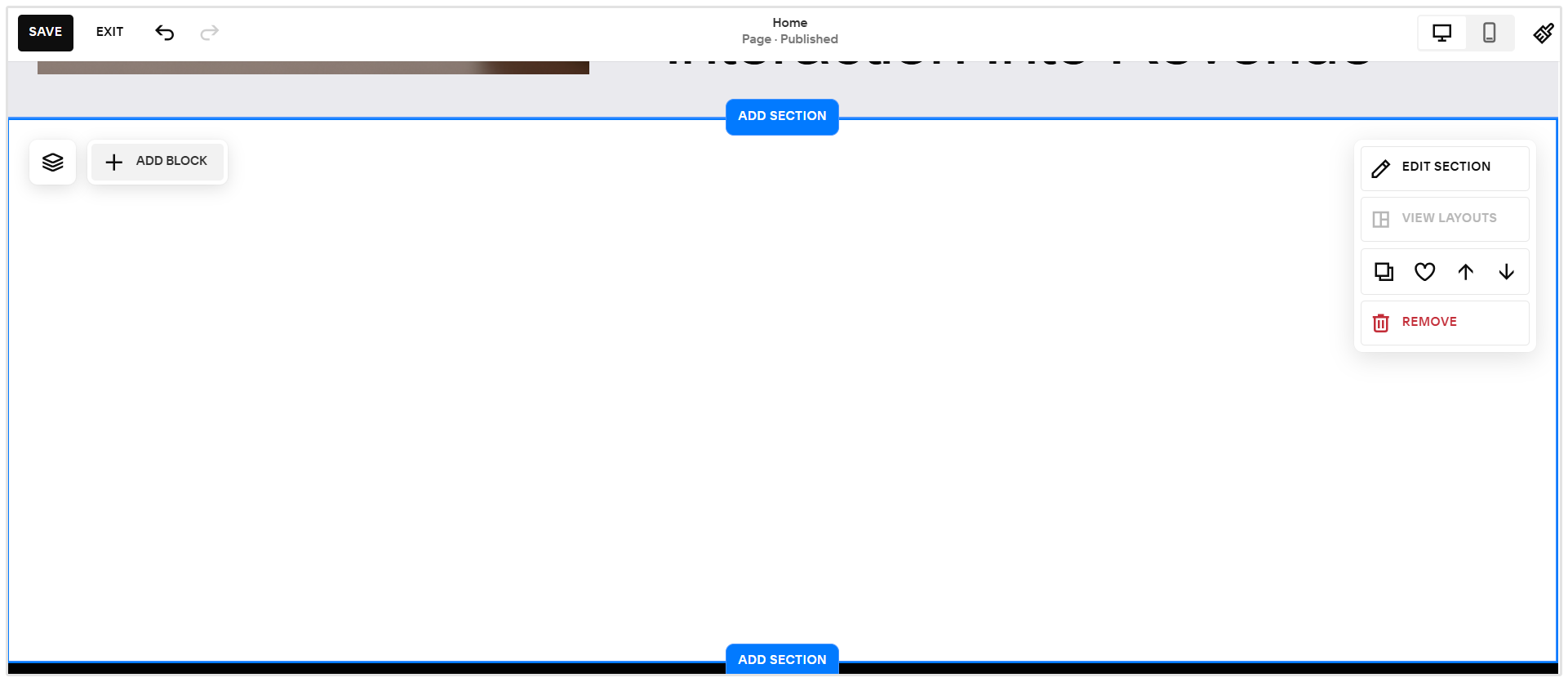
4. Find and click ‘Code’ block in the popup.
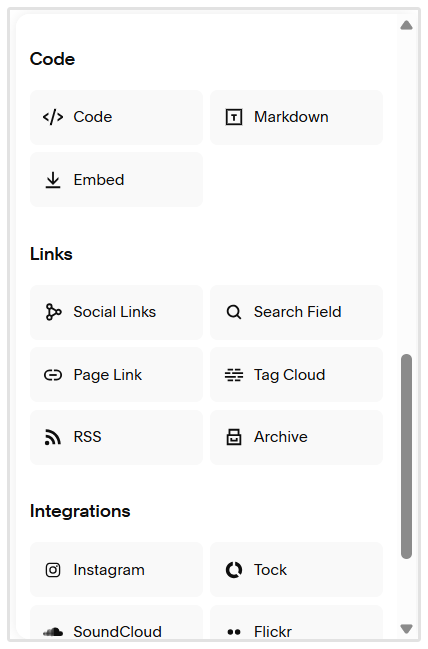
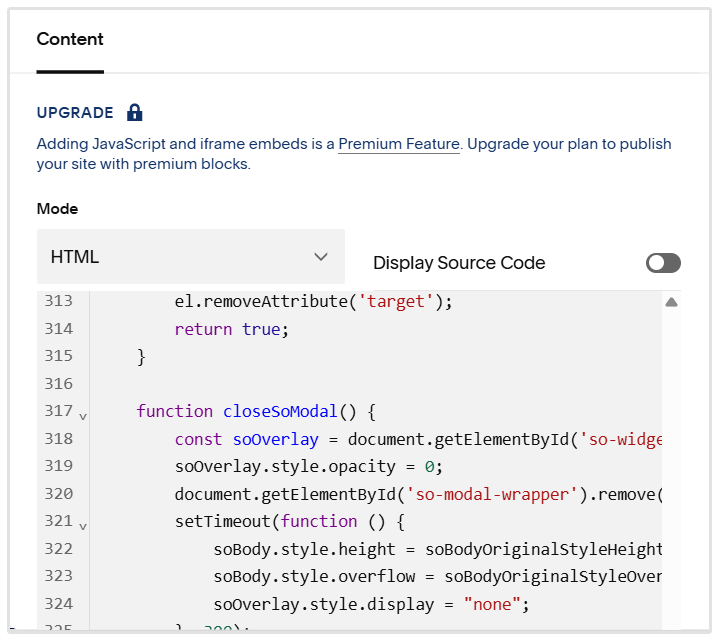
5. Click on the Code block you've added followed by the pencil icon to edit the code block. Paste SEOptimer form code into the Code pop up window.
.png)
6. Click the “SAVE” button in the top left corner of the screen to save the changes.
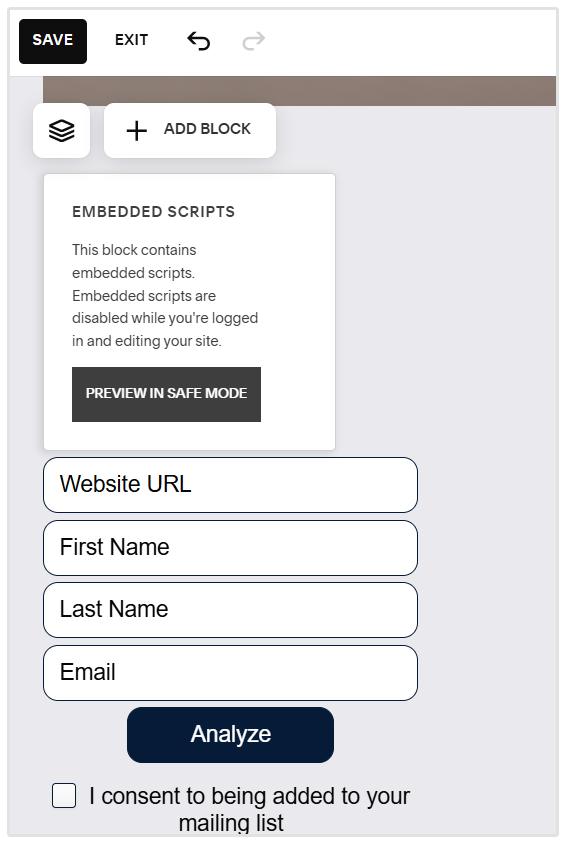
7. That’s it. Navigate to the site and confirm that the form is displayed and functioning properly.
Embed Form Not Working?
If the Embed Form does not appear to be functioning properly, and your debugging has not led to a solution, feel free to reach out to us via the Livechat button available in the bottom right of every SEOptimer page, or email us at support (at) seoptimer.com with a description of your problem, and we can help troubleshoot it with you.
Best of luck!

.png)
.png)